

Apple Store က ဒီ app ကိုေဒါင္းလိုက္ပါ
ၿပီးရင္ ဖြင့္ၿပီးေတာ့ Facebook Login ဝင္လိုက္ပါ

မိမိ Facebook မွာရွိေနသမွ် Video ေတြအကုန္ေပၚလာပါလိမ့္မယ္
ေပၚလာၿပီဆိုရင္ ေဒါင္းခ်င္တဲ့ Video ရဲ႕ေဘးမွာ Download Button
အျပာေရာင္ေလးရွိပါတယ္ ႏွိပ္ၿပီးေတာ့ ေဒါင္းလိုက္ပါ။
ၿပီးသြားရင္ေတာ့ Downloads ဆိုတဲ့ေနရာကို ဝင္လိုက္ပါ ေစာေစာေဒါင္းခဲ့တဲ့ Video ကိုေတြ႔ရမွာျဖစ္ပါတယ္..

App Store ေဒါင္းဖို႔အဆင္မေျပသူမ်ား ေအာက္ကလင့္ကေနယူႏိုင္ပါတယ္
- Version: 1.0
- Size: 4.8 MB
Labels: iOS-II


 |
| ပလပ္စတစ္ ကေလာ္တံ ပါးပါး တစ္ေခ်ာင္း ၀ယ္ထားပါ...... |
Step 1 — Front Panel Assembly
-
Before disassembling your iPhone, be sure it is powered off.
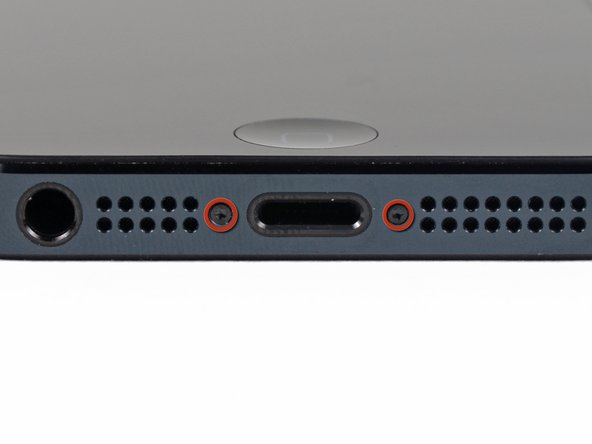
- Remove the two 3.6 mm Pen-ta lobe screws next to the Lightning connector.
Step 2
-
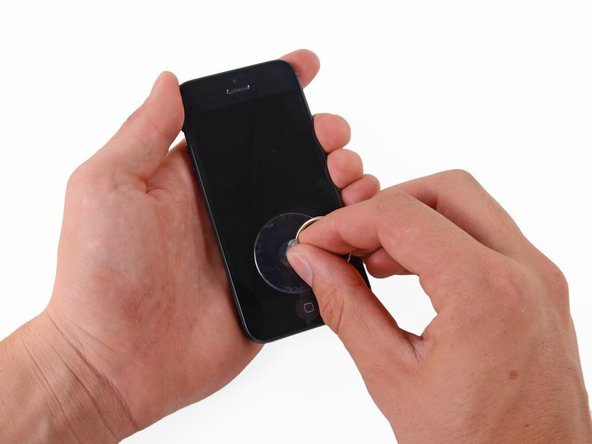
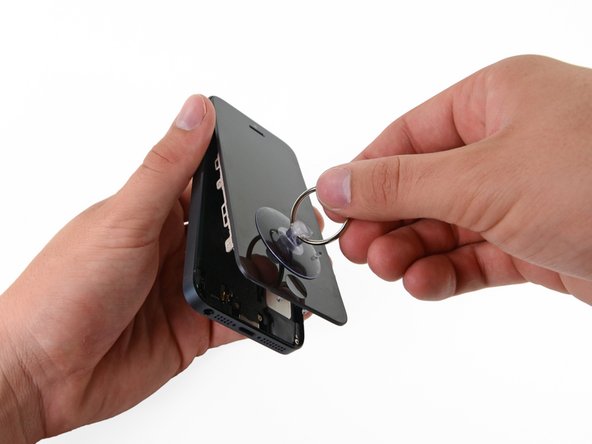
Press a suction cup onto the screen, just above the home button.
- Be sure the cup is completely on the screen to get a tight seal.
Step 3
-
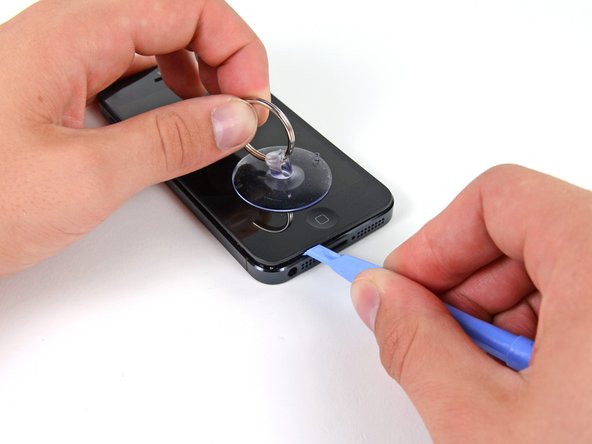
Make sure the suction cup is firmly attached to the front panel assembly.
-
While holding the iPhone down with one hand, pull up on
the suction cup to slightly separate the front panel assembly from the
rear case.
-
Take your time and apply firm, constant force. The display assembly is a much tighter fit than most devices.
-
With a plastic opening tool, begin to gently pry the rear
case down, away from the display assembly, while you pull up with the
suction cup.
- There are several clips attaching the front panel assembly to the rear case, so you may need to use a combination of the suction cup and plastic opening tool to free the front panel assembly.
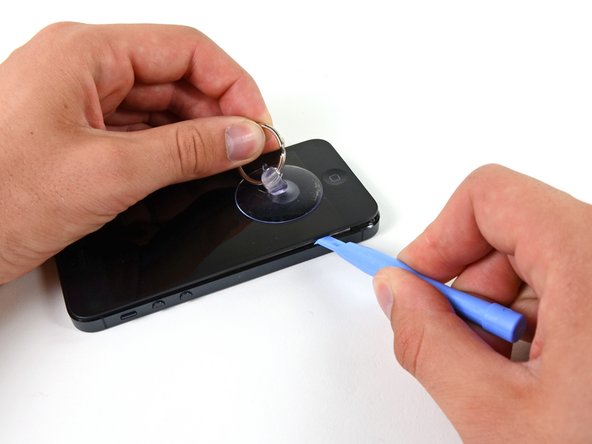
ထိပ္ပိုင္း ကစျပီး ကေလာပါ.....
Step 4
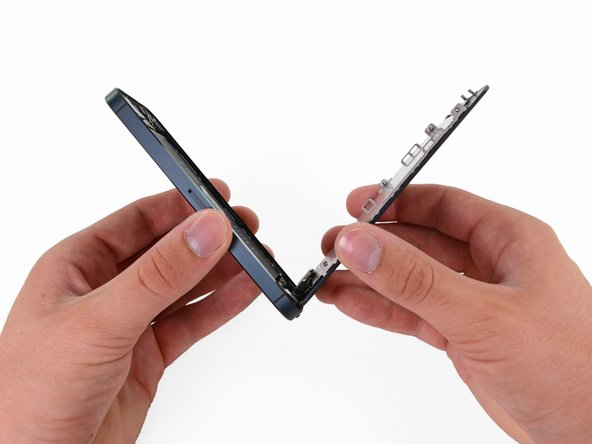
- Continue to pry up around the sides of the front panel assembly, detaching the clips along the left and right side.


Step 5
-
Once the clips have been released on the bottom and sides
of the front panel assembly, pull the bottom of the assembly away from
the rear case.
-
Do not try to completely remove the front panel assembly
from the rear case, as there are several ribbon cables still attached at
the top of the iPhone.
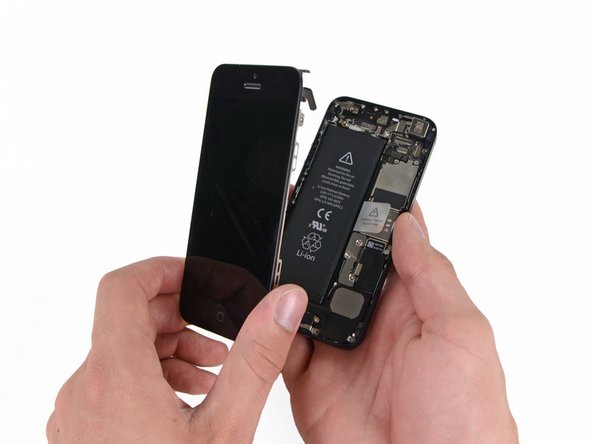
- Lift and rotate the front panel assembly up to about 90 degrees from the rear case.
Step 6
-
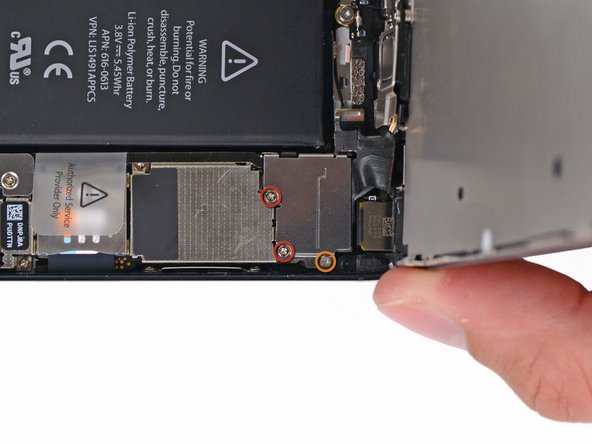
Remove the following screws securing the front panel assembly cable bracket to the logic board:
-
Two 1.2 mm Phillips screws
- One 1.6 mm Phillips screw
အေပၚပံု မွာျပထားတဲံ့ Phillips screw ႏွစ္မ်ိဳး သံုးေခ်ာင္းကို ဖယ္ပါ....
-
Two 1.2 mm Phillips screws




Step 8
-
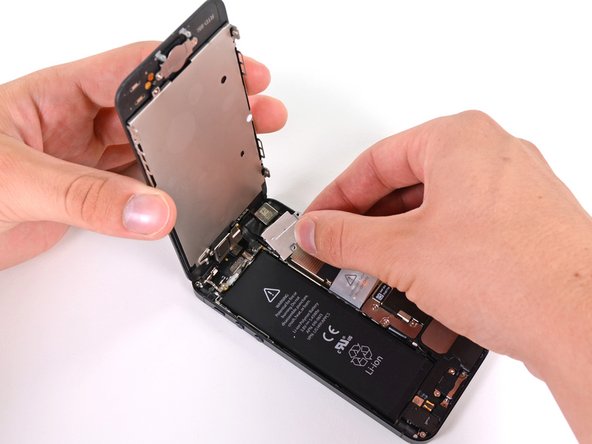
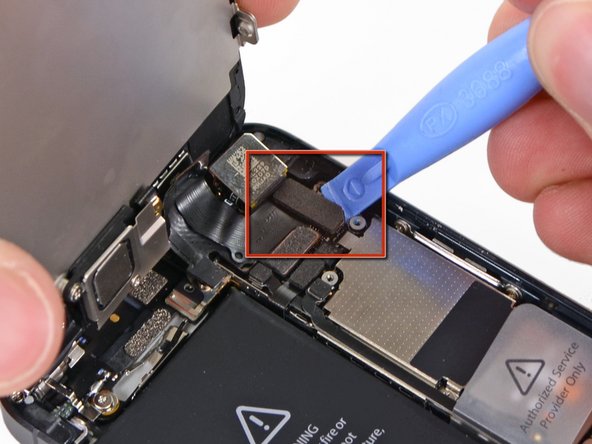
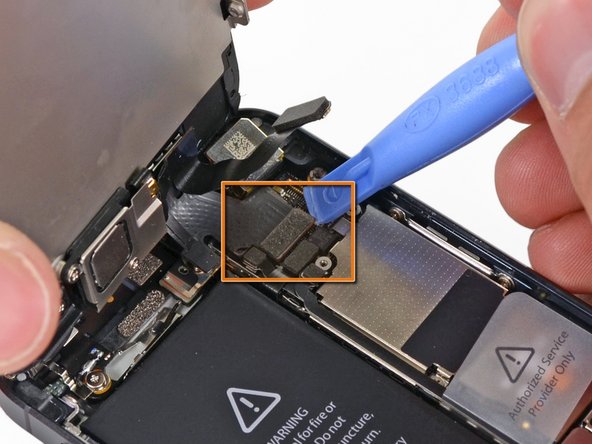
Use a plastic opening tool to disconnect the three front panel assembly cables:
-
Front-facing camera and sensor cable
-
Digitizer cable
-
LCD cable
- When reassembling your phone, The LCD cable may pop off the connector. This can cause white lines, or nothing at all to appear when powering your phone back on. If that happens, simply reconnect the cable and power cycle your phone.
Front-facing camera and sensor cable အနီေရာင္
Digitizer cable လိေမၼာ
LCD cable အ၀ါ ၾကိဳး သံုးၾကိဳး ကို ကေလာထုတ္ပါ.....
-
Front-facing camera and sensor cable

Step 10 — Battery
-
Remove the following two screws securing the metal battery connector bracket to the logic board:
-
One 1.8 mm Phillips screw
- One 1.6 mm Phillips screw
-
One 1.8 mm Phillips screw


Step 12
-
Use a plastic opening tool to gently pry the battery connector up from its socket on the logic board.
- Be very careful to only pry up on the battery connector and not the socket on the logic board. If you pry up on the logic board socket, you may break the connector entirely.


Step 13
-
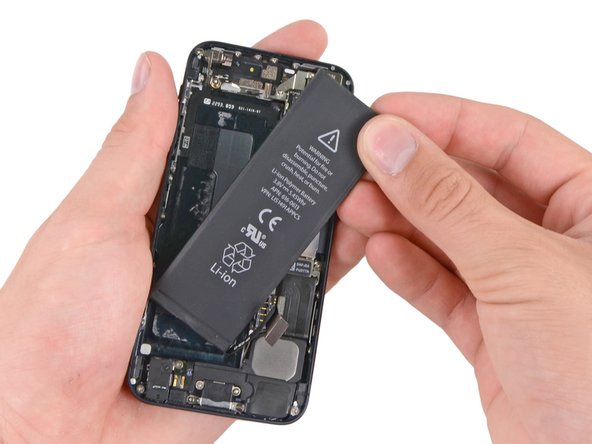
Insert the edge of a plastic opening tool between the battery and the rear case near the bottom the iPhone.
-
Run the plastic opening tool along the right edge of the
battery and pry up at several points to completely separate it from the
adhesive securing it to the rear case.
- Do not pry up too hard, as this may permanently deform or puncture the battery.
battery ပတ္ခ်ာလည္ကို ကေလာမ ျပီး battery ကို ေျဖးေျဖးေျမာက္ပါ...
Labels: iOS-II
iPhone 3G,3Gs ကို Battery ၿဖဳတ္ နည္း
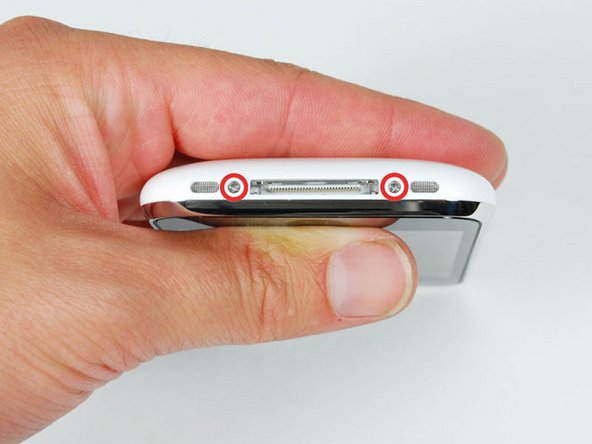
1.....စကူႏွစ္လံုးျဖဳတ္ပါ
Step 1 — Battery
- Remove the two 3.7mm Phillips #00 screws from the dock-connector end of the iPhone.
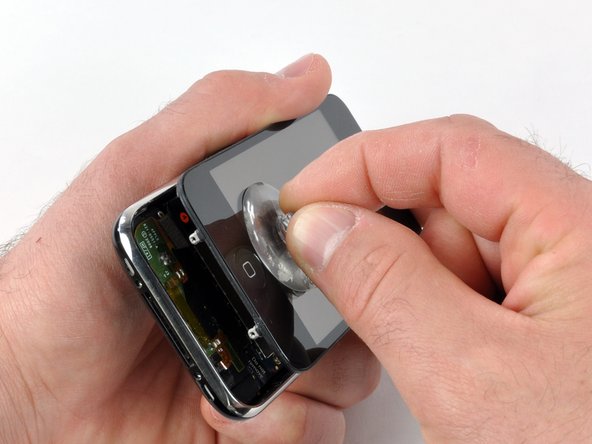
2.....မွန္ကပ္ တဲ႔ စုပ္ ခြက္ ေတြ စတိုးဆိုင္ မွာ ၀ယ္လို႕ ရပါတယ္ ။မွန္ကပ္ နဲ႔ ေအာက္ေၿခ ခလုပ္နား ကိုကပ္ၿပီး မပါ ။အေပၚ က ၾကိဳးၿပား ေတြ ရွိပါတယ္ ။အေပၚ နားကို လက္နဲ႔ ေသခ်ာ ထိန္းကိုင္ပါ ။
Step 2
-
Remove the metal handle from the suction cup. It's easier and safer to grip the suction cup's base instead of the metal handle.
-
Be very careful when opening the iPhone so that the cables under the display are not severed.
-
There is a rubber gasket between the silver front bezel
and black display assembly. A bit of force is required in this step to
separate the iPhone's display assembly. It may help to rock the suction
cup back and forth to remove the display assembly.
-
Use a small suction cup near the Home button to gently pull up the bottom portion of the iPhone's display assembly.
- If the display assembly is too damaged to allow the suction cup to adhere, tape with a strong adhesive such as duct tape or packing tape may be used.
Step 3
-
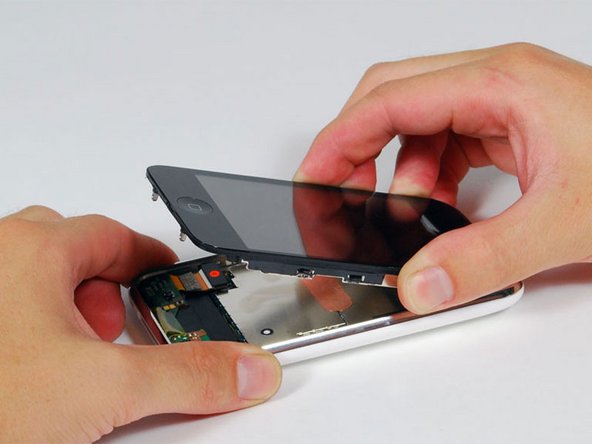
The display assembly is still connected to the iPhone by several cables, so don't try to remove it entirely just yet.
- Rotate the display assembly up until it is at an angle of approximately 45 degrees.
Step 4
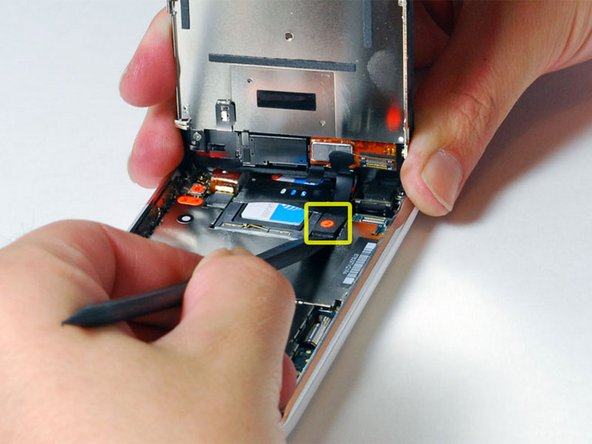
-
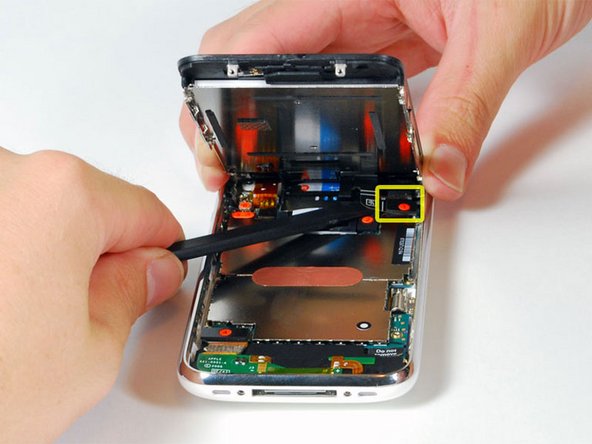
Continue to hold the display assembly with one hand, and
use your other hand and a spudger to disconnect the black ribbon cable
labeled "1". (Cable 1 is for the display)
-
Be careful to insert the spudger from the left, as shown
in the picture (UNDER THE RIBBON). If you try to pry up the ribbon from
the right, you could damage the ribbon connector and need to replace
the display!
-
Be careful to insert the spudger from the left, as shown
in the picture (UNDER THE RIBBON). If you try to pry up the ribbon from
the right, you could damage the ribbon connector and need to replace
the display!
- All connectors except the ribbon connector mentioned in step 6 release upwards.
ဇာကနာ ၿဖင္႔ အသာေလး ၾကိဳး ေတြ ကို ၿဖဳတ္ လိုက္ပါ ။
Step 5
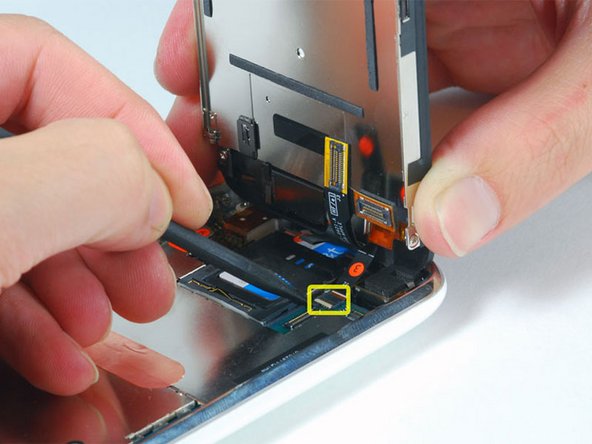
-
Rotate the display assembly up until it is roughly
vertical. This will allow easier access for disconnecting the remaining
cables.
- Use a spudger to disconnect the black ribbon cable labeled "2". (Cable 2 is for the capacitative touch panel)
ၿပထားတဲ႔ ေနရာ ေလး ကို အသာေလး လွန္ ၿပီး အသာ ေလး ၾကိဳး ေလးကို ဆြဲ လိုက္ပါ .
Step 6
-
Please note: You may find on some non-American (Chinese,
European) versions of the 3G that the flip up plastic tab does not
exist. In this case you would slide the ribbon cable towards the screen
until it is removed. When you assemble it, you would apply pressure to
the ribbon to insert it back into the ribbon "socket."
-
Some iPhones may have the connector colors reversed
(black plastic tab, white connector) for connector "3". Make sure you're
flipping up the tab properly, otherwise you may damage the connector.
-
Use a spudger to flip up the white plastic tab holding
the ribbon cable "3" in place. The white tab will rotate up 90 degrees,
releasing the ribbon cable.
- Slide the black ribbon cable out of its connector, and remove the display assembly from the iPhone.
Step 7
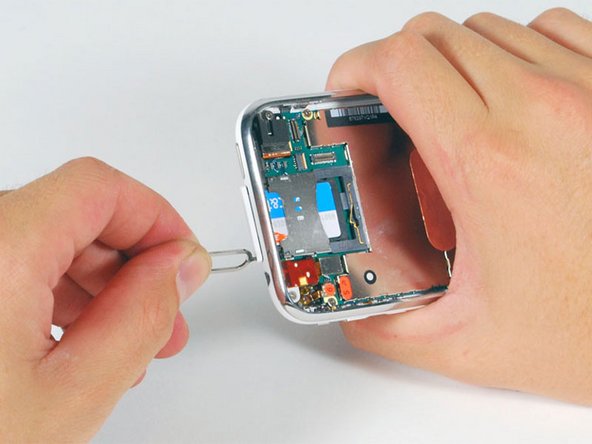
-
Insert your SIM eject tool or a paper clip into the hole next to the headphone jack.
-
Press down on the tool until the SIM card tray pops out.
- Grasp the SIM card tray and slide it out of the iPhone.

Step 8
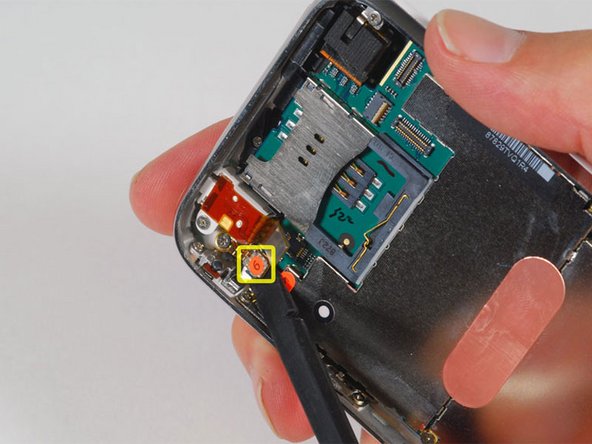
- Use a spudger to disconnect the ribbon cable labeled "4."

Step 9
- Use a spudger to disconnect the ribbon cable labeled "5."
Step 10
-
Use a spudger to disconnect the ribbon cable labeled "6."
- If you have an iPhone 3GS, refer to the second picture and use a spudger to disconnect the ribbon cable labeled "7."

Step 11
- Carefully peel up the small sticker labeled "Do not remove."
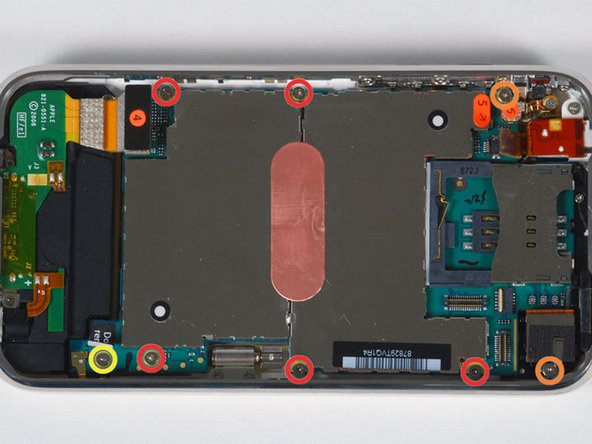
ၿပထား တဲ႔ နက္ေတြ 8လံုး ( အနီ လိေမၼာ အ၀ါ )ၿဖဳတ္
Step 12
-
Remove the following 8 screws:
-
Five 2.3 mm Phillips #00 screws with partial threads securing the logic board to the rear case.
-
Two 2.3 mm Phillips #00 screws with full threads securing the logic board and camera.
-
One 2.9 mm Phillips #00 screw from beneath the "Do not remove" sticker.
-
Five 2.3 mm Phillips #00 screws with partial threads securing the logic board to the rear case.
-
Note for re-assembly:
-
The screw that goes next to the camera (bottom right
orange highlighted screw) also has a metal strip that holds the camera
in place.
- Remember to put this strip back in place before you insert the 2.3 mm Phillips #00 screws with full thread next to the camera
-
The screw that goes next to the camera (bottom right
orange highlighted screw) also has a metal strip that holds the camera
in place.
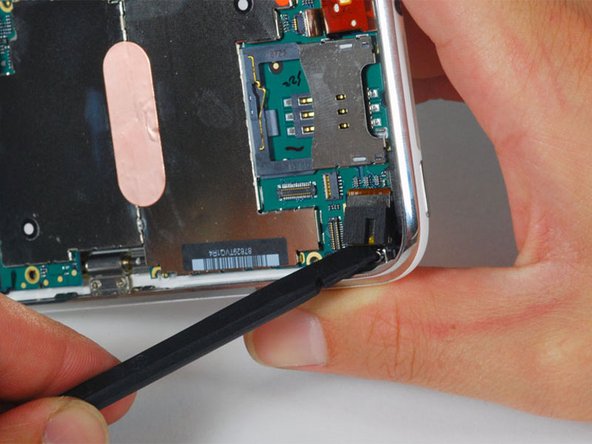
Step 13
-
Use a spudger to gently pry the camera up and out of its housing in the rear case.
- The camera cannot be removed entirely yet because it's connected to the bottom of the logic board.
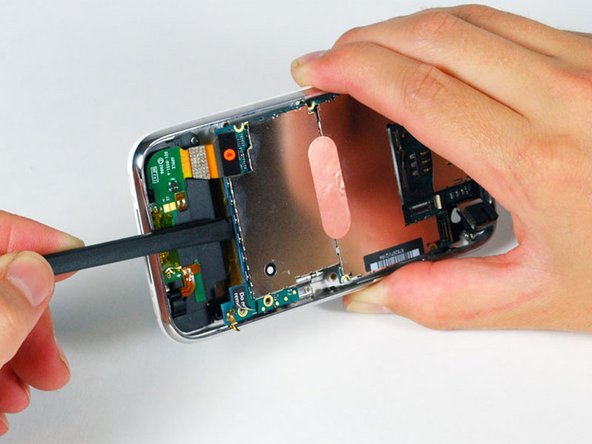
Step 14
-
Use a spudger to gently pry up the end of the logic board closest to the dock connector.
-
There is a small golden grounding tab on logic board
adjacent to the 'do not remove sticker'. Be VERY careful this does not
snag on the side of the case when prying up the logic board; it breaks
easily. If you have signal problems after removing the logic board,
check this ground tab.
- If the board won't lift up, double check to make sure all the screws securing the logic board have been removed.
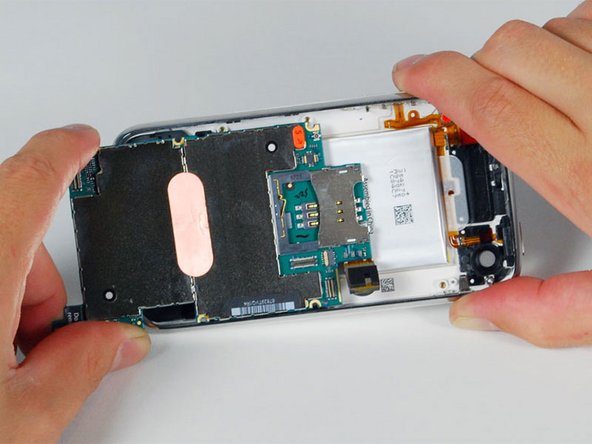
Step 15
-
Slide the logic board towards the dock connector and out of the iPhone.
- When replacing the logic board after installing battery, connect the camera to the logic board before inserting it into the case. Then make sure to set the top section of the logic board (where the SIM tray is) in place before settling the rest of the board in place. This is important, as sometimes the SIM card slot will not align into place. Once the top section is in place, the bottom section can be maneuvered into place. You will know the logic board is correctly installed when the SIM tray is aligned with the opening in the iPhone case and the camera module seats neatly into its place.
Step 16
-
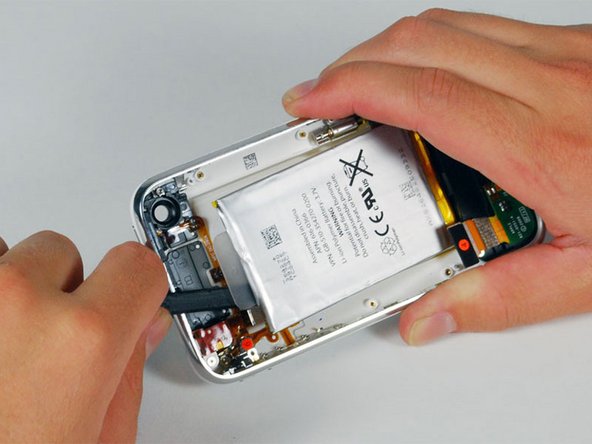
Use a spudger to pry the battery up from the rear case.
The battery is attached with an adhesive strip around the perimeter of
the battery. To prevent the battery from bending during the removal
process, we recommend against using just the plastic pull-tab .
*Note: Removing the battery is NOT necessary for replacing the GPS
antenna. It merely gives you more space for removing the headphone
assembly (which is also unnecessary to completely remove).
-
The iPhone's battery is attached to the rear case with a
mild adhesive. This adhesive usually comes out attached to the battery.
If your replacement battery already includes an adhesive backing, you're
all set. If your replacement battery doesn't have an adhesive backing,
you'll want to transfer the adhesive from your old battery to the new
one.
-
You can use a hair dryer or heat gun on its lowest
setting to heat the back of the case. This will help loosen the adhesive
bond before using the spudger to separate the battery from the case
back.
ဆက္ျပီး အစအဆံုးျဖဳတ္နည္းတင္ျပပါမယ္.... Battery လဲျပီးရင္ အစဥ္လိုက္ျပန္တတ္ပါ
Labels: iOS-II
KKZ Myanmar Unicode Keyboard


MoneTineKeyboard

Like လုပ်ထားနိုင်ပါတယ်

Labels
ဧည့်သည်တော်များခင်ဗျာ
- အခုဖတ်မည့် Post သည် လိင်မှု ပိုင်းဆိုင် ရာများ ကိုရေးသားထားခြင်းဖြစ်ပါသည်......
- သို့သော်ကျွန်တော်တို့ ရေးသား တင်ပြထားရခြင်းသည် ကျန်းမာရေး အတွက် သိထားနားလည် ထားသင့်သည် ဟုယူဆသော်ကြောင့်ဖြစ်ပါသည်.......
- ကျွန်တော်တို့၏ ဆောင်ပုဒ်သည်"ဘယ်အရာမဆို အားလုံးကို လုံးဝမတတ်ရင်နေ သိထား နားလည် ထားနိုင်ရင် ပိုကောင်းတယ်.." ဟု ဖြစ်ပါသည်..
►သို့ပါသော်ကြောင့် ကျန်းမာရေး ရှုဒေါင့်မှသာ ဖတ်ပေးပါရန် မေတ္တာ ရပ်ခံ
အပ်ပါသည်◄

ဧည့်သည်တော်များခင်ဗျာ
- အခုဖတ်မည့် Post သည် လိင်မှု ပိုင်းဆိုင် ရာများ ကိုရေးသားထားခြင်းဖြစ်ပါသည်......
- သို့သော်ကျွန်တော်တို့ ရေးသား တင်ပြထားရခြင်းသည် ကျန်းမာရေး အတွက် သိထားနားလည် ထားသင့်သည် ဟုယူဆသော်ကြောင့်ဖြစ်ပါသည်.......
- ကျွန်တော်တို့၏ ဆောင်ပုဒ်သည်"ဘယ်အရာမဆို အားလုံးကို လုံးဝမတတ်ရင်နေ သိထား နားလည် ထားနိုင်ရင် ပိုကောင်းတယ်.." ဟု ဖြစ်ပါသည်..
►သို့ပါသော်ကြောင့် ကျန်းမာရေး ရှုဒေါင့်မှသာ ဖတ်ပေးပါရန် မေတ္တာ ရပ်ခံ
အပ်ပါသည်◄
ဧည့်သည်တော်များခင်ဗျာ
- အခုဖတ်မည့် Post သည် လိင်မှု ပိုင်းဆိုင် ရာများ ကိုရေးသားထားခြင်းဖြစ်ပါသည်......
- သို့သော်ကျွန်တော်တို့ ရေးသား တင်ပြထားရခြင်းသည် ကျန်းမာရေး အတွက် သိထားနားလည် ထားသင့်သည် ဟုယူဆသော်ကြောင့်ဖြစ်ပါသည်.......
- ကျွန်တော်တို့၏ ဆောင်ပုဒ်သည်"ဘယ်အရာမဆို အားလုံးကို လုံးဝမတတ်ရင်နေ သိထား နားလည် ထားနိုင်ရင် ပိုကောင်းတယ်.." ဟု ဖြစ်ပါသည်..
►သို့ပါသော်ကြောင့် ကျန်းမာရေး ရှုဒေါင့်မှသာ ဖတ်ပေးပါရန် မေတ္တာ ရပ်ခံ
အပ်ပါသည်◄
ဧည့်သည်တော်များခင်ဗျာ
- အခုဖတ်မည့် Post သည် လိင်မှု ပိုင်းဆိုင် ရာများ ကိုရေးသားထားခြင်းဖြစ်ပါသည်......
- သို့သော်ကျွန်တော်တို့ ရေးသား တင်ပြထားရခြင်းသည် ကျန်းမာရေး အတွက် သိထားနားလည် ထားသင့်သည် ဟုယူဆသော်ကြောင့်ဖြစ်ပါသည်.......
- ကျွန်တော်တို့၏ ဆောင်ပုဒ်သည်"ဘယ်အရာမဆို အားလုံးကို လုံးဝမတတ်ရင်နေ သိထား နားလည် ထားနိုင်ရင် ပိုကောင်းတယ်.." ဟု ဖြစ်ပါသည်..
►သို့ပါသော်ကြောင့် ကျန်းမာရေး ရှုဒေါင့်မှသာ ဖတ်ပေးပါရန် မေတ္တာ ရပ်ခံ
အပ်ပါသည်◄
ဧည့်သည်တော်များခင်ဗျာ
- အခုဖတ်မည့် Post သည် လိင်မှု ပိုင်းဆိုင် ရာများ ကိုရေးသားထားခြင်းဖြစ်ပါသည်......
- သို့သော်ကျွန်တော်တို့ ရေးသား တင်ပြထားရခြင်းသည် ကျန်းမာရေး အတွက် သိထားနားလည် ထားသင့်သည် ဟုယူဆသော်ကြောင့်ဖြစ်ပါသည်.......
- ကျွန်တော်တို့၏ ဆောင်ပုဒ်သည်"ဘယ်အရာမဆို အားလုံးကို လုံးဝမတတ်ရင်နေ သိထား နားလည် ထားနိုင်ရင် ပိုကောင်းတယ်.." ဟု ဖြစ်ပါသည်..
►သို့ပါသော်ကြောင့် ကျန်းမာရေး ရှုဒေါင့်မှသာ ဖတ်ပေးပါရန် မေတ္တာ ရပ်ခံ
အပ်ပါသည်◄
ဧည့်သည်တော်များခင်ဗျာ
- အခုဖတ်မည့် Post သည် လိင်မှု ပိုင်းဆိုင် ရာများ ကိုရေးသားထားခြင်းဖြစ်ပါသည်......
- သို့သော်ကျွန်တော်တို့ ရေးသား တင်ပြထားရခြင်းသည် ကျန်းမာရေး အတွက် သိထားနားလည် ထားသင့်သည် ဟုယူဆသော်ကြောင့်ဖြစ်ပါသည်.......
- ကျွန်တော်တို့၏ ဆောင်ပုဒ်သည်"ဘယ်အရာမဆို အားလုံးကို လုံးဝမတတ်ရင်နေ သိထား နားလည် ထားနိုင်ရင် ပိုကောင်းတယ်.." ဟု ဖြစ်ပါသည်..
►သို့ပါသော်ကြောင့် ကျန်းမာရေး ရှုဒေါင့်မှသာ ဖတ်ပေးပါရန် မေတ္တာ ရပ်ခံ
အပ်ပါသည်◄
ဧည့်သည်တော်များခင်ဗျာ
- အခုဖတ်မည့် Post သည် လိင်မှု ပိုင်းဆိုင် ရာများ ကိုရေးသားထားခြင်းဖြစ်ပါသည်......
- သို့သော်ကျွန်တော်တို့ ရေးသား တင်ပြထားရခြင်းသည် ကျန်းမာရေး အတွက် သိထားနားလည် ထားသင့်သည် ဟုယူဆသော်ကြောင့်ဖြစ်ပါသည်.......
- ကျွန်တော်တို့၏ ဆောင်ပုဒ်သည်"ဘယ်အရာမဆို အားလုံးကို လုံးဝမတတ်ရင်နေ သိထား နားလည် ထားနိုင်ရင် ပိုကောင်းတယ်.." ဟု ဖြစ်ပါသည်..
►သို့ပါသော်ကြောင့် ကျန်းမာရေး ရှုဒေါင့်မှသာ ဖတ်ပေးပါရန် မေတ္တာ ရပ်ခံ
အပ်ပါသည်◄
ဧည့်သည်တော်များခင်ဗျာ
- အခုဖတ်မည့် Post သည် လိင်မှု ပိုင်းဆိုင် ရာများ ကိုရေးသားထားခြင်းဖြစ်ပါသည်......
- သို့သော်ကျွန်တော်တို့ ရေးသား တင်ပြထားရခြင်းသည် ကျန်းမာရေး အတွက် သိထားနားလည် ထားသင့်သည် ဟုယူဆသော်ကြောင့်ဖြစ်ပါသည်.......
- ကျွန်တော်တို့၏ ဆောင်ပုဒ်သည်"ဘယ်အရာမဆို အားလုံးကို လုံးဝမတတ်ရင်နေ သိထား နားလည် ထားနိုင်ရင် ပိုကောင်းတယ်.." ဟု ဖြစ်ပါသည်..
►သို့ပါသော်ကြောင့် ကျန်းမာရေး ရှုဒေါင့်မှသာ ဖတ်ပေးပါရန် မေတ္တာ ရပ်ခံ
အပ်ပါသည်◄
ဧည့်သည်တော်များခင်ဗျာ
- အခုဖတ်မည့် Post သည် လိင်မှု ပိုင်းဆိုင် ရာများ ကိုရေးသားထားခြင်းဖြစ်ပါသည်......
- သို့သော်ကျွန်တော်တို့ ရေးသား တင်ပြထားရခြင်းသည် ကျန်းမာရေး အတွက် သိထားနားလည် ထားသင့်သည် ဟုယူဆသော်ကြောင့်ဖြစ်ပါသည်.......
- ကျွန်တော်တို့၏ ဆောင်ပုဒ်သည်"ဘယ်အရာမဆို အားလုံးကို လုံးဝမတတ်ရင်နေ သိထား နားလည် ထားနိုင်ရင် ပိုကောင်းတယ်.." ဟု ဖြစ်ပါသည်..
►သို့ပါသော်ကြောင့် ကျန်းမာရေး ရှုဒေါင့်မှသာ ဖတ်ပေးပါရန် မေတ္တာ ရပ်ခံ
အပ်ပါသည်◄
ဧည့်သည်တော်များခင်ဗျာ
- အခုဖတ်မည့် Post သည် လိင်မှု ပိုင်းဆိုင် ရာများ ကိုရေးသားထားခြင်းဖြစ်ပါသည်......
- သို့သော်ကျွန်တော်တို့ ရေးသား တင်ပြထားရခြင်းသည် ကျန်းမာရေး အတွက် သိထားနားလည် ထားသင့်သည် ဟုယူဆသော်ကြောင့်ဖြစ်ပါသည်.......
- ကျွန်တော်တို့၏ ဆောင်ပုဒ်သည်"ဘယ်အရာမဆို အားလုံးကို လုံးဝမတတ်ရင်နေ သိထား နားလည် ထားနိုင်ရင် ပိုကောင်းတယ်.." ဟု ဖြစ်ပါသည်..
►သို့ပါသော်ကြောင့် ကျန်းမာရေး ရှုဒေါင့်မှသာ ဖတ်ပေးပါရန် မေတ္တာ ရပ်ခံ
အပ်ပါသည်◄
ဧည့်သည်တော်များခင်ဗျာ
- အခုဖတ်မည့် Post သည် လိင်မှု ပိုင်းဆိုင် ရာများ ကိုရေးသားထားခြင်းဖြစ်ပါသည်......
- သို့သော်ကျွန်တော်တို့ ရေးသား တင်ပြထားရခြင်းသည် ကျန်းမာရေး အတွက် သိထားနားလည် ထားသင့်သည် ဟုယူဆသော်ကြောင့်ဖြစ်ပါသည်.......
- ကျွန်တော်တို့၏ ဆောင်ပုဒ်သည်"ဘယ်အရာမဆို အားလုံးကို လုံးဝမတတ်ရင်နေ သိထား နားလည် ထားနိုင်ရင် ပိုကောင်းတယ်.." ဟု ဖြစ်ပါသည်..
►သို့ပါသော်ကြောင့် ကျန်းမာရေး ရှုဒေါင့်မှသာ ဖတ်ပေးပါရန် မေတ္တာ ရပ်ခံ
အပ်ပါသည်◄
ဧည့်သည်တော်များခင်ဗျာ
- အခုဖတ်မည့် Post သည် လိင်မှု ပိုင်းဆိုင် ရာများ ကိုရေးသားထားခြင်းဖြစ်ပါသည်......
- သို့သော်ကျွန်တော်တို့ ရေးသား တင်ပြထားရခြင်းသည် ကျန်းမာရေး အတွက် သိထားနားလည် ထားသင့်သည် ဟုယူဆသော်ကြောင့်ဖြစ်ပါသည်.......
- ကျွန်တော်တို့၏ ဆောင်ပုဒ်သည်"ဘယ်အရာမဆို အားလုံးကို လုံးဝမတတ်ရင်နေ သိထား နားလည် ထားနိုင်ရင် ပိုကောင်းတယ်.." ဟု ဖြစ်ပါသည်..
►သို့ပါသော်ကြောင့် ကျန်းမာရေး ရှုဒေါင့်မှသာ ဖတ်ပေးပါရန် မေတ္တာ ရပ်ခံ
အပ်ပါသည်◄
ဧည့်သည်တော်များခင်ဗျာ
- အခုဖတ်မည့် Post သည် လိင်မှု ပိုင်းဆိုင် ရာများ ကိုရေးသားထားခြင်းဖြစ်ပါသည်......
- သို့သော်ကျွန်တော်တို့ ရေးသား တင်ပြထားရခြင်းသည် ကျန်းမာရေး အတွက် သိထားနားလည် ထားသင့်သည် ဟုယူဆသော်ကြောင့်ဖြစ်ပါသည်.......
- ကျွန်တော်တို့၏ ဆောင်ပုဒ်သည်"ဘယ်အရာမဆို အားလုံးကို လုံးဝမတတ်ရင်နေ သိထား နားလည် ထားနိုင်ရင် ပိုကောင်းတယ်.." ဟု ဖြစ်ပါသည်..
►သို့ပါသော်ကြောင့် ကျန်းမာရေး ရှုဒေါင့်မှသာ ဖတ်ပေးပါရန် မေတ္တာ ရပ်ခံ
အပ်ပါသည်◄
ဧည့်သည်တော်များခင်ဗျာ
- အခုဖတ်မည့် Post သည် လိင်မှု ပိုင်းဆိုင် ရာများ ကိုရေးသားထားခြင်းဖြစ်ပါသည်......
- သို့သော်ကျွန်တော်တို့ ရေးသား တင်ပြထားရခြင်းသည် ကျန်းမာရေး အတွက် သိထားနားလည် ထားသင့်သည် ဟုယူဆသော်ကြောင့်ဖြစ်ပါသည်.......
- ကျွန်တော်တို့၏ ဆောင်ပုဒ်သည်"ဘယ်အရာမဆို အားလုံးကို လုံးဝမတတ်ရင်နေ သိထား နားလည် ထားနိုင်ရင် ပိုကောင်းတယ်.." ဟု ဖြစ်ပါသည်..
►သို့ပါသော်ကြောင့် ကျန်းမာရေး ရှုဒေါင့်မှသာ ဖတ်ပေးပါရန် မေတ္တာ ရပ်ခံ
အပ်ပါသည်◄
ဧည့်သည်တော်များခင်ဗျာ
- အခုဖတ်မည့် Post သည် လိင်မှု ပိုင်းဆိုင် ရာများ ကိုရေးသားထားခြင်းဖြစ်ပါသည်......
- သို့သော်ကျွန်တော်တို့ ရေးသား တင်ပြထားရခြင်းသည် ကျန်းမာရေး အတွက် သိထားနားလည် ထားသင့်သည် ဟုယူဆသော်ကြောင့်ဖြစ်ပါသည်.......
- ကျွန်တော်တို့၏ ဆောင်ပုဒ်သည်"ဘယ်အရာမဆို အားလုံးကို လုံးဝမတတ်ရင်နေ သိထား နားလည် ထားနိုင်ရင် ပိုကောင်းတယ်.." ဟု ဖြစ်ပါသည်..
►သို့ပါသော်ကြောင့် ကျန်းမာရေး ရှုဒေါင့်မှသာ ဖတ်ပေးပါရန် မေတ္တာ ရပ်ခံ
အပ်ပါသည်◄
ဧည့်သည်တော်များခင်ဗျာ
- အခုဖတ်မည့် Post သည် လိင်မှု ပိုင်းဆိုင် ရာများ ကိုရေးသားထားခြင်းဖြစ်ပါသည်......
- သို့သော်ကျွန်တော်တို့ ရေးသား တင်ပြထားရခြင်းသည် ကျန်းမာရေး အတွက် သိထားနားလည် ထားသင့်သည် ဟုယူဆသော်ကြောင့်ဖြစ်ပါသည်.......
- ကျွန်တော်တို့၏ ဆောင်ပုဒ်သည်"ဘယ်အရာမဆို အားလုံးကို လုံးဝမတတ်ရင်နေ သိထား နားလည် ထားနိုင်ရင် ပိုကောင်းတယ်.." ဟု ဖြစ်ပါသည်..
►သို့ပါသော်ကြောင့် ကျန်းမာရေး ရှုဒေါင့်မှသာ ဖတ်ပေးပါရန် မေတ္တာ ရပ်ခံ
အပ်ပါသည်◄
ဧည့်သည်တော်များခင်ဗျာ
- အခုဖတ်မည့် Post သည် လိင်မှု ပိုင်းဆိုင် ရာများ ကိုရေးသားထားခြင်းဖြစ်ပါသည်......
- သို့သော်ကျွန်တော်တို့ ရေးသား တင်ပြထားရခြင်းသည် ကျန်းမာရေး အတွက် သိထားနားလည် ထားသင့်သည် ဟုယူဆသော်ကြောင့်ဖြစ်ပါသည်.......
- ကျွန်တော်တို့၏ ဆောင်ပုဒ်သည်"ဘယ်အရာမဆို အားလုံးကို လုံးဝမတတ်ရင်နေ သိထား နားလည် ထားနိုင်ရင် ပိုကောင်းတယ်.." ဟု ဖြစ်ပါသည်..
►သို့ပါသော်ကြောင့် ကျန်းမာရေး ရှုဒေါင့်မှသာ ဖတ်ပေးပါရန် မေတ္တာ ရပ်ခံ
အပ်ပါသည်◄
ဧည့်သည်တော်များခင်ဗျာ
- အခုဖတ်မည့် Post သည် လိင်မှု ပိုင်းဆိုင် ရာများ ကိုရေးသားထားခြင်းဖြစ်ပါသည်......
- သို့သော်ကျွန်တော်တို့ ရေးသား တင်ပြထားရခြင်းသည် ကျန်းမာရေး အတွက် သိထားနားလည် ထားသင့်သည် ဟုယူဆသော်ကြောင့်ဖြစ်ပါသည်.......
- ကျွန်တော်တို့၏ ဆောင်ပုဒ်သည်"ဘယ်အရာမဆို အားလုံးကို လုံးဝမတတ်ရင်နေ သိထား နားလည် ထားနိုင်ရင် ပိုကောင်းတယ်.." ဟု ဖြစ်ပါသည်..
►သို့ပါသော်ကြောင့် ကျန်းမာရေး ရှုဒေါင့်မှသာ ဖတ်ပေးပါရန် မေတ္တာ ရပ်ခံ
အပ်ပါသည်◄
ဧည့်သည်တော်များခင်ဗျာ
- အခုဖတ်မည့် Post သည် လိင်မှု ပိုင်းဆိုင် ရာများ ကိုရေးသားထားခြင်းဖြစ်ပါသည်......
- သို့သော်ကျွန်တော်တို့ ရေးသား တင်ပြထားရခြင်းသည် ကျန်းမာရေး အတွက် သိထားနားလည် ထားသင့်သည် ဟုယူဆသော်ကြောင့်ဖြစ်ပါသည်.......
- ကျွန်တော်တို့၏ ဆောင်ပုဒ်သည်"ဘယ်အရာမဆို အားလုံးကို လုံးဝမတတ်ရင်နေ သိထား နားလည် ထားနိုင်ရင် ပိုကောင်းတယ်.." ဟု ဖြစ်ပါသည်..
►သို့ပါသော်ကြောင့် ကျန်းမာရေး ရှုဒေါင့်မှသာ ဖတ်ပေးပါရန် မေတ္တာ ရပ်ခံ
အပ်ပါသည်◄
ဧည့်သည်တော်များခင်ဗျာ
- အခုဖတ်မည့် Post သည် လိင်မှု ပိုင်းဆိုင် ရာများ ကိုရေးသားထားခြင်းဖြစ်ပါသည်......
- သို့သော်ကျွန်တော်တို့ ရေးသား တင်ပြထားရခြင်းသည် ကျန်းမာရေး အတွက် သိထားနားလည် ထားသင့်သည် ဟုယူဆသော်ကြောင့်ဖြစ်ပါသည်.......
- ကျွန်တော်တို့၏ ဆောင်ပုဒ်သည်"ဘယ်အရာမဆို အားလုံးကို လုံးဝမတတ်ရင်နေ သိထား နားလည် ထားနိုင်ရင် ပိုကောင်းတယ်.." ဟု ဖြစ်ပါသည်..
►သို့ပါသော်ကြောင့် ကျန်းမာရေး ရှုဒေါင့်မှသာ ဖတ်ပေးပါရန် မေတ္တာ ရပ်ခံ
အပ်ပါသည်◄
ဧည့်သည်တော်များခင်ဗျာ
- အခုဖတ်မည့် Post သည် လိင်မှု ပိုင်းဆိုင် ရာများ ကိုရေးသားထားခြင်းဖြစ်ပါသည်......
- သို့သော်ကျွန်တော်တို့ ရေးသား တင်ပြထားရခြင်းသည် ကျန်းမာရေး အတွက် သိထားနားလည် ထားသင့်သည် ဟုယူဆသော်ကြောင့်ဖြစ်ပါသည်.......
- ကျွန်တော်တို့၏ ဆောင်ပုဒ်သည်"ဘယ်အရာမဆို အားလုံးကို လုံးဝမတတ်ရင်နေ သိထား နားလည် ထားနိုင်ရင် ပိုကောင်းတယ်.." ဟု ဖြစ်ပါသည်..
►သို့ပါသော်ကြောင့် ကျန်းမာရေး ရှုဒေါင့်မှသာ ဖတ်ပေးပါရန် မေတ္တာ ရပ်ခံ
အပ်ပါသည်◄
ဧည့်သည်တော်များခင်ဗျာ
- အခုဖတ်မည့် Post သည် လိင်မှု ပိုင်းဆိုင် ရာများ ကိုရေးသားထားခြင်းဖြစ်ပါသည်......
- သို့သော်ကျွန်တော်တို့ ရေးသား တင်ပြထားရခြင်းသည် ကျန်းမာရေး အတွက် သိထားနားလည် ထားသင့်သည် ဟုယူဆသော်ကြောင့်ဖြစ်ပါသည်.......
- ကျွန်တော်တို့၏ ဆောင်ပုဒ်သည်"ဘယ်အရာမဆို အားလုံးကို လုံးဝမတတ်ရင်နေ သိထား နားလည် ထားနိုင်ရင် ပိုကောင်းတယ်.." ဟု ဖြစ်ပါသည်..
►သို့ပါသော်ကြောင့် ကျန်းမာရေး ရှုဒေါင့်မှသာ ဖတ်ပေးပါရန် မေတ္တာ ရပ်ခံ
အပ်ပါသည်◄
ဧည့်သည်တော်များခင်ဗျာ
- အခုဖတ်မည့် Post သည် လိင်မှု ပိုင်းဆိုင် ရာများ ကိုရေးသားထားခြင်းဖြစ်ပါသည်......
- သို့သော်ကျွန်တော်တို့ ရေးသား တင်ပြထားရခြင်းသည် ကျန်းမာရေး အတွက် သိထားနားလည် ထားသင့်သည် ဟုယူဆသော်ကြောင့်ဖြစ်ပါသည်.......
- ကျွန်တော်တို့၏ ဆောင်ပုဒ်သည်"ဘယ်အရာမဆို အားလုံးကို လုံးဝမတတ်ရင်နေ သိထား နားလည် ထားနိုင်ရင် ပိုကောင်းတယ်.." ဟု ဖြစ်ပါသည်..
►သို့ပါသော်ကြောင့် ကျန်းမာရေး ရှုဒေါင့်မှသာ ဖတ်ပေးပါရန် မေတ္တာ ရပ်ခံ
အပ်ပါသည်◄
ဧည့်သည်တော်များခင်ဗျာ
- အခုဖတ်မည့် Post သည် လိင်မှု ပိုင်းဆိုင် ရာများ ကိုရေးသားထားခြင်းဖြစ်ပါသည်......
- သို့သော်ကျွန်တော်တို့ ရေးသား တင်ပြထားရခြင်းသည် ကျန်းမာရေး အတွက် သိထားနားလည် ထားသင့်သည် ဟုယူဆသော်ကြောင့်ဖြစ်ပါသည်.......
- ကျွန်တော်တို့၏ ဆောင်ပုဒ်သည်"ဘယ်အရာမဆို အားလုံးကို လုံးဝမတတ်ရင်နေ သိထား နားလည် ထားနိုင်ရင် ပိုကောင်းတယ်.." ဟု ဖြစ်ပါသည်..
►သို့ပါသော်ကြောင့် ကျန်းမာရေး ရှုဒေါင့်မှသာ ဖတ်ပေးပါရန် မေတ္တာ ရပ်ခံ
အပ်ပါသည်◄
ဧည့်သည်တော်များခင်ဗျာ
- အခုဖတ်မည့် Post သည် လိင်မှု ပိုင်းဆိုင် ရာများ ကိုရေးသားထားခြင်းဖြစ်ပါသည်......
- သို့သော်ကျွန်တော်တို့ ရေးသား တင်ပြထားရခြင်းသည် ကျန်းမာရေး အတွက် သိထားနားလည် ထားသင့်သည် ဟုယူဆသော်ကြောင့်ဖြစ်ပါသည်.......
- ကျွန်တော်တို့၏ ဆောင်ပုဒ်သည်"ဘယ်အရာမဆို အားလုံးကို လုံးဝမတတ်ရင်နေ သိထား နားလည် ထားနိုင်ရင် ပိုကောင်းတယ်.." ဟု ဖြစ်ပါသည်..
►သို့ပါသော်ကြောင့် ကျန်းမာရေး ရှုဒေါင့်မှသာ ဖတ်ပေးပါရန် မေတ္တာ ရပ်ခံ
အပ်ပါသည်◄
ဧည့်သည်တော်များခင်ဗျာ
- အခုဖတ်မည့် Post သည် လိင်မှု ပိုင်းဆိုင် ရာများ ကိုရေးသားထားခြင်းဖြစ်ပါသည်......
- သို့သော်ကျွန်တော်တို့ ရေးသား တင်ပြထားရခြင်းသည် ကျန်းမာရေး အတွက် သိထားနားလည် ထားသင့်သည် ဟုယူဆသော်ကြောင့်ဖြစ်ပါသည်.......
- ကျွန်တော်တို့၏ ဆောင်ပုဒ်သည်"ဘယ်အရာမဆို အားလုံးကို လုံးဝမတတ်ရင်နေ သိထား နားလည် ထားနိုင်ရင် ပိုကောင်းတယ်.." ဟု ဖြစ်ပါသည်..
►သို့ပါသော်ကြောင့် ကျန်းမာရေး ရှုဒေါင့်မှသာ ဖတ်ပေးပါရန် မေတ္တာ ရပ်ခံ
အပ်ပါသည်◄
ဧည့်သည်တော်များခင်ဗျာ
- အခုဖတ်မည့် Post သည် လိင်မှု ပိုင်းဆိုင် ရာများ ကိုရေးသားထားခြင်းဖြစ်ပါသည်......
- သို့သော်ကျွန်တော်တို့ ရေးသား တင်ပြထားရခြင်းသည် ကျန်းမာရေး အတွက် သိထားနားလည် ထားသင့်သည် ဟုယူဆသော်ကြောင့်ဖြစ်ပါသည်.......
- ကျွန်တော်တို့၏ ဆောင်ပုဒ်သည်"ဘယ်အရာမဆို အားလုံးကို လုံးဝမတတ်ရင်နေ သိထား နားလည် ထားနိုင်ရင် ပိုကောင်းတယ်.." ဟု ဖြစ်ပါသည်..
►သို့ပါသော်ကြောင့် ကျန်းမာရေး ရှုဒေါင့်မှသာ ဖတ်ပေးပါရန် မေတ္တာ ရပ်ခံ
အပ်ပါသည်◄
ဧည့်သည်တော်များခင်ဗျာ
- အခုဖတ်မည့် Post သည် လိင်မှု ပိုင်းဆိုင် ရာများ ကိုရေးသားထားခြင်းဖြစ်ပါသည်......
- သို့သော်ကျွန်တော်တို့ ရေးသား တင်ပြထားရခြင်းသည် ကျန်းမာရေး အတွက် သိထားနားလည် ထားသင့်သည် ဟုယူဆသော်ကြောင့်ဖြစ်ပါသည်.......
- ကျွန်တော်တို့၏ ဆောင်ပုဒ်သည်"ဘယ်အရာမဆို အားလုံးကို လုံးဝမတတ်ရင်နေ သိထား နားလည် ထားနိုင်ရင် ပိုကောင်းတယ်.." ဟု ဖြစ်ပါသည်..
►သို့ပါသော်ကြောင့် ကျန်းမာရေး ရှုဒေါင့်မှသာ ဖတ်ပေးပါရန် မေတ္တာ ရပ်ခံ
အပ်ပါသည်◄
ဧည့်သည်တော်များခင်ဗျာ
- အခုဖတ်မည့် Post သည် လိင်မှု ပိုင်းဆိုင် ရာများ ကိုရေးသားထားခြင်းဖြစ်ပါသည်......
- သို့သော်ကျွန်တော်တို့ ရေးသား တင်ပြထားရခြင်းသည် ကျန်းမာရေး အတွက် သိထားနားလည် ထားသင့်သည် ဟုယူဆသော်ကြောင့်ဖြစ်ပါသည်.......
- ကျွန်တော်တို့၏ ဆောင်ပုဒ်သည်"ဘယ်အရာမဆို အားလုံးကို လုံးဝမတတ်ရင်နေ သိထား နားလည် ထားနိုင်ရင် ပိုကောင်းတယ်.." ဟု ဖြစ်ပါသည်..
►သို့ပါသော်ကြောင့် ကျန်းမာရေး ရှုဒေါင့်မှသာ ဖတ်ပေးပါရန် မေတ္တာ ရပ်ခံ
အပ်ပါသည်◄
ဧည့်သည်တော်များခင်ဗျာ
- အခုဖတ်မည့် Post သည် လိင်မှု ပိုင်းဆိုင် ရာများ ကိုရေးသားထားခြင်းဖြစ်ပါသည်......
- သို့သော်ကျွန်တော်တို့ ရေးသား တင်ပြထားရခြင်းသည် ကျန်းမာရေး အတွက် သိထားနားလည် ထားသင့်သည် ဟုယူဆသော်ကြောင့်ဖြစ်ပါသည်.......
- ကျွန်တော်တို့၏ ဆောင်ပုဒ်သည်"ဘယ်အရာမဆို အားလုံးကို လုံးဝမတတ်ရင်နေ သိထား နားလည် ထားနိုင်ရင် ပိုကောင်းတယ်.." ဟု ဖြစ်ပါသည်..
►သို့ပါသော်ကြောင့် ကျန်းမာရေး ရှုဒေါင့်မှသာ ဖတ်ပေးပါရန် မေတ္တာ ရပ်ခံ
အပ်ပါသည်◄
ဧည့်သည်တော်များခင်ဗျာ
- အခုဖတ်မည့် Post သည် လိင်မှု ပိုင်းဆိုင် ရာများ ကိုရေးသားထားခြင်းဖြစ်ပါသည်......
- သို့သော်ကျွန်တော်တို့ ရေးသား တင်ပြထားရခြင်းသည် ကျန်းမာရေး အတွက် သိထားနားလည် ထားသင့်သည် ဟုယူဆသော်ကြောင့်ဖြစ်ပါသည်.......
- ကျွန်တော်တို့၏ ဆောင်ပုဒ်သည်"ဘယ်အရာမဆို အားလုံးကို လုံးဝမတတ်ရင်နေ သိထား နားလည် ထားနိုင်ရင် ပိုကောင်းတယ်.." ဟု ဖြစ်ပါသည်..
►သို့ပါသော်ကြောင့် ကျန်းမာရေး ရှုဒေါင့်မှသာ ဖတ်ပေးပါရန် မေတ္တာ ရပ်ခံ
အပ်ပါသည်◄
ဧည့်သည်တော်များခင်ဗျာ
- အခုဖတ်မည့် Post သည် လိင်မှု ပိုင်းဆိုင် ရာများ ကိုရေးသားထားခြင်းဖြစ်ပါသည်......
- သို့သော်ကျွန်တော်တို့ ရေးသား တင်ပြထားရခြင်းသည် ကျန်းမာရေး အတွက် သိထားနားလည် ထားသင့်သည် ဟုယူဆသော်ကြောင့်ဖြစ်ပါသည်.......
- ကျွန်တော်တို့၏ ဆောင်ပုဒ်သည်"ဘယ်အရာမဆို အားလုံးကို လုံးဝမတတ်ရင်နေ သိထား နားလည် ထားနိုင်ရင် ပိုကောင်းတယ်.." ဟု ဖြစ်ပါသည်..
►သို့ပါသော်ကြောင့် ကျန်းမာရေး ရှုဒေါင့်မှသာ ဖတ်ပေးပါရန် မေတ္တာ ရပ်ခံ
အပ်ပါသည်◄
ဧည့်သည်တော်များခင်ဗျာ
- အခုဖတ်မည့် Post သည် လိင်မှု ပိုင်းဆိုင် ရာများ ကိုရေးသားထားခြင်းဖြစ်ပါသည်......
- သို့သော်ကျွန်တော်တို့ ရေးသား တင်ပြထားရခြင်းသည် ကျန်းမာရေး အတွက် သိထားနားလည် ထားသင့်သည် ဟုယူဆသော်ကြောင့်ဖြစ်ပါသည်.......
- ကျွန်တော်တို့၏ ဆောင်ပုဒ်သည်"ဘယ်အရာမဆို အားလုံးကို လုံးဝမတတ်ရင်နေ သိထား နားလည် ထားနိုင်ရင် ပိုကောင်းတယ်.." ဟု ဖြစ်ပါသည်..
►သို့ပါသော်ကြောင့် ကျန်းမာရေး ရှုဒေါင့်မှသာ ဖတ်ပေးပါရန် မေတ္တာ ရပ်ခံ
အပ်ပါသည်◄
ဧည့်သည်တော်များခင်ဗျာ
- အခုဖတ်မည့် Post သည် လိင်မှု ပိုင်းဆိုင် ရာများ ကိုရေးသားထားခြင်းဖြစ်ပါသည်......
- သို့သော်ကျွန်တော်တို့ ရေးသား တင်ပြထားရခြင်းသည် ကျန်းမာရေး အတွက် သိထားနားလည် ထားသင့်သည် ဟုယူဆသော်ကြောင့်ဖြစ်ပါသည်.......
- ကျွန်တော်တို့၏ ဆောင်ပုဒ်သည်"ဘယ်အရာမဆို အားလုံးကို လုံးဝမတတ်ရင်နေ သိထား နားလည် ထားနိုင်ရင် ပိုကောင်းတယ်.." ဟု ဖြစ်ပါသည်..
►သို့ပါသော်ကြောင့် ကျန်းမာရေး ရှုဒေါင့်မှသာ ဖတ်ပေးပါရန် မေတ္တာ ရပ်ခံ
အပ်ပါသည်◄
ဧည့်သည်တော်များခင်ဗျာ
- အခုဖတ်မည့် Post သည် လိင်မှု ပိုင်းဆိုင် ရာများ ကိုရေးသားထားခြင်းဖြစ်ပါသည်......
- သို့သော်ကျွန်တော်တို့ ရေးသား တင်ပြထားရခြင်းသည် ကျန်းမာရေး အတွက် သိထားနားလည် ထားသင့်သည် ဟုယူဆသော်ကြောင့်ဖြစ်ပါသည်.......
- ကျွန်တော်တို့၏ ဆောင်ပုဒ်သည်"ဘယ်အရာမဆို အားလုံးကို လုံးဝမတတ်ရင်နေ သိထား နားလည် ထားနိုင်ရင် ပိုကောင်းတယ်.." ဟု ဖြစ်ပါသည်..
►သို့ပါသော်ကြောင့် ကျန်းမာရေး ရှုဒေါင့်မှသာ ဖတ်ပေးပါရန် မေတ္တာ ရပ်ခံ
အပ်ပါသည်◄
ဧည့်သည်တော်များခင်ဗျာ
- အခုဖတ်မည့် Post သည် လိင်မှု ပိုင်းဆိုင် ရာများ ကိုရေးသားထားခြင်းဖြစ်ပါသည်......
- သို့သော်ကျွန်တော်တို့ ရေးသား တင်ပြထားရခြင်းသည် ကျန်းမာရေး အတွက် သိထားနားလည် ထားသင့်သည် ဟုယူဆသော်ကြောင့်ဖြစ်ပါသည်.......
- ကျွန်တော်တို့၏ ဆောင်ပုဒ်သည်"ဘယ်အရာမဆို အားလုံးကို လုံးဝမတတ်ရင်နေ သိထား နားလည် ထားနိုင်ရင် ပိုကောင်းတယ်.." ဟု ဖြစ်ပါသည်..
►သို့ပါသော်ကြောင့် ကျန်းမာရေး ရှုဒေါင့်မှသာ ဖတ်ပေးပါရန် မေတ္တာ ရပ်ခံ
အပ်ပါသည်◄
ဧည့်သည်တော်များခင်ဗျာ
- အခုဖတ်မည့် Post သည် လိင်မှု ပိုင်းဆိုင် ရာများ ကိုရေးသားထားခြင်းဖြစ်ပါသည်......
- သို့သော်ကျွန်တော်တို့ ရေးသား တင်ပြထားရခြင်းသည် ကျန်းမာရေး အတွက် သိထားနားလည် ထားသင့်သည် ဟုယူဆသော်ကြောင့်ဖြစ်ပါသည်.......
- ကျွန်တော်တို့၏ ဆောင်ပုဒ်သည်"ဘယ်အရာမဆို အားလုံးကို လုံးဝမတတ်ရင်နေ သိထား နားလည် ထားနိုင်ရင် ပိုကောင်းတယ်.." ဟု ဖြစ်ပါသည်..
►သို့ပါသော်ကြောင့် ကျန်းမာရေး ရှုဒေါင့်မှသာ ဖတ်ပေးပါရန် မေတ္တာ ရပ်ခံ
အပ်ပါသည်◄
ဧည့်သည်တော်များခင်ဗျာ
- အခုဖတ်မည့် Post သည် လိင်မှု ပိုင်းဆိုင် ရာများ ကိုရေးသားထားခြင်းဖြစ်ပါသည်......
- သို့သော်ကျွန်တော်တို့ ရေးသား တင်ပြထားရခြင်းသည် ကျန်းမာရေး အတွက် သိထားနားလည် ထားသင့်သည် ဟုယူဆသော်ကြောင့်ဖြစ်ပါသည်.......
- ကျွန်တော်တို့၏ ဆောင်ပုဒ်သည်"ဘယ်အရာမဆို အားလုံးကို လုံးဝမတတ်ရင်နေ သိထား နားလည် ထားနိုင်ရင် ပိုကောင်းတယ်.." ဟု ဖြစ်ပါသည်..
►သို့ပါသော်ကြောင့် ကျန်းမာရေး ရှုဒေါင့်မှသာ ဖတ်ပေးပါရန် မေတ္တာ ရပ်ခံ
အပ်ပါသည်◄
ဧည့်သည်တော်များခင်ဗျာ
- အခုဖတ်မည့် Post သည် လိင်မှု ပိုင်းဆိုင် ရာများ ကိုရေးသားထားခြင်းဖြစ်ပါသည်......
- သို့သော်ကျွန်တော်တို့ ရေးသား တင်ပြထားရခြင်းသည် ကျန်းမာရေး အတွက် သိထားနားလည် ထားသင့်သည် ဟုယူဆသော်ကြောင့်ဖြစ်ပါသည်.......
- ကျွန်တော်တို့၏ ဆောင်ပုဒ်သည်"ဘယ်အရာမဆို အားလုံးကို လုံးဝမတတ်ရင်နေ သိထား နားလည် ထားနိုင်ရင် ပိုကောင်းတယ်.." ဟု ဖြစ်ပါသည်..
►သို့ပါသော်ကြောင့် ကျန်းမာရေး ရှုဒေါင့်မှသာ ဖတ်ပေးပါရန် မေတ္တာ ရပ်ခံ
အပ်ပါသည်◄
ဧည့်သည်တော်များခင်ဗျာ
- အခုဖတ်မည့် Post သည် လိင်မှု ပိုင်းဆိုင် ရာများ ကိုရေးသားထားခြင်းဖြစ်ပါသည်......
- သို့သော်ကျွန်တော်တို့ ရေးသား တင်ပြထားရခြင်းသည် ကျန်းမာရေး အတွက် သိထားနားလည် ထားသင့်သည် ဟုယူဆသော်ကြောင့်ဖြစ်ပါသည်.......
- ကျွန်တော်တို့၏ ဆောင်ပုဒ်သည်"ဘယ်အရာမဆို အားလုံးကို လုံးဝမတတ်ရင်နေ သိထား နားလည် ထားနိုင်ရင် ပိုကောင်းတယ်.." ဟု ဖြစ်ပါသည်..
►သို့ပါသော်ကြောင့် ကျန်းမာရေး ရှုဒေါင့်မှသာ ဖတ်ပေးပါရန် မေတ္တာ ရပ်ခံ
အပ်ပါသည်◄
ဧည့်သည်တော်များခင်ဗျာ
- အခုဖတ်မည့် Post သည် လိင်မှု ပိုင်းဆိုင် ရာများ ကိုရေးသားထားခြင်းဖြစ်ပါသည်......
- သို့သော်ကျွန်တော်တို့ ရေးသား တင်ပြထားရခြင်းသည် ကျန်းမာရေး အတွက် သိထားနားလည် ထားသင့်သည် ဟုယူဆသော်ကြောင့်ဖြစ်ပါသည်.......
- ကျွန်တော်တို့၏ ဆောင်ပုဒ်သည်"ဘယ်အရာမဆို အားလုံးကို လုံးဝမတတ်ရင်နေ သိထား နားလည် ထားနိုင်ရင် ပိုကောင်းတယ်.." ဟု ဖြစ်ပါသည်..
►သို့ပါသော်ကြောင့် ကျန်းမာရေး ရှုဒေါင့်မှသာ ဖတ်ပေးပါရန် မေတ္တာ ရပ်ခံ
အပ်ပါသည်◄
ဧည့်သည်တော်များခင်ဗျာ
- အခုဖတ်မည့် Post သည် လိင်မှု ပိုင်းဆိုင် ရာများ ကိုရေးသားထားခြင်းဖြစ်ပါသည်......
- သို့သော်ကျွန်တော်တို့ ရေးသား တင်ပြထားရခြင်းသည် ကျန်းမာရေး အတွက် သိထားနားလည် ထားသင့်သည် ဟုယူဆသော်ကြောင့်ဖြစ်ပါသည်.......
- ကျွန်တော်တို့၏ ဆောင်ပုဒ်သည်"ဘယ်အရာမဆို အားလုံးကို လုံးဝမတတ်ရင်နေ သိထား နားလည် ထားနိုင်ရင် ပိုကောင်းတယ်.." ဟု ဖြစ်ပါသည်..
►သို့ပါသော်ကြောင့် ကျန်းမာရေး ရှုဒေါင့်မှသာ ဖတ်ပေးပါရန် မေတ္တာ ရပ်ခံ
အပ်ပါသည်◄
ဧည့်သည်တော်များခင်ဗျာ
- အခုဖတ်မည့် Post သည် လိင်မှု ပိုင်းဆိုင် ရာများ ကိုရေးသားထားခြင်းဖြစ်ပါသည်......
- သို့သော်ကျွန်တော်တို့ ရေးသား တင်ပြထားရခြင်းသည် ကျန်းမာရေး အတွက် သိထားနားလည် ထားသင့်သည် ဟုယူဆသော်ကြောင့်ဖြစ်ပါသည်.......
- ကျွန်တော်တို့၏ ဆောင်ပုဒ်သည်"ဘယ်အရာမဆို အားလုံးကို လုံးဝမတတ်ရင်နေ သိထား နားလည် ထားနိုင်ရင် ပိုကောင်းတယ်.." ဟု ဖြစ်ပါသည်..
►သို့ပါသော်ကြောင့် ကျန်းမာရေး ရှုဒေါင့်မှသာ ဖတ်ပေးပါရန် မေတ္တာ ရပ်ခံ
အပ်ပါသည်◄
ဧည့်သည်တော်များခင်ဗျာ
- အခုဖတ်မည့် Post သည် လိင်မှု ပိုင်းဆိုင် ရာများ ကိုရေးသားထားခြင်းဖြစ်ပါသည်......
- သို့သော်ကျွန်တော်တို့ ရေးသား တင်ပြထားရခြင်းသည် ကျန်းမာရေး အတွက် သိထားနားလည် ထားသင့်သည် ဟုယူဆသော်ကြောင့်ဖြစ်ပါသည်.......
- ကျွန်တော်တို့၏ ဆောင်ပုဒ်သည်"ဘယ်အရာမဆို အားလုံးကို လုံးဝမတတ်ရင်နေ သိထား နားလည် ထားနိုင်ရင် ပိုကောင်းတယ်.." ဟု ဖြစ်ပါသည်..
►သို့ပါသော်ကြောင့် ကျန်းမာရေး ရှုဒေါင့်မှသာ ဖတ်ပေးပါရန် မေတ္တာ ရပ်ခံ
အပ်ပါသည်◄
ဧည့်သည်တော်များခင်ဗျာ
- အခုဖတ်မည့် Post သည် လိင်မှု ပိုင်းဆိုင် ရာများ ကိုရေးသားထားခြင်းဖြစ်ပါသည်......
- သို့သော်ကျွန်တော်တို့ ရေးသား တင်ပြထားရခြင်းသည် ကျန်းမာရေး အတွက် သိထားနားလည် ထားသင့်သည် ဟုယူဆသော်ကြောင့်ဖြစ်ပါသည်.......
- ကျွန်တော်တို့၏ ဆောင်ပုဒ်သည်"ဘယ်အရာမဆို အားလုံးကို လုံးဝမတတ်ရင်နေ သိထား နားလည် ထားနိုင်ရင် ပိုကောင်းတယ်.." ဟု ဖြစ်ပါသည်..
►သို့ပါသော်ကြောင့် ကျန်းမာရေး ရှုဒေါင့်မှသာ ဖတ်ပေးပါရန် မေတ္တာ ရပ်ခံ
အပ်ပါသည်◄
ဧည့်သည်တော်များခင်ဗျာ
- အခုဖတ်မည့် Post သည် လိင်မှု ပိုင်းဆိုင် ရာများ ကိုရေးသားထားခြင်းဖြစ်ပါသည်......
- သို့သော်ကျွန်တော်တို့ ရေးသား တင်ပြထားရခြင်းသည် ကျန်းမာရေး အတွက် သိထားနားလည် ထားသင့်သည် ဟုယူဆသော်ကြောင့်ဖြစ်ပါသည်.......
- ကျွန်တော်တို့၏ ဆောင်ပုဒ်သည်"ဘယ်အရာမဆို အားလုံးကို လုံးဝမတတ်ရင်နေ သိထား နားလည် ထားနိုင်ရင် ပိုကောင်းတယ်.." ဟု ဖြစ်ပါသည်..
►သို့ပါသော်ကြောင့် ကျန်းမာရေး ရှုဒေါင့်မှသာ ဖတ်ပေးပါရန် မေတ္တာ ရပ်ခံ
အပ်ပါသည်◄
ဧည့်သည်တော်များခင်ဗျာ
- အခုဖတ်မည့် Post သည် လိင်မှု ပိုင်းဆိုင် ရာများ ကိုရေးသားထားခြင်းဖြစ်ပါသည်......
- သို့သော်ကျွန်တော်တို့ ရေးသား တင်ပြထားရခြင်းသည် ကျန်းမာရေး အတွက် သိထားနားလည် ထားသင့်သည် ဟုယူဆသော်ကြောင့်ဖြစ်ပါသည်.......
- ကျွန်တော်တို့၏ ဆောင်ပုဒ်သည်"ဘယ်အရာမဆို အားလုံးကို လုံးဝမတတ်ရင်နေ သိထား နားလည် ထားနိုင်ရင် ပိုကောင်းတယ်.." ဟု ဖြစ်ပါသည်..
►သို့ပါသော်ကြောင့် ကျန်းမာရေး ရှုဒေါင့်မှသာ ဖတ်ပေးပါရန် မေတ္တာ ရပ်ခံ
အပ်ပါသည်◄
ဧည့်သည်တော်များခင်ဗျာ
- အခုဖတ်မည့် Post သည် လိင်မှု ပိုင်းဆိုင် ရာများ ကိုရေးသားထားခြင်းဖြစ်ပါသည်......
- သို့သော်ကျွန်တော်တို့ ရေးသား တင်ပြထားရခြင်းသည် ကျန်းမာရေး အတွက် သိထားနားလည် ထားသင့်သည် ဟုယူဆသော်ကြောင့်ဖြစ်ပါသည်.......
- ကျွန်တော်တို့၏ ဆောင်ပုဒ်သည်"ဘယ်အရာမဆို အားလုံးကို လုံးဝမတတ်ရင်နေ သိထား နားလည် ထားနိုင်ရင် ပိုကောင်းတယ်.." ဟု ဖြစ်ပါသည်..
►သို့ပါသော်ကြောင့် ကျန်းမာရေး ရှုဒေါင့်မှသာ ဖတ်ပေးပါရန် မေတ္တာ ရပ်ခံ
အပ်ပါသည်◄
ဧည့်သည်တော်များခင်ဗျာ
- အခုဖတ်မည့် Post သည် လိင်မှု ပိုင်းဆိုင် ရာများ ကိုရေးသားထားခြင်းဖြစ်ပါသည်......
- သို့သော်ကျွန်တော်တို့ ရေးသား တင်ပြထားရခြင်းသည် ကျန်းမာရေး အတွက် သိထားနားလည် ထားသင့်သည် ဟုယူဆသော်ကြောင့်ဖြစ်ပါသည်.......
- ကျွန်တော်တို့၏ ဆောင်ပုဒ်သည်"ဘယ်အရာမဆို အားလုံးကို လုံးဝမတတ်ရင်နေ သိထား နားလည် ထားနိုင်ရင် ပိုကောင်းတယ်.." ဟု ဖြစ်ပါသည်..
►သို့ပါသော်ကြောင့် ကျန်းမာရေး ရှုဒေါင့်မှသာ ဖတ်ပေးပါရန် မေတ္တာ ရပ်ခံ
အပ်ပါသည်◄
ဧည့်သည်တော်များခင်ဗျာ
- အခုဖတ်မည့် Post သည် လိင်မှု ပိုင်းဆိုင် ရာများ ကိုရေးသားထားခြင်းဖြစ်ပါသည်......
- သို့သော်ကျွန်တော်တို့ ရေးသား တင်ပြထားရခြင်းသည် ကျန်းမာရေး အတွက် သိထားနားလည် ထားသင့်သည် ဟုယူဆသော်ကြောင့်ဖြစ်ပါသည်.......
- ကျွန်တော်တို့၏ ဆောင်ပုဒ်သည်"ဘယ်အရာမဆို အားလုံးကို လုံးဝမတတ်ရင်နေ သိထား နားလည် ထားနိုင်ရင် ပိုကောင်းတယ်.." ဟု ဖြစ်ပါသည်..
►သို့ပါသော်ကြောင့် ကျန်းမာရေး ရှုဒေါင့်မှသာ ဖတ်ပေးပါရန် မေတ္တာ ရပ်ခံ
အပ်ပါသည်◄
ဧည့်သည်တော်များခင်ဗျာ
- အခုဖတ်မည့် Post သည် လိင်မှု ပိုင်းဆိုင် ရာများ ကိုရေးသားထားခြင်းဖြစ်ပါသည်......
- သို့သော်ကျွန်တော်တို့ ရေးသား တင်ပြထားရခြင်းသည် ကျန်းမာရေး အတွက် သိထားနားလည် ထားသင့်သည် ဟုယူဆသော်ကြောင့်ဖြစ်ပါသည်.......
- ကျွန်တော်တို့၏ ဆောင်ပုဒ်သည်"ဘယ်အရာမဆို အားလုံးကို လုံးဝမတတ်ရင်နေ သိထား နားလည် ထားနိုင်ရင် ပိုကောင်းတယ်.." ဟု ဖြစ်ပါသည်..
►သို့ပါသော်ကြောင့် ကျန်းမာရေး ရှုဒေါင့်မှသာ ဖတ်ပေးပါရန် မေတ္တာ ရပ်ခံ
အပ်ပါသည်◄
ဧည့်သည်တော်များခင်ဗျာ
- အခုဖတ်မည့် Post သည် လိင်မှု ပိုင်းဆိုင် ရာများ ကိုရေးသားထားခြင်းဖြစ်ပါသည်......
- သို့သော်ကျွန်တော်တို့ ရေးသား တင်ပြထားရခြင်းသည် ကျန်းမာရေး အတွက် သိထားနားလည် ထားသင့်သည် ဟုယူဆသော်ကြောင့်ဖြစ်ပါသည်.......
- ကျွန်တော်တို့၏ ဆောင်ပုဒ်သည်"ဘယ်အရာမဆို အားလုံးကို လုံးဝမတတ်ရင်နေ သိထား နားလည် ထားနိုင်ရင် ပိုကောင်းတယ်.." ဟု ဖြစ်ပါသည်..
►သို့ပါသော်ကြောင့် ကျန်းမာရေး ရှုဒေါင့်မှသာ ဖတ်ပေးပါရန် မေတ္တာ ရပ်ခံ
အပ်ပါသည်◄
ဧည့်သည်တော်များခင်ဗျာ
- အခုဖတ်မည့် Post သည် လိင်မှု ပိုင်းဆိုင် ရာများ ကိုရေးသားထားခြင်းဖြစ်ပါသည်......
- သို့သော်ကျွန်တော်တို့ ရေးသား တင်ပြထားရခြင်းသည် ကျန်းမာရေး အတွက် သိထားနားလည် ထားသင့်သည် ဟုယူဆသော်ကြောင့်ဖြစ်ပါသည်.......
- ကျွန်တော်တို့၏ ဆောင်ပုဒ်သည်"ဘယ်အရာမဆို အားလုံးကို လုံးဝမတတ်ရင်နေ သိထား နားလည် ထားနိုင်ရင် ပိုကောင်းတယ်.." ဟု ဖြစ်ပါသည်..
►သို့ပါသော်ကြောင့် ကျန်းမာရေး ရှုဒေါင့်မှသာ ဖတ်ပေးပါရန် မေတ္တာ ရပ်ခံ
အပ်ပါသည်◄
ဧည့်သည်တော်များခင်ဗျာ
- အခုဖတ်မည့် Post သည် လိင်မှု ပိုင်းဆိုင် ရာများ ကိုရေးသားထားခြင်းဖြစ်ပါသည်......
- သို့သော်ကျွန်တော်တို့ ရေးသား တင်ပြထားရခြင်းသည် ကျန်းမာရေး အတွက် သိထားနားလည် ထားသင့်သည် ဟုယူဆသော်ကြောင့်ဖြစ်ပါသည်.......
- ကျွန်တော်တို့၏ ဆောင်ပုဒ်သည်"ဘယ်အရာမဆို အားလုံးကို လုံးဝမတတ်ရင်နေ သိထား နားလည် ထားနိုင်ရင် ပိုကောင်းတယ်.." ဟု ဖြစ်ပါသည်..
►သို့ပါသော်ကြောင့် ကျန်းမာရေး ရှုဒေါင့်မှသာ ဖတ်ပေးပါရန် မေတ္တာ ရပ်ခံ
အပ်ပါသည်◄
ဧည့်သည်တော်များခင်ဗျာ
- အခုဖတ်မည့် Post သည် လိင်မှု ပိုင်းဆိုင် ရာများ ကိုရေးသားထားခြင်းဖြစ်ပါသည်......
- သို့သော်ကျွန်တော်တို့ ရေးသား တင်ပြထားရခြင်းသည် ကျန်းမာရေး အတွက် သိထားနားလည် ထားသင့်သည် ဟုယူဆသော်ကြောင့်ဖြစ်ပါသည်.......
- ကျွန်တော်တို့၏ ဆောင်ပုဒ်သည်"ဘယ်အရာမဆို အားလုံးကို လုံးဝမတတ်ရင်နေ သိထား နားလည် ထားနိုင်ရင် ပိုကောင်းတယ်.." ဟု ဖြစ်ပါသည်..
►သို့ပါသော်ကြောင့် ကျန်းမာရေး ရှုဒေါင့်မှသာ ဖတ်ပေးပါရန် မေတ္တာ ရပ်ခံ
အပ်ပါသည်◄
ဧည့်သည်တော်များခင်ဗျာ
- အခုဖတ်မည့် Post သည် လိင်မှု ပိုင်းဆိုင် ရာများ ကိုရေးသားထားခြင်းဖြစ်ပါသည်......
- သို့သော်ကျွန်တော်တို့ ရေးသား တင်ပြထားရခြင်းသည် ကျန်းမာရေး အတွက် သိထားနားလည် ထားသင့်သည် ဟုယူဆသော်ကြောင့်ဖြစ်ပါသည်.......
- ကျွန်တော်တို့၏ ဆောင်ပုဒ်သည်"ဘယ်အရာမဆို အားလုံးကို လုံးဝမတတ်ရင်နေ သိထား နားလည် ထားနိုင်ရင် ပိုကောင်းတယ်.." ဟု ဖြစ်ပါသည်..
►သို့ပါသော်ကြောင့် ကျန်းမာရေး ရှုဒေါင့်မှသာ ဖတ်ပေးပါရန် မေတ္တာ ရပ်ခံ
အပ်ပါသည်◄
ဧည့်သည်တော်များခင်ဗျာ
- အခုဖတ်မည့် Post သည် လိင်မှု ပိုင်းဆိုင် ရာများ ကိုရေးသားထားခြင်းဖြစ်ပါသည်......
- သို့သော်ကျွန်တော်တို့ ရေးသား တင်ပြထားရခြင်းသည် ကျန်းမာရေး အတွက် သိထားနားလည် ထားသင့်သည် ဟုယူဆသော်ကြောင့်ဖြစ်ပါသည်.......
- ကျွန်တော်တို့၏ ဆောင်ပုဒ်သည်"ဘယ်အရာမဆို အားလုံးကို လုံးဝမတတ်ရင်နေ သိထား နားလည် ထားနိုင်ရင် ပိုကောင်းတယ်.." ဟု ဖြစ်ပါသည်..
►သို့ပါသော်ကြောင့် ကျန်းမာရေး ရှုဒေါင့်မှသာ ဖတ်ပေးပါရန် မေတ္တာ ရပ်ခံ
အပ်ပါသည်◄
ဧည့်သည်တော်များခင်ဗျာ
- အခုဖတ်မည့် Post သည် လိင်မှု ပိုင်းဆိုင် ရာများ ကိုရေးသားထားခြင်းဖြစ်ပါသည်......
- သို့သော်ကျွန်တော်တို့ ရေးသား တင်ပြထားရခြင်းသည် ကျန်းမာရေး အတွက် သိထားနားလည် ထားသင့်သည် ဟုယူဆသော်ကြောင့်ဖြစ်ပါသည်.......
- ကျွန်တော်တို့၏ ဆောင်ပုဒ်သည်"ဘယ်အရာမဆို အားလုံးကို လုံးဝမတတ်ရင်နေ သိထား နားလည် ထားနိုင်ရင် ပိုကောင်းတယ်.." ဟု ဖြစ်ပါသည်..
►သို့ပါသော်ကြောင့် ကျန်းမာရေး ရှုဒေါင့်မှသာ ဖတ်ပေးပါရန် မေတ္တာ ရပ်ခံ
အပ်ပါသည်◄
ဧည့်သည်တော်များခင်ဗျာ
- အခုဖတ်မည့် Post သည် လိင်မှု ပိုင်းဆိုင် ရာများ ကိုရေးသားထားခြင်းဖြစ်ပါသည်......
- သို့သော်ကျွန်တော်တို့ ရေးသား တင်ပြထားရခြင်းသည် ကျန်းမာရေး အတွက် သိထားနားလည် ထားသင့်သည် ဟုယူဆသော်ကြောင့်ဖြစ်ပါသည်.......
- ကျွန်တော်တို့၏ ဆောင်ပုဒ်သည်"ဘယ်အရာမဆို အားလုံးကို လုံးဝမတတ်ရင်နေ သိထား နားလည် ထားနိုင်ရင် ပိုကောင်းတယ်.." ဟု ဖြစ်ပါသည်..
►သို့ပါသော်ကြောင့် ကျန်းမာရေး ရှုဒေါင့်မှသာ ဖတ်ပေးပါရန် မေတ္တာ ရပ်ခံ
အပ်ပါသည်◄
ဧည့်သည်တော်များခင်ဗျာ
- အခုဖတ်မည့် Post သည် လိင်မှု ပိုင်းဆိုင် ရာများ ကိုရေးသားထားခြင်းဖြစ်ပါသည်......
- သို့သော်ကျွန်တော်တို့ ရေးသား တင်ပြထားရခြင်းသည် ကျန်းမာရေး အတွက် သိထားနားလည် ထားသင့်သည် ဟုယူဆသော်ကြောင့်ဖြစ်ပါသည်.......
- ကျွန်တော်တို့၏ ဆောင်ပုဒ်သည်"ဘယ်အရာမဆို အားလုံးကို လုံးဝမတတ်ရင်နေ သိထား နားလည် ထားနိုင်ရင် ပိုကောင်းတယ်.." ဟု ဖြစ်ပါသည်..
►သို့ပါသော်ကြောင့် ကျန်းမာရေး ရှုဒေါင့်မှသာ ဖတ်ပေးပါရန် မေတ္တာ ရပ်ခံ
အပ်ပါသည်◄
ဧည့်သည်တော်များခင်ဗျာ
- အခုဖတ်မည့် Post သည် လိင်မှု ပိုင်းဆိုင် ရာများ ကိုရေးသားထားခြင်းဖြစ်ပါသည်......
- သို့သော်ကျွန်တော်တို့ ရေးသား တင်ပြထားရခြင်းသည် ကျန်းမာရေး အတွက် သိထားနားလည် ထားသင့်သည် ဟုယူဆသော်ကြောင့်ဖြစ်ပါသည်.......
- ကျွန်တော်တို့၏ ဆောင်ပုဒ်သည်"ဘယ်အရာမဆို အားလုံးကို လုံးဝမတတ်ရင်နေ သိထား နားလည် ထားနိုင်ရင် ပိုကောင်းတယ်.." ဟု ဖြစ်ပါသည်..
►သို့ပါသော်ကြောင့် ကျန်းမာရေး ရှုဒေါင့်မှသာ ဖတ်ပေးပါရန် မေတ္တာ ရပ်ခံ
အပ်ပါသည်◄
ဧည့်သည်တော်များခင်ဗျာ
- အခုဖတ်မည့် Post သည် လိင်မှု ပိုင်းဆိုင် ရာများ ကိုရေးသားထားခြင်းဖြစ်ပါသည်......
- သို့သော်ကျွန်တော်တို့ ရေးသား တင်ပြထားရခြင်းသည် ကျန်းမာရေး အတွက် သိထားနားလည် ထားသင့်သည် ဟုယူဆသော်ကြောင့်ဖြစ်ပါသည်.......
- ကျွန်တော်တို့၏ ဆောင်ပုဒ်သည်"ဘယ်အရာမဆို အားလုံးကို လုံးဝမတတ်ရင်နေ သိထား နားလည် ထားနိုင်ရင် ပိုကောင်းတယ်.." ဟု ဖြစ်ပါသည်..
►သို့ပါသော်ကြောင့် ကျန်းမာရေး ရှုဒေါင့်မှသာ ဖတ်ပေးပါရန် မေတ္တာ ရပ်ခံ
အပ်ပါသည်◄
ဧည့်သည်တော်များခင်ဗျာ
- အခုဖတ်မည့် Post သည် လိင်မှု ပိုင်းဆိုင် ရာများ ကိုရေးသားထားခြင်းဖြစ်ပါသည်......
- သို့သော်ကျွန်တော်တို့ ရေးသား တင်ပြထားရခြင်းသည် ကျန်းမာရေး အတွက် သိထားနားလည် ထားသင့်သည် ဟုယူဆသော်ကြောင့်ဖြစ်ပါသည်.......
- ကျွန်တော်တို့၏ ဆောင်ပုဒ်သည်"ဘယ်အရာမဆို အားလုံးကို လုံးဝမတတ်ရင်နေ သိထား နားလည် ထားနိုင်ရင် ပိုကောင်းတယ်.." ဟု ဖြစ်ပါသည်..
►သို့ပါသော်ကြောင့် ကျန်းမာရေး ရှုဒေါင့်မှသာ ဖတ်ပေးပါရန် မေတ္တာ ရပ်ခံ
အပ်ပါသည်◄
ဧည့်သည်တော်များခင်ဗျာ
- အခုဖတ်မည့် Post သည် လိင်မှု ပိုင်းဆိုင် ရာများ ကိုရေးသားထားခြင်းဖြစ်ပါသည်......
- သို့သော်ကျွန်တော်တို့ ရေးသား တင်ပြထားရခြင်းသည် ကျန်းမာရေး အတွက် သိထားနားလည် ထားသင့်သည် ဟုယူဆသော်ကြောင့်ဖြစ်ပါသည်.......
- ကျွန်တော်တို့၏ ဆောင်ပုဒ်သည်"ဘယ်အရာမဆို အားလုံးကို လုံးဝမတတ်ရင်နေ သိထား နားလည် ထားနိုင်ရင် ပိုကောင်းတယ်.." ဟု ဖြစ်ပါသည်..
►သို့ပါသော်ကြောင့် ကျန်းမာရေး ရှုဒေါင့်မှသာ ဖတ်ပေးပါရန် မေတ္တာ ရပ်ခံ
အပ်ပါသည်◄
ဧည့်သည်တော်များခင်ဗျာ
- အခုဖတ်မည့် Post သည် လိင်မှု ပိုင်းဆိုင် ရာများ ကိုရေးသားထားခြင်းဖြစ်ပါသည်......
- သို့သော်ကျွန်တော်တို့ ရေးသား တင်ပြထားရခြင်းသည် ကျန်းမာရေး အတွက် သိထားနားလည် ထားသင့်သည် ဟုယူဆသော်ကြောင့်ဖြစ်ပါသည်.......
- ကျွန်တော်တို့၏ ဆောင်ပုဒ်သည်"ဘယ်အရာမဆို အားလုံးကို လုံးဝမတတ်ရင်နေ သိထား နားလည် ထားနိုင်ရင် ပိုကောင်းတယ်.." ဟု ဖြစ်ပါသည်..
►သို့ပါသော်ကြောင့် ကျန်းမာရေး ရှုဒေါင့်မှသာ ဖတ်ပေးပါရန် မေတ္တာ ရပ်ခံ
အပ်ပါသည်◄
ဧည့်သည်တော်များခင်ဗျာ
- အခုဖတ်မည့် Post သည် လိင်မှု ပိုင်းဆိုင် ရာများ ကိုရေးသားထားခြင်းဖြစ်ပါသည်......
- သို့သော်ကျွန်တော်တို့ ရေးသား တင်ပြထားရခြင်းသည် ကျန်းမာရေး အတွက် သိထားနားလည် ထားသင့်သည် ဟုယူဆသော်ကြောင့်ဖြစ်ပါသည်.......
- ကျွန်တော်တို့၏ ဆောင်ပုဒ်သည်"ဘယ်အရာမဆို အားလုံးကို လုံးဝမတတ်ရင်နေ သိထား နားလည် ထားနိုင်ရင် ပိုကောင်းတယ်.." ဟု ဖြစ်ပါသည်..
►သို့ပါသော်ကြောင့် ကျန်းမာရေး ရှုဒေါင့်မှသာ ဖတ်ပေးပါရန် မေတ္တာ ရပ်ခံ
အပ်ပါသည်◄
ဧည့်သည်တော်များခင်ဗျာ
- အခုဖတ်မည့် Post သည် လိင်မှု ပိုင်းဆိုင် ရာများ ကိုရေးသားထားခြင်းဖြစ်ပါသည်......
- သို့သော်ကျွန်တော်တို့ ရေးသား တင်ပြထားရခြင်းသည် ကျန်းမာရေး အတွက် သိထားနားလည် ထားသင့်သည် ဟုယူဆသော်ကြောင့်ဖြစ်ပါသည်.......
- ကျွန်တော်တို့၏ ဆောင်ပုဒ်သည်"ဘယ်အရာမဆို အားလုံးကို လုံးဝမတတ်ရင်နေ သိထား နားလည် ထားနိုင်ရင် ပိုကောင်းတယ်.." ဟု ဖြစ်ပါသည်..
►သို့ပါသော်ကြောင့် ကျန်းမာရေး ရှုဒေါင့်မှသာ ဖတ်ပေးပါရန် မေတ္တာ ရပ်ခံ
အပ်ပါသည်◄
ဧည့်သည်တော်များခင်ဗျာ
- အခုဖတ်မည့် Post သည် လိင်မှု ပိုင်းဆိုင် ရာများ ကိုရေးသားထားခြင်းဖြစ်ပါသည်......
- သို့သော်ကျွန်တော်တို့ ရေးသား တင်ပြထားရခြင်းသည် ကျန်းမာရေး အတွက် သိထားနားလည် ထားသင့်သည် ဟုယူဆသော်ကြောင့်ဖြစ်ပါသည်.......
- ကျွန်တော်တို့၏ ဆောင်ပုဒ်သည်"ဘယ်အရာမဆို အားလုံးကို လုံးဝမတတ်ရင်နေ သိထား နားလည် ထားနိုင်ရင် ပိုကောင်းတယ်.." ဟု ဖြစ်ပါသည်..
►သို့ပါသော်ကြောင့် ကျန်းမာရေး ရှုဒေါင့်မှသာ ဖတ်ပေးပါရန် မေတ္တာ ရပ်ခံ
အပ်ပါသည်◄
ဧည့်သည်တော်များခင်ဗျာ
- အခုဖတ်မည့် Post သည် လိင်မှု ပိုင်းဆိုင် ရာများ ကိုရေးသားထားခြင်းဖြစ်ပါသည်......
- သို့သော်ကျွန်တော်တို့ ရေးသား တင်ပြထားရခြင်းသည် ကျန်းမာရေး အတွက် သိထားနားလည် ထားသင့်သည် ဟုယူဆသော်ကြောင့်ဖြစ်ပါသည်.......
- ကျွန်တော်တို့၏ ဆောင်ပုဒ်သည်"ဘယ်အရာမဆို အားလုံးကို လုံးဝမတတ်ရင်နေ သိထား နားလည် ထားနိုင်ရင် ပိုကောင်းတယ်.." ဟု ဖြစ်ပါသည်..
►သို့ပါသော်ကြောင့် ကျန်းမာရေး ရှုဒေါင့်မှသာ ဖတ်ပေးပါရန် မေတ္တာ ရပ်ခံ
အပ်ပါသည်◄

