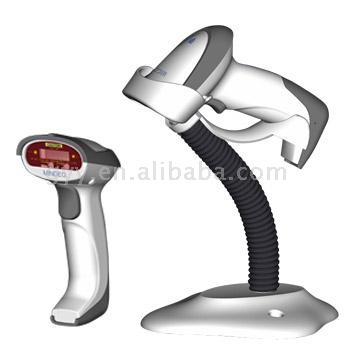

တ႐ုတ္ႏိုင္ငံက ထုတ္လုပ္လိုက္တဲ့ ဘားကုတ္အမ်ိဳးအစားသစ္ပဲ ျဖစ္ပါတယ္။ ကုန္ပစၥည္းေတြမွာပါဝင္တဲ့ ဘားကုတ္ေတြကို အဓိပၸာယ္ေဖာ္ႏိုင္တဲ့ Barcode Reader ပဲ ျဖစ္ပါတယ္။ CHAMPTEX အမွတ္တံဆိပ္ CCD Scanner ေလးဟာ ပံုရိပ္ကို အာ႐ံုခံဖို႔အတြက္ image scanner ကို တပ္ဆင္ထားပါတယ္။ USB Interface ျဖစ္တဲ့အတြက္ ကြန္ပ်ဴတာရဲ႕ USB 2.0 Port မွာ တိုက္႐ိုက္ထိုးၿပီး အသံုးျပဳႏိုင္ပါတယ္။ ဒါေပမယ့္ အသံုးျပဳတဲ့ Scanner ကို ကြန္ပ်ဴတာကသိေအာင္ Driver Software ကို Install လုပ္ဖို႔လိုပါတယ္။
Ref:::http://www.thebarcodewarehouse.co.uk/
http://www.nationalbarcode.com/
http://www.asia.ru/
Labels: Hardware-II


Monitor ကို Laptop မွာ ဆက္သြယ္လိုက္ပါ။ ၿပီးရင္ Laptop မွာ Windows Key နဲ႔ X ကို တြဲႏွိပ္လိုက္လိုက္ပါ။ Windows Mobility Center ေပၚလာပါလိမ့္မယ္။ External Display ရဲ႕ Connect to Display ကို တစ္ခ်က္ႏွိပ္လိုက္ပါ။ အဲဒီအခါမွာ ေရြးစရာ Mode ေတြ ေပၚလာပါလိမ့္မယ္။
Duplicate ဆိုတာက ဒီ Laptop မွာေပၚတဲ့အတိုင္း ဟိုဘက္ Monitor မွာ ေပၚပါလိမ့္မယ္။
Extend ကေတာ့ Laptop Screen နဲ႔ Monitor ကို ႏွစ္လံုးတစ္လံုးေပါင္းၿပီး သံုးတဲ့ပံုစံျဖစ္ပါတယ္။ စမ္းသပ္ခဲ့တုန္းက Extend ကို ေရြးလိုက္ပါတယ္။ ေဟာ ရပါၿပီ။
Laptop မွာ Application တစ္ခုခုကိုဖြင့္ၿပီး Screen ရဲ႕ညာဘက္အဆံုးထိ ဆြဲေရႊ႕သြားလိုက္ပါ။ အဲဒီအခါမွာ အဲဒီ Application ဟာ ဟိုဘက္ Monitor ေပၚ ေရာက္သြားပါလိမ့္မယ္။
ဒီဘက္ Laptop မွာ Application ကိုသံုးေနရင္း ဟိုဘက္ Monitor မွာလည္း Application တစ္ခုကို တင္ထားလိုက္မယ္။ အဲဒါဆိုရင္ေတာ့ တၿပိဳင္နက္တည္း အလုပ္ႏွစ္ခုေလာက္ ၿပီးသြားႏိုင္တယ္ မဟုတ္လား။
Laptop တစ္လံုးနဲ႔ Monitor တစ္လံုး အလြယ္တကူ ရႏိုင္သူမ်ား စမ္းသပ္ၾကည့္ပါ။
Easily convert your laptop to a dual monitor system using your spare monitor
f you use your notebook computer as your main computer and if you have a spare monitor, then you can put your monitor to good use by making it your Laptop’s secondary monitor. It doesn’t really matter if the second monitor is a CRT or TFT, both work fine. First, let’s see why you would want to add a secondary monitor to your laptop. Here are a few reasons:- It instantly doubles your desktop space without buying a larger monitor.
- You can work with two maximised windows at the same time.
- If you are working on a tool like Photoshop, which has lots of toolbars and panels, you could move the tools to the second monitor and have a large work area on your main monitor.
- If you need to compare two documents, you can open each of the documents in a different monitor.
- When browsing your picture library, you can view the thumbnails on one monitor, and use the second monitor to view the pictures full screen.
- If you need to stay on top of your e-mail while working, you can keep your inbox open on one monitor and work on the other.
These are just a few suggestion but actually how you use the dual monitors is only limited by your imagination. Now lets see how to set up the secondary monitor. Make sure that both your Laptop and the monitor are switched off. Connect the monitor to your Laptop by connecting it to the VGA or DVI connector, typically found on the rear of your laptop computer. Now switch on your laptop and the monitor. You will notice that initially, only one of the two monitors is activated. You can usually switch between the monitors by pressing the hotkeys in your laptop. Normally, it is a combination of the Fn key with another key with an image of a monitor on it (normally found on one of the function keys). To bring on the display on both the monitors you’ll need to adjust your display settings by following these steps:
- Right-Click on an empty area on your desktop. On the context menu that pops-up click on Properties and on the resulting ‘Display Properties‘ window, go to the Settings tab.
- Click the monitor icon labeled 2, and then select the Extend my Windows desktop onto this monitor checkbox.
- If necessary, drag the monitor icons so that they are arranged in the same way as the monitors on your desk. Clicking on the Identify button will help you know which monitor is 1 and which monitor is 2.
- If need be, change the resolution of your secondary monitor to the most appropriate settings. You can change the resolution of the monitors independently.
- Click Apply. Windows XP will activate your new monitor.
- Finaly, click OK.


Once your monitor is set up, you can use your mouse to grab the title bar of a window and drag it to your new display. Make sure that the window you are trying to drag is not maximised, in which case you will not be able to drag it. To be able to drag it, first double-click on the title bar and then drag it. It may take you a while to get used to working on dual monitors, but once you do, it will forever change the way you work with your computer. Be creative and experiment with the sizing of application windows and what information you can keep in constant view while doing multiple tasks.
Expand your workspace with multiple monitors
One of the best ways to improve your productivity is to double your desktop workspace by adding a second monitor to your computer. Using multiple monitors makes many computing tasks easier by allowing you to keep more windows visible. If you do any of the following things, you can benefit from multiple monitors:
| • | E-mail and instant messaging. Work on one monitor, and keep your e-mail and instant messaging clients open on the other so you don't have to switch between windows when a new message arrives. |
| • | Research online. Open a Web browser or other research tool on one monitor, and have a Microsoft Office program open on the second monitor for note-taking. |
| • | Browse and edit digital pictures. Quickly browse your digital images by displaying thumbnails on one monitor and full-sized previews on the other. |

The directions for connecting a second monitor vary slightly depending on what type of computer you use. You can connect a second monitor to a desktop computer, or you can connect a second monitor to a laptop or Tablet PC. Once you've connected a second monitor, you'll need to enable Dualview.
Connect a second monitor to your desktop computer
Many desktop computers have built-in support for multiple monitors. Look at the back of your computer to determine if you have an available VGA or DVI port. If you do, you can probably connect a second monitor and enable Dualview to take advantage of it.

If your desktop computer doesn’t have an available VGA or DVI port, you can buy an additional monitor and a second video adapter.
Note: Make sure that the video adapter connector matches the connector on your new monitor.
Monitors use either a VGA or DVI connector (or sometimes both). S-Video connectors are used to connect to a television.

Once your second monitor is connected, you need to enable Dualview. If you're not connecting a second monitor to a laptop or Tablet PC, you can skip the next section and enable Dualview.
Connect a second monitor to your portable computer
If you use a notebook or Tablet PC, your computer probably supports using both an external monitor and the computer's built-in display simultaneously. Simply plug a monitor into the external VGA port of your laptop and enable the Dualview feature of Windows XP.

If you have a docking station for your portable computer, it may support multiple monitors. Look at the back of your docking station to see if you have an available VGA or DVI port. If you do, you can probably connect two external monitors and enable Dualview to take advantage of them.
Note: You may need to close the lid on your laptop to use multiple external monitors.

Alternately, you can add a USB video adapter to your portable computer to support an additional monitor. When choosing a USB video adapter, make sure that it supports your new monitor's ideal resolution and has a connector that matches your new monitor.
Once you have connected your second monitor, you need to enable Dualview.
Enable Dualview
To turn on Dualview
1. | Right-click the desktop, and then click Properties.
|
2. | In the Display Properties dialog box, click the Settings tab. |
3. | Click the Display list and select your external monitor. If you do not see multiple monitors listed, your computer hardware may not support Dualview. Contact your computer manufacturer for more information.
|
4. | Select the Extend my Windows desktop onto this monitor check box.
|
5. | Click Identify. Windows XP displays large numbers to identify your monitors. Drag and drop the monitor icons to match the physical arrangement of your monitors.
|
6. | Click OK.
|


With Dualview enabled, you can drag windows between monitors as if the two monitors are connected. When you maximize a window, it will expand to fill the current monitor.
Labels: Hardware-II
1 GB ေလာက္ရွိမယ္႔ Thumb Drive ေလးတစ္ခု ၀ယ္လုိက္ပါ. ရွာလုိက္ပါ.
Capacity မ်ားေလေကာင္းေလေပါ့....
2....
အဲဒီ႔ Thumb Drive ေလးကုိ ကြန္ျပဴတာမွာ တပ္လုိက္ပါ.
3.....
(၁) My Computer ကို သြားပါ. Right Click ႏွိပ္ျပီး Properties ကုိသြားလုိက္ပါ.
XP သမားေတြမွာ ေအာက္ပံု

Windows 7 သမားေတြမွာေတာ႔ ေအာက္ပံု....

(၂) Advanced Tab ေလးကုိ ႏွိပ္ပါ. ျပီးရင္ေတာ႔ Performance Settings ကုိ ဆက္သြားပါ.
(၃) Advanced ကို ဆက္ႏွိပ္ပါ.
(၄) Virtual Memory ဆုိျပီး Pop Up Window ေလးတစ္ခု ပြင္႔လာပါလိမ္႔မယ္. Change ကုိႏွိပ္ပါ. အဲဒီ႔ထဲမွာမွ ခုနက ကၽြန္ေတာ္တုိ႔ရဲ႔ Thumb Drive ေလးကုိ ေရြးေပးပါ. ကၽြန္ေတာ္႔မွာေတာ႔ Drive E လုိ႔ေပၚပါတယ္. အဲလုိေရြးလုိက္တာနဲ႔ Paging File Size for Selected Drive ဆုိတဲ႔ စာေၾကာင္းေလးေအာက္မွာ ကုိယ္႔ရဲ႔ Thumb Drive ေလးေပၚလာမွာျဖစ္ျပီး Space Available ဆုိတာေလးလည္း ေပၚလာပါလိမ္႔မယ္.
ၤ XP အတြက္....

7 အတြက္...

(၅) Win 7 သမားေတြအတြက္ကေတာ႔ Automatically manage paging file size for all drives ဆုိတဲ႔ Box ေလးကုိ Uncheck ျပန္လုပ္ေပးရပါမယ္. XP သမားေတြကေတာ႔ မလုိပါဘူး. ျပီးသြားရင္ေတာ႔ Custom Size ကုိ ေရြးုလိုက္ပါ. Space Available မွာ ေပၚေနတဲ႔ Thumb Drive ရဲ႔ storage capacity ေလးကုိ အေပၚကြက္လပ္ေလးမွာေရာ ေအာက္ကြက္လပ္ေလးမွာပါ ရိုက္ထည္႔ေပးလုိက္ပါ.

(၆) Set ကိုႏွိပ္ပါ. Ok ကုိႏွိပ္ပါ.
(၇) ကြန္ျပဴတာကုိ Restart ျပန္လုပ္ပါ.
Use Your Pendrive As Ram ( XP )
Yes with some manual settings you can use your pen drive as a RAM
1) Connect your pen drive to your PC [pen drive should be at least 1 GB or if you having 4 GB then its better]
2) Allow PC to detect your pen drive.
3) After your PC finished with its detection work,you have to do some little works .
4) Right click on the My Computer and select the properties :
5) Go to advanced and then performance setting then advanced :
6) Then select pen drive and click on custom size " Check the value of space available "
7) Enter the same in the Initial and the Max columns :
" You just used the memory of the Pen Drive as a Virtual Memory "
8) Now restart your pc and enjoy your fast and super system
Labels: Hardware-II
Memory မွာ error ရွိခဲ့မယ္ဆိုရင္ အနီေရာင္အတံုးေလးေတြ ေပၚလာမွာပါ။ ဒါ့အျပင္ ဒီေဆာ့ဖ္၀ဲကို read speed နဲ႔ write speed ကို တိုင္းတာဖို႔အတြက္လည္း အသံုးျပဳႏိုင္ပါတယ္။
http://www.ziddu.com/download/12161869/ChkFlsh1.rar.html
Password:www.monetine999.com
Labels: Hardware-II
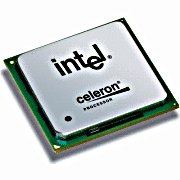
Core 2 Duo, Centrino 2 စသည္ၿဖင့္ 2 သို႕မဟုတ္ Duo ဟာCPU ထဲမွာ Core ၂ ခု ပါတယ္... Quad ဆိုရင္ေတာ့ CPU ထဲမွာ Core ၄ ခု ပါတယ္....
Dual Core ဆိုတာကေတာ့ CPU Chip တစ္ခုတည္းမွာCore ႏွစ္ခုပါတာကို ေခၚတဲ့ generic name ၿဖစ္ပါတယ္။Dual ပဲဆိုဆို Duo ပဲဆိုဆို Core 2 ပဲဆိုဆို တူတူပါပဲ....

Core 2 2.4 GHz ဟာ Single Core 3.0 GHz ထက္ေတာ့ ၁၇၀% ေလာက္ေတာ့
ပိုၿမန္ပါတယ္။
Dual Core CPU က chip တစ္ခုထဲမွာ CPU ႏွစ္လံုးပါျပီး Core 2 Duo ကေတာ့ chip တစ္ခုမွာစီပီယူေလးလံုးပါတယ္.....Duo core ႏွစ္ခုတစ္ျပိဳင္တည္းစိုက္ထားသလပါ.....Dual Core ကေတာ့ CPU ၂ လံုးနဲ႕ အလုပ္လုပ္ပါတယ္။ CPU ၂ လံုးကို cache 2 ခုနဲ႕ေပါ့။ Core 2 Dual ကေတာ့ CPU ကေတာ့ ၂ ခုပဲ။ ဒါေပမယ့္ core ကေတာ့ ၄ ခုျဖစ္ျပီးcache ၂ ခုပါ... Quad Core အစစ္မဟုတ္ဘူး..ဒါေၾကာင့္ Core 2 Dual လို႕ေခၚတာ....
Core 2 Duo ကား Core Duo အား မြမ္းမံၿပဳၿပင္ ထုတ္လုပ္လိုက္ေသာ အမ်ိဳးအစားအသစ္
သာၿဖစ္၏။ ၄င္ အမည္တြင္ပါ၀င္ေသာ 2 ကား Version နံပါတ္ကို ဆိုလိုတာ....
1053..CPU အေၾကာင္း တစ္ေစ့တစ္ေစာင္း ( 3.9.10 )
Labels: Hardware-II

NOTE: The WAP54G will only communicate with another WAP54G when set to Access Point Client.
To configure the access point as an access point client, you need to perform three steps:
- Checking the Wireless MAC Address of an Access Point
- Setting-Up Access Point Client Mode on the WAP54G
- Changing the LAN IP Address of the Access Point Client
Checking the Wireless MAC Address of an Access Point
NOTE: The following steps will be performed on the main access point using a wired computer.
Step 1:
Connect a computer to the access point.

Step 2:
Assign a static IP address on the computer. For instructions, click here.
NOTE: To assign a static IP address on a wired Mac, click here.
Step 3:
Open the access point's web-based setup page. For instructions, click here.
NOTE: If you are using Mac to access the access point's web-based setup page, click here
Step 4:
When the access point's web-based setup page opens, click Status then click Wireless Network.

Step 5:
Take note of the Wireless Network MAC Address.

NOTE: The Wireless MAC Address you took note of will be entered on the WAP54G set as access point client.
Step 6:
After obtaining the wireless MAC address of the access point, configure the other WAP54G in access point client mode. For instructions, follow the steps below.
Setting-Up Access Point Client Mode on the WAP54G
Step 1:
Connect a computer to the access point you want to configure as an AP client.

Step 2:
Assign a static IP address on the computer. For instructions, click here.
NOTE: To assign a static IP address on a wired Mac, click here.
Step 3:
Open the access point's web-based setup page. For instructions, click here.
NOTE: If you are using Mac to access the access point's web-based setup page, click here.
Step 4:
When the access point's web-based setup page opens, click AP Mode.

NOTE: The access point's web-based setup page may differ depending on the access point's version number.
Step 5:
Select AP Client and type the remote access point's MAC address that you took note of earlier.
NOTE: Remove the colons (:) when typing the MAC address on the Remote Access Point's LAN MAC Address field.

NOTE: You may also click Site Survey and select the remote access point you want to connect to.
Step 6:
Click  .
.
Changing the LAN IP Address of the Access Point Client
After configuring the access point as an AP client, change its LAN IP address to avoid IP address conflict. For instructions, click here.
Labels: Computer-V, Hardware-II, Networking


Synopsis: CrystalDiskInfo monitors HDD/SSD health status and temperature, and does all the usual monitoring/graphing of S.M.A.R.T. information. It also tells you how many times the hard disk has been turned on and how many hours.

Writes settings to: Application folder
Dependencies: Administrator rights
How to extract: Download the ZIP package and extract to a folder of your choice. Launch DiskInfo.exe.
Stealth : Yes
License: New BSD
System Requirements: Win2K / WinXP / Vista / Win7
CrystalDiskInfo 3.8.0c [2010/09/18]
- Installer Edition (exe) [7/2008/Vista/2003/XP/2000, x86/WoW64, i18n]
- Portable Edition (zip) from SourceForge.JP [7/2008/Vista/2003/XP/2000, x86/WoW64, i18n]
Labels: Hardware-II, Softwares-V
How do I change the IP address of my Linksys access point?
NOTE: When changing the LAN IP address of the access point make sure it uses the same segment as your network.
Changing the LAN IP Address of the Access Point
You can change the LAN IP address of the access point by performing the following steps:
Step 1:
Access the access point’s web-based setup page. For instructions, click here.NOTE: If you're using a Mac to access the access point's web-based setup page, click here.
Step 2:
When the access point’s web-based setup page appears, change the IP Address to “192.168.1.246” on the Setup tab.

Step 3:
Clickor
.
NOTE: The access point will reboot after applying these settings. The IP address “192.168.1.246” is used to open the access point’s web-based setup page.
Labels: Hardware-II
Epson has announced to launch a new printer i.e Stylus NX625. The Epson Stylus NX625 printer features 2.5-inch color LCD for viewing, editing, and selecting photos without a printer, Print a 4″ x 6″ photo in as fast as 20 sec, and also able to produce two-sided pages at 7.6 ppm in black and 4.6 ppm in color etc. It also have built-in WiFi 802.11 b/g/n connectivity and an Ethernet port. It's scanner offers upto 2400i scanning resolution.

Epson Stylus NX625 Printer Features
- 2.5-inch color LCD for viewing, editing, and selecting photos without a printer
- Can produce two-sided pages at 7.6 ppm in black and 4.6 ppm in color
- WiFi 802.11 b/g/n
- An Ethernet port
- Minimum Ink Droplet Size: 2 picoliters
- PC-free photo printing
- Replace only the ink cartridge needed with individual ink cartridges
- Quickly print photos and more from mobile devices
- Print a 4″ x 6″ photo in as fast as 20 sec
The Epson Stylus NX625 printer also features built-in image enhancement tools which automatically correct poorly exposed photos and easily remove red eye. With the help of built-in WiFi connectivity user can print photos from iPhone, iPad and other mobile devices. The Epson Stylus NX625 printer will be available in late September at the price tag of $149.99 or Rs.7.050/.
Labels: Hardware-II
Samsung, one of the famous electronics products manufacturer has unleashed a new product named Samsung Galaxy Apollo mobile. Samsung Galaxy Apollo mobile has a lot of advanced features including 3.7 inches of touchscreen display, 5 mega pixel of camera, and Upto 1 GB of external memory. Loaded with Google's Android 2.1 operating system this Samsung Galaxy Apollo mobile also poses FM radio.

Samsung Galaxy Apollo Mobile Features
- 3.7 inches of touchscreen display
- Google's Android 2.1 operating system
- 5 mega pixel of camera
- Wi-Fi
- Video player
- Stereo FM radio
- USB port
- 3 G networking
- Upto 1 GB of external memory
- Up to 32 GB micro SD extension
The battery of this new Samsung Galaxy Apollo mobile provides a long hours of battery life. Easy access to the social networking sites are also available through 3 G networking facility. Video player is also equipped with this Samsung Galaxy Apollo mobile.
Labels: Android, Android Specifications, Android-III, Hardware-II, Mobile
NEC announces to launch three new 3D Valuestar desktop computers i.e Valuestar L, Valuestar W, and Valuestar N which use 3D technology. Among three Valuestar desktop computers, couple of computers don't require expensive active 3D glasses. The Valuestar L has 23" full HD monitor, the Valuestar W has also 23" full HD IPS LCD, but the Valuestar N has 20" HD monitor. All desktop computers are powered by Intel Core Processor.

NEC Valuestar L Features
- 23" Full HD Monitor
- Intel Core i7-870 or Intel Core i5-560
- 4 or 16GB of RAM
- Blu-Ray or DVD
- USB 3.0
- 1TB of HDD
- An NVIDIA GeForce GT 330M
- Integrated Intel HD Chipset

NEC Valuestar W Features
- 23" Full HD IPS LCD
- Intel Core i7-640M or i5-460M
- 4 or 8GB of RAM
- 1.5 or 1TB of HDD
- 3 Digitial TV Tuner BD Drive (Blu-Ray)
- USB 3.0
- Yamaha Audio SR-Bass technology
- Integrated Intel HD Chipset
- NVIDIA GeForce GT 330M

NEC Valuestar N Features
- 20" HD monitor (1600×900)
- 4 or 8GB of RAM
- Intel Core i5-460M or Celeron P460
- Yamaha audio technology
- 1TB or 500GB of HDD
- 1 or 3 Digital TV Tuner
The all Valuestar desktop computers will be land in Japan on September 16th, 2010. The Valuestar L costs for $3,400, the Valuestar W costs for $3,100, and the Valuestar N costs for $2,600 respectively.
Labels: Hardware-II
CPU တစ္လံုးမွာ အေရးၾကီးဆံုးကေတာ႔ ......
1.....FSB (Front side bus)ပါ.....Front side bus မ်ားေလသူ႔ရဲ႔လုပ္နိုင္စြမ္းရည္ကလည္းျမင္႔ေလပဲ......
ဥပမာ .......FSB-400MHZ,533MHZ,667MHZ,800MHZ,1066MHZ,1333MHZ ဆိုျပီး တန္ဖိုးရွိၾကပါတယ္.......
2.....Cache memory (speed ျမန္,Capacity နည္း)
အဲဒီမွာသံုးမ်ိဳးရိွတယ္......
L1
128KB,256KB,512KB
L2
1MB,2MB,4MB,6MB,8MB
L3
24MB,27MB ဆိုျပီး memory ကိုသံုးမ်ဳိးခြဲထားပါတယ္..............
Celeron CPU

သူကFSBကေတာ႔ပုံမွန္ပဲ... cache ကိုေလွ်ာ႔ထားတာဗ်.....
နမူနာ celeron --> CLOCK SPEED 2.0GHZ, FSB 667MHZ, 512MB
Classic
classic ကေတာ႔ cacheပုံမွန္ပဲ
classic-->CLOCK SPEED 2.0GHZ, FSB 667MHZ, L2 2MB
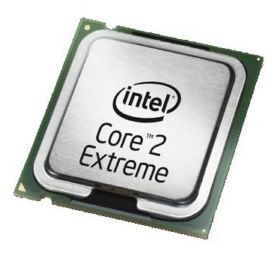
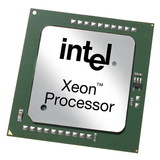
Xeon
Xeon က cache ပိုမ်ားတယ္။.......
xeon-->CLOCK SPEED 2.0GHZ, FSB 667MHZ, L3 24MB
CPU SPEED (CLOCK SPEED )
သူ႔ရဲ႔ Unit ကေတာ႔ GHZ ေပါ႔......ကြန္ပ်ဴတာေတြမွေတာ႔မ်ားေသာအားျဖင္႔ေတာ႔ 2.0 GHZ, 2.53 GHZ,3.0 GHZ တို႔ကိုသံုးတာမ်ားပါတယ္။
ဆကိရန္.....
Labels: Hardware-II
ေအာက္ကက software ကုိ Download လုပ္ၿပီး Hidden Files ဖုိင္ေတြကုိ ျပန္ယူလုိက္ပါ . copy ကူးၿပီး တစ္ေနရာမွာ save ထားလုိက္ . ၿပီးတာနဲ႔ အဲ့ဒီ့ flash drive ကုိ format ျပန္ခ်ပစ္လုိက္ပါ...
ပံုေတြလည္းပါပါတယ္.....
http://www.ziddu.com/download/12162260/Hidden1.rar.html
Password:www.monetine999.com
Labels: Hardware-II

အင္တာနက္ receiver မပါတဲ့ PC ေတြမွာ Wireless နည္းနဲ႔ အင္တာနက္သံုးႏိုင္ဖု႔ိ စီစဥ္ေပးထားတဲ့ စေလာင္းအင္တင္နာ ျဖစ္ပါတယ္။ မိမိရဲ႕ Desktop မွာ ျဖစ္ျဖစ္ လက္ေတာ့မွာ ျဖစ္ျဖစ္ USB ပို႔မွာ Wireless Adpater အျဖစ္ တပ္ဆင္ၿပီး သံုးရမွာ ျဖစ္ပါတယ္။ Wireless အေနနဲ႔ 8 dBi ရွိတဲ့ အတြက္ လိုင္းဖမ္းအားေကာင္းတဲ့ အင္တင္နာ ျဖစ္ပါတယ္။ စေလာင္းကို လိုအပ္တဲ့ ဘက္ကို လွည့္ေပးၿပီး လိုင္းဖမ္းလို႔ ရပါတယ္။ စေလာင္းေလးကို 360 လွည့္ၿပီး ဖမ္းႏိုင္ပါတယ္။ USB ပါဝါနဲ႔ သံုးလို႔ ရပါတယ္။ Extension ေကဘယ္ႀကိဳး ပါတဲ့အတြက္ စေလာင္းကို သင့္ေတာ္တဲ့ ေနရာ တစ္ေနရာရာကို ေရႊ႕ထားၿပီး သံုးလို႔ ရပါတယ္။ အင္တာနက္အျပင္ Network ခ်ိတ္ဆက္မႈအတြက္ပါ သံုးလို႔ရပါတယ္။
Labels: Hardware-II

Additional Features of WorkForce Printers
* 2.5 inch LCD screen
* Wi-Fi n and Ethernet compatible
* Compatible with the latest routers
* Uses up to 70 percent less power than laser printers
* 15 ISO ppm black and 7.2 ISO ppm color single-sided
* 7.5 ISO ppm black and 4.5 ISO ppm color
* Automatic two-sided printing
* Instant drying inks to immediately touch laser quality documents and photos
* Epson MicroPiezo® print head technology
The new WorkForce models offer 2400 dpi scanning and rapid faxing and can able to store 60 names and numbers as well as ship with Extra-High Capacity black and color cartridges with Epson’s fade-, smudge-, and water-resistant DURABrite Ultra inks. The Epson WorkForce 635, 633, and 630 Printers are available a he price tag of $229.99, $199.99, and $179.99 respectively.
Labels: Hardware-II
KKZ Myanmar Unicode Keyboard


MoneTineKeyboard

Like လုပ်ထားနိုင်ပါတယ်

Labels
ဧည့်သည်တော်များခင်ဗျာ
- အခုဖတ်မည့် Post သည် လိင်မှု ပိုင်းဆိုင် ရာများ ကိုရေးသားထားခြင်းဖြစ်ပါသည်......
- သို့သော်ကျွန်တော်တို့ ရေးသား တင်ပြထားရခြင်းသည် ကျန်းမာရေး အတွက် သိထားနားလည် ထားသင့်သည် ဟုယူဆသော်ကြောင့်ဖြစ်ပါသည်.......
- ကျွန်တော်တို့၏ ဆောင်ပုဒ်သည်"ဘယ်အရာမဆို အားလုံးကို လုံးဝမတတ်ရင်နေ သိထား နားလည် ထားနိုင်ရင် ပိုကောင်းတယ်.." ဟု ဖြစ်ပါသည်..

ဧည့်သည်တော်များခင်ဗျာ
- အခုဖတ်မည့် Post သည် လိင်မှု ပိုင်းဆိုင် ရာများ ကိုရေးသားထားခြင်းဖြစ်ပါသည်......
- သို့သော်ကျွန်တော်တို့ ရေးသား တင်ပြထားရခြင်းသည် ကျန်းမာရေး အတွက် သိထားနားလည် ထားသင့်သည် ဟုယူဆသော်ကြောင့်ဖြစ်ပါသည်.......
- ကျွန်တော်တို့၏ ဆောင်ပုဒ်သည်"ဘယ်အရာမဆို အားလုံးကို လုံးဝမတတ်ရင်နေ သိထား နားလည် ထားနိုင်ရင် ပိုကောင်းတယ်.." ဟု ဖြစ်ပါသည်..
ဧည့်သည်တော်များခင်ဗျာ
- အခုဖတ်မည့် Post သည် လိင်မှု ပိုင်းဆိုင် ရာများ ကိုရေးသားထားခြင်းဖြစ်ပါသည်......
- သို့သော်ကျွန်တော်တို့ ရေးသား တင်ပြထားရခြင်းသည် ကျန်းမာရေး အတွက် သိထားနားလည် ထားသင့်သည် ဟုယူဆသော်ကြောင့်ဖြစ်ပါသည်.......
- ကျွန်တော်တို့၏ ဆောင်ပုဒ်သည်"ဘယ်အရာမဆို အားလုံးကို လုံးဝမတတ်ရင်နေ သိထား နားလည် ထားနိုင်ရင် ပိုကောင်းတယ်.." ဟု ဖြစ်ပါသည်..
ဧည့်သည်တော်များခင်ဗျာ
- အခုဖတ်မည့် Post သည် လိင်မှု ပိုင်းဆိုင် ရာများ ကိုရေးသားထားခြင်းဖြစ်ပါသည်......
- သို့သော်ကျွန်တော်တို့ ရေးသား တင်ပြထားရခြင်းသည် ကျန်းမာရေး အတွက် သိထားနားလည် ထားသင့်သည် ဟုယူဆသော်ကြောင့်ဖြစ်ပါသည်.......
- ကျွန်တော်တို့၏ ဆောင်ပုဒ်သည်"ဘယ်အရာမဆို အားလုံးကို လုံးဝမတတ်ရင်နေ သိထား နားလည် ထားနိုင်ရင် ပိုကောင်းတယ်.." ဟု ဖြစ်ပါသည်..
ဧည့်သည်တော်များခင်ဗျာ
- အခုဖတ်မည့် Post သည် လိင်မှု ပိုင်းဆိုင် ရာများ ကိုရေးသားထားခြင်းဖြစ်ပါသည်......
- သို့သော်ကျွန်တော်တို့ ရေးသား တင်ပြထားရခြင်းသည် ကျန်းမာရေး အတွက် သိထားနားလည် ထားသင့်သည် ဟုယူဆသော်ကြောင့်ဖြစ်ပါသည်.......
- ကျွန်တော်တို့၏ ဆောင်ပုဒ်သည်"ဘယ်အရာမဆို အားလုံးကို လုံးဝမတတ်ရင်နေ သိထား နားလည် ထားနိုင်ရင် ပိုကောင်းတယ်.." ဟု ဖြစ်ပါသည်..
ဧည့်သည်တော်များခင်ဗျာ
- အခုဖတ်မည့် Post သည် လိင်မှု ပိုင်းဆိုင် ရာများ ကိုရေးသားထားခြင်းဖြစ်ပါသည်......
- သို့သော်ကျွန်တော်တို့ ရေးသား တင်ပြထားရခြင်းသည် ကျန်းမာရေး အတွက် သိထားနားလည် ထားသင့်သည် ဟုယူဆသော်ကြောင့်ဖြစ်ပါသည်.......
- ကျွန်တော်တို့၏ ဆောင်ပုဒ်သည်"ဘယ်အရာမဆို အားလုံးကို လုံးဝမတတ်ရင်နေ သိထား နားလည် ထားနိုင်ရင် ပိုကောင်းတယ်.." ဟု ဖြစ်ပါသည်..
ဧည့်သည်တော်များခင်ဗျာ
- အခုဖတ်မည့် Post သည် လိင်မှု ပိုင်းဆိုင် ရာများ ကိုရေးသားထားခြင်းဖြစ်ပါသည်......
- သို့သော်ကျွန်တော်တို့ ရေးသား တင်ပြထားရခြင်းသည် ကျန်းမာရေး အတွက် သိထားနားလည် ထားသင့်သည် ဟုယူဆသော်ကြောင့်ဖြစ်ပါသည်.......
- ကျွန်တော်တို့၏ ဆောင်ပုဒ်သည်"ဘယ်အရာမဆို အားလုံးကို လုံးဝမတတ်ရင်နေ သိထား နားလည် ထားနိုင်ရင် ပိုကောင်းတယ်.." ဟု ဖြစ်ပါသည်..
ဧည့်သည်တော်များခင်ဗျာ
- အခုဖတ်မည့် Post သည် လိင်မှု ပိုင်းဆိုင် ရာများ ကိုရေးသားထားခြင်းဖြစ်ပါသည်......
- သို့သော်ကျွန်တော်တို့ ရေးသား တင်ပြထားရခြင်းသည် ကျန်းမာရေး အတွက် သိထားနားလည် ထားသင့်သည် ဟုယူဆသော်ကြောင့်ဖြစ်ပါသည်.......
- ကျွန်တော်တို့၏ ဆောင်ပုဒ်သည်"ဘယ်အရာမဆို အားလုံးကို လုံးဝမတတ်ရင်နေ သိထား နားလည် ထားနိုင်ရင် ပိုကောင်းတယ်.." ဟု ဖြစ်ပါသည်..
ဧည့်သည်တော်များခင်ဗျာ
- အခုဖတ်မည့် Post သည် လိင်မှု ပိုင်းဆိုင် ရာများ ကိုရေးသားထားခြင်းဖြစ်ပါသည်......
- သို့သော်ကျွန်တော်တို့ ရေးသား တင်ပြထားရခြင်းသည် ကျန်းမာရေး အတွက် သိထားနားလည် ထားသင့်သည် ဟုယူဆသော်ကြောင့်ဖြစ်ပါသည်.......
- ကျွန်တော်တို့၏ ဆောင်ပုဒ်သည်"ဘယ်အရာမဆို အားလုံးကို လုံးဝမတတ်ရင်နေ သိထား နားလည် ထားနိုင်ရင် ပိုကောင်းတယ်.." ဟု ဖြစ်ပါသည်..
ဧည့်သည်တော်များခင်ဗျာ
- အခုဖတ်မည့် Post သည် လိင်မှု ပိုင်းဆိုင် ရာများ ကိုရေးသားထားခြင်းဖြစ်ပါသည်......
- သို့သော်ကျွန်တော်တို့ ရေးသား တင်ပြထားရခြင်းသည် ကျန်းမာရေး အတွက် သိထားနားလည် ထားသင့်သည် ဟုယူဆသော်ကြောင့်ဖြစ်ပါသည်.......
- ကျွန်တော်တို့၏ ဆောင်ပုဒ်သည်"ဘယ်အရာမဆို အားလုံးကို လုံးဝမတတ်ရင်နေ သိထား နားလည် ထားနိုင်ရင် ပိုကောင်းတယ်.." ဟု ဖြစ်ပါသည်..
ဧည့်သည်တော်များခင်ဗျာ
- အခုဖတ်မည့် Post သည် လိင်မှု ပိုင်းဆိုင် ရာများ ကိုရေးသားထားခြင်းဖြစ်ပါသည်......
- သို့သော်ကျွန်တော်တို့ ရေးသား တင်ပြထားရခြင်းသည် ကျန်းမာရေး အတွက် သိထားနားလည် ထားသင့်သည် ဟုယူဆသော်ကြောင့်ဖြစ်ပါသည်.......
- ကျွန်တော်တို့၏ ဆောင်ပုဒ်သည်"ဘယ်အရာမဆို အားလုံးကို လုံးဝမတတ်ရင်နေ သိထား နားလည် ထားနိုင်ရင် ပိုကောင်းတယ်.." ဟု ဖြစ်ပါသည်..
ဧည့်သည်တော်များခင်ဗျာ
- အခုဖတ်မည့် Post သည် လိင်မှု ပိုင်းဆိုင် ရာများ ကိုရေးသားထားခြင်းဖြစ်ပါသည်......
- သို့သော်ကျွန်တော်တို့ ရေးသား တင်ပြထားရခြင်းသည် ကျန်းမာရေး အတွက် သိထားနားလည် ထားသင့်သည် ဟုယူဆသော်ကြောင့်ဖြစ်ပါသည်.......
- ကျွန်တော်တို့၏ ဆောင်ပုဒ်သည်"ဘယ်အရာမဆို အားလုံးကို လုံးဝမတတ်ရင်နေ သိထား နားလည် ထားနိုင်ရင် ပိုကောင်းတယ်.." ဟု ဖြစ်ပါသည်..
ဧည့်သည်တော်များခင်ဗျာ
- အခုဖတ်မည့် Post သည် လိင်မှု ပိုင်းဆိုင် ရာများ ကိုရေးသားထားခြင်းဖြစ်ပါသည်......
- သို့သော်ကျွန်တော်တို့ ရေးသား တင်ပြထားရခြင်းသည် ကျန်းမာရေး အတွက် သိထားနားလည် ထားသင့်သည် ဟုယူဆသော်ကြောင့်ဖြစ်ပါသည်.......
- ကျွန်တော်တို့၏ ဆောင်ပုဒ်သည်"ဘယ်အရာမဆို အားလုံးကို လုံးဝမတတ်ရင်နေ သိထား နားလည် ထားနိုင်ရင် ပိုကောင်းတယ်.." ဟု ဖြစ်ပါသည်..
ဧည့်သည်တော်များခင်ဗျာ
- အခုဖတ်မည့် Post သည် လိင်မှု ပိုင်းဆိုင် ရာများ ကိုရေးသားထားခြင်းဖြစ်ပါသည်......
- သို့သော်ကျွန်တော်တို့ ရေးသား တင်ပြထားရခြင်းသည် ကျန်းမာရေး အတွက် သိထားနားလည် ထားသင့်သည် ဟုယူဆသော်ကြောင့်ဖြစ်ပါသည်.......
- ကျွန်တော်တို့၏ ဆောင်ပုဒ်သည်"ဘယ်အရာမဆို အားလုံးကို လုံးဝမတတ်ရင်နေ သိထား နားလည် ထားနိုင်ရင် ပိုကောင်းတယ်.." ဟု ဖြစ်ပါသည်..
ဧည့်သည်တော်များခင်ဗျာ
- အခုဖတ်မည့် Post သည် လိင်မှု ပိုင်းဆိုင် ရာများ ကိုရေးသားထားခြင်းဖြစ်ပါသည်......
- သို့သော်ကျွန်တော်တို့ ရေးသား တင်ပြထားရခြင်းသည် ကျန်းမာရေး အတွက် သိထားနားလည် ထားသင့်သည် ဟုယူဆသော်ကြောင့်ဖြစ်ပါသည်.......
- ကျွန်တော်တို့၏ ဆောင်ပုဒ်သည်"ဘယ်အရာမဆို အားလုံးကို လုံးဝမတတ်ရင်နေ သိထား နားလည် ထားနိုင်ရင် ပိုကောင်းတယ်.." ဟု ဖြစ်ပါသည်..
ဧည့်သည်တော်များခင်ဗျာ
- အခုဖတ်မည့် Post သည် လိင်မှု ပိုင်းဆိုင် ရာများ ကိုရေးသားထားခြင်းဖြစ်ပါသည်......
- သို့သော်ကျွန်တော်တို့ ရေးသား တင်ပြထားရခြင်းသည် ကျန်းမာရေး အတွက် သိထားနားလည် ထားသင့်သည် ဟုယူဆသော်ကြောင့်ဖြစ်ပါသည်.......
- ကျွန်တော်တို့၏ ဆောင်ပုဒ်သည်"ဘယ်အရာမဆို အားလုံးကို လုံးဝမတတ်ရင်နေ သိထား နားလည် ထားနိုင်ရင် ပိုကောင်းတယ်.." ဟု ဖြစ်ပါသည်..
ဧည့်သည်တော်များခင်ဗျာ
- အခုဖတ်မည့် Post သည် လိင်မှု ပိုင်းဆိုင် ရာများ ကိုရေးသားထားခြင်းဖြစ်ပါသည်......
- သို့သော်ကျွန်တော်တို့ ရေးသား တင်ပြထားရခြင်းသည် ကျန်းမာရေး အတွက် သိထားနားလည် ထားသင့်သည် ဟုယူဆသော်ကြောင့်ဖြစ်ပါသည်.......
- ကျွန်တော်တို့၏ ဆောင်ပုဒ်သည်"ဘယ်အရာမဆို အားလုံးကို လုံးဝမတတ်ရင်နေ သိထား နားလည် ထားနိုင်ရင် ပိုကောင်းတယ်.." ဟု ဖြစ်ပါသည်..
ဧည့်သည်တော်များခင်ဗျာ
- အခုဖတ်မည့် Post သည် လိင်မှု ပိုင်းဆိုင် ရာများ ကိုရေးသားထားခြင်းဖြစ်ပါသည်......
- သို့သော်ကျွန်တော်တို့ ရေးသား တင်ပြထားရခြင်းသည် ကျန်းမာရေး အတွက် သိထားနားလည် ထားသင့်သည် ဟုယူဆသော်ကြောင့်ဖြစ်ပါသည်.......
- ကျွန်တော်တို့၏ ဆောင်ပုဒ်သည်"ဘယ်အရာမဆို အားလုံးကို လုံးဝမတတ်ရင်နေ သိထား နားလည် ထားနိုင်ရင် ပိုကောင်းတယ်.." ဟု ဖြစ်ပါသည်..
ဧည့်သည်တော်များခင်ဗျာ
- အခုဖတ်မည့် Post သည် လိင်မှု ပိုင်းဆိုင် ရာများ ကိုရေးသားထားခြင်းဖြစ်ပါသည်......
- သို့သော်ကျွန်တော်တို့ ရေးသား တင်ပြထားရခြင်းသည် ကျန်းမာရေး အတွက် သိထားနားလည် ထားသင့်သည် ဟုယူဆသော်ကြောင့်ဖြစ်ပါသည်.......
- ကျွန်တော်တို့၏ ဆောင်ပုဒ်သည်"ဘယ်အရာမဆို အားလုံးကို လုံးဝမတတ်ရင်နေ သိထား နားလည် ထားနိုင်ရင် ပိုကောင်းတယ်.." ဟု ဖြစ်ပါသည်..
ဧည့်သည်တော်များခင်ဗျာ
- အခုဖတ်မည့် Post သည် လိင်မှု ပိုင်းဆိုင် ရာများ ကိုရေးသားထားခြင်းဖြစ်ပါသည်......
- သို့သော်ကျွန်တော်တို့ ရေးသား တင်ပြထားရခြင်းသည် ကျန်းမာရေး အတွက် သိထားနားလည် ထားသင့်သည် ဟုယူဆသော်ကြောင့်ဖြစ်ပါသည်.......
- ကျွန်တော်တို့၏ ဆောင်ပုဒ်သည်"ဘယ်အရာမဆို အားလုံးကို လုံးဝမတတ်ရင်နေ သိထား နားလည် ထားနိုင်ရင် ပိုကောင်းတယ်.." ဟု ဖြစ်ပါသည်..
ဧည့်သည်တော်များခင်ဗျာ
- အခုဖတ်မည့် Post သည် လိင်မှု ပိုင်းဆိုင် ရာများ ကိုရေးသားထားခြင်းဖြစ်ပါသည်......
- သို့သော်ကျွန်တော်တို့ ရေးသား တင်ပြထားရခြင်းသည် ကျန်းမာရေး အတွက် သိထားနားလည် ထားသင့်သည် ဟုယူဆသော်ကြောင့်ဖြစ်ပါသည်.......
- ကျွန်တော်တို့၏ ဆောင်ပုဒ်သည်"ဘယ်အရာမဆို အားလုံးကို လုံးဝမတတ်ရင်နေ သိထား နားလည် ထားနိုင်ရင် ပိုကောင်းတယ်.." ဟု ဖြစ်ပါသည်..
ဧည့်သည်တော်များခင်ဗျာ
- အခုဖတ်မည့် Post သည် လိင်မှု ပိုင်းဆိုင် ရာများ ကိုရေးသားထားခြင်းဖြစ်ပါသည်......
- သို့သော်ကျွန်တော်တို့ ရေးသား တင်ပြထားရခြင်းသည် ကျန်းမာရေး အတွက် သိထားနားလည် ထားသင့်သည် ဟုယူဆသော်ကြောင့်ဖြစ်ပါသည်.......
- ကျွန်တော်တို့၏ ဆောင်ပုဒ်သည်"ဘယ်အရာမဆို အားလုံးကို လုံးဝမတတ်ရင်နေ သိထား နားလည် ထားနိုင်ရင် ပိုကောင်းတယ်.." ဟု ဖြစ်ပါသည်..
ဧည့်သည်တော်များခင်ဗျာ
- အခုဖတ်မည့် Post သည် လိင်မှု ပိုင်းဆိုင် ရာများ ကိုရေးသားထားခြင်းဖြစ်ပါသည်......
- သို့သော်ကျွန်တော်တို့ ရေးသား တင်ပြထားရခြင်းသည် ကျန်းမာရေး အတွက် သိထားနားလည် ထားသင့်သည် ဟုယူဆသော်ကြောင့်ဖြစ်ပါသည်.......
- ကျွန်တော်တို့၏ ဆောင်ပုဒ်သည်"ဘယ်အရာမဆို အားလုံးကို လုံးဝမတတ်ရင်နေ သိထား နားလည် ထားနိုင်ရင် ပိုကောင်းတယ်.." ဟု ဖြစ်ပါသည်..
ဧည့်သည်တော်များခင်ဗျာ
- အခုဖတ်မည့် Post သည် လိင်မှု ပိုင်းဆိုင် ရာများ ကိုရေးသားထားခြင်းဖြစ်ပါသည်......
- သို့သော်ကျွန်တော်တို့ ရေးသား တင်ပြထားရခြင်းသည် ကျန်းမာရေး အတွက် သိထားနားလည် ထားသင့်သည် ဟုယူဆသော်ကြောင့်ဖြစ်ပါသည်.......
- ကျွန်တော်တို့၏ ဆောင်ပုဒ်သည်"ဘယ်အရာမဆို အားလုံးကို လုံးဝမတတ်ရင်နေ သိထား နားလည် ထားနိုင်ရင် ပိုကောင်းတယ်.." ဟု ဖြစ်ပါသည်..
ဧည့်သည်တော်များခင်ဗျာ
- အခုဖတ်မည့် Post သည် လိင်မှု ပိုင်းဆိုင် ရာများ ကိုရေးသားထားခြင်းဖြစ်ပါသည်......
- သို့သော်ကျွန်တော်တို့ ရေးသား တင်ပြထားရခြင်းသည် ကျန်းမာရေး အတွက် သိထားနားလည် ထားသင့်သည် ဟုယူဆသော်ကြောင့်ဖြစ်ပါသည်.......
- ကျွန်တော်တို့၏ ဆောင်ပုဒ်သည်"ဘယ်အရာမဆို အားလုံးကို လုံးဝမတတ်ရင်နေ သိထား နားလည် ထားနိုင်ရင် ပိုကောင်းတယ်.." ဟု ဖြစ်ပါသည်..
ဧည့်သည်တော်များခင်ဗျာ
- အခုဖတ်မည့် Post သည် လိင်မှု ပိုင်းဆိုင် ရာများ ကိုရေးသားထားခြင်းဖြစ်ပါသည်......
- သို့သော်ကျွန်တော်တို့ ရေးသား တင်ပြထားရခြင်းသည် ကျန်းမာရေး အတွက် သိထားနားလည် ထားသင့်သည် ဟုယူဆသော်ကြောင့်ဖြစ်ပါသည်.......
- ကျွန်တော်တို့၏ ဆောင်ပုဒ်သည်"ဘယ်အရာမဆို အားလုံးကို လုံးဝမတတ်ရင်နေ သိထား နားလည် ထားနိုင်ရင် ပိုကောင်းတယ်.." ဟု ဖြစ်ပါသည်..
ဧည့်သည်တော်များခင်ဗျာ
- အခုဖတ်မည့် Post သည် လိင်မှု ပိုင်းဆိုင် ရာများ ကိုရေးသားထားခြင်းဖြစ်ပါသည်......
- သို့သော်ကျွန်တော်တို့ ရေးသား တင်ပြထားရခြင်းသည် ကျန်းမာရေး အတွက် သိထားနားလည် ထားသင့်သည် ဟုယူဆသော်ကြောင့်ဖြစ်ပါသည်.......
- ကျွန်တော်တို့၏ ဆောင်ပုဒ်သည်"ဘယ်အရာမဆို အားလုံးကို လုံးဝမတတ်ရင်နေ သိထား နားလည် ထားနိုင်ရင် ပိုကောင်းတယ်.." ဟု ဖြစ်ပါသည်..
ဧည့်သည်တော်များခင်ဗျာ
- အခုဖတ်မည့် Post သည် လိင်မှု ပိုင်းဆိုင် ရာများ ကိုရေးသားထားခြင်းဖြစ်ပါသည်......
- သို့သော်ကျွန်တော်တို့ ရေးသား တင်ပြထားရခြင်းသည် ကျန်းမာရေး အတွက် သိထားနားလည် ထားသင့်သည် ဟုယူဆသော်ကြောင့်ဖြစ်ပါသည်.......
- ကျွန်တော်တို့၏ ဆောင်ပုဒ်သည်"ဘယ်အရာမဆို အားလုံးကို လုံးဝမတတ်ရင်နေ သိထား နားလည် ထားနိုင်ရင် ပိုကောင်းတယ်.." ဟု ဖြစ်ပါသည်..
ဧည့်သည်တော်များခင်ဗျာ
- အခုဖတ်မည့် Post သည် လိင်မှု ပိုင်းဆိုင် ရာများ ကိုရေးသားထားခြင်းဖြစ်ပါသည်......
- သို့သော်ကျွန်တော်တို့ ရေးသား တင်ပြထားရခြင်းသည် ကျန်းမာရေး အတွက် သိထားနားလည် ထားသင့်သည် ဟုယူဆသော်ကြောင့်ဖြစ်ပါသည်.......
- ကျွန်တော်တို့၏ ဆောင်ပုဒ်သည်"ဘယ်အရာမဆို အားလုံးကို လုံးဝမတတ်ရင်နေ သိထား နားလည် ထားနိုင်ရင် ပိုကောင်းတယ်.." ဟု ဖြစ်ပါသည်..
ဧည့်သည်တော်များခင်ဗျာ
- အခုဖတ်မည့် Post သည် လိင်မှု ပိုင်းဆိုင် ရာများ ကိုရေးသားထားခြင်းဖြစ်ပါသည်......
- သို့သော်ကျွန်တော်တို့ ရေးသား တင်ပြထားရခြင်းသည် ကျန်းမာရေး အတွက် သိထားနားလည် ထားသင့်သည် ဟုယူဆသော်ကြောင့်ဖြစ်ပါသည်.......
- ကျွန်တော်တို့၏ ဆောင်ပုဒ်သည်"ဘယ်အရာမဆို အားလုံးကို လုံးဝမတတ်ရင်နေ သိထား နားလည် ထားနိုင်ရင် ပိုကောင်းတယ်.." ဟု ဖြစ်ပါသည်..
ဧည့်သည်တော်များခင်ဗျာ
- အခုဖတ်မည့် Post သည် လိင်မှု ပိုင်းဆိုင် ရာများ ကိုရေးသားထားခြင်းဖြစ်ပါသည်......
- သို့သော်ကျွန်တော်တို့ ရေးသား တင်ပြထားရခြင်းသည် ကျန်းမာရေး အတွက် သိထားနားလည် ထားသင့်သည် ဟုယူဆသော်ကြောင့်ဖြစ်ပါသည်.......
- ကျွန်တော်တို့၏ ဆောင်ပုဒ်သည်"ဘယ်အရာမဆို အားလုံးကို လုံးဝမတတ်ရင်နေ သိထား နားလည် ထားနိုင်ရင် ပိုကောင်းတယ်.." ဟု ဖြစ်ပါသည်..
ဧည့်သည်တော်များခင်ဗျာ
- အခုဖတ်မည့် Post သည် လိင်မှု ပိုင်းဆိုင် ရာများ ကိုရေးသားထားခြင်းဖြစ်ပါသည်......
- သို့သော်ကျွန်တော်တို့ ရေးသား တင်ပြထားရခြင်းသည် ကျန်းမာရေး အတွက် သိထားနားလည် ထားသင့်သည် ဟုယူဆသော်ကြောင့်ဖြစ်ပါသည်.......
- ကျွန်တော်တို့၏ ဆောင်ပုဒ်သည်"ဘယ်အရာမဆို အားလုံးကို လုံးဝမတတ်ရင်နေ သိထား နားလည် ထားနိုင်ရင် ပိုကောင်းတယ်.." ဟု ဖြစ်ပါသည်..
ဧည့်သည်တော်များခင်ဗျာ
- အခုဖတ်မည့် Post သည် လိင်မှု ပိုင်းဆိုင် ရာများ ကိုရေးသားထားခြင်းဖြစ်ပါသည်......
- သို့သော်ကျွန်တော်တို့ ရေးသား တင်ပြထားရခြင်းသည် ကျန်းမာရေး အတွက် သိထားနားလည် ထားသင့်သည် ဟုယူဆသော်ကြောင့်ဖြစ်ပါသည်.......
- ကျွန်တော်တို့၏ ဆောင်ပုဒ်သည်"ဘယ်အရာမဆို အားလုံးကို လုံးဝမတတ်ရင်နေ သိထား နားလည် ထားနိုင်ရင် ပိုကောင်းတယ်.." ဟု ဖြစ်ပါသည်..
ဧည့်သည်တော်များခင်ဗျာ
- အခုဖတ်မည့် Post သည် လိင်မှု ပိုင်းဆိုင် ရာများ ကိုရေးသားထားခြင်းဖြစ်ပါသည်......
- သို့သော်ကျွန်တော်တို့ ရေးသား တင်ပြထားရခြင်းသည် ကျန်းမာရေး အတွက် သိထားနားလည် ထားသင့်သည် ဟုယူဆသော်ကြောင့်ဖြစ်ပါသည်.......
- ကျွန်တော်တို့၏ ဆောင်ပုဒ်သည်"ဘယ်အရာမဆို အားလုံးကို လုံးဝမတတ်ရင်နေ သိထား နားလည် ထားနိုင်ရင် ပိုကောင်းတယ်.." ဟု ဖြစ်ပါသည်..
ဧည့်သည်တော်များခင်ဗျာ
- အခုဖတ်မည့် Post သည် လိင်မှု ပိုင်းဆိုင် ရာများ ကိုရေးသားထားခြင်းဖြစ်ပါသည်......
- သို့သော်ကျွန်တော်တို့ ရေးသား တင်ပြထားရခြင်းသည် ကျန်းမာရေး အတွက် သိထားနားလည် ထားသင့်သည် ဟုယူဆသော်ကြောင့်ဖြစ်ပါသည်.......
- ကျွန်တော်တို့၏ ဆောင်ပုဒ်သည်"ဘယ်အရာမဆို အားလုံးကို လုံးဝမတတ်ရင်နေ သိထား နားလည် ထားနိုင်ရင် ပိုကောင်းတယ်.." ဟု ဖြစ်ပါသည်..
ဧည့်သည်တော်များခင်ဗျာ
- အခုဖတ်မည့် Post သည် လိင်မှု ပိုင်းဆိုင် ရာများ ကိုရေးသားထားခြင်းဖြစ်ပါသည်......
- သို့သော်ကျွန်တော်တို့ ရေးသား တင်ပြထားရခြင်းသည် ကျန်းမာရေး အတွက် သိထားနားလည် ထားသင့်သည် ဟုယူဆသော်ကြောင့်ဖြစ်ပါသည်.......
- ကျွန်တော်တို့၏ ဆောင်ပုဒ်သည်"ဘယ်အရာမဆို အားလုံးကို လုံးဝမတတ်ရင်နေ သိထား နားလည် ထားနိုင်ရင် ပိုကောင်းတယ်.." ဟု ဖြစ်ပါသည်..
ဧည့်သည်တော်များခင်ဗျာ
- အခုဖတ်မည့် Post သည် လိင်မှု ပိုင်းဆိုင် ရာများ ကိုရေးသားထားခြင်းဖြစ်ပါသည်......
- သို့သော်ကျွန်တော်တို့ ရေးသား တင်ပြထားရခြင်းသည် ကျန်းမာရေး အတွက် သိထားနားလည် ထားသင့်သည် ဟုယူဆသော်ကြောင့်ဖြစ်ပါသည်.......
- ကျွန်တော်တို့၏ ဆောင်ပုဒ်သည်"ဘယ်အရာမဆို အားလုံးကို လုံးဝမတတ်ရင်နေ သိထား နားလည် ထားနိုင်ရင် ပိုကောင်းတယ်.." ဟု ဖြစ်ပါသည်..
ဧည့်သည်တော်များခင်ဗျာ
- အခုဖတ်မည့် Post သည် လိင်မှု ပိုင်းဆိုင် ရာများ ကိုရေးသားထားခြင်းဖြစ်ပါသည်......
- သို့သော်ကျွန်တော်တို့ ရေးသား တင်ပြထားရခြင်းသည် ကျန်းမာရေး အတွက် သိထားနားလည် ထားသင့်သည် ဟုယူဆသော်ကြောင့်ဖြစ်ပါသည်.......
- ကျွန်တော်တို့၏ ဆောင်ပုဒ်သည်"ဘယ်အရာမဆို အားလုံးကို လုံးဝမတတ်ရင်နေ သိထား နားလည် ထားနိုင်ရင် ပိုကောင်းတယ်.." ဟု ဖြစ်ပါသည်..
ဧည့်သည်တော်များခင်ဗျာ
- အခုဖတ်မည့် Post သည် လိင်မှု ပိုင်းဆိုင် ရာများ ကိုရေးသားထားခြင်းဖြစ်ပါသည်......
- သို့သော်ကျွန်တော်တို့ ရေးသား တင်ပြထားရခြင်းသည် ကျန်းမာရေး အတွက် သိထားနားလည် ထားသင့်သည် ဟုယူဆသော်ကြောင့်ဖြစ်ပါသည်.......
- ကျွန်တော်တို့၏ ဆောင်ပုဒ်သည်"ဘယ်အရာမဆို အားလုံးကို လုံးဝမတတ်ရင်နေ သိထား နားလည် ထားနိုင်ရင် ပိုကောင်းတယ်.." ဟု ဖြစ်ပါသည်..
ဧည့်သည်တော်များခင်ဗျာ
- အခုဖတ်မည့် Post သည် လိင်မှု ပိုင်းဆိုင် ရာများ ကိုရေးသားထားခြင်းဖြစ်ပါသည်......
- သို့သော်ကျွန်တော်တို့ ရေးသား တင်ပြထားရခြင်းသည် ကျန်းမာရေး အတွက် သိထားနားလည် ထားသင့်သည် ဟုယူဆသော်ကြောင့်ဖြစ်ပါသည်.......
- ကျွန်တော်တို့၏ ဆောင်ပုဒ်သည်"ဘယ်အရာမဆို အားလုံးကို လုံးဝမတတ်ရင်နေ သိထား နားလည် ထားနိုင်ရင် ပိုကောင်းတယ်.." ဟု ဖြစ်ပါသည်..
ဧည့်သည်တော်များခင်ဗျာ
- အခုဖတ်မည့် Post သည် လိင်မှု ပိုင်းဆိုင် ရာများ ကိုရေးသားထားခြင်းဖြစ်ပါသည်......
- သို့သော်ကျွန်တော်တို့ ရေးသား တင်ပြထားရခြင်းသည် ကျန်းမာရေး အတွက် သိထားနားလည် ထားသင့်သည် ဟုယူဆသော်ကြောင့်ဖြစ်ပါသည်.......
- ကျွန်တော်တို့၏ ဆောင်ပုဒ်သည်"ဘယ်အရာမဆို အားလုံးကို လုံးဝမတတ်ရင်နေ သိထား နားလည် ထားနိုင်ရင် ပိုကောင်းတယ်.." ဟု ဖြစ်ပါသည်..
ဧည့်သည်တော်များခင်ဗျာ
- အခုဖတ်မည့် Post သည် လိင်မှု ပိုင်းဆိုင် ရာများ ကိုရေးသားထားခြင်းဖြစ်ပါသည်......
- သို့သော်ကျွန်တော်တို့ ရေးသား တင်ပြထားရခြင်းသည် ကျန်းမာရေး အတွက် သိထားနားလည် ထားသင့်သည် ဟုယူဆသော်ကြောင့်ဖြစ်ပါသည်.......
- ကျွန်တော်တို့၏ ဆောင်ပုဒ်သည်"ဘယ်အရာမဆို အားလုံးကို လုံးဝမတတ်ရင်နေ သိထား နားလည် ထားနိုင်ရင် ပိုကောင်းတယ်.." ဟု ဖြစ်ပါသည်..
ဧည့်သည်တော်များခင်ဗျာ
- အခုဖတ်မည့် Post သည် လိင်မှု ပိုင်းဆိုင် ရာများ ကိုရေးသားထားခြင်းဖြစ်ပါသည်......
- သို့သော်ကျွန်တော်တို့ ရေးသား တင်ပြထားရခြင်းသည် ကျန်းမာရေး အတွက် သိထားနားလည် ထားသင့်သည် ဟုယူဆသော်ကြောင့်ဖြစ်ပါသည်.......
- ကျွန်တော်တို့၏ ဆောင်ပုဒ်သည်"ဘယ်အရာမဆို အားလုံးကို လုံးဝမတတ်ရင်နေ သိထား နားလည် ထားနိုင်ရင် ပိုကောင်းတယ်.." ဟု ဖြစ်ပါသည်..
ဧည့်သည်တော်များခင်ဗျာ
- အခုဖတ်မည့် Post သည် လိင်မှု ပိုင်းဆိုင် ရာများ ကိုရေးသားထားခြင်းဖြစ်ပါသည်......
- သို့သော်ကျွန်တော်တို့ ရေးသား တင်ပြထားရခြင်းသည် ကျန်းမာရေး အတွက် သိထားနားလည် ထားသင့်သည် ဟုယူဆသော်ကြောင့်ဖြစ်ပါသည်.......
- ကျွန်တော်တို့၏ ဆောင်ပုဒ်သည်"ဘယ်အရာမဆို အားလုံးကို လုံးဝမတတ်ရင်နေ သိထား နားလည် ထားနိုင်ရင် ပိုကောင်းတယ်.." ဟု ဖြစ်ပါသည်..
ဧည့်သည်တော်များခင်ဗျာ
- အခုဖတ်မည့် Post သည် လိင်မှု ပိုင်းဆိုင် ရာများ ကိုရေးသားထားခြင်းဖြစ်ပါသည်......
- သို့သော်ကျွန်တော်တို့ ရေးသား တင်ပြထားရခြင်းသည် ကျန်းမာရေး အတွက် သိထားနားလည် ထားသင့်သည် ဟုယူဆသော်ကြောင့်ဖြစ်ပါသည်.......
- ကျွန်တော်တို့၏ ဆောင်ပုဒ်သည်"ဘယ်အရာမဆို အားလုံးကို လုံးဝမတတ်ရင်နေ သိထား နားလည် ထားနိုင်ရင် ပိုကောင်းတယ်.." ဟု ဖြစ်ပါသည်..
ဧည့်သည်တော်များခင်ဗျာ
- အခုဖတ်မည့် Post သည် လိင်မှု ပိုင်းဆိုင် ရာများ ကိုရေးသားထားခြင်းဖြစ်ပါသည်......
- သို့သော်ကျွန်တော်တို့ ရေးသား တင်ပြထားရခြင်းသည် ကျန်းမာရေး အတွက် သိထားနားလည် ထားသင့်သည် ဟုယူဆသော်ကြောင့်ဖြစ်ပါသည်.......
- ကျွန်တော်တို့၏ ဆောင်ပုဒ်သည်"ဘယ်အရာမဆို အားလုံးကို လုံးဝမတတ်ရင်နေ သိထား နားလည် ထားနိုင်ရင် ပိုကောင်းတယ်.." ဟု ဖြစ်ပါသည်..
ဧည့်သည်တော်များခင်ဗျာ
- အခုဖတ်မည့် Post သည် လိင်မှု ပိုင်းဆိုင် ရာများ ကိုရေးသားထားခြင်းဖြစ်ပါသည်......
- သို့သော်ကျွန်တော်တို့ ရေးသား တင်ပြထားရခြင်းသည် ကျန်းမာရေး အတွက် သိထားနားလည် ထားသင့်သည် ဟုယူဆသော်ကြောင့်ဖြစ်ပါသည်.......
- ကျွန်တော်တို့၏ ဆောင်ပုဒ်သည်"ဘယ်အရာမဆို အားလုံးကို လုံးဝမတတ်ရင်နေ သိထား နားလည် ထားနိုင်ရင် ပိုကောင်းတယ်.." ဟု ဖြစ်ပါသည်..
ဧည့်သည်တော်များခင်ဗျာ
- အခုဖတ်မည့် Post သည် လိင်မှု ပိုင်းဆိုင် ရာများ ကိုရေးသားထားခြင်းဖြစ်ပါသည်......
- သို့သော်ကျွန်တော်တို့ ရေးသား တင်ပြထားရခြင်းသည် ကျန်းမာရေး အတွက် သိထားနားလည် ထားသင့်သည် ဟုယူဆသော်ကြောင့်ဖြစ်ပါသည်.......
- ကျွန်တော်တို့၏ ဆောင်ပုဒ်သည်"ဘယ်အရာမဆို အားလုံးကို လုံးဝမတတ်ရင်နေ သိထား နားလည် ထားနိုင်ရင် ပိုကောင်းတယ်.." ဟု ဖြစ်ပါသည်..
ဧည့်သည်တော်များခင်ဗျာ
- အခုဖတ်မည့် Post သည် လိင်မှု ပိုင်းဆိုင် ရာများ ကိုရေးသားထားခြင်းဖြစ်ပါသည်......
- သို့သော်ကျွန်တော်တို့ ရေးသား တင်ပြထားရခြင်းသည် ကျန်းမာရေး အတွက် သိထားနားလည် ထားသင့်သည် ဟုယူဆသော်ကြောင့်ဖြစ်ပါသည်.......
- ကျွန်တော်တို့၏ ဆောင်ပုဒ်သည်"ဘယ်အရာမဆို အားလုံးကို လုံးဝမတတ်ရင်နေ သိထား နားလည် ထားနိုင်ရင် ပိုကောင်းတယ်.." ဟု ဖြစ်ပါသည်..
ဧည့်သည်တော်များခင်ဗျာ
- အခုဖတ်မည့် Post သည် လိင်မှု ပိုင်းဆိုင် ရာများ ကိုရေးသားထားခြင်းဖြစ်ပါသည်......
- သို့သော်ကျွန်တော်တို့ ရေးသား တင်ပြထားရခြင်းသည် ကျန်းမာရေး အတွက် သိထားနားလည် ထားသင့်သည် ဟုယူဆသော်ကြောင့်ဖြစ်ပါသည်.......
- ကျွန်တော်တို့၏ ဆောင်ပုဒ်သည်"ဘယ်အရာမဆို အားလုံးကို လုံးဝမတတ်ရင်နေ သိထား နားလည် ထားနိုင်ရင် ပိုကောင်းတယ်.." ဟု ဖြစ်ပါသည်..
ဧည့်သည်တော်များခင်ဗျာ
- အခုဖတ်မည့် Post သည် လိင်မှု ပိုင်းဆိုင် ရာများ ကိုရေးသားထားခြင်းဖြစ်ပါသည်......
- သို့သော်ကျွန်တော်တို့ ရေးသား တင်ပြထားရခြင်းသည် ကျန်းမာရေး အတွက် သိထားနားလည် ထားသင့်သည် ဟုယူဆသော်ကြောင့်ဖြစ်ပါသည်.......
- ကျွန်တော်တို့၏ ဆောင်ပုဒ်သည်"ဘယ်အရာမဆို အားလုံးကို လုံးဝမတတ်ရင်နေ သိထား နားလည် ထားနိုင်ရင် ပိုကောင်းတယ်.." ဟု ဖြစ်ပါသည်..
ဧည့်သည်တော်များခင်ဗျာ
- အခုဖတ်မည့် Post သည် လိင်မှု ပိုင်းဆိုင် ရာများ ကိုရေးသားထားခြင်းဖြစ်ပါသည်......
- သို့သော်ကျွန်တော်တို့ ရေးသား တင်ပြထားရခြင်းသည် ကျန်းမာရေး အတွက် သိထားနားလည် ထားသင့်သည် ဟုယူဆသော်ကြောင့်ဖြစ်ပါသည်.......
- ကျွန်တော်တို့၏ ဆောင်ပုဒ်သည်"ဘယ်အရာမဆို အားလုံးကို လုံးဝမတတ်ရင်နေ သိထား နားလည် ထားနိုင်ရင် ပိုကောင်းတယ်.." ဟု ဖြစ်ပါသည်..
ဧည့်သည်တော်များခင်ဗျာ
- အခုဖတ်မည့် Post သည် လိင်မှု ပိုင်းဆိုင် ရာများ ကိုရေးသားထားခြင်းဖြစ်ပါသည်......
- သို့သော်ကျွန်တော်တို့ ရေးသား တင်ပြထားရခြင်းသည် ကျန်းမာရေး အတွက် သိထားနားလည် ထားသင့်သည် ဟုယူဆသော်ကြောင့်ဖြစ်ပါသည်.......
- ကျွန်တော်တို့၏ ဆောင်ပုဒ်သည်"ဘယ်အရာမဆို အားလုံးကို လုံးဝမတတ်ရင်နေ သိထား နားလည် ထားနိုင်ရင် ပိုကောင်းတယ်.." ဟု ဖြစ်ပါသည်..
ဧည့်သည်တော်များခင်ဗျာ
- အခုဖတ်မည့် Post သည် လိင်မှု ပိုင်းဆိုင် ရာများ ကိုရေးသားထားခြင်းဖြစ်ပါသည်......
- သို့သော်ကျွန်တော်တို့ ရေးသား တင်ပြထားရခြင်းသည် ကျန်းမာရေး အတွက် သိထားနားလည် ထားသင့်သည် ဟုယူဆသော်ကြောင့်ဖြစ်ပါသည်.......
- ကျွန်တော်တို့၏ ဆောင်ပုဒ်သည်"ဘယ်အရာမဆို အားလုံးကို လုံးဝမတတ်ရင်နေ သိထား နားလည် ထားနိုင်ရင် ပိုကောင်းတယ်.." ဟု ဖြစ်ပါသည်..
ဧည့်သည်တော်များခင်ဗျာ
- အခုဖတ်မည့် Post သည် လိင်မှု ပိုင်းဆိုင် ရာများ ကိုရေးသားထားခြင်းဖြစ်ပါသည်......
- သို့သော်ကျွန်တော်တို့ ရေးသား တင်ပြထားရခြင်းသည် ကျန်းမာရေး အတွက် သိထားနားလည် ထားသင့်သည် ဟုယူဆသော်ကြောင့်ဖြစ်ပါသည်.......
- ကျွန်တော်တို့၏ ဆောင်ပုဒ်သည်"ဘယ်အရာမဆို အားလုံးကို လုံးဝမတတ်ရင်နေ သိထား နားလည် ထားနိုင်ရင် ပိုကောင်းတယ်.." ဟု ဖြစ်ပါသည်..
ဧည့်သည်တော်များခင်ဗျာ
- အခုဖတ်မည့် Post သည် လိင်မှု ပိုင်းဆိုင် ရာများ ကိုရေးသားထားခြင်းဖြစ်ပါသည်......
- သို့သော်ကျွန်တော်တို့ ရေးသား တင်ပြထားရခြင်းသည် ကျန်းမာရေး အတွက် သိထားနားလည် ထားသင့်သည် ဟုယူဆသော်ကြောင့်ဖြစ်ပါသည်.......
- ကျွန်တော်တို့၏ ဆောင်ပုဒ်သည်"ဘယ်အရာမဆို အားလုံးကို လုံးဝမတတ်ရင်နေ သိထား နားလည် ထားနိုင်ရင် ပိုကောင်းတယ်.." ဟု ဖြစ်ပါသည်..
ဧည့်သည်တော်များခင်ဗျာ
- အခုဖတ်မည့် Post သည် လိင်မှု ပိုင်းဆိုင် ရာများ ကိုရေးသားထားခြင်းဖြစ်ပါသည်......
- သို့သော်ကျွန်တော်တို့ ရေးသား တင်ပြထားရခြင်းသည် ကျန်းမာရေး အတွက် သိထားနားလည် ထားသင့်သည် ဟုယူဆသော်ကြောင့်ဖြစ်ပါသည်.......
- ကျွန်တော်တို့၏ ဆောင်ပုဒ်သည်"ဘယ်အရာမဆို အားလုံးကို လုံးဝမတတ်ရင်နေ သိထား နားလည် ထားနိုင်ရင် ပိုကောင်းတယ်.." ဟု ဖြစ်ပါသည်..
ဧည့်သည်တော်များခင်ဗျာ
- အခုဖတ်မည့် Post သည် လိင်မှု ပိုင်းဆိုင် ရာများ ကိုရေးသားထားခြင်းဖြစ်ပါသည်......
- သို့သော်ကျွန်တော်တို့ ရေးသား တင်ပြထားရခြင်းသည် ကျန်းမာရေး အတွက် သိထားနားလည် ထားသင့်သည် ဟုယူဆသော်ကြောင့်ဖြစ်ပါသည်.......
- ကျွန်တော်တို့၏ ဆောင်ပုဒ်သည်"ဘယ်အရာမဆို အားလုံးကို လုံးဝမတတ်ရင်နေ သိထား နားလည် ထားနိုင်ရင် ပိုကောင်းတယ်.." ဟု ဖြစ်ပါသည်..
ဧည့်သည်တော်များခင်ဗျာ
- အခုဖတ်မည့် Post သည် လိင်မှု ပိုင်းဆိုင် ရာများ ကိုရေးသားထားခြင်းဖြစ်ပါသည်......
- သို့သော်ကျွန်တော်တို့ ရေးသား တင်ပြထားရခြင်းသည် ကျန်းမာရေး အတွက် သိထားနားလည် ထားသင့်သည် ဟုယူဆသော်ကြောင့်ဖြစ်ပါသည်.......
- ကျွန်တော်တို့၏ ဆောင်ပုဒ်သည်"ဘယ်အရာမဆို အားလုံးကို လုံးဝမတတ်ရင်နေ သိထား နားလည် ထားနိုင်ရင် ပိုကောင်းတယ်.." ဟု ဖြစ်ပါသည်..
ဧည့်သည်တော်များခင်ဗျာ
- အခုဖတ်မည့် Post သည် လိင်မှု ပိုင်းဆိုင် ရာများ ကိုရေးသားထားခြင်းဖြစ်ပါသည်......
- သို့သော်ကျွန်တော်တို့ ရေးသား တင်ပြထားရခြင်းသည် ကျန်းမာရေး အတွက် သိထားနားလည် ထားသင့်သည် ဟုယူဆသော်ကြောင့်ဖြစ်ပါသည်.......
- ကျွန်တော်တို့၏ ဆောင်ပုဒ်သည်"ဘယ်အရာမဆို အားလုံးကို လုံးဝမတတ်ရင်နေ သိထား နားလည် ထားနိုင်ရင် ပိုကောင်းတယ်.." ဟု ဖြစ်ပါသည်..
ဧည့်သည်တော်များခင်ဗျာ
- အခုဖတ်မည့် Post သည် လိင်မှု ပိုင်းဆိုင် ရာများ ကိုရေးသားထားခြင်းဖြစ်ပါသည်......
- သို့သော်ကျွန်တော်တို့ ရေးသား တင်ပြထားရခြင်းသည် ကျန်းမာရေး အတွက် သိထားနားလည် ထားသင့်သည် ဟုယူဆသော်ကြောင့်ဖြစ်ပါသည်.......
- ကျွန်တော်တို့၏ ဆောင်ပုဒ်သည်"ဘယ်အရာမဆို အားလုံးကို လုံးဝမတတ်ရင်နေ သိထား နားလည် ထားနိုင်ရင် ပိုကောင်းတယ်.." ဟု ဖြစ်ပါသည်..
ဧည့်သည်တော်များခင်ဗျာ
- အခုဖတ်မည့် Post သည် လိင်မှု ပိုင်းဆိုင် ရာများ ကိုရေးသားထားခြင်းဖြစ်ပါသည်......
- သို့သော်ကျွန်တော်တို့ ရေးသား တင်ပြထားရခြင်းသည် ကျန်းမာရေး အတွက် သိထားနားလည် ထားသင့်သည် ဟုယူဆသော်ကြောင့်ဖြစ်ပါသည်.......
- ကျွန်တော်တို့၏ ဆောင်ပုဒ်သည်"ဘယ်အရာမဆို အားလုံးကို လုံးဝမတတ်ရင်နေ သိထား နားလည် ထားနိုင်ရင် ပိုကောင်းတယ်.." ဟု ဖြစ်ပါသည်..
ဧည့်သည်တော်များခင်ဗျာ
- အခုဖတ်မည့် Post သည် လိင်မှု ပိုင်းဆိုင် ရာများ ကိုရေးသားထားခြင်းဖြစ်ပါသည်......
- သို့သော်ကျွန်တော်တို့ ရေးသား တင်ပြထားရခြင်းသည် ကျန်းမာရေး အတွက် သိထားနားလည် ထားသင့်သည် ဟုယူဆသော်ကြောင့်ဖြစ်ပါသည်.......
- ကျွန်တော်တို့၏ ဆောင်ပုဒ်သည်"ဘယ်အရာမဆို အားလုံးကို လုံးဝမတတ်ရင်နေ သိထား နားလည် ထားနိုင်ရင် ပိုကောင်းတယ်.." ဟု ဖြစ်ပါသည်..
ဧည့်သည်တော်များခင်ဗျာ
- အခုဖတ်မည့် Post သည် လိင်မှု ပိုင်းဆိုင် ရာများ ကိုရေးသားထားခြင်းဖြစ်ပါသည်......
- သို့သော်ကျွန်တော်တို့ ရေးသား တင်ပြထားရခြင်းသည် ကျန်းမာရေး အတွက် သိထားနားလည် ထားသင့်သည် ဟုယူဆသော်ကြောင့်ဖြစ်ပါသည်.......
- ကျွန်တော်တို့၏ ဆောင်ပုဒ်သည်"ဘယ်အရာမဆို အားလုံးကို လုံးဝမတတ်ရင်နေ သိထား နားလည် ထားနိုင်ရင် ပိုကောင်းတယ်.." ဟု ဖြစ်ပါသည်..
ဧည့်သည်တော်များခင်ဗျာ
- အခုဖတ်မည့် Post သည် လိင်မှု ပိုင်းဆိုင် ရာများ ကိုရေးသားထားခြင်းဖြစ်ပါသည်......
- သို့သော်ကျွန်တော်တို့ ရေးသား တင်ပြထားရခြင်းသည် ကျန်းမာရေး အတွက် သိထားနားလည် ထားသင့်သည် ဟုယူဆသော်ကြောင့်ဖြစ်ပါသည်.......
- ကျွန်တော်တို့၏ ဆောင်ပုဒ်သည်"ဘယ်အရာမဆို အားလုံးကို လုံးဝမတတ်ရင်နေ သိထား နားလည် ထားနိုင်ရင် ပိုကောင်းတယ်.." ဟု ဖြစ်ပါသည်..
ဧည့်သည်တော်များခင်ဗျာ
- အခုဖတ်မည့် Post သည် လိင်မှု ပိုင်းဆိုင် ရာများ ကိုရေးသားထားခြင်းဖြစ်ပါသည်......
- သို့သော်ကျွန်တော်တို့ ရေးသား တင်ပြထားရခြင်းသည် ကျန်းမာရေး အတွက် သိထားနားလည် ထားသင့်သည် ဟုယူဆသော်ကြောင့်ဖြစ်ပါသည်.......
- ကျွန်တော်တို့၏ ဆောင်ပုဒ်သည်"ဘယ်အရာမဆို အားလုံးကို လုံးဝမတတ်ရင်နေ သိထား နားလည် ထားနိုင်ရင် ပိုကောင်းတယ်.." ဟု ဖြစ်ပါသည်..
ဧည့်သည်တော်များခင်ဗျာ
- အခုဖတ်မည့် Post သည် လိင်မှု ပိုင်းဆိုင် ရာများ ကိုရေးသားထားခြင်းဖြစ်ပါသည်......
- သို့သော်ကျွန်တော်တို့ ရေးသား တင်ပြထားရခြင်းသည် ကျန်းမာရေး အတွက် သိထားနားလည် ထားသင့်သည် ဟုယူဆသော်ကြောင့်ဖြစ်ပါသည်.......
- ကျွန်တော်တို့၏ ဆောင်ပုဒ်သည်"ဘယ်အရာမဆို အားလုံးကို လုံးဝမတတ်ရင်နေ သိထား နားလည် ထားနိုင်ရင် ပိုကောင်းတယ်.." ဟု ဖြစ်ပါသည်..
ဧည့်သည်တော်များခင်ဗျာ
- အခုဖတ်မည့် Post သည် လိင်မှု ပိုင်းဆိုင် ရာများ ကိုရေးသားထားခြင်းဖြစ်ပါသည်......
- သို့သော်ကျွန်တော်တို့ ရေးသား တင်ပြထားရခြင်းသည် ကျန်းမာရေး အတွက် သိထားနားလည် ထားသင့်သည် ဟုယူဆသော်ကြောင့်ဖြစ်ပါသည်.......
- ကျွန်တော်တို့၏ ဆောင်ပုဒ်သည်"ဘယ်အရာမဆို အားလုံးကို လုံးဝမတတ်ရင်နေ သိထား နားလည် ထားနိုင်ရင် ပိုကောင်းတယ်.." ဟု ဖြစ်ပါသည်..
ဧည့်သည်တော်များခင်ဗျာ
- အခုဖတ်မည့် Post သည် လိင်မှု ပိုင်းဆိုင် ရာများ ကိုရေးသားထားခြင်းဖြစ်ပါသည်......
- သို့သော်ကျွန်တော်တို့ ရေးသား တင်ပြထားရခြင်းသည် ကျန်းမာရေး အတွက် သိထားနားလည် ထားသင့်သည် ဟုယူဆသော်ကြောင့်ဖြစ်ပါသည်.......
- ကျွန်တော်တို့၏ ဆောင်ပုဒ်သည်"ဘယ်အရာမဆို အားလုံးကို လုံးဝမတတ်ရင်နေ သိထား နားလည် ထားနိုင်ရင် ပိုကောင်းတယ်.." ဟု ဖြစ်ပါသည်..

