


 ကြန္ပ်ဴတာႏွင့္ အလုပ္လုပ္ေနတဲ့ လူတိုင္း (သို႔) MS-DOS command ကို စိတ္၀င္စားသူေတြအတြက္ မရွိမျဖစ္ သိမ္းထားသင့္တဲ့ စာအုပ္ေလးတစ္အုပ္ပါ။
ကုိယ္ကအျပင္ခဏသြားခ်င္ရင္ screen ကို password ေပးၿပီး lock ခ်သြားလို႕ ရပါတယ္ .. .. ကုိက ကိစၥတစ္ခုရွိလုိ႔ အျပင္ကုိသြားခ်င္တယ္ . Download ကလဲ လုပ္ထားတယ္ မၿပီးေသးဘူး ... သူ႔ဟာသူ download လုပ္ေနပါလိမ့္မယ္ . တစ္ခ်ိဳ႕ screen locker ေတြဟာ Lock ေတာ့ခ်ေပးတယ္ . ဒါေပမယ့္ အင္တာနက္ကုိ ရပ္ထားလုိက္တယ္ . ဒါေလးကေတာ့ ဆက္ျပီးဆြဲေနမယ္
Download mediafire

Download mediafire
- (၁) Download လုပ္ထားတဲ့ file ကုိ install လုပ္လုိက္ပါ .
- (၂) ၿပီးတာနဲ႔ start Bar က ညာဖက္မွာ x ပုံစံေလးနဲ႔ icon ေလးကုိ ေတြ႔ရပါလိမ့္မယ္ .
- (၃) Rightclick ႏွိပ္ၿပီး setpassword ကုိေပးလုိက္ပါ .
- (၄) ကုိအျပင္ကုိသြားခ်င္တယ္ဆုိရင္ေတာ့ အခုနက X icon ေလးကုိ တစ္ခ်က္ကလစ္လုိက္ တာနဲ႔ lock က်သြားလိမ့္မယ္.....................
Labels: Computer, Softwares-VI


0
comments
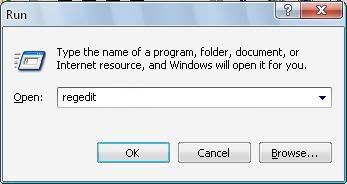
1. First open 'Run' by clicking on 'Start' and selecting 'Run'.
2. Type 'regedit' in the textbox as shown in the figure and click 'OK'.
3. You'll get a window like the one shown below.
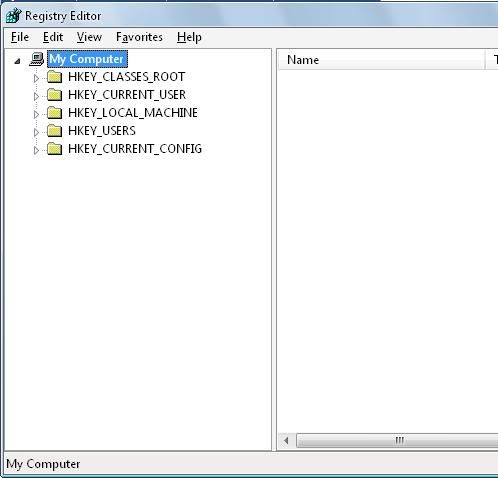
Now observe the registry path for deleting the 'IsShorcut' value. Its 'HKEY_CLASSES_ROOT-->lnkfile'
Now we will break that path into 2 parts namely 'HKEY_CLASSES_ROOT' and 'lnkfile'
So now lets being navigating through the registry. Let us take the first part of the path (HKEY_CLASSES_ROOT).
4. So just double click 'HKEY_CLASSES_ROOT' and you can see a number of entries under it as shown in the figure.
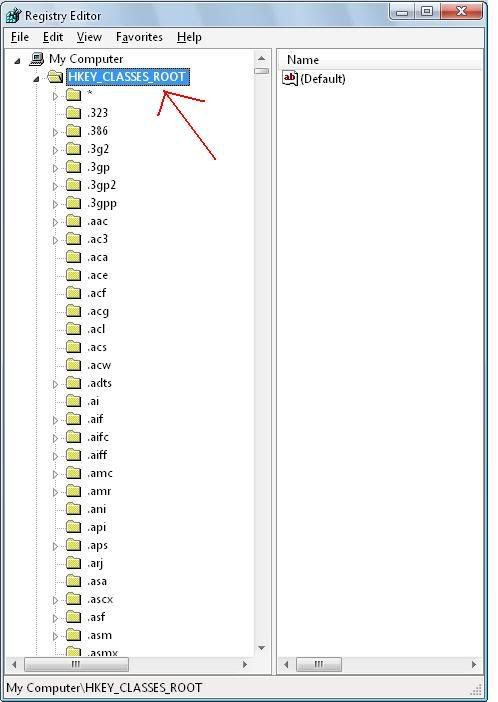
5. Scroll down till you reach 'lnkfile'.
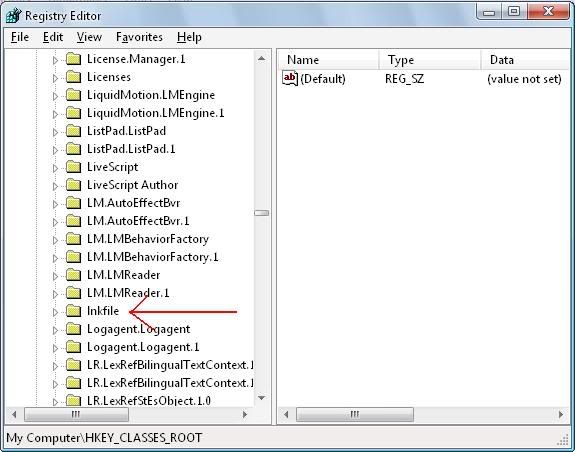
6. Now simply double click on 'lnkfile' and observe the right hand side of the window. You will see 'IsShortcut' listed under 'Name' column. Right click it and select 'Delete'.
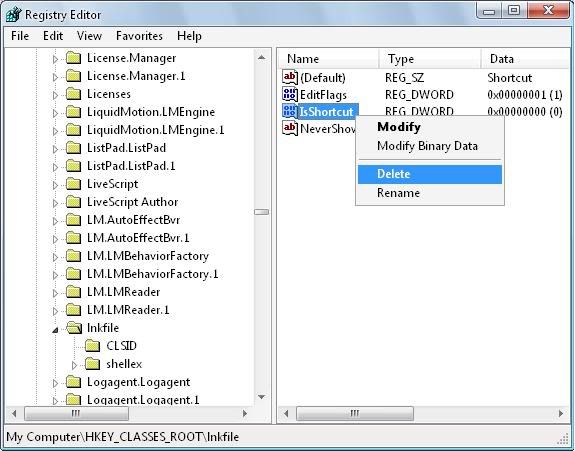
7. You'll get a confirmation dialogue box. Click 'Yes'.
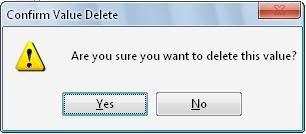
8. Close registry and restart your system. You'll no longer see the shorcut arrow on icons after the restart.
Note : No matter what the path is, the method would be the same. Suppose the registry path is 'HKEY_LOCAL_MACHINE-->Software-->Microsoft-->Current Version', start by double clicking on 'HKEY_LOCAL_MACHINE'. Then scroll down and double click 'Software'. Scroll down again and double click 'Microsoft' and so on.
2. Type 'regedit' in the textbox as shown in the figure and click 'OK'.
3. You'll get a window like the one shown below.
Now observe the registry path for deleting the 'IsShorcut' value. Its 'HKEY_CLASSES_ROOT-->lnkfile'
Now we will break that path into 2 parts namely 'HKEY_CLASSES_ROOT' and 'lnkfile'
So now lets being navigating through the registry. Let us take the first part of the path (HKEY_CLASSES_ROOT).
4. So just double click 'HKEY_CLASSES_ROOT' and you can see a number of entries under it as shown in the figure.
5. Scroll down till you reach 'lnkfile'.
6. Now simply double click on 'lnkfile' and observe the right hand side of the window. You will see 'IsShortcut' listed under 'Name' column. Right click it and select 'Delete'.
7. You'll get a confirmation dialogue box. Click 'Yes'.
8. Close registry and restart your system. You'll no longer see the shorcut arrow on icons after the restart.
Note : No matter what the path is, the method would be the same. Suppose the registry path is 'HKEY_LOCAL_MACHINE-->Software-->Microsoft-->Current Version', start by double clicking on 'HKEY_LOCAL_MACHINE'. Then scroll down and double click 'Software'. Scroll down again and double click 'Microsoft' and so on.
Labels: Computer, နည္းပညာမ်ား-V
How to remove startup programs in Windows
I guess this is far away from a new subject but I am writting this article since most of the articles focused on this subject are incomplete and needs some improvements. So, you want to know if you can disable or remove a program from your startup. With other words, when you're starting Windows, some applications starts right away even if you don't intend to use them. It's pretty annoying and it slows down your computer. I am going to show you how to stop a program from launching itself when Windows will start. This should work for both Windows XP and Vista. First thing to do is to open the "Run" window, to do so you need to click on the "Start" button.

Make sure to click on the "Run" window and you should see a new small window that asks you to type something in it. If anything else is written there, make sure to delete it and type "msconfig" without quotes and press "OK" button. Type the same thing that you're seeing in the following picture :

You should now see another window called "System Configuration Utility". By default this new window should open under the "General" tab but you will need to click on "Startup" tab and you should see a similar picture with this one:

In this window we need to look at "Startup Item", and we need to identify the program that we want to disable it. For example, I found very annoying the Veoh Web Player that starts each time I start my Windows, asking me for my username and password. So I want to start it manually since I am not using it each time I am starting my computer. Now, if I want to disable Veoh Web Player from starting automatically, all I need to do is to uncheck the corresponding white box. After this all we need to do is to click on "Apply" button. If it's unchecked it should look like in the following picture :

Now, after you clicked on the "Apply" button, you must click on the "Close" button. Look at the following picture :

Here comes a part that will become very annoying and will make you think that using System Configuration Utility was useless. After you will click on "Close" button, a new small window will appear asking you to "Restart" or "Exit Without Restart". I am recommending you to use "Restart" ( make sure to read the entire article first ).

Supposing that your computer has been restarted ( make sure to save your work ), the application that you unchecked should no longer appear and it should start only if you want it, by opening manually. Now you should see a System Configuration Utility window saying that : "You have used the System Configuration Utility to make changes to the way Windows starts" and you will need to MAKE SURE TO CHECK THE LITTLE BOX THAT SAYS "Don't show this message or launch the System Configuration Utility when Windows start". So, your window should look like the one in the following picture, just make sure to click on "OK" button and the window will close and it won't appear next time when you will start Windows.

And that's it, if you want to disable another program from Windows startup, you need to repeat this procedure. Remember that I disabled only one program, but you can disable more of them. Also make sure to disable only the programs that you don't need them to start automatically, do not disable programs that are being used by your system. If you suspect that a program might be a malware, you should scan your system with your antivirus or a free anti-spyware application like Ad-Aware or Spybot Search & Destroy. Also, if you cannot remove a program from your startup list and you know for sure that is a malware you can use Hijack This. This program will show you everything that runs on your computer and also hidden startups allowing you to stop them. However, you need to understand security issues when using this software.
Labels: Computer, နည္းပညာမ်ား-V
Desktop ေပၚမွ icons ေလးေတြက Arrow ေလးေတြကိုေဖ်ာက္ခ်င္ရင္...

1. Go to Start-->Run 'regedit' (without quotes)
OK. ေျပာ...
2. Navigate to 'HKEY_CLASSES_ROOT-->lnkfile'.
3. the value IsShorcut registry value. ကို delect လုပ္
4. system ကို Restart ခ်ပါက ေအာက္က ပံုေလးလိုArrow မပါေတာ့တာေတြ့ရမယ္....

1. Go to Start-->Run 'regedit' (without quotes)
OK. ေျပာ...
2. Navigate to 'HKEY_CLASSES_ROOT-->lnkfile'.
3. the value IsShorcut registry value. ကို delect လုပ္
4. system ကို Restart ခ်ပါက ေအာက္က ပံုေလးလိုArrow မပါေတာ့တာေတြ့ရမယ္....
Labels: Computer, နည္းပညာမ်ား-V
| Shortcut Keys | Description |
| Alt + F | File menu options in current program. |
| Alt + E | Edit options in current program |
| F1 | Universal Help in almost every Windows program. |
| Ctrl + A | Select all text. |
| Ctrl + X | Cut selected item. |
| Shift + Del | Cut selected item. |
| Ctrl + C | Copy selected item. |
| Ctrl + Ins | Copy selected item |
| Ctrl + V | Paste |
| Shift + Ins | Paste |
| Home | Goes to beginning of current line. |
| Ctrl + Home | Goes to beginning of document. |
| End | Goes to end of current line. |
| Ctrl + End | Goes to end of document. |
| Shift + Home | Highlights from current position to beginning of line. |
| Shift + End | Highlights from current position to end of line. |
| Ctrl + Left arrow | Moves one word to the left at a time. |
| Ctrl + Right arrow | Moves one word to the right at a time. |
Working with Word
To... | Use this shortcut |
|---|---|
Select text | Shift + Right Arrow, Left Arrow, Up Arrow, or Down Arrow to highlight text |
Copy selected text | Ctrl + C |
Cut selected text | Ctrl + X |
Paste selected text | Ctrl + V |
Undo your last action | Ctrl + Z |
Select all the text within your document | Ctrl + A |
Bold text | Ctrl + B |
Italicize text | Ctrl + I |
Underline | Ctrl + U |
Decrease font size | Ctrl + Shift + < |
Increase font size | Ctrl + Shift + > |
Change font | Ctrl + Shift + F, then use the arrow keys to reach the new font |
Change font size | Ctrl + Shift + P, then use the arrow keys to reach the new font size |
Create page break | Ctrl + Enter |
Create new document | Ctrl + N |
Open My Documents window | Ctrl + O |
Close a document | Ctrl + W |
Save a document | Ctrl + S |
Print a document | Ctrl + P |
Preview what you're about to print | Alt + Ctrl + I |
Accelerating Excel
To... | Use this shortcut |
|---|---|
Move right to left, cell by cell | Tab |
Move up and down, cell by cell | Enter |
Erase data in current cell | Backspace |
Return to the beginning of the row | Home |
Enter the date | Ctrl + ; (semicolon) |
Enter the time | Ctrl + Shift + : (colon) |
Start a formula | = (equal sign) |
Check the spelling of titles or words within the cells | F7 |
Find out about the style within the cell | ALT + ' (apostrophe) |
Display the Format Cells dialog box | Ctrl + 1 |
Apply the general number format | Ctrl + Shift + ~ |
Turn numbers into dollars | Ctrl + Shift + $ |
Make numbers a percentage | Ctrl + Shift + % |
Apply a border | Ctrl + Shift + & |
General keyboard shortcuts
- CTRL+C (Copy)
- CTRL+X (Cut)
- CTRL+V (Paste)
- CTRL+Z (Undo)
- DELETE (Delete)
- SHIFT+DELETE (Delete the selected item permanently without placing the item in the Recycle Bin)
- CTRL while dragging an item (Copy the selected item)
- CTRL+SHIFT while dragging an item (Create a shortcut to the selected item)
- F2 key (Rename the selected item)
- CTRL+RIGHT ARROW (Move the insertion point to the beginning of the next word)
- CTRL+LEFT ARROW (Move the insertion point to the beginning of the previous word)
- CTRL+DOWN ARROW (Move the insertion point to the beginning of the next paragraph)
- CTRL+UP ARROW (Move the insertion point to the beginning of the previous paragraph)
- CTRL+SHIFT with any of the arrow keys (Highlight a block of text)
- SHIFT with any of the arrow keys (Select more than one item in a window or on the desktop, or select text in a document)
- CTRL+A (Select all)
- F3 key (Search for a file or a folder)
- ALT+ENTER (View the properties for the selected item)
- ALT+F4 (Close the active item, or quit the active program)
- ALT+ENTER (Display the properties of the selected object)
- ALT+SPACEBAR (Open the shortcut menu for the active window)
- CTRL+F4 (Close the active document in programs that enable you to have multiple documents open simultaneously)
- ALT+TAB (Switch between the open items)
- ALT+ESC (Cycle through items in the order that they had been opened)
- F6 key (Cycle through the screen elements in a window or on the desktop)
- F4 key (Display the Address bar list in My Computer or Windows Explorer)
- SHIFT+F10 (Display the shortcut menu for the selected item)
- ALT+SPACEBAR (Display the System menu for the active window)
- CTRL+ESC (Display the Start menu)
- ALT+Underlined letter in a menu name (Display the corresponding menu)
- Underlined letter in a command name on an open menu (Perform the corresponding command)
- F10 key (Activate the menu bar in the active program)
- RIGHT ARROW (Open the next menu to the right, or open a submenu)
- LEFT ARROW (Open the next menu to the left, or close a submenu)
- F5 key (Update the active window)
- BACKSPACE (View the folder one level up in My Computer or Windows Explorer)
- ESC (Cancel the current task)
- SHIFT when you insert a CD-ROM into the CD-ROM drive (Prevent the CD-ROM from automatically playing)
- CTRL+SHIFT+ESC (Open Task Manager)
**Start + M - ဖြင့္ထားတဲ့ windows ေတြက ခ်ံဳ႕ျပီး
tast bar ေပၚမွာ ေနရာ ခ်ေပး ပါလိမ့္မယ္။
**Start + Shift + M - task bar ေပၚမွာခ်ံဳ႕ျပီး ခဏ ေနရာ
ခ်ထားတဲ့ windows ေတြကုိ size ၾကီး ျပန္ခ်ဲ႕ေပးပါတယ္။
**Start + E - Windows ရဲ႕ windows explorer ကို ဖြင့္ေပး ပါတယ္။
**Start + R - Start menu မွာရွိတဲ့ ‘Run’ box ကို ဖြင့္ ေပးပါတယ္။
**Start + F - windows search dialog box ကုိ ဖြင့္ ေပးပါတယ္။
**Start + Ctrl + F - search box ကုိဖြင့္ ေပးပါတယ္..
computer ဟာ network ခ်ိတ္ဆက္ ထားရင္
computer dialog box ကို ဖြင့္ေပး ပါတယ္။
**Start + Pause ( Break ) - Systerm properties dialog box
ကုိ ဖြင့္ေပး ပါတယ္။
**F1 - အကူအညီ တစ္စံု တစ္ရာ လုိအပ္ရန္ နွိပ္ပါ။
**Ctrl + Esc - Start Menu ကုိ ဖြင့္ေပး ပါတယ္။
**Alt + Tab - ဖြင့္ထားတဲ့ ပရုိဂရမ္ေတြ တစ္ခုနဲ႕
တစ္ခု အၾကားကုိ ကူးေျပာင္း အလုပ္လုပ္ ေစနုိင္ ပါတယ္။
**Alt + F4 - ဖြင့္္ ထားတဲ့ ပရုိဂရမ္ ကေန ထြက္ခြာ ေစပါတယ္။
အလုပ္ လုပ္လ်က္ သား ျဖစ္ ေနရင္ save လုပ္ မလားလုိ႕ ေမးပါ လိမ့္မယ္။
ွ့ွ**Shift + Del - select ေပးျပီး ေရြးခ်ယ္ ထားတဲ့ ဖုိင္တစ္ခုကုိ
အျပီးတုိင္ ဖ်က္ဆီး ပစ္ပါလိမ့္မယ္။
**Windows program key combination
**Ctrl + C - မိတၱဴ ပြားေပး ပါမယ္။
**Ctrl + X - တစ္ေနရာမွ တစ္ေနရာကုိ ကူးေျပာင္း ေနရာ ေရႊ႕ဖုိ႕
အတြက္ အဆင္သင့္ ျဖစ္ေနျပီ ျဖစ္္တဲ့ လုပ္ငန္းစဥ္ပါ။
**Ctrl + past - မိတၱဴပြားျပီးသား ဖုိင္တစ္ခုကုိ ျပန္လည္ ေနရာ ခ်ထား ေပးပါတယ္။
**Ctrl + Z - undo. လုပ္ေဆာင္ ခဲ့ေသာ အလုပ္ကုိ မနွစ္ သက္တဲ့ အခါမွာ
မူလ အေျခအေန အတုိင္း ျပန္ေရာက္ ရွိေစပါတယ္။
**Ctrl +B - document အတြင္းမွာရွိတဲ့ tast ေတြကုိ ပိုမုိ ထင္ရွား ေအာင္ ျပဳလုပ္ ေပးပါတယ္။
**Ctrl + U - document အတြင္းမွာရွိတဲ့ tast ေအာက္ေျခမွာ မ်ဥ္းသား လုိတဲ့အခါ သံုးၾကပါတယ္။
**Ctrl + I - Italic- text ေတြကို ေစာင္းေပးပါတယ္။
**Mouse/ Keyboard Modifier
**Shift + right click (တစ္ခ်က္) - Rice click နဲ႕တူတယ္။ active windows ရဲ႕ display menu ကုိ ဖြင့္ေပးတယ္။
**ွွShift + Left Click (နွစ္ခ်က္)
**Alt + Left Click (နွစ္ခ်က္) - ဖုိင္သုိ႕မဟုတ္ folder ရဲ႕ properties ကုိျပေပးမယ္။
**General Keyboard
**F 10 - mune bar မွာရွိတဲ့ options ေတြကို အဆင္သင့္ ျဖစ္ေနေအာင္ လုပ္ေဆာင္ ေပးပါတယ္။
**Ctrl + Esc - Start Menu ကုိဖြင့္ေပးပါတယ္။
**Shift + F 10 - ေရြးခ်ယ္ထားတဲ့ဖုိင္ တစ္ခုအတြက္ ’short-cut’ ဖုိင္ငယ္ေလး တစ္ခု ျပဳလုပ္ ေပးထား ပါတယ္။
**Alt + down arrow - drop-down list box က်လာေစပါတယ္။ ေဆာ့ဖ္ဝဲတစ္ခု အတြင္းမွာပဲျဖစ္ေစ၊ တစ္ျခား တစ္ေနရာ တစ္ခု မွာပဲျဖစ္ေစ features တုိင္း လုပ္ေဆာင္ နုိင္စြမ္း box ငယ္ကေလးမ်ား ကုိယ္စီ ရွိၾကသည္။
**Alt + Tab - ဖြင့္ထားတဲ့လုပ္ငန္းစဥ္တုိင္းအား တစ္ခုနွင့္တစ္ခု အၾကား ကူးေျပာင္း ေစနုိင္ပါတယ္။
** Alt Key ကုိဖိထားျပီး Tab Key ကုိ လြတ္လုိက္မယ္ ဆုိရင္ လုပ္ေဆာင္ဆဲ လုပ္ငန္းစဥ္ မွန္သမွ်ကုိ အလြယ္တကူ ၾကည့္ရွု နုိင္ျပီး လုပ္ငန္း ေျပာင္းလဲ နုိင္ပါတယ္။
**Shift + ? - တကယ္လုိ႕ shift key ကုိဖိနွိပ္ထားျပီး CD-ROM ဒါမွမဟုတ္ DVD တစ္ခ်က္ကုိ ထည့္သြင္း လုိက္မယ္ ဆုိရင္ အဲဒီ CD/DVD ရဲ႕ ‘Auto Run’ box တက္လာ ပါမယ္။ CD မွာ virus ပါဝင္ လာမႈရွိ၊ မရွိ စစ္ေဆး လုိတဲ့အခါမွာ အသုံးဝင္ပါတယ္။
**Alt + Space - Restore, move, size, minimize, maximize စတဲ့ command ေတြပါ ဝင္တဲ့ system restore box ကုိျပ ေပးတယ္။
**Alt + hypen - Multiple Document Interface ကုိ ျပသ ေပးတယ္။
**Alt + underlined letter - ေဆာ့ဖ္ဝဲတစ္ခုအတြင္းမွာ သတိထားၾကည့္မိရင္ options bar ရဲ႕ feature ေတြမွာ မ်ဥ္းသား ထားတဲ့ စာသား ေလးေတြ မ်ိဳးစံု ေတြ႕ရ ပါလိမ့္မယ္။ Alt ကုိ ဖိနွိပ္ ထားျပီး အခုန စာသား ေလးကို နွိပ္လုိက္တ့ဲ့ အခါမွာ အဲဒီ ‘feature’ ရဲ႕’drop down box’ ( = ပါဝင္တဲ့ လုပ္ေဆာင္ ခ်က္ေတြ ) ပြင့္လာ ပါမယ္။
**Ctrl + F4 - address bar ကုိဖြင့္ေပးတယ္။
**Alt + F6 - Alt + Tab အလုပ္လုပ္ပံု အတုိင္းျဖစ္ပါတယ္။
Selected objects & shell objects
**F2 - ေရြးခ်ယ္ထားတဲ့အရာဝတၱဳကုိ နာမည္အသစ္ ျပန္ေပးဖုိ႕ အဆင္သင့္ ျဖစ္ေန ေစပါမယ္။
**F3 - ဖုိင္ေတြအကုန္လုံးကုိ ရွာေမးမယ္။
**Alt + Enter - ေရြးခ်ယ္ထားတဲ့ အရာဝတၱဳရဲ႕ properties’ ကုိ ေဖာ္ျပ ေပးပါတယ္။
**ဖုိင္တစ္ခုမိတၱဴပြားရန္ - Ctrl Key ကုိနွိပ္ထားျပီး အဲဒီဖုိင္ကုိ မတူညီတဲ့ တျခား ေနရာကုိ ေရႊ႕ေပးပါတယ္။ အေပါင္း လကၡဏာ ေပၚလာျပီး မိတၱဴပြား ေပးပါလိမ့္မယ္။
**Shortcut တစ္ခုဖန္တီးရန္ - Ctrl နဲ႕ Shift Key ေတြကုိ ဖိနွိပ္ထားရင္ ဖန္တီးခ်င္တဲ့ folder ဒါမွမဟုတ္ အရာဝတၱဳကုိ ဖန္တီးလုိတဲ့ ေနရာဆီကို drag ဆြဲယူပါ။
**F4 - object ကုိ select ေပးထားရင္းနဲ႕ F4 ကုိ နွိပ္ရင္ address bar ကုိ ဖြင့္ေပးပါတယ္။
General folder/shortcut control
**F5(Refresh) - လုပ္ေဆာင္ေနတဲ့ အလုပ္ေတြကို ျပန္လည္ လန္းဆန္း ေစပါ။
**F6 - Windows Explorer အတြင္းဟိုဘက္ ဒီဘက္ cursor ေရႊ႕နုိင္ ပါတယ္။
**Ctrl + A - အရာဝတၱဳမ်ားအားလံုးကုိ select လုပ္ေပးပါမယ္။ တကယ္လုိ႕ desktop ေပၚမွာ item တစ္ခု ကုိ click နွိပ္ျပီး ‘Ctrl + A’ command သံုးလုိက္ရင္ က်န္တဲ့ item ေတြကုိပါ ေရြးခ်ယ္ ျပီးသား ျဖစ္သြား ပါလိမ့္မယ္။
Shift + Click + closebutton - ဖြင့္ထားတဲ့ folder ေတြမွန္သမွ် parten folder ကုိေရာ root folder ေတြေရာ ပိတ္ေပးသည္။
Windows explorer အတြင္း
*(keypad) - ရွိရွိသမွ် root folder ေတြအကုန္ဖြင့္ေပးတယ္။
+(keypad) - root floder တခုအတြင္းရွိ ရွိရွိသမွ် file ေတြဖြင့္ေပးတယ္။
-(keypad) - root flolder တခုအတြင္းရွိ ရွိရွိသမွ် file ေတြပိတ္ေပးတယ္။
Right Arrow - ‘+’ နဲ႔အလုပ္လုပ္ပံုခ်င္းတူတယ္။
Left Arrow - ‘-’ နဲ႔အလုပ္လုပ္ပံုခ်င္းတူတယ္။
Properties control
Ctrl + Tab သို႔မဟုတ္ Ctrl + Tab + Shift - Mouse မသံုးဘဲဲ Keyboard နဲ႔ခုန္ပ်ံေက်ာ္လႊားသြား နိုင္ တယ္။ (Mouse အသံုးမျပဳလိုပါက mouse properties တခ်ိဳ႔ကို disable လုပ္ထားလွ်င္ ပိုေကာင္း၏။)
Accessibliity Short-cuts
Shift ကိုငါးႀကိမ္ႏွိပ္တဲ့အခါ - Control panel ထဲမွာရွိတဲ့ Accessibility options ကို select ေပးပါ။ Shift ကို PC ထဲကေန ‘ကြိ’ ဆိုတဲ့ အသံကေလး ေပၚလာ ပါလိမ့္မယ္။ ျပီးရင္ေတာ့ Shift Key ကိို save မလုပ္ ခ်င္ရင္ cancel လုပ္ပါ။
ညာဘက္ Shift ကို ရွစ္စကၠန္႔အႀကာ ဖိထားတဲ့အခါမွာ - ညာဘက္ Shift ကို ရွစ္စကၠန္႔ ႀကာေအာင္ ကိုင္ႏွိပ္ ထားရင္ filter key box ေလး ေပၚလာ ပါလိမ့္မယ္။
‘Number Lock’ Key ကိုငါးစကၠန္႔ႀကာ ေအာင္ဖိထားတဲ့အခါမွာ - Number lock Key ကိုငါးစကၠန္႔ ႀကာ ေအာင္ ဖိထားတဲ့အခါမွာလည္း ထိုနည္း လည္းေကာင္းပါပဲ၊ အလုပ္ လုပ္ပံု ခ်င္းသာ ကြဲျပား သြားမွာပါ။
ဘယ္ဘက္ Alt + ဘယ္ဘက္ Shift =+ Number Lock - PC ထဲက’ကြိ’ အသံေလးအတြက္ function ပဲျဖစ္ပါတယ္။ အဓိ္ကအားျဖင့္ကေတာ့ mouse key ေတြကို အပိတ္အဖြင့္ လုပ္ေစခ်င္တာပါ။
ဘယ္ဘက္ Alt + ဘယ္ဘက္ Shift + print screen preview - ျမင့္မားတဲ့ ပံုရိပ္ေတြကို ရယူလိုတဲ့ အခါမွာ အဆိုပါ keyboard တြဲေတြကို တြဲဘက္ ႏွွိပ္ေပး ရပါလိမ့္မယ္။
Keyboard Keys
Start (Windows logo) + D - Window ေတြကို task bar ေပၚကိုခဏ တင္ေပးတယ္။
Ctrl + Start + F - Search box ကိုဖြင့္ေပးပါမယ္။ ေခြးေလးကို မလိုခ်င္ရင္ ပယ္ဖ်က္ ထားလို႔ရပါတယ္။
Ctrl + Start + Tab - address bar ဆီကို ခ်က္ခ်င္း cursor ခ်ေပးတယ္။
Start + Tab - Taskbar ေပၚမွာစုျပံဳ ျပီး ဖြင့္ထားတဲ့ folder ေတြဆီကို တခုကေန တခု ကူးေျပာင္းႏိုင္တယ္။
Start + Pause (Break) - System properties ကိုခ်က္ခ်င္း ဖြင့္ေပးတယ္။
Application Key - File သိုမဟုတ္ folder ရဲ႔ properties ကိုဖြင့္ေပးတယ္။
Dialog box command
Tab - dialog box ထဲမွာဆိုရင္ ေနာက္တခုကို သြားဘို႔ အဆင္သင့္ ျဖစ္ေနတယ္။
Shift + Tab - လာခဲ့တဲ့ control ဆီကို ျပန္သြားေပးတယ္။
Space-bar - ေရြးခ်ယ္ျပီးလုပ္မယ္။ ( ဥပမုာ button တခုကို ေရြးထားတယ္။ အဲဒီ button ကို click ႏွိပ္ရံုပါပဲ။ ဥပမာ check box တခုကို ေရြးမယ္ဆိုရင္ space bar တခ်က္ပုတ္ရံုပဲ။ ဥပမာ ႏွစ္ခု ျပေပး ထားတယ္။ တခုကို ေရြးမယ္ ဆိုတဲ့ ေနရာမွာ Enter နဲ႔တူတယ္။
Esc - အရာအားလံုးရဲ႔ ၉၀ရာခိုင္ႏႉန္းဟာ ‘cancel’ ရဲ႔ အလုပ္ လုပ္ပံုနဲ႔ တူတယ္။
Alt + Underline Letter - Alt ကို ဖိထားျပီး underline သားထားတဲ့ အကၡရာကို ႏွိပ္မယ္ဆိုရင္ အဲဒီ command အတြက္ short-cut တခုပါပဲ။
Enter - object တခုကို select ေပးျပီး OK button ႏွိပ္လိုက္တာနဲ႔ ဆင္တူတယ္။
Labels: Computer, နည္းပညာမ်ား-V

ေတာ္ေတာ္ေကာင္းတဲ့Computer Dictionary ( online ) ေလးပါ......
စံုလည္းစံုပါတယ္......

Labels: Computer, Dictionarys
Webpage ေတြမွာ လိုအပ္တဲ႔ အပိုင္းေလးေတြကို ျဖတ္ေတာက္
လို့ရပါတယ္.......

ကိုသြားလိုက္ပါ.....
ျပီးရင္...Add to Firefox ဆိုတာေလးကို Click လိုက္ပါ....
Install Now ဆိုတာ ေပၚလာလိမ္႔မယ္ .. အဲဒါကို Click လိုက္ Install လုပ္သြား ျပီးရင္ Firefox ကို Restart ေပးလိုက္ပါ .. ျပီးရင္ Firefox ကို ျပန္ဖြင္႔ၾကည္႔ ပါက ေလးကိုေအာက္မွာေတြ့ရမယ္....
*
*
အသံုးျပဳလိုပါက..
ေအာက္နားမွာ ေပၚေနတဲ႔ Screengrab ေလးကို Click တစ္ခ်က္ႏွိပ္လိုက္ပါ..
ေပၚလာတဲ့ထဲက Save ကိုသံုးပါမယ္.....
****Complete Page / Frame ...... Webpage တစ္ခုလံုးကို Print Screen
**** Visible Position ..................Browser မွာ ျမင္ေနရတဲ႔ Webpage
အပိုင္းေလးကို Print Screen
**** Selection........................... မိမိDrag ဆြဲျပီး Print Screen
စသည္ျဖင့္ အသံုးျပဳႏိုင္ပါတယ္ ။
Save မည္႔ေနရာကို ေရြးျပီး Save လိုက္ရင္ ရပါျပီ ..။
လို့ရပါတယ္.......
ကိုသြားလိုက္ပါ.....
ျပီးရင္...Add to Firefox ဆိုတာေလးကို Click လိုက္ပါ....
Install Now ဆိုတာ ေပၚလာလိမ္႔မယ္ .. အဲဒါကို Click လိုက္ Install လုပ္သြား ျပီးရင္ Firefox ကို Restart ေပးလိုက္ပါ .. ျပီးရင္ Firefox ကို ျပန္ဖြင္႔ၾကည္႔ ပါက
ေလးကိုေအာက္မွာေတြ့ရမယ္....*
*
အသံုးျပဳလိုပါက..
ေအာက္နားမွာ ေပၚေနတဲ႔ Screengrab ေလးကို Click တစ္ခ်က္ႏွိပ္လိုက္ပါ..
ေပၚလာတဲ့ထဲက Save ကိုသံုးပါမယ္.....
****Complete Page / Frame ...... Webpage တစ္ခုလံုးကို Print Screen
**** Visible Position ..................Browser မွာ ျမင္ေနရတဲ႔ Webpage
အပိုင္းေလးကို Print Screen
**** Selection........................... မိမိDrag ဆြဲျပီး Print Screen
စသည္ျဖင့္ အသံုးျပဳႏိုင္ပါတယ္ ။
Save မည္႔ေနရာကို ေရြးျပီး Save လိုက္ရင္ ရပါျပီ ..။
Labels: Addon, Computer, Softwares-VI, Tactical, နည္းပညာမ်ား-V
Start>Run ဒါမွမဟုတ္ Windows + R ကို ႏွိပ္ၿပီးရင္
Windows Temporary Files ေတြ ရွိတဲ့ ေနရာကိုဖြင့္ဖို႔
%temp% or %tmp%
Click OK
Program Files ကိုဖြင့္ဖို႔
%programfiles%
Windows Folder ကိုဖြင့္ဖို႔
%systemroot% or %Windir%
Windows Folder ထဲက System32 ကိုဖြင့္ခ်င္ရင္ ေနာက္က Folder Name ကို Back Slash (\) ခံၿပီး ဆက္႐ိုက္လို႔ရတယ္
%systemroot%\System32
အေပၚက Shortcut ေတြက Environment Variables မွာ ေရးထားတဲ့ Path ေတြပါ
Internet Options ကိုဖြင့္ဖို႔
inetcpl.cpl
Click OK
Desktop Properties ကိုဖြင့္ဖို႔
desk.cpl
Click OK
Computer Management ကိုဖြင့္ဖို႔
compmgmt.msc
Click OK
Accessibility controls Keyboard(1), Sound(2), Display(3), Mouse(4), General(5)
access.cpl
Add/Remove Programs
appwiz.cpl
Display properties Themes(5), Desktop(0), Screen Saver(1), Appearance (2), Settings(3)
desk.cpl
Add hardware
hdwwiz.cpl
Configure Internet Explorer and Internet properties General(0), Security(1), Privacy(2), Content(3), Connections(4), Programs(5), Advanced(6)
inetcpl.cpl
Regional settings Regional Options(1), Languages(2), Advanced(3)
intl.cpl
Game controllers
joy.cpl
Mouse properties and settings Buttons(0), Pointers(1), Pointer Options(2), Wheel(3), Hardware(4)
main.cpl
Keyboard properties Speed(0), Hardware (1)
main.cpl,@1
Sounds and Audio Volume(0), Sounds(1), Audio(2), Voice(3), Hardware(4)
mmsys.cpl
Network properties
ncpa.cpl
User accounts
nusrmgr.cpl
Power configuration Power Schemes, Advanced, Hibernate, UPS (Tabs not indexed)
powercfg.cpl
System properties General(0), Computer Name(1), Hardware(2), Advanced(3), System Restore(4), Automatic Updates(5), Remote (6)
sysdm.cpl
Phone and modem options Dialing Rules(0), Modems(1), Advanced(2)
telephon.cpl
Date and time properties Date & Time(0), Time Zone(1), Internet Time (no index)
timedate.cpl
Microsoft Management Console ထဲမွာ ပါတဲ့ applet ေတြကို ဖြင့္တဲ့ Run Command ေတြပါ..
Certificates
certmgr.msc
Indexing Service
ciadv.msc
Computer Management
compmgmt.msc
Device Manager
devmgmt.msc
Disk Defragmenter
dfrg.msc
Disk Management
diskmgmt.msc
Event Viewer
eventvwr.msc
Shared Folders
fsmgmt.msc
Group Policy
gpedit.msc
Local Users and Groups
lusrmgr.msc
Removable Storage
ntmsmgr.msc
Removable Storage Operator Requests
ntmsoprq.msc
Performance
perfmon.msc
Resultant Set of Policy
rsop.msc
Local Security Settings
secpol.msc
Services
services.msc
Windows Management Infrastructure (WMI)
wmimgmt.msc
Component Services
comexp.msc
Labels: Computer, နည္းပညာမ်ား-V
ဖုန္း၀ယ္ရင္ ၊ ဖုနး္ႏွင့္ ကြန္ပ်ဴတာ ခ်ိတ္ဆက္ဖို႔ ေဆာ့ဖ္၀ယ္ CD တစ္ခ်ပ္ပါမယ္။
ခ်ိတ္ဆက္ဖို႔ USB ဆိုတဲ့ ၾကိဳးတစ္ေခ်ာင္းပါမယ္ ၊
CD ထဲတြင္ ပါလာေသာ ေဆာ့ဖ္၀ယ္မွ ဘယ္ဟာႏွိပ္၊ ဟိုဟာႏွိပ္ႏွင့္ သူ၏ ေမးေသာ ေမးခြန္းမ်ားကိုလည္း ေျဖၾကားေပးေနသည္။ သို႔ေနာက္ ျပီးသြားသည့္တိုင္ေအာင္၊ လက္ကိုင္ဖုန္းထဲမွ သီခ်င္းႏွင့္ ဓါတ္ပံုမ်ား ကြန္ပ်ဴတာထဲ သို႔ မေရာက္ေသးေပ။ သို႔ေၾကာင့္ ေဒါသလည္း အလြန္ထြက္မိသည္၊ ကူညီေနေသာ အခါတြင္ လုပ္ရင္း မျပီးသည္ကို အခ်ိန္ျဖဳန္းမိေလသလားဟု စိတ္ထဲထင္မိသည္။ သို႔ေသာ္ ဇြဲမေလွ်ာ့ပါေလ၊ ဆက္လက္၍ ေဆာ့ဖ္၀ယ္တစ္ခုအား လင့္ခ္ေပးမိသည္။
“ ဒီေဆာ့ဖ္၀ယ္ကို စာရင္း၀င္လိုက္တာႏွင့္ သံုးလို႔ရမယ္ ”
“ ေအး ၊ စာရင္း သြင္းေနျပီ ”
သို႔ႏွင့္ ကၽြန္ေတာ္ သူျပီးသည္အထိ ေစာင့္ေနမိသည္။
“ ဟာ ပိုက္ဆံေပးရမည့္ ကဒ္နံပါတ္ ေတာင္းေနတယ္၊ ငါမေပးခ်င္ပါဘူး ”
“ ဟုတ္ဘူး၊ အဲဒါ ကဒ္နံပါတ္ ေတာင္းတာ၊ ရက္ ၃၀ အခမဲ့ စမ္းသံုးခြင့္ ေပးတယ္ေလ၊ ရက္၃၀ မတိုင္ခင္မွာ စာရင္းျပန္ထြက္လိုက္ေပါ့ ”
“ စာရင္းျပန္ထြက္လိုက္ရင္ သူပိုက္ဆံမျဖတ္ေတာ့ဘူး”
ဒီလို ပံုစံမ်ိဳး ကၽြန္ေတာ္ လုပ္ခဲ့တာ ၾကာေလျပီ။ လက္ထဲတြင္ ရွိေသာ မာစတာကဒ္ (ေငြးေၾကးကဒ္)တစ္ကဒ္ ႏွင့္ ေဆာ့ဖ္၀ယ္ကုမၸဏီမ်ား၏ ကြန္ရက္မ်ားကို ၀င္ျပီး၊ သူတို႔ အခမဲ့ စမ္းသံုးခြင့္ ေပးထားတဲ့ ေဆာ့ဖ္၀ယ္မ်ားကို သံုးၾကည့္သည္။ ဘယ္လိုအသံုး၀င္သလဲဟု၊ ေရွ႕ဆက္ေရာ သံုးမိမည့္ ေဆာ့ဖ္၀ယ္လား၊ ဆက္သံုးရင္ ပိုက္ဆံ ဘယ္ေလာက္ျဖတ္မလဲ၊ စသည္ျဖင့္ ေတြးေတာရသည္။ သံုးဖို႔ မတန္လ်င္ေတာ့ သူတို႔ ေျပာထားသည့္ ရက္ပိုင္းအတြင္းတြင္ စာရင္းျပန္ထြက္ေပးရသည္၊ သို႔မဟုတ္လ်င္ ကဒ္ထဲသို႔ ေဆာ့ဖ္၀ယ္ၾကိဳက္လို႔ ၀ယ္လိုက္သည္ထင္ကာ အလိုေလ်ာက္ ပိုိက္ဆံျဖတ္ေတာ့မည္။ ထို႔ေၾကာင့္ ကဒ္၏ နံပါတ္ႏွင့္ လ်ိဳ႕၀ွက္စာလံုးမ်ားေတာ့ ရင္းႏွီးမႈ ျပဳရသည္။ ရင္းႏွီးမႈးအတြက္ တန္ဖိုးရွိတာေတြေတာ့ ရလိုက္သည္၊ ထိုကား သူတို႔၏ အသစ္အစမ္း ေဆာ့ဖ္၀ယ္မ်ားကို သံုးဖူးလိုက္ျခင္းပင္။
“ ဟာ ဒါက ၊ ဘာေဆာ့ဖ္၀ယ္လဲ ”
“ ေၾသာ္၊ အကို႔ ကြန္ပ်ဴတာကို ကၽြန္ေတာ္ ဒီဘက္ကမၻာကေန လွမ္းသံုးလို႔ ရတယ္ေလ၊ ကၽြန္ေတာ္ဘာေတြ လုပ္ေနတယ္ဆိုတာလဲ အကိုျမင္ေနရတယ္ ”
“ ဟာ ေတာ္ျပီ။ သြင္းေတာ့ဘူး ကြန္ပ်ဴတာထဲမွာ Private Folder ေတြ ရွိတယ္ဟ ”
“ ေၾသာ္ ဟုတ္ဘူးေလ၊ အကို႔ Private Folder ၀င္ၾကည့္မလား၊ ကၽြန္ေတာ္လုပ္သင့္သာပဲ လုပ္သြားမယ္ေလ၊ အကိုလည္း ကၽြန္ေတာ္ ဘယ္ ဖိုင္ေတြ ဖြင့္ေနတယ္ဆိုတာ ျမင္ေနရတာပဲ ”
“ ဘာညာကြိကြ တူ႔းးးးးး.. ဘာညာကိကြ တ႔ူးးးး ”
“ ဘာညာကြိကြ တူ႔းးးး.... တူးးးး ဘာညာကြိကြ တ႔ူးးးးး”
ဟဲဟဲ၊ အဲေလာက္လည္း ပြဲၾကမ္းသြားတယ္ မထင္နဲ႔ဦး၊ ကာယကံရွင္က သေဘာမတူေတာ့လည္း ဆက္မလုပ္ေပးေတာ့ဘူးေပါ့ဗ်ာ။ ဒါေပမဲ့ ကိုယ္ကူညီလိုက္တဲ့ အရာဟာ မျပီးေတာ့လည္း ေနရထိုင္ရတာ သိပ္ခက္ခဲပါတယ္။ ကိုယ္ေျပာေနသမွ်ေတြလည္း သဲထဲေရသြန္လိုက္သလိုပါပဲ။
သို႔ႏွင့္ သူမ်ားေတြပဲ လိုက္လုပ္ေပးေနလို႔ ၊ ကၽြန္ေတာ့ကိုလည္း လုပ္ေပးၾကပါဦးဗ်ာ။ ဆရာမ ေမျငိမ္းက ဒီလိုဆိုပါတယ္။
ဆရာမ စာေတြကို ဘေလာ့မွာတင္ေနရင္ -ွ တို႔ -် တို႕ေတြဟာ ?? ေတြ ျဖစ္ကုန္ပါသတဲ့။
ဟုတ္ဘူးဆရာမ၊ ကၽြန္ေတာ္တို႔ေရာ ဒီလိုပဲ ျဖစ္တတ္တယ္။ ?? ေတြ အဲလိုပဲ ေပၚတယ္။ ဒါေပမဲ့ ကၽြန္ေတာ္ျဖစ္ေနတာေရာ သိခ်င္ၾကပါသလား။ ကၽြန္ေတာ္စာတင္လိုက္ရင္ ?? ေတာ့ ေပၚတာပါပဲ ၊ သို႔ေပမဲ့ ဒါေလးေတြၾကေတာ့ ဘယ္လိုလုပ္ၾကမလဲ။

?? ေတြ ပါတာက ခန္႔မွန္းလို႔ ရပါေသးတယ္။ ကၽြန္ေတာ့ဆီမွာေတာ့ ပို႔စ္တင္ျပီး စာလံုးေပါင္းေတြ ျပင္တဲ့ အခါမွာ ထို အကြက္မ်ား ေပၚလာပါေတာ့တယ္။ အကြက္ေတြဆိုေတာ့ ဘယ္လိုမွ ခန္႔မွန္းလို႔ မရပါ။ စာလံုးဘာေတြလည္း သိခ်င္ရင္ ကြန္ပ်ဴတာကို ပိတ္ျပီး ျပန္ဖြင့္ရင္ဖြင့္၊ မဖြင့္ရင္ ဘာစာလဲ သိေအာင္ Notepad ထဲ ျပန္ကူးထည့္ရပါတယ္။ ကဲ စာဖတ္သူတို႔ေရာ ဘယ္လိုျမင္ပါသလဲ။
ခ်ိတ္ဆက္ဖို႔ USB ဆိုတဲ့ ၾကိဳးတစ္ေခ်ာင္းပါမယ္ ၊
CD ထဲတြင္ ပါလာေသာ ေဆာ့ဖ္၀ယ္မွ ဘယ္ဟာႏွိပ္၊ ဟိုဟာႏွိပ္ႏွင့္ သူ၏ ေမးေသာ ေမးခြန္းမ်ားကိုလည္း ေျဖၾကားေပးေနသည္။ သို႔ေနာက္ ျပီးသြားသည့္တိုင္ေအာင္၊ လက္ကိုင္ဖုန္းထဲမွ သီခ်င္းႏွင့္ ဓါတ္ပံုမ်ား ကြန္ပ်ဴတာထဲ သို႔ မေရာက္ေသးေပ။ သို႔ေၾကာင့္ ေဒါသလည္း အလြန္ထြက္မိသည္၊ ကူညီေနေသာ အခါတြင္ လုပ္ရင္း မျပီးသည္ကို အခ်ိန္ျဖဳန္းမိေလသလားဟု စိတ္ထဲထင္မိသည္။ သို႔ေသာ္ ဇြဲမေလွ်ာ့ပါေလ၊ ဆက္လက္၍ ေဆာ့ဖ္၀ယ္တစ္ခုအား လင့္ခ္ေပးမိသည္။
“ ဒီေဆာ့ဖ္၀ယ္ကို စာရင္း၀င္လိုက္တာႏွင့္ သံုးလို႔ရမယ္ ”
“ ေအး ၊ စာရင္း သြင္းေနျပီ ”
သို႔ႏွင့္ ကၽြန္ေတာ္ သူျပီးသည္အထိ ေစာင့္ေနမိသည္။
“ ဟာ ပိုက္ဆံေပးရမည့္ ကဒ္နံပါတ္ ေတာင္းေနတယ္၊ ငါမေပးခ်င္ပါဘူး ”
“ ဟုတ္ဘူး၊ အဲဒါ ကဒ္နံပါတ္ ေတာင္းတာ၊ ရက္ ၃၀ အခမဲ့ စမ္းသံုးခြင့္ ေပးတယ္ေလ၊ ရက္၃၀ မတိုင္ခင္မွာ စာရင္းျပန္ထြက္လိုက္ေပါ့ ”
“ စာရင္းျပန္ထြက္လိုက္ရင္ သူပိုက္ဆံမျဖတ္ေတာ့ဘူး”
ဒီလို ပံုစံမ်ိဳး ကၽြန္ေတာ္ လုပ္ခဲ့တာ ၾကာေလျပီ။ လက္ထဲတြင္ ရွိေသာ မာစတာကဒ္ (ေငြးေၾကးကဒ္)တစ္ကဒ္ ႏွင့္ ေဆာ့ဖ္၀ယ္ကုမၸဏီမ်ား၏ ကြန္ရက္မ်ားကို ၀င္ျပီး၊ သူတို႔ အခမဲ့ စမ္းသံုးခြင့္ ေပးထားတဲ့ ေဆာ့ဖ္၀ယ္မ်ားကို သံုးၾကည့္သည္။ ဘယ္လိုအသံုး၀င္သလဲဟု၊ ေရွ႕ဆက္ေရာ သံုးမိမည့္ ေဆာ့ဖ္၀ယ္လား၊ ဆက္သံုးရင္ ပိုက္ဆံ ဘယ္ေလာက္ျဖတ္မလဲ၊ စသည္ျဖင့္ ေတြးေတာရသည္။ သံုးဖို႔ မတန္လ်င္ေတာ့ သူတို႔ ေျပာထားသည့္ ရက္ပိုင္းအတြင္းတြင္ စာရင္းျပန္ထြက္ေပးရသည္၊ သို႔မဟုတ္လ်င္ ကဒ္ထဲသို႔ ေဆာ့ဖ္၀ယ္ၾကိဳက္လို႔ ၀ယ္လိုက္သည္ထင္ကာ အလိုေလ်ာက္ ပိုိက္ဆံျဖတ္ေတာ့မည္။ ထို႔ေၾကာင့္ ကဒ္၏ နံပါတ္ႏွင့္ လ်ိဳ႕၀ွက္စာလံုးမ်ားေတာ့ ရင္းႏွီးမႈ ျပဳရသည္။ ရင္းႏွီးမႈးအတြက္ တန္ဖိုးရွိတာေတြေတာ့ ရလိုက္သည္၊ ထိုကား သူတို႔၏ အသစ္အစမ္း ေဆာ့ဖ္၀ယ္မ်ားကို သံုးဖူးလိုက္ျခင္းပင္။
“ ဟာ ဒါက ၊ ဘာေဆာ့ဖ္၀ယ္လဲ ”
“ ေၾသာ္၊ အကို႔ ကြန္ပ်ဴတာကို ကၽြန္ေတာ္ ဒီဘက္ကမၻာကေန လွမ္းသံုးလို႔ ရတယ္ေလ၊ ကၽြန္ေတာ္ဘာေတြ လုပ္ေနတယ္ဆိုတာလဲ အကိုျမင္ေနရတယ္ ”
“ ဟာ ေတာ္ျပီ။ သြင္းေတာ့ဘူး ကြန္ပ်ဴတာထဲမွာ Private Folder ေတြ ရွိတယ္ဟ ”
“ ေၾသာ္ ဟုတ္ဘူးေလ၊ အကို႔ Private Folder ၀င္ၾကည့္မလား၊ ကၽြန္ေတာ္လုပ္သင့္သာပဲ လုပ္သြားမယ္ေလ၊ အကိုလည္း ကၽြန္ေတာ္ ဘယ္ ဖိုင္ေတြ ဖြင့္ေနတယ္ဆိုတာ ျမင္ေနရတာပဲ ”
“ ဘာညာကြိကြ တူ႔းးးးးး.. ဘာညာကိကြ တ႔ူးးးး ”
“ ဘာညာကြိကြ တူ႔းးးး.... တူးးးး ဘာညာကြိကြ တ႔ူးးးးး”
ဟဲဟဲ၊ အဲေလာက္လည္း ပြဲၾကမ္းသြားတယ္ မထင္နဲ႔ဦး၊ ကာယကံရွင္က သေဘာမတူေတာ့လည္း ဆက္မလုပ္ေပးေတာ့ဘူးေပါ့ဗ်ာ။ ဒါေပမဲ့ ကိုယ္ကူညီလိုက္တဲ့ အရာဟာ မျပီးေတာ့လည္း ေနရထိုင္ရတာ သိပ္ခက္ခဲပါတယ္။ ကိုယ္ေျပာေနသမွ်ေတြလည္း သဲထဲေရသြန္လိုက္သလိုပါပဲ။
သို႔ႏွင့္ သူမ်ားေတြပဲ လိုက္လုပ္ေပးေနလို႔ ၊ ကၽြန္ေတာ့ကိုလည္း လုပ္ေပးၾကပါဦးဗ်ာ။ ဆရာမ ေမျငိမ္းက ဒီလိုဆိုပါတယ္။
ဆရာမ စာေတြကို ဘေလာ့မွာတင္ေနရင္ -ွ တို႔ -် တို႕ေတြဟာ ?? ေတြ ျဖစ္ကုန္ပါသတဲ့။
ဟုတ္ဘူးဆရာမ၊ ကၽြန္ေတာ္တို႔ေရာ ဒီလိုပဲ ျဖစ္တတ္တယ္။ ?? ေတြ အဲလိုပဲ ေပၚတယ္။ ဒါေပမဲ့ ကၽြန္ေတာ္ျဖစ္ေနတာေရာ သိခ်င္ၾကပါသလား။ ကၽြန္ေတာ္စာတင္လိုက္ရင္ ?? ေတာ့ ေပၚတာပါပဲ ၊ သို႔ေပမဲ့ ဒါေလးေတြၾကေတာ့ ဘယ္လိုလုပ္ၾကမလဲ။

?? ေတြ ပါတာက ခန္႔မွန္းလို႔ ရပါေသးတယ္။ ကၽြန္ေတာ့ဆီမွာေတာ့ ပို႔စ္တင္ျပီး စာလံုးေပါင္းေတြ ျပင္တဲ့ အခါမွာ ထို အကြက္မ်ား ေပၚလာပါေတာ့တယ္။ အကြက္ေတြဆိုေတာ့ ဘယ္လိုမွ ခန္႔မွန္းလို႔ မရပါ။ စာလံုးဘာေတြလည္း သိခ်င္ရင္ ကြန္ပ်ဴတာကို ပိတ္ျပီး ျပန္ဖြင့္ရင္ဖြင့္၊ မဖြင့္ရင္ ဘာစာလဲ သိေအာင္ Notepad ထဲ ျပန္ကူးထည့္ရပါတယ္။ ကဲ စာဖတ္သူတို႔ေရာ ဘယ္လိုျမင္ပါသလဲ။
Labels: Android Tutorials-IV, Android Tutorials-V, Android Tutorials-VI, Computer, Mobile, Softwares-IV, နည္းပညာမ်ား-V

ြGtalk ေျပာျပီးရင္ ၀င္းဒိုးထဲမ်ာကိုယ့္အေကာင့္မက်န္ေအာင္ေတာ့ အားလံုးလုပ္တတ္ၾကမွာပါ.......
ဒါေပမယ့္ computer မွာမွတ္ထားတာကိုဖယ္ရွားတတ္ေစခ်င္လို့ ဒီပို့္စ္္ိေရးတာပါ....
က်ြန္ေတာ္ဆို ေကာင္မေလးေခ်ာေခ်ာ ေတြရဲ့အေကာင့္ကို သိခ်င္ရင္
သူျပန္သြားတာနဲ့ ေအာက္မွာေဖၚျပထားတဲ့နည္းသံုးျပီးခိုးေတာ့တာပဲ ( :P ) (: P )
ဒီေတာ့အခိုးမခံရေအာင္ သယ္ရင္းတို့က ေအာက္ကနည္းအတိုင္းဖ်က္ခဲ့ၾကေပါ့.......
*****win+R ႏွိပ္ပါ။( Start Button + R Key ကိုႏွိပ္ဖို့ေျပာတာ)...
*****ေပၚလာမယ့္ box ထဲမွာ regedit ရုိက္ထည့္ပါ...Enter ေခါက္ပါ.....
*****ျပီးရင္ H key ေလးကိုတစ္ခ်က္ခ်င္းႏွိပ္သြားျပီး .......
*****HKEY_CURRENT_USER ကိုရွာ၀င္..
*****ျပီးရင္ အဲဒီ HKEY_CURRENT_USERထဲကမွ Software...
Software ထဲကမွ Google....
Google ထဲကမွ Google Talk...
Google Talk ထဲကမွ Accounts ကို၀င္လိုက္ပါ.....
***** ညာဘက္မွာ o ဆိုတာေတြ႕ပါမယ္.....အဲဒါကို double Click ႏွိပ္ပါ....
***** အဒီမွာစေတြ့ေတာ့တာပဲ...... gtalkသံုးခဲ့တဲ့usernameေတြကို....ကုိယ္နာမည္ကို္ဖ်က္ခဲ့ေပါ့။ သူမ်ားနာမည္ေတြပါဖ်က္ေပးခဲ့ရင္ ပိုေကာင္းတာေပါ့ ....
ျပီးရင္.............
+Accounts ဆိုတာ၀င္ခဲ့တဲ့ေနရာက + ေလးကိုႏွိပ္လိုက္ပါ။ အဲဒီမွာ ကိုယ္ဝင္ထားတဲ့ Username ေတြရွိပါေသးတယ္။ ကိုယ့္ Username ေပၚ click ေထာက္လိုက္ပါ။ right click>delete နဲ႔ဖ်က္လိုက္ပါ။ ဒါဆိုရင္ေတာ့လံုျခံဳ သြားပါျပီ။ ........( အရင္ထက္စာရင္ :P ) :P
*******အကုန္နားလည္ေအာင္ တစ္ဆင့္ခ်င္းေရးထားတာပါ.....တစ္ကယ္ဆို တိုတိုေရးလို့ရပါတယ္.....
ဖတ္ေနတာကမွၾကာဦးမယ္......လက္ေတြ့လုပ္ရင္ခဏေလးပါ........

အင္တာနက္အသံုးျပဳၿပီးေနာက္ Windows ထဲမွာက်န္ရွိခဲ့တဲ့ ယာယီဖုိင္မ်ားနဲ႔ ေန႔စဥ္သံုးေနတဲ့ document ေတြကို ေျခရာခံဖ်က္ဆီးေပးမယ့္ေဆာ့ဖ္၀ဲ ျဖစ္ပါတယ္။ ဒါ့အျပင္ Internet Explorer Cache, URL link ေတြနဲ႔ ICQ, MSN messenger လို application ေတြကိုလည္း ေျခရာခံရွင္းလင္းေပးႏိုင္ပါတယ္။ Windows ထဲမွာရွိတဲ့ Internet history ေတြ၊ cache ေတြ၊ cookies ေတြ၊ ယာယီဖုိင္ေတြကို စက္စတင္ဖြင့္တဲ့အခ်ိန္ေရာ ပိတ္တဲ့အခ်ိန္မွာပါ အလိုအေလ်ာက္ ရွင္းလင္းေပးႏိုင္ပါတယ္။

2.99 MB အရြယ္ပမာဏရွိၿပီး အခမဲ့ရယူအသံုးျပဳႏိုင္တဲ့ ေဆာဖ္၀ဲျဖစ္ပါတယ္။ Windows 2003, Windows Vista, Windows 95, Windows Me, Windows Server 2008, Windows XP, Windows 2000, Windows NT နဲ႔ Widows 98 တို႔မွာ အသံုးျပဳႏိုင္ပါတယ္။
RoboForm 2Go ဟာ Roboform ရဲ႕ portable version ျဖစ္ၿပီး USB flash drive ကေန Run ႏိုင္ပါတယ္။ ၀က္ဘ္ဆိုက္မ်ားအတြင္းသို႔ login ၀င္ေရာက္ျခင္းမ်ားကို အျမန္ဆံုးနဲ႔အလြယ္ကူဆံုးျပဳလုပ္ေပးႏိုင္ၿပီး registration form မ်ားကိုလည္းမွတ္သားေပးထားကာ Roboform 2 Go မွာျဖည့္ထား႐ံုျဖင့္ ၀က္ဘ္စာမ်က္ႏွာေတြမွာ အလိုအေလ်ာက္ျဖည့္စြက္ေပးမွာျဖစ္ပါတယ္။ ဒါ့အျပင္ ၀က္ဘ္ဆိုက္မ်ားရဲ႕ password မ်ားကိုမွတ္သားထားစရာမလိုပဲ Roboform 2Go ရဲ႕ master password သာသိထားဖို႔လိုအပ္ပါတယ္။
http://www.softpedia.com/get/PORTABLE-SOFTWARE/Security/Password-Managers---Generators/Windows-Portable-Applications-Pass2Go.shtml
Labels: Computer, Softwares-III
screen မွာ လုပ္ေဆာင္တဲ့လုပ္ငန္းမွန္သမွ်ကုိ Movie ဖုိင္ အေနနဲ႔ သိမ္းထားခ်င္ရင္
ဒီေဆာ့၀ဲကိုသံုးပါ...........
Labels: Computer, Softwares-III
 Ophcrack is a free Windows password cracker based on rainbow tables. It is a very efficient implementation of rainbow tables done by the inventors of the method. It comes with a Graphical User Interface and runs on multiple platforms.
Window xp မွာျဖစ္ျဖစ္ Window Vista မွာပဲျဖစ္ျဖစ္ login password ေမ့သြားခဲ့ရင္ ဒီ password cracker ေလးကို သံုးႏိုင္ပါတယ္။ သူမ်ားသံုးေနတဲ့ ကြန္ပ်ဴတာကိုေတာ့ သြားမလုပ္နဲ႔ေနာ္ ... ကံဆိုးၿပီးေတာ့ အီလက္ထေရာနစ္ အက္ဥပေဒနဲ႔ မိေနဦးမယ္။
ကၽြန္ေတာ့္အေနနဲ႔ password မေမ့ဘူးေသးေတာ့ မစမ္းၾကည့္ဖူးေသးပါဘူး။ ဒါေပမဲ့ Life Hacker မွာလည္း recommend လုပ္ထားတာျဖစ္တဲ့အတြက္ မိတ္ေဆြေတြမွာ အလားတူ ျပႆနာမ်ိဳးႀကံဳခဲ့ရင္ သံုးႏုိင္ေအာင္လို႔ sharing လုပ္လိုက္တာပါ။
အသံုးျပဳပံု နည္းလမ္းေတြကိုေတာ့ Google မွာျဖစ္ေစ Youtube မွာျဖစ္ေစ How to Ophcrack, Ophcrack Tutorial စတဲ့ Keywords ေတြနဲ႔ ရွာေဖြၿပီး ေလ့လာၾကည့္ႏိုင္ပါတယ္။
Labels: Computer, Websites-II, နည္းပညာမ်ား-III
ကြန္ပ်ဴတာႏွင့္ အလုပ္လုပ္ေနတဲ့ လူတိုင္း (သို႔) MS-DOS command ကို စိတ္၀င္စားသူေတြအတြက္ မရွိမျဖစ္ သိမ္းထားသင့္တဲ့ စာအုပ္ေလးတစ္အုပ္ပါ။Labels: Computer, eBooks, Softwares-VI
သူငယ္ခ်င္းတို.ေရ .... ေခါက္ဆြဲက ဆရာ၀န္ေတာ့မဟုတ္ပါဘူး ...ဒါေပမယ့္ လက္ေတြ.ခံစားေနရလို. ေစတနာအၿပည္.သတိေပးလိုက္ပါရေစ ... ယေန.ေခတ္အိုင္တီၤလူငယ္ေတြက ကြန္ပ်ဴတာေရွ.တစ္ေန.မွ မထိုင္ရရင္ ေနမထိထိုင္မသာၿဖစ္တတ္ၾကပါတယ္ ... ေခါက္ဆြဲဆို မိုးလင္းကတည္းက ထိုင္လိုက္တဲ.ကြန္ပ်ဴတာေရွ. .... အိပ္ေတာ့မွပဲ ...နားေတာ့တယ္ ....အထင္ေတာ့မၾကီးလိုက္ပါနဲ. .... ေခြၾကည္.တယ္ ..ဂိမ္းေဆာ့တယ္ ...ခ်က္တယ္ ... ကာတြန္းဖတ္တယ္ ..ဒီေလာက္ပဲ .... ခုရက္ပိုင္း မနက္အိပ္ရာထရင္ မ်က္စိက သိပ္ၾကည္.မေကာင္းဘူ း.....ဒီေန.ေတာ့ မ်က္သားေတြပါတြန္.ေနလို . ေဆးခန္းေၿပးရပါေတာ့တယ္ .... မ်က္သားေရာင္တာပါတဲ့ ....ကြန္ပ်ဴတာသမားေတြအမ်ားဆံုးၿဖစ္တတ္ပါတယ္တဲ့ ......ဒါေၾကာင့္မို. သူငယ္ခ်င္းတို.ေရ ...ဆရာ၀န္ညြန္ၾကားခ်က္ေတြကို လက္ဆင့္ကမ္းလိုက္ပါတယ္ ...အားလံုးေတာ့သိၿပီးသားၿဖစ္မွာပါ ...ဒါေပမယ့္ သတိရေနေစခ်င္လို. ထပ္ေၿပာလိုက္ပါမယ္ .... ဂိမ္းအၾကာၾကီးကစားၿခင္း....တတ္ႏိုင္သမွ်ေရွာင္ပါ .... အ၀ါေရာင္ အနီေရာင္ပါေသာ အသီးမ်ားမ်ားစားေပးပါ .... ကြန္ပ်ဴတာၾကာၾကာၾကည္.ၿပီးတဲ့အခါ ..... အေ၀း (ၿမင္ကြင္းက်ယ္) ကို ၾကည္.ေပးပါ ... အခန္းထဲမွာ စိမ္းစိမ္းစိုစို ပန္းခ်ီကားမ်ားထားေပးၿခင္း .... ပန္းပင္မ်ားစိုက္ပ်ိဳးေပးထားၿခင္း ....အစ၇ွိသၿဖင့္ေပါ့ .... အာေရာဂ်ံပရမံလာဘံ တဲ့ ...သူငယ္ခ်င္းတို.ေရ ..... မ်က္စိေလးကိုဂရုစိုက္ေပးလိုက္ၾကပါဦးေနာ္ ...
(ေခါက္ဆြဲ..မွ)
(ေခါက္ဆြဲ..မွ)
Labels: Beauty, Computer, Health, အလွအပဆိုင္ရာမ်ား
file တစ္ခုတည္းက ေနရာအမ်ိဳးမ်ိဳးမွာ နာမည္ အမ်ိဳးမ်ိဳးနဲ့ ေရာက္ေနတတ္တယ္။ အဲဒီေတာ့ hard disk က ျမန္ျမန္ျပည့္ေရာ။ အခုေတာ့ ဒီ doublekillerဆိုတဲ့ software ကို download လုပ္ျပီး သုံးၾကည့္တာ ေတာ္ေတာ္ အသုံး၀င္တယ္။ size ကလည္း 800kB ေလာက္ဘဲ ရွိျပီး install လဲ လုပ္စရာမလိုဘူး။ ကိုယ္စစ္ခ်င္တဲ့ folder ေတြကို select လုပ္ျပီး run လုိက္တာနဲ့ duplicate(ပြား) ျဖစ္ေနတဲ့ file ေတြကို group လုပ္ျပီး highlight လုပ္ေပးပါတယ္။ ျပီးေတာ့ ကိုယ္ delete လုပ္ခ်င္တဲ့ file ေတြကို တစ္ခါတည္း delete လုပ္လို့ ရပါတယ္။ ဖိုင္တူျပီး နာမည္ မတူရင္လည္း text file ျဖစ္ျဖစ္ image file ျဖစ္ျဖစ္ double killer က ေကာင္းေကာင္း ရွာေပးႏိုင္ပါတယ္။
http://www.bigbangenterprises.de/en/doublekiller/

http://www.bigbangenterprises.de/en/doublekiller/

Labels: Computer, Softwares-II, နည္းပညာမ်ား-II
USB drive ေတြကို remove လုပ္တဲ့အခါ This device cannot be stopped right now. ဆိုတာ ေပၚတဲ့အခါ ျဖစ္ျဖစ္ file/folder ေတြ delete လုပ္တဲ့အခါ "Cannot be deleted" ဆိုျပီး ျပေနတဲ့အခါျဖစ္ျဖစ္ unlocker ကို သတိရလိုက္ပါ။

Unlocker က freeware ျဖစ္တဲ့အတြက္
free download လုပ္ႏိုင္ပါတယ္။

unlocker ဆိုတဲ့ software ေလးကို install လုပ္ျပီးသြားျပီဆိုရင္ USB device ေပၚမွာ right click လုပ္လိုက္တာနဲ့ unlocker ဆိုတာ ကို ေရြးလိုက္ပါ။ ျပီးရင္ သူျပထားတဲ့ process ေတြကို “Kill Process” ဒါမွ မဟုတ္ “unlock all” လုပ္လို့ျပီးသြားရင္ USB ကို safely remove လုပ္လို့ ရသြားပါျပီ။
 USB အတြက္ဘဲ အသုံး၀င္တာ မဟုတ္ေသးဘူး။ တစ္ခါတစ္ေလ file ေတြ folder ေတြ ကို အေၾကာင္းအမ်ိဳးမ်ိဳးေၾကာင့္ rename လုပ္လို့မရ delete လုပ္လို့မရ ျဖစ္တယ္။ အဲဒီအခါမွာလည္း file/folder ေပၚမွာ right click လုပ္ျပီး unlock လုပ္လိုက္ရင္ အဆင္ေျပသြားပါလိမ့္မယ္။
Unlocker က freeware ျဖစ္တဲ့အတြက္
free download လုပ္ႏိုင္ပါတယ္။
Labels: Computer, Softwares-II, နည္းပညာမ်ား-II
KKZ Myanmar Unicode Keyboard


MoneTineKeyboard

Like လုပ်ထားနိုင်ပါတယ်

Labels
ဧည့်သည်တော်များခင်ဗျာ
- အခုဖတ်မည့် Post သည် လိင်မှု ပိုင်းဆိုင် ရာများ ကိုရေးသားထားခြင်းဖြစ်ပါသည်......
- သို့သော်ကျွန်တော်တို့ ရေးသား တင်ပြထားရခြင်းသည် ကျန်းမာရေး အတွက် သိထားနားလည် ထားသင့်သည် ဟုယူဆသော်ကြောင့်ဖြစ်ပါသည်.......
- ကျွန်တော်တို့၏ ဆောင်ပုဒ်သည်"ဘယ်အရာမဆို အားလုံးကို လုံးဝမတတ်ရင်နေ သိထား နားလည် ထားနိုင်ရင် ပိုကောင်းတယ်.." ဟု ဖြစ်ပါသည်..
►သို့ပါသော်ကြောင့် ကျန်းမာရေး ရှုဒေါင့်မှသာ ဖတ်ပေးပါရန် မေတ္တာ ရပ်ခံ
အပ်ပါသည်◄

ဧည့်သည်တော်များခင်ဗျာ
- အခုဖတ်မည့် Post သည် လိင်မှု ပိုင်းဆိုင် ရာများ ကိုရေးသားထားခြင်းဖြစ်ပါသည်......
- သို့သော်ကျွန်တော်တို့ ရေးသား တင်ပြထားရခြင်းသည် ကျန်းမာရေး အတွက် သိထားနားလည် ထားသင့်သည် ဟုယူဆသော်ကြောင့်ဖြစ်ပါသည်.......
- ကျွန်တော်တို့၏ ဆောင်ပုဒ်သည်"ဘယ်အရာမဆို အားလုံးကို လုံးဝမတတ်ရင်နေ သိထား နားလည် ထားနိုင်ရင် ပိုကောင်းတယ်.." ဟု ဖြစ်ပါသည်..
►သို့ပါသော်ကြောင့် ကျန်းမာရေး ရှုဒေါင့်မှသာ ဖတ်ပေးပါရန် မေတ္တာ ရပ်ခံ
အပ်ပါသည်◄
ဧည့်သည်တော်များခင်ဗျာ
- အခုဖတ်မည့် Post သည် လိင်မှု ပိုင်းဆိုင် ရာများ ကိုရေးသားထားခြင်းဖြစ်ပါသည်......
- သို့သော်ကျွန်တော်တို့ ရေးသား တင်ပြထားရခြင်းသည် ကျန်းမာရေး အတွက် သိထားနားလည် ထားသင့်သည် ဟုယူဆသော်ကြောင့်ဖြစ်ပါသည်.......
- ကျွန်တော်တို့၏ ဆောင်ပုဒ်သည်"ဘယ်အရာမဆို အားလုံးကို လုံးဝမတတ်ရင်နေ သိထား နားလည် ထားနိုင်ရင် ပိုကောင်းတယ်.." ဟု ဖြစ်ပါသည်..
►သို့ပါသော်ကြောင့် ကျန်းမာရေး ရှုဒေါင့်မှသာ ဖတ်ပေးပါရန် မေတ္တာ ရပ်ခံ
အပ်ပါသည်◄
ဧည့်သည်တော်များခင်ဗျာ
- အခုဖတ်မည့် Post သည် လိင်မှု ပိုင်းဆိုင် ရာများ ကိုရေးသားထားခြင်းဖြစ်ပါသည်......
- သို့သော်ကျွန်တော်တို့ ရေးသား တင်ပြထားရခြင်းသည် ကျန်းမာရေး အတွက် သိထားနားလည် ထားသင့်သည် ဟုယူဆသော်ကြောင့်ဖြစ်ပါသည်.......
- ကျွန်တော်တို့၏ ဆောင်ပုဒ်သည်"ဘယ်အရာမဆို အားလုံးကို လုံးဝမတတ်ရင်နေ သိထား နားလည် ထားနိုင်ရင် ပိုကောင်းတယ်.." ဟု ဖြစ်ပါသည်..
►သို့ပါသော်ကြောင့် ကျန်းမာရေး ရှုဒေါင့်မှသာ ဖတ်ပေးပါရန် မေတ္တာ ရပ်ခံ
အပ်ပါသည်◄
ဧည့်သည်တော်များခင်ဗျာ
- အခုဖတ်မည့် Post သည် လိင်မှု ပိုင်းဆိုင် ရာများ ကိုရေးသားထားခြင်းဖြစ်ပါသည်......
- သို့သော်ကျွန်တော်တို့ ရေးသား တင်ပြထားရခြင်းသည် ကျန်းမာရေး အတွက် သိထားနားလည် ထားသင့်သည် ဟုယူဆသော်ကြောင့်ဖြစ်ပါသည်.......
- ကျွန်တော်တို့၏ ဆောင်ပုဒ်သည်"ဘယ်အရာမဆို အားလုံးကို လုံးဝမတတ်ရင်နေ သိထား နားလည် ထားနိုင်ရင် ပိုကောင်းတယ်.." ဟု ဖြစ်ပါသည်..
►သို့ပါသော်ကြောင့် ကျန်းမာရေး ရှုဒေါင့်မှသာ ဖတ်ပေးပါရန် မေတ္တာ ရပ်ခံ
အပ်ပါသည်◄
ဧည့်သည်တော်များခင်ဗျာ
- အခုဖတ်မည့် Post သည် လိင်မှု ပိုင်းဆိုင် ရာများ ကိုရေးသားထားခြင်းဖြစ်ပါသည်......
- သို့သော်ကျွန်တော်တို့ ရေးသား တင်ပြထားရခြင်းသည် ကျန်းမာရေး အတွက် သိထားနားလည် ထားသင့်သည် ဟုယူဆသော်ကြောင့်ဖြစ်ပါသည်.......
- ကျွန်တော်တို့၏ ဆောင်ပုဒ်သည်"ဘယ်အရာမဆို အားလုံးကို လုံးဝမတတ်ရင်နေ သိထား နားလည် ထားနိုင်ရင် ပိုကောင်းတယ်.." ဟု ဖြစ်ပါသည်..
►သို့ပါသော်ကြောင့် ကျန်းမာရေး ရှုဒေါင့်မှသာ ဖတ်ပေးပါရန် မေတ္တာ ရပ်ခံ
အပ်ပါသည်◄
ဧည့်သည်တော်များခင်ဗျာ
- အခုဖတ်မည့် Post သည် လိင်မှု ပိုင်းဆိုင် ရာများ ကိုရေးသားထားခြင်းဖြစ်ပါသည်......
- သို့သော်ကျွန်တော်တို့ ရေးသား တင်ပြထားရခြင်းသည် ကျန်းမာရေး အတွက် သိထားနားလည် ထားသင့်သည် ဟုယူဆသော်ကြောင့်ဖြစ်ပါသည်.......
- ကျွန်တော်တို့၏ ဆောင်ပုဒ်သည်"ဘယ်အရာမဆို အားလုံးကို လုံးဝမတတ်ရင်နေ သိထား နားလည် ထားနိုင်ရင် ပိုကောင်းတယ်.." ဟု ဖြစ်ပါသည်..
►သို့ပါသော်ကြောင့် ကျန်းမာရေး ရှုဒေါင့်မှသာ ဖတ်ပေးပါရန် မေတ္တာ ရပ်ခံ
အပ်ပါသည်◄
ဧည့်သည်တော်များခင်ဗျာ
- အခုဖတ်မည့် Post သည် လိင်မှု ပိုင်းဆိုင် ရာများ ကိုရေးသားထားခြင်းဖြစ်ပါသည်......
- သို့သော်ကျွန်တော်တို့ ရေးသား တင်ပြထားရခြင်းသည် ကျန်းမာရေး အတွက် သိထားနားလည် ထားသင့်သည် ဟုယူဆသော်ကြောင့်ဖြစ်ပါသည်.......
- ကျွန်တော်တို့၏ ဆောင်ပုဒ်သည်"ဘယ်အရာမဆို အားလုံးကို လုံးဝမတတ်ရင်နေ သိထား နားလည် ထားနိုင်ရင် ပိုကောင်းတယ်.." ဟု ဖြစ်ပါသည်..
►သို့ပါသော်ကြောင့် ကျန်းမာရေး ရှုဒေါင့်မှသာ ဖတ်ပေးပါရန် မေတ္တာ ရပ်ခံ
အပ်ပါသည်◄
ဧည့်သည်တော်များခင်ဗျာ
- အခုဖတ်မည့် Post သည် လိင်မှု ပိုင်းဆိုင် ရာများ ကိုရေးသားထားခြင်းဖြစ်ပါသည်......
- သို့သော်ကျွန်တော်တို့ ရေးသား တင်ပြထားရခြင်းသည် ကျန်းမာရေး အတွက် သိထားနားလည် ထားသင့်သည် ဟုယူဆသော်ကြောင့်ဖြစ်ပါသည်.......
- ကျွန်တော်တို့၏ ဆောင်ပုဒ်သည်"ဘယ်အရာမဆို အားလုံးကို လုံးဝမတတ်ရင်နေ သိထား နားလည် ထားနိုင်ရင် ပိုကောင်းတယ်.." ဟု ဖြစ်ပါသည်..
►သို့ပါသော်ကြောင့် ကျန်းမာရေး ရှုဒေါင့်မှသာ ဖတ်ပေးပါရန် မေတ္တာ ရပ်ခံ
အပ်ပါသည်◄
ဧည့်သည်တော်များခင်ဗျာ
- အခုဖတ်မည့် Post သည် လိင်မှု ပိုင်းဆိုင် ရာများ ကိုရေးသားထားခြင်းဖြစ်ပါသည်......
- သို့သော်ကျွန်တော်တို့ ရေးသား တင်ပြထားရခြင်းသည် ကျန်းမာရေး အတွက် သိထားနားလည် ထားသင့်သည် ဟုယူဆသော်ကြောင့်ဖြစ်ပါသည်.......
- ကျွန်တော်တို့၏ ဆောင်ပုဒ်သည်"ဘယ်အရာမဆို အားလုံးကို လုံးဝမတတ်ရင်နေ သိထား နားလည် ထားနိုင်ရင် ပိုကောင်းတယ်.." ဟု ဖြစ်ပါသည်..
►သို့ပါသော်ကြောင့် ကျန်းမာရေး ရှုဒေါင့်မှသာ ဖတ်ပေးပါရန် မေတ္တာ ရပ်ခံ
အပ်ပါသည်◄
ဧည့်သည်တော်များခင်ဗျာ
- အခုဖတ်မည့် Post သည် လိင်မှု ပိုင်းဆိုင် ရာများ ကိုရေးသားထားခြင်းဖြစ်ပါသည်......
- သို့သော်ကျွန်တော်တို့ ရေးသား တင်ပြထားရခြင်းသည် ကျန်းမာရေး အတွက် သိထားနားလည် ထားသင့်သည် ဟုယူဆသော်ကြောင့်ဖြစ်ပါသည်.......
- ကျွန်တော်တို့၏ ဆောင်ပုဒ်သည်"ဘယ်အရာမဆို အားလုံးကို လုံးဝမတတ်ရင်နေ သိထား နားလည် ထားနိုင်ရင် ပိုကောင်းတယ်.." ဟု ဖြစ်ပါသည်..
►သို့ပါသော်ကြောင့် ကျန်းမာရေး ရှုဒေါင့်မှသာ ဖတ်ပေးပါရန် မေတ္တာ ရပ်ခံ
အပ်ပါသည်◄
ဧည့်သည်တော်များခင်ဗျာ
- အခုဖတ်မည့် Post သည် လိင်မှု ပိုင်းဆိုင် ရာများ ကိုရေးသားထားခြင်းဖြစ်ပါသည်......
- သို့သော်ကျွန်တော်တို့ ရေးသား တင်ပြထားရခြင်းသည် ကျန်းမာရေး အတွက် သိထားနားလည် ထားသင့်သည် ဟုယူဆသော်ကြောင့်ဖြစ်ပါသည်.......
- ကျွန်တော်တို့၏ ဆောင်ပုဒ်သည်"ဘယ်အရာမဆို အားလုံးကို လုံးဝမတတ်ရင်နေ သိထား နားလည် ထားနိုင်ရင် ပိုကောင်းတယ်.." ဟု ဖြစ်ပါသည်..
►သို့ပါသော်ကြောင့် ကျန်းမာရေး ရှုဒေါင့်မှသာ ဖတ်ပေးပါရန် မေတ္တာ ရပ်ခံ
အပ်ပါသည်◄
ဧည့်သည်တော်များခင်ဗျာ
- အခုဖတ်မည့် Post သည် လိင်မှု ပိုင်းဆိုင် ရာများ ကိုရေးသားထားခြင်းဖြစ်ပါသည်......
- သို့သော်ကျွန်တော်တို့ ရေးသား တင်ပြထားရခြင်းသည် ကျန်းမာရေး အတွက် သိထားနားလည် ထားသင့်သည် ဟုယူဆသော်ကြောင့်ဖြစ်ပါသည်.......
- ကျွန်တော်တို့၏ ဆောင်ပုဒ်သည်"ဘယ်အရာမဆို အားလုံးကို လုံးဝမတတ်ရင်နေ သိထား နားလည် ထားနိုင်ရင် ပိုကောင်းတယ်.." ဟု ဖြစ်ပါသည်..
►သို့ပါသော်ကြောင့် ကျန်းမာရေး ရှုဒေါင့်မှသာ ဖတ်ပေးပါရန် မေတ္တာ ရပ်ခံ
အပ်ပါသည်◄
ဧည့်သည်တော်များခင်ဗျာ
- အခုဖတ်မည့် Post သည် လိင်မှု ပိုင်းဆိုင် ရာများ ကိုရေးသားထားခြင်းဖြစ်ပါသည်......
- သို့သော်ကျွန်တော်တို့ ရေးသား တင်ပြထားရခြင်းသည် ကျန်းမာရေး အတွက် သိထားနားလည် ထားသင့်သည် ဟုယူဆသော်ကြောင့်ဖြစ်ပါသည်.......
- ကျွန်တော်တို့၏ ဆောင်ပုဒ်သည်"ဘယ်အရာမဆို အားလုံးကို လုံးဝမတတ်ရင်နေ သိထား နားလည် ထားနိုင်ရင် ပိုကောင်းတယ်.." ဟု ဖြစ်ပါသည်..
►သို့ပါသော်ကြောင့် ကျန်းမာရေး ရှုဒေါင့်မှသာ ဖတ်ပေးပါရန် မေတ္တာ ရပ်ခံ
အပ်ပါသည်◄
ဧည့်သည်တော်များခင်ဗျာ
- အခုဖတ်မည့် Post သည် လိင်မှု ပိုင်းဆိုင် ရာများ ကိုရေးသားထားခြင်းဖြစ်ပါသည်......
- သို့သော်ကျွန်တော်တို့ ရေးသား တင်ပြထားရခြင်းသည် ကျန်းမာရေး အတွက် သိထားနားလည် ထားသင့်သည် ဟုယူဆသော်ကြောင့်ဖြစ်ပါသည်.......
- ကျွန်တော်တို့၏ ဆောင်ပုဒ်သည်"ဘယ်အရာမဆို အားလုံးကို လုံးဝမတတ်ရင်နေ သိထား နားလည် ထားနိုင်ရင် ပိုကောင်းတယ်.." ဟု ဖြစ်ပါသည်..
►သို့ပါသော်ကြောင့် ကျန်းမာရေး ရှုဒေါင့်မှသာ ဖတ်ပေးပါရန် မေတ္တာ ရပ်ခံ
အပ်ပါသည်◄
ဧည့်သည်တော်များခင်ဗျာ
- အခုဖတ်မည့် Post သည် လိင်မှု ပိုင်းဆိုင် ရာများ ကိုရေးသားထားခြင်းဖြစ်ပါသည်......
- သို့သော်ကျွန်တော်တို့ ရေးသား တင်ပြထားရခြင်းသည် ကျန်းမာရေး အတွက် သိထားနားလည် ထားသင့်သည် ဟုယူဆသော်ကြောင့်ဖြစ်ပါသည်.......
- ကျွန်တော်တို့၏ ဆောင်ပုဒ်သည်"ဘယ်အရာမဆို အားလုံးကို လုံးဝမတတ်ရင်နေ သိထား နားလည် ထားနိုင်ရင် ပိုကောင်းတယ်.." ဟု ဖြစ်ပါသည်..
►သို့ပါသော်ကြောင့် ကျန်းမာရေး ရှုဒေါင့်မှသာ ဖတ်ပေးပါရန် မေတ္တာ ရပ်ခံ
အပ်ပါသည်◄
ဧည့်သည်တော်များခင်ဗျာ
- အခုဖတ်မည့် Post သည် လိင်မှု ပိုင်းဆိုင် ရာများ ကိုရေးသားထားခြင်းဖြစ်ပါသည်......
- သို့သော်ကျွန်တော်တို့ ရေးသား တင်ပြထားရခြင်းသည် ကျန်းမာရေး အတွက် သိထားနားလည် ထားသင့်သည် ဟုယူဆသော်ကြောင့်ဖြစ်ပါသည်.......
- ကျွန်တော်တို့၏ ဆောင်ပုဒ်သည်"ဘယ်အရာမဆို အားလုံးကို လုံးဝမတတ်ရင်နေ သိထား နားလည် ထားနိုင်ရင် ပိုကောင်းတယ်.." ဟု ဖြစ်ပါသည်..
►သို့ပါသော်ကြောင့် ကျန်းမာရေး ရှုဒေါင့်မှသာ ဖတ်ပေးပါရန် မေတ္တာ ရပ်ခံ
အပ်ပါသည်◄
ဧည့်သည်တော်များခင်ဗျာ
- အခုဖတ်မည့် Post သည် လိင်မှု ပိုင်းဆိုင် ရာများ ကိုရေးသားထားခြင်းဖြစ်ပါသည်......
- သို့သော်ကျွန်တော်တို့ ရေးသား တင်ပြထားရခြင်းသည် ကျန်းမာရေး အတွက် သိထားနားလည် ထားသင့်သည် ဟုယူဆသော်ကြောင့်ဖြစ်ပါသည်.......
- ကျွန်တော်တို့၏ ဆောင်ပုဒ်သည်"ဘယ်အရာမဆို အားလုံးကို လုံးဝမတတ်ရင်နေ သိထား နားလည် ထားနိုင်ရင် ပိုကောင်းတယ်.." ဟု ဖြစ်ပါသည်..
►သို့ပါသော်ကြောင့် ကျန်းမာရေး ရှုဒေါင့်မှသာ ဖတ်ပေးပါရန် မေတ္တာ ရပ်ခံ
အပ်ပါသည်◄
ဧည့်သည်တော်များခင်ဗျာ
- အခုဖတ်မည့် Post သည် လိင်မှု ပိုင်းဆိုင် ရာများ ကိုရေးသားထားခြင်းဖြစ်ပါသည်......
- သို့သော်ကျွန်တော်တို့ ရေးသား တင်ပြထားရခြင်းသည် ကျန်းမာရေး အတွက် သိထားနားလည် ထားသင့်သည် ဟုယူဆသော်ကြောင့်ဖြစ်ပါသည်.......
- ကျွန်တော်တို့၏ ဆောင်ပုဒ်သည်"ဘယ်အရာမဆို အားလုံးကို လုံးဝမတတ်ရင်နေ သိထား နားလည် ထားနိုင်ရင် ပိုကောင်းတယ်.." ဟု ဖြစ်ပါသည်..
►သို့ပါသော်ကြောင့် ကျန်းမာရေး ရှုဒေါင့်မှသာ ဖတ်ပေးပါရန် မေတ္တာ ရပ်ခံ
အပ်ပါသည်◄
ဧည့်သည်တော်များခင်ဗျာ
- အခုဖတ်မည့် Post သည် လိင်မှု ပိုင်းဆိုင် ရာများ ကိုရေးသားထားခြင်းဖြစ်ပါသည်......
- သို့သော်ကျွန်တော်တို့ ရေးသား တင်ပြထားရခြင်းသည် ကျန်းမာရေး အတွက် သိထားနားလည် ထားသင့်သည် ဟုယူဆသော်ကြောင့်ဖြစ်ပါသည်.......
- ကျွန်တော်တို့၏ ဆောင်ပုဒ်သည်"ဘယ်အရာမဆို အားလုံးကို လုံးဝမတတ်ရင်နေ သိထား နားလည် ထားနိုင်ရင် ပိုကောင်းတယ်.." ဟု ဖြစ်ပါသည်..
►သို့ပါသော်ကြောင့် ကျန်းမာရေး ရှုဒေါင့်မှသာ ဖတ်ပေးပါရန် မေတ္တာ ရပ်ခံ
အပ်ပါသည်◄
ဧည့်သည်တော်များခင်ဗျာ
- အခုဖတ်မည့် Post သည် လိင်မှု ပိုင်းဆိုင် ရာများ ကိုရေးသားထားခြင်းဖြစ်ပါသည်......
- သို့သော်ကျွန်တော်တို့ ရေးသား တင်ပြထားရခြင်းသည် ကျန်းမာရေး အတွက် သိထားနားလည် ထားသင့်သည် ဟုယူဆသော်ကြောင့်ဖြစ်ပါသည်.......
- ကျွန်တော်တို့၏ ဆောင်ပုဒ်သည်"ဘယ်အရာမဆို အားလုံးကို လုံးဝမတတ်ရင်နေ သိထား နားလည် ထားနိုင်ရင် ပိုကောင်းတယ်.." ဟု ဖြစ်ပါသည်..
►သို့ပါသော်ကြောင့် ကျန်းမာရေး ရှုဒေါင့်မှသာ ဖတ်ပေးပါရန် မေတ္တာ ရပ်ခံ
အပ်ပါသည်◄
ဧည့်သည်တော်များခင်ဗျာ
- အခုဖတ်မည့် Post သည် လိင်မှု ပိုင်းဆိုင် ရာများ ကိုရေးသားထားခြင်းဖြစ်ပါသည်......
- သို့သော်ကျွန်တော်တို့ ရေးသား တင်ပြထားရခြင်းသည် ကျန်းမာရေး အတွက် သိထားနားလည် ထားသင့်သည် ဟုယူဆသော်ကြောင့်ဖြစ်ပါသည်.......
- ကျွန်တော်တို့၏ ဆောင်ပုဒ်သည်"ဘယ်အရာမဆို အားလုံးကို လုံးဝမတတ်ရင်နေ သိထား နားလည် ထားနိုင်ရင် ပိုကောင်းတယ်.." ဟု ဖြစ်ပါသည်..
►သို့ပါသော်ကြောင့် ကျန်းမာရေး ရှုဒေါင့်မှသာ ဖတ်ပေးပါရန် မေတ္တာ ရပ်ခံ
အပ်ပါသည်◄
ဧည့်သည်တော်များခင်ဗျာ
- အခုဖတ်မည့် Post သည် လိင်မှု ပိုင်းဆိုင် ရာများ ကိုရေးသားထားခြင်းဖြစ်ပါသည်......
- သို့သော်ကျွန်တော်တို့ ရေးသား တင်ပြထားရခြင်းသည် ကျန်းမာရေး အတွက် သိထားနားလည် ထားသင့်သည် ဟုယူဆသော်ကြောင့်ဖြစ်ပါသည်.......
- ကျွန်တော်တို့၏ ဆောင်ပုဒ်သည်"ဘယ်အရာမဆို အားလုံးကို လုံးဝမတတ်ရင်နေ သိထား နားလည် ထားနိုင်ရင် ပိုကောင်းတယ်.." ဟု ဖြစ်ပါသည်..
►သို့ပါသော်ကြောင့် ကျန်းမာရေး ရှုဒေါင့်မှသာ ဖတ်ပေးပါရန် မေတ္တာ ရပ်ခံ
အပ်ပါသည်◄
ဧည့်သည်တော်များခင်ဗျာ
- အခုဖတ်မည့် Post သည် လိင်မှု ပိုင်းဆိုင် ရာများ ကိုရေးသားထားခြင်းဖြစ်ပါသည်......
- သို့သော်ကျွန်တော်တို့ ရေးသား တင်ပြထားရခြင်းသည် ကျန်းမာရေး အတွက် သိထားနားလည် ထားသင့်သည် ဟုယူဆသော်ကြောင့်ဖြစ်ပါသည်.......
- ကျွန်တော်တို့၏ ဆောင်ပုဒ်သည်"ဘယ်အရာမဆို အားလုံးကို လုံးဝမတတ်ရင်နေ သိထား နားလည် ထားနိုင်ရင် ပိုကောင်းတယ်.." ဟု ဖြစ်ပါသည်..
►သို့ပါသော်ကြောင့် ကျန်းမာရေး ရှုဒေါင့်မှသာ ဖတ်ပေးပါရန် မေတ္တာ ရပ်ခံ
အပ်ပါသည်◄
ဧည့်သည်တော်များခင်ဗျာ
- အခုဖတ်မည့် Post သည် လိင်မှု ပိုင်းဆိုင် ရာများ ကိုရေးသားထားခြင်းဖြစ်ပါသည်......
- သို့သော်ကျွန်တော်တို့ ရေးသား တင်ပြထားရခြင်းသည် ကျန်းမာရေး အတွက် သိထားနားလည် ထားသင့်သည် ဟုယူဆသော်ကြောင့်ဖြစ်ပါသည်.......
- ကျွန်တော်တို့၏ ဆောင်ပုဒ်သည်"ဘယ်အရာမဆို အားလုံးကို လုံးဝမတတ်ရင်နေ သိထား နားလည် ထားနိုင်ရင် ပိုကောင်းတယ်.." ဟု ဖြစ်ပါသည်..
►သို့ပါသော်ကြောင့် ကျန်းမာရေး ရှုဒေါင့်မှသာ ဖတ်ပေးပါရန် မေတ္တာ ရပ်ခံ
အပ်ပါသည်◄
ဧည့်သည်တော်များခင်ဗျာ
- အခုဖတ်မည့် Post သည် လိင်မှု ပိုင်းဆိုင် ရာများ ကိုရေးသားထားခြင်းဖြစ်ပါသည်......
- သို့သော်ကျွန်တော်တို့ ရေးသား တင်ပြထားရခြင်းသည် ကျန်းမာရေး အတွက် သိထားနားလည် ထားသင့်သည် ဟုယူဆသော်ကြောင့်ဖြစ်ပါသည်.......
- ကျွန်တော်တို့၏ ဆောင်ပုဒ်သည်"ဘယ်အရာမဆို အားလုံးကို လုံးဝမတတ်ရင်နေ သိထား နားလည် ထားနိုင်ရင် ပိုကောင်းတယ်.." ဟု ဖြစ်ပါသည်..
►သို့ပါသော်ကြောင့် ကျန်းမာရေး ရှုဒေါင့်မှသာ ဖတ်ပေးပါရန် မေတ္တာ ရပ်ခံ
အပ်ပါသည်◄
ဧည့်သည်တော်များခင်ဗျာ
- အခုဖတ်မည့် Post သည် လိင်မှု ပိုင်းဆိုင် ရာများ ကိုရေးသားထားခြင်းဖြစ်ပါသည်......
- သို့သော်ကျွန်တော်တို့ ရေးသား တင်ပြထားရခြင်းသည် ကျန်းမာရေး အတွက် သိထားနားလည် ထားသင့်သည် ဟုယူဆသော်ကြောင့်ဖြစ်ပါသည်.......
- ကျွန်တော်တို့၏ ဆောင်ပုဒ်သည်"ဘယ်အရာမဆို အားလုံးကို လုံးဝမတတ်ရင်နေ သိထား နားလည် ထားနိုင်ရင် ပိုကောင်းတယ်.." ဟု ဖြစ်ပါသည်..
►သို့ပါသော်ကြောင့် ကျန်းမာရေး ရှုဒေါင့်မှသာ ဖတ်ပေးပါရန် မေတ္တာ ရပ်ခံ
အပ်ပါသည်◄
ဧည့်သည်တော်များခင်ဗျာ
- အခုဖတ်မည့် Post သည် လိင်မှု ပိုင်းဆိုင် ရာများ ကိုရေးသားထားခြင်းဖြစ်ပါသည်......
- သို့သော်ကျွန်တော်တို့ ရေးသား တင်ပြထားရခြင်းသည် ကျန်းမာရေး အတွက် သိထားနားလည် ထားသင့်သည် ဟုယူဆသော်ကြောင့်ဖြစ်ပါသည်.......
- ကျွန်တော်တို့၏ ဆောင်ပုဒ်သည်"ဘယ်အရာမဆို အားလုံးကို လုံးဝမတတ်ရင်နေ သိထား နားလည် ထားနိုင်ရင် ပိုကောင်းတယ်.." ဟု ဖြစ်ပါသည်..
►သို့ပါသော်ကြောင့် ကျန်းမာရေး ရှုဒေါင့်မှသာ ဖတ်ပေးပါရန် မေတ္တာ ရပ်ခံ
အပ်ပါသည်◄
ဧည့်သည်တော်များခင်ဗျာ
- အခုဖတ်မည့် Post သည် လိင်မှု ပိုင်းဆိုင် ရာများ ကိုရေးသားထားခြင်းဖြစ်ပါသည်......
- သို့သော်ကျွန်တော်တို့ ရေးသား တင်ပြထားရခြင်းသည် ကျန်းမာရေး အတွက် သိထားနားလည် ထားသင့်သည် ဟုယူဆသော်ကြောင့်ဖြစ်ပါသည်.......
- ကျွန်တော်တို့၏ ဆောင်ပုဒ်သည်"ဘယ်အရာမဆို အားလုံးကို လုံးဝမတတ်ရင်နေ သိထား နားလည် ထားနိုင်ရင် ပိုကောင်းတယ်.." ဟု ဖြစ်ပါသည်..
►သို့ပါသော်ကြောင့် ကျန်းမာရေး ရှုဒေါင့်မှသာ ဖတ်ပေးပါရန် မေတ္တာ ရပ်ခံ
အပ်ပါသည်◄
ဧည့်သည်တော်များခင်ဗျာ
- အခုဖတ်မည့် Post သည် လိင်မှု ပိုင်းဆိုင် ရာများ ကိုရေးသားထားခြင်းဖြစ်ပါသည်......
- သို့သော်ကျွန်တော်တို့ ရေးသား တင်ပြထားရခြင်းသည် ကျန်းမာရေး အတွက် သိထားနားလည် ထားသင့်သည် ဟုယူဆသော်ကြောင့်ဖြစ်ပါသည်.......
- ကျွန်တော်တို့၏ ဆောင်ပုဒ်သည်"ဘယ်အရာမဆို အားလုံးကို လုံးဝမတတ်ရင်နေ သိထား နားလည် ထားနိုင်ရင် ပိုကောင်းတယ်.." ဟု ဖြစ်ပါသည်..
►သို့ပါသော်ကြောင့် ကျန်းမာရေး ရှုဒေါင့်မှသာ ဖတ်ပေးပါရန် မေတ္တာ ရပ်ခံ
အပ်ပါသည်◄
ဧည့်သည်တော်များခင်ဗျာ
- အခုဖတ်မည့် Post သည် လိင်မှု ပိုင်းဆိုင် ရာများ ကိုရေးသားထားခြင်းဖြစ်ပါသည်......
- သို့သော်ကျွန်တော်တို့ ရေးသား တင်ပြထားရခြင်းသည် ကျန်းမာရေး အတွက် သိထားနားလည် ထားသင့်သည် ဟုယူဆသော်ကြောင့်ဖြစ်ပါသည်.......
- ကျွန်တော်တို့၏ ဆောင်ပုဒ်သည်"ဘယ်အရာမဆို အားလုံးကို လုံးဝမတတ်ရင်နေ သိထား နားလည် ထားနိုင်ရင် ပိုကောင်းတယ်.." ဟု ဖြစ်ပါသည်..
►သို့ပါသော်ကြောင့် ကျန်းမာရေး ရှုဒေါင့်မှသာ ဖတ်ပေးပါရန် မေတ္တာ ရပ်ခံ
အပ်ပါသည်◄
ဧည့်သည်တော်များခင်ဗျာ
- အခုဖတ်မည့် Post သည် လိင်မှု ပိုင်းဆိုင် ရာများ ကိုရေးသားထားခြင်းဖြစ်ပါသည်......
- သို့သော်ကျွန်တော်တို့ ရေးသား တင်ပြထားရခြင်းသည် ကျန်းမာရေး အတွက် သိထားနားလည် ထားသင့်သည် ဟုယူဆသော်ကြောင့်ဖြစ်ပါသည်.......
- ကျွန်တော်တို့၏ ဆောင်ပုဒ်သည်"ဘယ်အရာမဆို အားလုံးကို လုံးဝမတတ်ရင်နေ သိထား နားလည် ထားနိုင်ရင် ပိုကောင်းတယ်.." ဟု ဖြစ်ပါသည်..
►သို့ပါသော်ကြောင့် ကျန်းမာရေး ရှုဒေါင့်မှသာ ဖတ်ပေးပါရန် မေတ္တာ ရပ်ခံ
အပ်ပါသည်◄
ဧည့်သည်တော်များခင်ဗျာ
- အခုဖတ်မည့် Post သည် လိင်မှု ပိုင်းဆိုင် ရာများ ကိုရေးသားထားခြင်းဖြစ်ပါသည်......
- သို့သော်ကျွန်တော်တို့ ရေးသား တင်ပြထားရခြင်းသည် ကျန်းမာရေး အတွက် သိထားနားလည် ထားသင့်သည် ဟုယူဆသော်ကြောင့်ဖြစ်ပါသည်.......
- ကျွန်တော်တို့၏ ဆောင်ပုဒ်သည်"ဘယ်အရာမဆို အားလုံးကို လုံးဝမတတ်ရင်နေ သိထား နားလည် ထားနိုင်ရင် ပိုကောင်းတယ်.." ဟု ဖြစ်ပါသည်..
►သို့ပါသော်ကြောင့် ကျန်းမာရေး ရှုဒေါင့်မှသာ ဖတ်ပေးပါရန် မေတ္တာ ရပ်ခံ
အပ်ပါသည်◄
ဧည့်သည်တော်များခင်ဗျာ
- အခုဖတ်မည့် Post သည် လိင်မှု ပိုင်းဆိုင် ရာများ ကိုရေးသားထားခြင်းဖြစ်ပါသည်......
- သို့သော်ကျွန်တော်တို့ ရေးသား တင်ပြထားရခြင်းသည် ကျန်းမာရေး အတွက် သိထားနားလည် ထားသင့်သည် ဟုယူဆသော်ကြောင့်ဖြစ်ပါသည်.......
- ကျွန်တော်တို့၏ ဆောင်ပုဒ်သည်"ဘယ်အရာမဆို အားလုံးကို လုံးဝမတတ်ရင်နေ သိထား နားလည် ထားနိုင်ရင် ပိုကောင်းတယ်.." ဟု ဖြစ်ပါသည်..
►သို့ပါသော်ကြောင့် ကျန်းမာရေး ရှုဒေါင့်မှသာ ဖတ်ပေးပါရန် မေတ္တာ ရပ်ခံ
အပ်ပါသည်◄
ဧည့်သည်တော်များခင်ဗျာ
- အခုဖတ်မည့် Post သည် လိင်မှု ပိုင်းဆိုင် ရာများ ကိုရေးသားထားခြင်းဖြစ်ပါသည်......
- သို့သော်ကျွန်တော်တို့ ရေးသား တင်ပြထားရခြင်းသည် ကျန်းမာရေး အတွက် သိထားနားလည် ထားသင့်သည် ဟုယူဆသော်ကြောင့်ဖြစ်ပါသည်.......
- ကျွန်တော်တို့၏ ဆောင်ပုဒ်သည်"ဘယ်အရာမဆို အားလုံးကို လုံးဝမတတ်ရင်နေ သိထား နားလည် ထားနိုင်ရင် ပိုကောင်းတယ်.." ဟု ဖြစ်ပါသည်..
►သို့ပါသော်ကြောင့် ကျန်းမာရေး ရှုဒေါင့်မှသာ ဖတ်ပေးပါရန် မေတ္တာ ရပ်ခံ
အပ်ပါသည်◄
ဧည့်သည်တော်များခင်ဗျာ
- အခုဖတ်မည့် Post သည် လိင်မှု ပိုင်းဆိုင် ရာများ ကိုရေးသားထားခြင်းဖြစ်ပါသည်......
- သို့သော်ကျွန်တော်တို့ ရေးသား တင်ပြထားရခြင်းသည် ကျန်းမာရေး အတွက် သိထားနားလည် ထားသင့်သည် ဟုယူဆသော်ကြောင့်ဖြစ်ပါသည်.......
- ကျွန်တော်တို့၏ ဆောင်ပုဒ်သည်"ဘယ်အရာမဆို အားလုံးကို လုံးဝမတတ်ရင်နေ သိထား နားလည် ထားနိုင်ရင် ပိုကောင်းတယ်.." ဟု ဖြစ်ပါသည်..
►သို့ပါသော်ကြောင့် ကျန်းမာရေး ရှုဒေါင့်မှသာ ဖတ်ပေးပါရန် မေတ္တာ ရပ်ခံ
အပ်ပါသည်◄
ဧည့်သည်တော်များခင်ဗျာ
- အခုဖတ်မည့် Post သည် လိင်မှု ပိုင်းဆိုင် ရာများ ကိုရေးသားထားခြင်းဖြစ်ပါသည်......
- သို့သော်ကျွန်တော်တို့ ရေးသား တင်ပြထားရခြင်းသည် ကျန်းမာရေး အတွက် သိထားနားလည် ထားသင့်သည် ဟုယူဆသော်ကြောင့်ဖြစ်ပါသည်.......
- ကျွန်တော်တို့၏ ဆောင်ပုဒ်သည်"ဘယ်အရာမဆို အားလုံးကို လုံးဝမတတ်ရင်နေ သိထား နားလည် ထားနိုင်ရင် ပိုကောင်းတယ်.." ဟု ဖြစ်ပါသည်..
►သို့ပါသော်ကြောင့် ကျန်းမာရေး ရှုဒေါင့်မှသာ ဖတ်ပေးပါရန် မေတ္တာ ရပ်ခံ
အပ်ပါသည်◄
ဧည့်သည်တော်များခင်ဗျာ
- အခုဖတ်မည့် Post သည် လိင်မှု ပိုင်းဆိုင် ရာများ ကိုရေးသားထားခြင်းဖြစ်ပါသည်......
- သို့သော်ကျွန်တော်တို့ ရေးသား တင်ပြထားရခြင်းသည် ကျန်းမာရေး အတွက် သိထားနားလည် ထားသင့်သည် ဟုယူဆသော်ကြောင့်ဖြစ်ပါသည်.......
- ကျွန်တော်တို့၏ ဆောင်ပုဒ်သည်"ဘယ်အရာမဆို အားလုံးကို လုံးဝမတတ်ရင်နေ သိထား နားလည် ထားနိုင်ရင် ပိုကောင်းတယ်.." ဟု ဖြစ်ပါသည်..
►သို့ပါသော်ကြောင့် ကျန်းမာရေး ရှုဒေါင့်မှသာ ဖတ်ပေးပါရန် မေတ္တာ ရပ်ခံ
အပ်ပါသည်◄
ဧည့်သည်တော်များခင်ဗျာ
- အခုဖတ်မည့် Post သည် လိင်မှု ပိုင်းဆိုင် ရာများ ကိုရေးသားထားခြင်းဖြစ်ပါသည်......
- သို့သော်ကျွန်တော်တို့ ရေးသား တင်ပြထားရခြင်းသည် ကျန်းမာရေး အတွက် သိထားနားလည် ထားသင့်သည် ဟုယူဆသော်ကြောင့်ဖြစ်ပါသည်.......
- ကျွန်တော်တို့၏ ဆောင်ပုဒ်သည်"ဘယ်အရာမဆို အားလုံးကို လုံးဝမတတ်ရင်နေ သိထား နားလည် ထားနိုင်ရင် ပိုကောင်းတယ်.." ဟု ဖြစ်ပါသည်..
►သို့ပါသော်ကြောင့် ကျန်းမာရေး ရှုဒေါင့်မှသာ ဖတ်ပေးပါရန် မေတ္တာ ရပ်ခံ
အပ်ပါသည်◄
ဧည့်သည်တော်များခင်ဗျာ
- အခုဖတ်မည့် Post သည် လိင်မှု ပိုင်းဆိုင် ရာများ ကိုရေးသားထားခြင်းဖြစ်ပါသည်......
- သို့သော်ကျွန်တော်တို့ ရေးသား တင်ပြထားရခြင်းသည် ကျန်းမာရေး အတွက် သိထားနားလည် ထားသင့်သည် ဟုယူဆသော်ကြောင့်ဖြစ်ပါသည်.......
- ကျွန်တော်တို့၏ ဆောင်ပုဒ်သည်"ဘယ်အရာမဆို အားလုံးကို လုံးဝမတတ်ရင်နေ သိထား နားလည် ထားနိုင်ရင် ပိုကောင်းတယ်.." ဟု ဖြစ်ပါသည်..
►သို့ပါသော်ကြောင့် ကျန်းမာရေး ရှုဒေါင့်မှသာ ဖတ်ပေးပါရန် မေတ္တာ ရပ်ခံ
အပ်ပါသည်◄
ဧည့်သည်တော်များခင်ဗျာ
- အခုဖတ်မည့် Post သည် လိင်မှု ပိုင်းဆိုင် ရာများ ကိုရေးသားထားခြင်းဖြစ်ပါသည်......
- သို့သော်ကျွန်တော်တို့ ရေးသား တင်ပြထားရခြင်းသည် ကျန်းမာရေး အတွက် သိထားနားလည် ထားသင့်သည် ဟုယူဆသော်ကြောင့်ဖြစ်ပါသည်.......
- ကျွန်တော်တို့၏ ဆောင်ပုဒ်သည်"ဘယ်အရာမဆို အားလုံးကို လုံးဝမတတ်ရင်နေ သိထား နားလည် ထားနိုင်ရင် ပိုကောင်းတယ်.." ဟု ဖြစ်ပါသည်..
►သို့ပါသော်ကြောင့် ကျန်းမာရေး ရှုဒေါင့်မှသာ ဖတ်ပေးပါရန် မေတ္တာ ရပ်ခံ
အပ်ပါသည်◄
ဧည့်သည်တော်များခင်ဗျာ
- အခုဖတ်မည့် Post သည် လိင်မှု ပိုင်းဆိုင် ရာများ ကိုရေးသားထားခြင်းဖြစ်ပါသည်......
- သို့သော်ကျွန်တော်တို့ ရေးသား တင်ပြထားရခြင်းသည် ကျန်းမာရေး အတွက် သိထားနားလည် ထားသင့်သည် ဟုယူဆသော်ကြောင့်ဖြစ်ပါသည်.......
- ကျွန်တော်တို့၏ ဆောင်ပုဒ်သည်"ဘယ်အရာမဆို အားလုံးကို လုံးဝမတတ်ရင်နေ သိထား နားလည် ထားနိုင်ရင် ပိုကောင်းတယ်.." ဟု ဖြစ်ပါသည်..
►သို့ပါသော်ကြောင့် ကျန်းမာရေး ရှုဒေါင့်မှသာ ဖတ်ပေးပါရန် မေတ္တာ ရပ်ခံ
အပ်ပါသည်◄
ဧည့်သည်တော်များခင်ဗျာ
- အခုဖတ်မည့် Post သည် လိင်မှု ပိုင်းဆိုင် ရာများ ကိုရေးသားထားခြင်းဖြစ်ပါသည်......
- သို့သော်ကျွန်တော်တို့ ရေးသား တင်ပြထားရခြင်းသည် ကျန်းမာရေး အတွက် သိထားနားလည် ထားသင့်သည် ဟုယူဆသော်ကြောင့်ဖြစ်ပါသည်.......
- ကျွန်တော်တို့၏ ဆောင်ပုဒ်သည်"ဘယ်အရာမဆို အားလုံးကို လုံးဝမတတ်ရင်နေ သိထား နားလည် ထားနိုင်ရင် ပိုကောင်းတယ်.." ဟု ဖြစ်ပါသည်..
►သို့ပါသော်ကြောင့် ကျန်းမာရေး ရှုဒေါင့်မှသာ ဖတ်ပေးပါရန် မေတ္တာ ရပ်ခံ
အပ်ပါသည်◄
ဧည့်သည်တော်များခင်ဗျာ
- အခုဖတ်မည့် Post သည် လိင်မှု ပိုင်းဆိုင် ရာများ ကိုရေးသားထားခြင်းဖြစ်ပါသည်......
- သို့သော်ကျွန်တော်တို့ ရေးသား တင်ပြထားရခြင်းသည် ကျန်းမာရေး အတွက် သိထားနားလည် ထားသင့်သည် ဟုယူဆသော်ကြောင့်ဖြစ်ပါသည်.......
- ကျွန်တော်တို့၏ ဆောင်ပုဒ်သည်"ဘယ်အရာမဆို အားလုံးကို လုံးဝမတတ်ရင်နေ သိထား နားလည် ထားနိုင်ရင် ပိုကောင်းတယ်.." ဟု ဖြစ်ပါသည်..
►သို့ပါသော်ကြောင့် ကျန်းမာရေး ရှုဒေါင့်မှသာ ဖတ်ပေးပါရန် မေတ္တာ ရပ်ခံ
အပ်ပါသည်◄
ဧည့်သည်တော်များခင်ဗျာ
- အခုဖတ်မည့် Post သည် လိင်မှု ပိုင်းဆိုင် ရာများ ကိုရေးသားထားခြင်းဖြစ်ပါသည်......
- သို့သော်ကျွန်တော်တို့ ရေးသား တင်ပြထားရခြင်းသည် ကျန်းမာရေး အတွက် သိထားနားလည် ထားသင့်သည် ဟုယူဆသော်ကြောင့်ဖြစ်ပါသည်.......
- ကျွန်တော်တို့၏ ဆောင်ပုဒ်သည်"ဘယ်အရာမဆို အားလုံးကို လုံးဝမတတ်ရင်နေ သိထား နားလည် ထားနိုင်ရင် ပိုကောင်းတယ်.." ဟု ဖြစ်ပါသည်..
►သို့ပါသော်ကြောင့် ကျန်းမာရေး ရှုဒေါင့်မှသာ ဖတ်ပေးပါရန် မေတ္တာ ရပ်ခံ
အပ်ပါသည်◄
ဧည့်သည်တော်များခင်ဗျာ
- အခုဖတ်မည့် Post သည် လိင်မှု ပိုင်းဆိုင် ရာများ ကိုရေးသားထားခြင်းဖြစ်ပါသည်......
- သို့သော်ကျွန်တော်တို့ ရေးသား တင်ပြထားရခြင်းသည် ကျန်းမာရေး အတွက် သိထားနားလည် ထားသင့်သည် ဟုယူဆသော်ကြောင့်ဖြစ်ပါသည်.......
- ကျွန်တော်တို့၏ ဆောင်ပုဒ်သည်"ဘယ်အရာမဆို အားလုံးကို လုံးဝမတတ်ရင်နေ သိထား နားလည် ထားနိုင်ရင် ပိုကောင်းတယ်.." ဟု ဖြစ်ပါသည်..
►သို့ပါသော်ကြောင့် ကျန်းမာရေး ရှုဒေါင့်မှသာ ဖတ်ပေးပါရန် မေတ္တာ ရပ်ခံ
အပ်ပါသည်◄
ဧည့်သည်တော်များခင်ဗျာ
- အခုဖတ်မည့် Post သည် လိင်မှု ပိုင်းဆိုင် ရာများ ကိုရေးသားထားခြင်းဖြစ်ပါသည်......
- သို့သော်ကျွန်တော်တို့ ရေးသား တင်ပြထားရခြင်းသည် ကျန်းမာရေး အတွက် သိထားနားလည် ထားသင့်သည် ဟုယူဆသော်ကြောင့်ဖြစ်ပါသည်.......
- ကျွန်တော်တို့၏ ဆောင်ပုဒ်သည်"ဘယ်အရာမဆို အားလုံးကို လုံးဝမတတ်ရင်နေ သိထား နားလည် ထားနိုင်ရင် ပိုကောင်းတယ်.." ဟု ဖြစ်ပါသည်..
►သို့ပါသော်ကြောင့် ကျန်းမာရေး ရှုဒေါင့်မှသာ ဖတ်ပေးပါရန် မေတ္တာ ရပ်ခံ
အပ်ပါသည်◄
ဧည့်သည်တော်များခင်ဗျာ
- အခုဖတ်မည့် Post သည် လိင်မှု ပိုင်းဆိုင် ရာများ ကိုရေးသားထားခြင်းဖြစ်ပါသည်......
- သို့သော်ကျွန်တော်တို့ ရေးသား တင်ပြထားရခြင်းသည် ကျန်းမာရေး အတွက် သိထားနားလည် ထားသင့်သည် ဟုယူဆသော်ကြောင့်ဖြစ်ပါသည်.......
- ကျွန်တော်တို့၏ ဆောင်ပုဒ်သည်"ဘယ်အရာမဆို အားလုံးကို လုံးဝမတတ်ရင်နေ သိထား နားလည် ထားနိုင်ရင် ပိုကောင်းတယ်.." ဟု ဖြစ်ပါသည်..
►သို့ပါသော်ကြောင့် ကျန်းမာရေး ရှုဒေါင့်မှသာ ဖတ်ပေးပါရန် မေတ္တာ ရပ်ခံ
အပ်ပါသည်◄
ဧည့်သည်တော်များခင်ဗျာ
- အခုဖတ်မည့် Post သည် လိင်မှု ပိုင်းဆိုင် ရာများ ကိုရေးသားထားခြင်းဖြစ်ပါသည်......
- သို့သော်ကျွန်တော်တို့ ရေးသား တင်ပြထားရခြင်းသည် ကျန်းမာရေး အတွက် သိထားနားလည် ထားသင့်သည် ဟုယူဆသော်ကြောင့်ဖြစ်ပါသည်.......
- ကျွန်တော်တို့၏ ဆောင်ပုဒ်သည်"ဘယ်အရာမဆို အားလုံးကို လုံးဝမတတ်ရင်နေ သိထား နားလည် ထားနိုင်ရင် ပိုကောင်းတယ်.." ဟု ဖြစ်ပါသည်..
►သို့ပါသော်ကြောင့် ကျန်းမာရေး ရှုဒေါင့်မှသာ ဖတ်ပေးပါရန် မေတ္တာ ရပ်ခံ
အပ်ပါသည်◄
ဧည့်သည်တော်များခင်ဗျာ
- အခုဖတ်မည့် Post သည် လိင်မှု ပိုင်းဆိုင် ရာများ ကိုရေးသားထားခြင်းဖြစ်ပါသည်......
- သို့သော်ကျွန်တော်တို့ ရေးသား တင်ပြထားရခြင်းသည် ကျန်းမာရေး အတွက် သိထားနားလည် ထားသင့်သည် ဟုယူဆသော်ကြောင့်ဖြစ်ပါသည်.......
- ကျွန်တော်တို့၏ ဆောင်ပုဒ်သည်"ဘယ်အရာမဆို အားလုံးကို လုံးဝမတတ်ရင်နေ သိထား နားလည် ထားနိုင်ရင် ပိုကောင်းတယ်.." ဟု ဖြစ်ပါသည်..
►သို့ပါသော်ကြောင့် ကျန်းမာရေး ရှုဒေါင့်မှသာ ဖတ်ပေးပါရန် မေတ္တာ ရပ်ခံ
အပ်ပါသည်◄
ဧည့်သည်တော်များခင်ဗျာ
- အခုဖတ်မည့် Post သည် လိင်မှု ပိုင်းဆိုင် ရာများ ကိုရေးသားထားခြင်းဖြစ်ပါသည်......
- သို့သော်ကျွန်တော်တို့ ရေးသား တင်ပြထားရခြင်းသည် ကျန်းမာရေး အတွက် သိထားနားလည် ထားသင့်သည် ဟုယူဆသော်ကြောင့်ဖြစ်ပါသည်.......
- ကျွန်တော်တို့၏ ဆောင်ပုဒ်သည်"ဘယ်အရာမဆို အားလုံးကို လုံးဝမတတ်ရင်နေ သိထား နားလည် ထားနိုင်ရင် ပိုကောင်းတယ်.." ဟု ဖြစ်ပါသည်..
►သို့ပါသော်ကြောင့် ကျန်းမာရေး ရှုဒေါင့်မှသာ ဖတ်ပေးပါရန် မေတ္တာ ရပ်ခံ
အပ်ပါသည်◄
ဧည့်သည်တော်များခင်ဗျာ
- အခုဖတ်မည့် Post သည် လိင်မှု ပိုင်းဆိုင် ရာများ ကိုရေးသားထားခြင်းဖြစ်ပါသည်......
- သို့သော်ကျွန်တော်တို့ ရေးသား တင်ပြထားရခြင်းသည် ကျန်းမာရေး အတွက် သိထားနားလည် ထားသင့်သည် ဟုယူဆသော်ကြောင့်ဖြစ်ပါသည်.......
- ကျွန်တော်တို့၏ ဆောင်ပုဒ်သည်"ဘယ်အရာမဆို အားလုံးကို လုံးဝမတတ်ရင်နေ သိထား နားလည် ထားနိုင်ရင် ပိုကောင်းတယ်.." ဟု ဖြစ်ပါသည်..
►သို့ပါသော်ကြောင့် ကျန်းမာရေး ရှုဒေါင့်မှသာ ဖတ်ပေးပါရန် မေတ္တာ ရပ်ခံ
အပ်ပါသည်◄
ဧည့်သည်တော်များခင်ဗျာ
- အခုဖတ်မည့် Post သည် လိင်မှု ပိုင်းဆိုင် ရာများ ကိုရေးသားထားခြင်းဖြစ်ပါသည်......
- သို့သော်ကျွန်တော်တို့ ရေးသား တင်ပြထားရခြင်းသည် ကျန်းမာရေး အတွက် သိထားနားလည် ထားသင့်သည် ဟုယူဆသော်ကြောင့်ဖြစ်ပါသည်.......
- ကျွန်တော်တို့၏ ဆောင်ပုဒ်သည်"ဘယ်အရာမဆို အားလုံးကို လုံးဝမတတ်ရင်နေ သိထား နားလည် ထားနိုင်ရင် ပိုကောင်းတယ်.." ဟု ဖြစ်ပါသည်..
►သို့ပါသော်ကြောင့် ကျန်းမာရေး ရှုဒေါင့်မှသာ ဖတ်ပေးပါရန် မေတ္တာ ရပ်ခံ
အပ်ပါသည်◄
ဧည့်သည်တော်များခင်ဗျာ
- အခုဖတ်မည့် Post သည် လိင်မှု ပိုင်းဆိုင် ရာများ ကိုရေးသားထားခြင်းဖြစ်ပါသည်......
- သို့သော်ကျွန်တော်တို့ ရေးသား တင်ပြထားရခြင်းသည် ကျန်းမာရေး အတွက် သိထားနားလည် ထားသင့်သည် ဟုယူဆသော်ကြောင့်ဖြစ်ပါသည်.......
- ကျွန်တော်တို့၏ ဆောင်ပုဒ်သည်"ဘယ်အရာမဆို အားလုံးကို လုံးဝမတတ်ရင်နေ သိထား နားလည် ထားနိုင်ရင် ပိုကောင်းတယ်.." ဟု ဖြစ်ပါသည်..
►သို့ပါသော်ကြောင့် ကျန်းမာရေး ရှုဒေါင့်မှသာ ဖတ်ပေးပါရန် မေတ္တာ ရပ်ခံ
အပ်ပါသည်◄
ဧည့်သည်တော်များခင်ဗျာ
- အခုဖတ်မည့် Post သည် လိင်မှု ပိုင်းဆိုင် ရာများ ကိုရေးသားထားခြင်းဖြစ်ပါသည်......
- သို့သော်ကျွန်တော်တို့ ရေးသား တင်ပြထားရခြင်းသည် ကျန်းမာရေး အတွက် သိထားနားလည် ထားသင့်သည် ဟုယူဆသော်ကြောင့်ဖြစ်ပါသည်.......
- ကျွန်တော်တို့၏ ဆောင်ပုဒ်သည်"ဘယ်အရာမဆို အားလုံးကို လုံးဝမတတ်ရင်နေ သိထား နားလည် ထားနိုင်ရင် ပိုကောင်းတယ်.." ဟု ဖြစ်ပါသည်..
►သို့ပါသော်ကြောင့် ကျန်းမာရေး ရှုဒေါင့်မှသာ ဖတ်ပေးပါရန် မေတ္တာ ရပ်ခံ
အပ်ပါသည်◄
ဧည့်သည်တော်များခင်ဗျာ
- အခုဖတ်မည့် Post သည် လိင်မှု ပိုင်းဆိုင် ရာများ ကိုရေးသားထားခြင်းဖြစ်ပါသည်......
- သို့သော်ကျွန်တော်တို့ ရေးသား တင်ပြထားရခြင်းသည် ကျန်းမာရေး အတွက် သိထားနားလည် ထားသင့်သည် ဟုယူဆသော်ကြောင့်ဖြစ်ပါသည်.......
- ကျွန်တော်တို့၏ ဆောင်ပုဒ်သည်"ဘယ်အရာမဆို အားလုံးကို လုံးဝမတတ်ရင်နေ သိထား နားလည် ထားနိုင်ရင် ပိုကောင်းတယ်.." ဟု ဖြစ်ပါသည်..
►သို့ပါသော်ကြောင့် ကျန်းမာရေး ရှုဒေါင့်မှသာ ဖတ်ပေးပါရန် မေတ္တာ ရပ်ခံ
အပ်ပါသည်◄
ဧည့်သည်တော်များခင်ဗျာ
- အခုဖတ်မည့် Post သည် လိင်မှု ပိုင်းဆိုင် ရာများ ကိုရေးသားထားခြင်းဖြစ်ပါသည်......
- သို့သော်ကျွန်တော်တို့ ရေးသား တင်ပြထားရခြင်းသည် ကျန်းမာရေး အတွက် သိထားနားလည် ထားသင့်သည် ဟုယူဆသော်ကြောင့်ဖြစ်ပါသည်.......
- ကျွန်တော်တို့၏ ဆောင်ပုဒ်သည်"ဘယ်အရာမဆို အားလုံးကို လုံးဝမတတ်ရင်နေ သိထား နားလည် ထားနိုင်ရင် ပိုကောင်းတယ်.." ဟု ဖြစ်ပါသည်..
►သို့ပါသော်ကြောင့် ကျန်းမာရေး ရှုဒေါင့်မှသာ ဖတ်ပေးပါရန် မေတ္တာ ရပ်ခံ
အပ်ပါသည်◄
ဧည့်သည်တော်များခင်ဗျာ
- အခုဖတ်မည့် Post သည် လိင်မှု ပိုင်းဆိုင် ရာများ ကိုရေးသားထားခြင်းဖြစ်ပါသည်......
- သို့သော်ကျွန်တော်တို့ ရေးသား တင်ပြထားရခြင်းသည် ကျန်းမာရေး အတွက် သိထားနားလည် ထားသင့်သည် ဟုယူဆသော်ကြောင့်ဖြစ်ပါသည်.......
- ကျွန်တော်တို့၏ ဆောင်ပုဒ်သည်"ဘယ်အရာမဆို အားလုံးကို လုံးဝမတတ်ရင်နေ သိထား နားလည် ထားနိုင်ရင် ပိုကောင်းတယ်.." ဟု ဖြစ်ပါသည်..
►သို့ပါသော်ကြောင့် ကျန်းမာရေး ရှုဒေါင့်မှသာ ဖတ်ပေးပါရန် မေတ္တာ ရပ်ခံ
အပ်ပါသည်◄
ဧည့်သည်တော်များခင်ဗျာ
- အခုဖတ်မည့် Post သည် လိင်မှု ပိုင်းဆိုင် ရာများ ကိုရေးသားထားခြင်းဖြစ်ပါသည်......
- သို့သော်ကျွန်တော်တို့ ရေးသား တင်ပြထားရခြင်းသည် ကျန်းမာရေး အတွက် သိထားနားလည် ထားသင့်သည် ဟုယူဆသော်ကြောင့်ဖြစ်ပါသည်.......
- ကျွန်တော်တို့၏ ဆောင်ပုဒ်သည်"ဘယ်အရာမဆို အားလုံးကို လုံးဝမတတ်ရင်နေ သိထား နားလည် ထားနိုင်ရင် ပိုကောင်းတယ်.." ဟု ဖြစ်ပါသည်..
►သို့ပါသော်ကြောင့် ကျန်းမာရေး ရှုဒေါင့်မှသာ ဖတ်ပေးပါရန် မေတ္တာ ရပ်ခံ
အပ်ပါသည်◄
ဧည့်သည်တော်များခင်ဗျာ
- အခုဖတ်မည့် Post သည် လိင်မှု ပိုင်းဆိုင် ရာများ ကိုရေးသားထားခြင်းဖြစ်ပါသည်......
- သို့သော်ကျွန်တော်တို့ ရေးသား တင်ပြထားရခြင်းသည် ကျန်းမာရေး အတွက် သိထားနားလည် ထားသင့်သည် ဟုယူဆသော်ကြောင့်ဖြစ်ပါသည်.......
- ကျွန်တော်တို့၏ ဆောင်ပုဒ်သည်"ဘယ်အရာမဆို အားလုံးကို လုံးဝမတတ်ရင်နေ သိထား နားလည် ထားနိုင်ရင် ပိုကောင်းတယ်.." ဟု ဖြစ်ပါသည်..
►သို့ပါသော်ကြောင့် ကျန်းမာရေး ရှုဒေါင့်မှသာ ဖတ်ပေးပါရန် မေတ္တာ ရပ်ခံ
အပ်ပါသည်◄
ဧည့်သည်တော်များခင်ဗျာ
- အခုဖတ်မည့် Post သည် လိင်မှု ပိုင်းဆိုင် ရာများ ကိုရေးသားထားခြင်းဖြစ်ပါသည်......
- သို့သော်ကျွန်တော်တို့ ရေးသား တင်ပြထားရခြင်းသည် ကျန်းမာရေး အတွက် သိထားနားလည် ထားသင့်သည် ဟုယူဆသော်ကြောင့်ဖြစ်ပါသည်.......
- ကျွန်တော်တို့၏ ဆောင်ပုဒ်သည်"ဘယ်အရာမဆို အားလုံးကို လုံးဝမတတ်ရင်နေ သိထား နားလည် ထားနိုင်ရင် ပိုကောင်းတယ်.." ဟု ဖြစ်ပါသည်..
►သို့ပါသော်ကြောင့် ကျန်းမာရေး ရှုဒေါင့်မှသာ ဖတ်ပေးပါရန် မေတ္တာ ရပ်ခံ
အပ်ပါသည်◄
ဧည့်သည်တော်များခင်ဗျာ
- အခုဖတ်မည့် Post သည် လိင်မှု ပိုင်းဆိုင် ရာများ ကိုရေးသားထားခြင်းဖြစ်ပါသည်......
- သို့သော်ကျွန်တော်တို့ ရေးသား တင်ပြထားရခြင်းသည် ကျန်းမာရေး အတွက် သိထားနားလည် ထားသင့်သည် ဟုယူဆသော်ကြောင့်ဖြစ်ပါသည်.......
- ကျွန်တော်တို့၏ ဆောင်ပုဒ်သည်"ဘယ်အရာမဆို အားလုံးကို လုံးဝမတတ်ရင်နေ သိထား နားလည် ထားနိုင်ရင် ပိုကောင်းတယ်.." ဟု ဖြစ်ပါသည်..
►သို့ပါသော်ကြောင့် ကျန်းမာရေး ရှုဒေါင့်မှသာ ဖတ်ပေးပါရန် မေတ္တာ ရပ်ခံ
အပ်ပါသည်◄
ဧည့်သည်တော်များခင်ဗျာ
- အခုဖတ်မည့် Post သည် လိင်မှု ပိုင်းဆိုင် ရာများ ကိုရေးသားထားခြင်းဖြစ်ပါသည်......
- သို့သော်ကျွန်တော်တို့ ရေးသား တင်ပြထားရခြင်းသည် ကျန်းမာရေး အတွက် သိထားနားလည် ထားသင့်သည် ဟုယူဆသော်ကြောင့်ဖြစ်ပါသည်.......
- ကျွန်တော်တို့၏ ဆောင်ပုဒ်သည်"ဘယ်အရာမဆို အားလုံးကို လုံးဝမတတ်ရင်နေ သိထား နားလည် ထားနိုင်ရင် ပိုကောင်းတယ်.." ဟု ဖြစ်ပါသည်..
►သို့ပါသော်ကြောင့် ကျန်းမာရေး ရှုဒေါင့်မှသာ ဖတ်ပေးပါရန် မေတ္တာ ရပ်ခံ
အပ်ပါသည်◄
ဧည့်သည်တော်များခင်ဗျာ
- အခုဖတ်မည့် Post သည် လိင်မှု ပိုင်းဆိုင် ရာများ ကိုရေးသားထားခြင်းဖြစ်ပါသည်......
- သို့သော်ကျွန်တော်တို့ ရေးသား တင်ပြထားရခြင်းသည် ကျန်းမာရေး အတွက် သိထားနားလည် ထားသင့်သည် ဟုယူဆသော်ကြောင့်ဖြစ်ပါသည်.......
- ကျွန်တော်တို့၏ ဆောင်ပုဒ်သည်"ဘယ်အရာမဆို အားလုံးကို လုံးဝမတတ်ရင်နေ သိထား နားလည် ထားနိုင်ရင် ပိုကောင်းတယ်.." ဟု ဖြစ်ပါသည်..
►သို့ပါသော်ကြောင့် ကျန်းမာရေး ရှုဒေါင့်မှသာ ဖတ်ပေးပါရန် မေတ္တာ ရပ်ခံ
အပ်ပါသည်◄
ဧည့်သည်တော်များခင်ဗျာ
- အခုဖတ်မည့် Post သည် လိင်မှု ပိုင်းဆိုင် ရာများ ကိုရေးသားထားခြင်းဖြစ်ပါသည်......
- သို့သော်ကျွန်တော်တို့ ရေးသား တင်ပြထားရခြင်းသည် ကျန်းမာရေး အတွက် သိထားနားလည် ထားသင့်သည် ဟုယူဆသော်ကြောင့်ဖြစ်ပါသည်.......
- ကျွန်တော်တို့၏ ဆောင်ပုဒ်သည်"ဘယ်အရာမဆို အားလုံးကို လုံးဝမတတ်ရင်နေ သိထား နားလည် ထားနိုင်ရင် ပိုကောင်းတယ်.." ဟု ဖြစ်ပါသည်..
►သို့ပါသော်ကြောင့် ကျန်းမာရေး ရှုဒေါင့်မှသာ ဖတ်ပေးပါရန် မေတ္တာ ရပ်ခံ
အပ်ပါသည်◄
ဧည့်သည်တော်များခင်ဗျာ
- အခုဖတ်မည့် Post သည် လိင်မှု ပိုင်းဆိုင် ရာများ ကိုရေးသားထားခြင်းဖြစ်ပါသည်......
- သို့သော်ကျွန်တော်တို့ ရေးသား တင်ပြထားရခြင်းသည် ကျန်းမာရေး အတွက် သိထားနားလည် ထားသင့်သည် ဟုယူဆသော်ကြောင့်ဖြစ်ပါသည်.......
- ကျွန်တော်တို့၏ ဆောင်ပုဒ်သည်"ဘယ်အရာမဆို အားလုံးကို လုံးဝမတတ်ရင်နေ သိထား နားလည် ထားနိုင်ရင် ပိုကောင်းတယ်.." ဟု ဖြစ်ပါသည်..
►သို့ပါသော်ကြောင့် ကျန်းမာရေး ရှုဒေါင့်မှသာ ဖတ်ပေးပါရန် မေတ္တာ ရပ်ခံ
အပ်ပါသည်◄
ဧည့်သည်တော်များခင်ဗျာ
- အခုဖတ်မည့် Post သည် လိင်မှု ပိုင်းဆိုင် ရာများ ကိုရေးသားထားခြင်းဖြစ်ပါသည်......
- သို့သော်ကျွန်တော်တို့ ရေးသား တင်ပြထားရခြင်းသည် ကျန်းမာရေး အတွက် သိထားနားလည် ထားသင့်သည် ဟုယူဆသော်ကြောင့်ဖြစ်ပါသည်.......
- ကျွန်တော်တို့၏ ဆောင်ပုဒ်သည်"ဘယ်အရာမဆို အားလုံးကို လုံးဝမတတ်ရင်နေ သိထား နားလည် ထားနိုင်ရင် ပိုကောင်းတယ်.." ဟု ဖြစ်ပါသည်..
►သို့ပါသော်ကြောင့် ကျန်းမာရေး ရှုဒေါင့်မှသာ ဖတ်ပေးပါရန် မေတ္တာ ရပ်ခံ
အပ်ပါသည်◄
ဧည့်သည်တော်များခင်ဗျာ
- အခုဖတ်မည့် Post သည် လိင်မှု ပိုင်းဆိုင် ရာများ ကိုရေးသားထားခြင်းဖြစ်ပါသည်......
- သို့သော်ကျွန်တော်တို့ ရေးသား တင်ပြထားရခြင်းသည် ကျန်းမာရေး အတွက် သိထားနားလည် ထားသင့်သည် ဟုယူဆသော်ကြောင့်ဖြစ်ပါသည်.......
- ကျွန်တော်တို့၏ ဆောင်ပုဒ်သည်"ဘယ်အရာမဆို အားလုံးကို လုံးဝမတတ်ရင်နေ သိထား နားလည် ထားနိုင်ရင် ပိုကောင်းတယ်.." ဟု ဖြစ်ပါသည်..
►သို့ပါသော်ကြောင့် ကျန်းမာရေး ရှုဒေါင့်မှသာ ဖတ်ပေးပါရန် မေတ္တာ ရပ်ခံ
အပ်ပါသည်◄
ဧည့်သည်တော်များခင်ဗျာ
- အခုဖတ်မည့် Post သည် လိင်မှု ပိုင်းဆိုင် ရာများ ကိုရေးသားထားခြင်းဖြစ်ပါသည်......
- သို့သော်ကျွန်တော်တို့ ရေးသား တင်ပြထားရခြင်းသည် ကျန်းမာရေး အတွက် သိထားနားလည် ထားသင့်သည် ဟုယူဆသော်ကြောင့်ဖြစ်ပါသည်.......
- ကျွန်တော်တို့၏ ဆောင်ပုဒ်သည်"ဘယ်အရာမဆို အားလုံးကို လုံးဝမတတ်ရင်နေ သိထား နားလည် ထားနိုင်ရင် ပိုကောင်းတယ်.." ဟု ဖြစ်ပါသည်..
►သို့ပါသော်ကြောင့် ကျန်းမာရေး ရှုဒေါင့်မှသာ ဖတ်ပေးပါရန် မေတ္တာ ရပ်ခံ
အပ်ပါသည်◄


သင်၏ Facebook တွင် ဖတ်နိုင်ရန် LIKE လုပ်ခဲ့ပါ..
( အမှန်ခြစ် ပေါ်နေပြီး LIKE ပြီးသားပါက CLOSE ကိုသာနှိပ် ပိတ်ပါ )
ကျေးဇူးတင်ပါတယ် မုန်တိုင်း
ကျန်းမာကြပါစေ