အဒီ error နဲ႔ ပတ္သတ္ၿပီး ေရးထားတဲ့ ဘေလာ့တခုကေတာ့
၀င္ျပီးေလ့လာလို့ရတယ္......
Labels: Blogs, CSS, CSS-II, HTML, Templates, Websites-III, နည္းပညာမ်ား-V


C , C++, Java, C#, Ocaml, Haskell, Lisp, Prolog, Perl, Python, Smalltalk, Ruby, Erlang, Fortran, Cobol, Forth, Assembly Language, Eiffel, Mathematica ေတြကို ေရးသားထားတာ ဖတ္ရတယ္။
- C is a racing car that goes incredibly fast but breaks down every fifty miles.
- C++ is a souped-up racing car with dozens of extra features that only breaks down every 250 miles, but when it does, nobody can figure out what went wrong.
- C# is a competing model of family station wagons. Once you use this, you're never allowed to use the competitors' products again.
- Java is a family station wagon. It's easy to drive, it's not too fast, and you can't hurt yourself.
- Forth is a car you build yourself from a kit. Your car doesn't have to look or behave like anyone else's car. However, a Forth car will only go backwards.
- Fortran is a pretty primitive car; it'll go very quickly as long as you are only going along roads that are perfectly straight. It is believed that learning to drive a Fortran car makes it impossible to learn to drive any other model.
- Ruby is a car that was formed when the Perl, Python and Smalltalk cars were involved in a three-way collision. A Japanese mechanic found the pieces and put together a car which many people think was better than the sum of the parts.
 Programming Languages တစ္ခ်ိဳ ့နဲ ့ ႏွစ္သက္တာ တခ်ိဳ ့ကိုသာ ျပန္ေဖာ္ျပလိုက္တာပါ။ ေရးထားသမွ် Programming Languages ေတြ အေၾကာင္းအကုန္လံုးကို ဖတ္ၾကည့္ခ်င္ရင္ေတာ့ ဒီမွာ (If programming languages were cars...) ၾကည့္ႏိုင္ပါတယ္။
 update လုပ္ပါတယ္.....
Labels: CSS, CSS-II, HTML, Java Script
တကယ္ဆို Website ေတြ၊ Web Application ေတြေရးတဲ့အခါ Cross Platform Browser Independent ျဖစ္ဖို ့ လိုပါတယ္။ ဟိုးအရင္ကဆို Website အေတာ္မ်ားမ်ားက ဘယ္ Browser, ဘယ္ version ကိုသံုးမွ ၾကည့္လို ့ ရမယ္ ဆိုတာမ်ိဳး အၿမဲေတြ ့ ရတယ္။ ခုေနာက္ပိုင္းေတာ့ အရင္ကထက္ စာရင္ေတာ့ အင္တာနက္ေပၚက websites ေတြဟာ Browser Independent လာတာကို ေတြ ့ရတယ္။

Browsershots က အခု လက္ရွိအေနနဲ ့ ေတာ့ Linux, Windows , Mac OS ေတြမွာ သံုးတဲ့ Browser တခ်ိဳ ့နဲ ့ စမ္းသပ္လို ့ရပါတယ္။ Screen size, Color depth, Javascript, Java , Flash ေတြေပၚ မူတည္ၿပီးလည္း စမ္းသပ္လို ့ရပါတယ္။ စမ္းရတာလဲ လြယ္ပါတယ္။ ကိုယ့္ရဲ့ Webpage URL ေလးကိုထည့္လိုက္ၿပီးရင္ process လုပ္ေနတယ္ဆိုၿပီး Page တစ္ခုရပါမယ္။ Process လုပ္တာ နည္းနည္းၾကာေတာ့ သူေပးတဲ့ လင့္ကို မွတ္ထားလိုက္ၿပီး ၁၀ - ၂၀ မိနစ္ ေလာက္ၾကာေတာ့မွ အဲဒီလင့္ကို ျပန္ေခၚၾကည့္လို ့ရပါတယ္။
Webpage ေတြကို Screen Size အလိုက္ Test လုပ္ခ်င္တယ္ ဆိုရင္ေတာ့ Anybrowser က
ScreenSizeTest Page
ကို သံုးၿပီးလည္း လြယ္လြယ္ကူကူ စမ္းၾကည့္လို ့ရပါတယ္။
Labels: Blogs, HTML, Tactical, Templates, နည္းပညာမ်ား-IV


ကိုေစတန္ကိုေက်းဇူးပဲ...........
Labels: eBooks, HTML, Websites-III
Labels: HTML, Websites-III

ဒီေဆာ့ဖ္၀ဲဟာ Web page, Html page သာမက ၀က္ဘ္ဆိုက္တစ္ခုလံုးကိုပါ password ျဖင့္ ကာကြယ္ေပးႏိုင္တဲ့ေဆာ့ဖ္၀ဲျဖစ္ပါတယ္။ Web page မ်ားကို password တစ္ခုတည္းျဖင့္ ကာကြယ္အသံုးျပဳႏိုင္သလို username နဲ႔ password တြဲၿပီးလည္း အသံုးျပဳႏိုင္မွာျဖစ္ပါတယ္။
Labels: HTML

၀က္ဘ္ႏွင့္ ပတ္သက္တဲ့ Programming tutorials, web master resource ေတြ၊ tips နဲ႔ HTML ေပၚက trick ေတြ၊ Java Script, Web Promotion နဲ႔ အင္တာနက္ စသည္ျဖင့္ က႑ေတြခြဲၿပီးေတာ့ ေဖၚျပေပးထားပါတယ္။ အဓိကအခန္းက ႏွစ္ခုပါ၀င္ၿပီး Internet နဲ႔ Web Basics, Web Programming Tutorials, Web Templates, Web Graphic Design, Web Page Design နဲ႔ Web Resource ႏွင့္ Tips and Tricks ရွိၿပီး အခ်ိဳ႕ေသာ ေခါင္းစဥ္ႀကီးမ်ားမွာ ေခါင္းစဥ္ခြဲမ်ားကိုလည္း ေတြ႕ႏုိင္ပါတယ္။
Labels: HTML, Java Script, Websites-II

Professional CSS Menu တစ္ခုတည္ေဆာက္ဖို႔အတြက္ အခ်ိန္ကုန္ခံၿပီး Coding ေတြ ေရးေနစရာမလိုေတာ့ပါဘူး။ Simple Menu အျပင္ Menu ေတြကိုပါ Online ကို အသံုးျပဳၿပီး လြယ္ကူစြာတည္ေဆာက္ႏုိင္ပါတယ္။ Menu Templates ေတြကလည္း စံုလင္လို႔ အသံုးျပဳတဲ့ User အတြက္ စိတ္တုိင္းက်ျဖစ္ေစမည့္ Online Web 2.0 Application တစ္ခုပါပဲ။ Blog မွာ Menu ထည့္သြင္းအသံုးျပဳခ်င္သူေတြအတြက္လည္း အရမ္းအသံုး၀င္မွာေသခ်ာပါတယ္။ မိမိျပဳလုပ္ခ်င္ေတာ Menu setting ေတြကိုေပးၿပီး source code ကို download လုပ္ရံုပါပဲ။ Web သမားေတြ အႀကိဳက္ျဖစ္ေစမွာ ေသခ်ာပါတယ္။
Labels: CSS, CSS-II, HTML, Websites-II, နည္းပညာမ်ား-III
ျပီးရင္ သူ႔ရဲ႔ exe ဖိုင္ကိုဖြင့္သံုးရံုပဲ။
ညီေနမင္းမွ
Labels: HTML, Portable, Softwares-II
This short guide will walk you through installing an XML Blogger template from a .txt file on your own computer.
The first thing you do is download the template from the website. If it’s in a .zip file, the next thing you must do is unzip the file, preferably into the same folder that you downloaded it to. This is very simple if you have a file decompressor program installed like Winzip or similar. Here’s a link to some free ones if you don’t have one installed: File Decompressors. Unzipping is easy, normally you can just right click on the file and then select Extract Here.
Once you’ve done that your file will be in a .txt format which can easily be opened in Notepad. It’s not necessary to open the file though, you can use the automated file uploader built into Blogger’s control panel. This makes it extremely easy to install a new template. BUT before you move on to the install you may want to do a complete back up of your template so that you don’t lose your links and buttons. Click here for an easy guide to doing just that: Back up your XML template widget data.
Once you’re satisfied with your backup, go to your blogs’s control panel and click on the Template tab, once that window opens click on the smaller Edit HTML tab just below it. What you’ll see is a page area like in the image below.

Then just click on the Browse button (arrow in photo above) and navigate to the unzipped file. Once the file name shows in the little window, click Upload. And that’s it! You’ve just changed your template the easy way!
Labels: Backup, Blogs, HTML, Templates, နည္းပညာမ်ား-III
This quick guide will walk you through making a backup copy of your entire XML template. This will also allow you to save the data in your widgets for later re-installation. This guide is NOT for restoring your original template!
This is a very simple procedure and will take less than 2 minutes to do. First step is to navigate to your blogs front page so that you are looking at your actual blog, NOT the control panel pages. Next is to view the source code of the page itself, this can be done in two ways. You can either right click anywhere on the page and click on View Source in the pop up window or look on your browsers control bar and look for the word View. Clicking on that will show a drop down list and one of the selections is Source like in the image below.

Once you click on the word Source another window will open showing the entire contents of your template code like in the image below.

Click on the word File in the upper left hand corner and go down to the words Save As. Click on that and then another window will pop up. See the red arrow in the image below, that’s where you type in a name for your old template. Name it anything you want and click Save. Navigate to the folder of your choice on your computer so that you’ll know where it is for future reference.. And that’s it, you just saved a copy of your entire template contents to your computer!

To retrieve the contents of your widgets, you’ll need to open the file you just saved with Notepad, then look thru the file to pick out the sections you want to copy and paste back into your new template’s widgets. This part may take a bit of patience because there will be a lot of code in there. It may take a few minutes to find the parts you want.
Please note, this file can not be used to restore your original blog template, this is just intended to save the widget contents!
Ref: from a blog
Labels: Backup, Blogs, HTML, နည္းပညာမ်ား-III
RAW ဖိုင္ဆိုတာဘာလဲ What is RAW ?
RAW ဖုိင္အေၾကာင္းကို http://myanmaritpros.com မွာ ကၽြန္ေတာ္သြားေရာက္ေမးျမန္းခဲ့ရာမွာ ေအာက္ပါအတိုင္း ကိုျမတ္သူ နဲ႔ ကို၀င္းႏိုင္ တို႔က ေျဖၾကား ေပးခဲ့ၾကပါတယ္။ သူတို႔ေျဖၾကားေပးတာဟာ ရိုးရွင္းၿပီး နားလည္ရလြယ္ကူေစပါတယ္။ အဲ့ဒါေၾကာင့္ ထပ္မံ ေဖာ္ျပေပးလိုက္ရပါတယ္
ကိုျမတ္သူ -
RAW ကို ဓာတ္ပံုပညာရွင္တိုင္း အသံုးျပဳပါတယ္။ သူဟာ high resolution ၇ပါတယ္။ ဓာတ္ပံုကို ပံုႀကီးခ်ဲ႕ တဲ့ အခါမွ pixel distortion မျဖစ္ေစပါဘူး။ file size လည္းႀကီးပါတယ္။ သူဟာ high resolution image ရတဲ့ အတြက္ စီးပြားေရးလုပ္ငန္းေတြအတြက္ အဆင္ေျပပါတယ္။ photoshop software တိုင္း RAW file ကို ဖြင့္လို႔မရပါဘူး။ တစ္ခ်ဳိ႕ရပါတယ္။ photoshop install လုပ္တဲ့အခါ file extension မွာ RAW ကို ေရြးေပးခဲ့ႏိုင္ပါတယ္။
Jpeg ကေတာ့ Joint Photography Expert Group လို႕ အရွည္ေခၚပါတယ္။ သူဟာ image resolution ေတြကို compress လုပ္ျပစ္ပါတယ္။ jpeg နဲ႕ ဖိုင္သိမ္းတိုင္း ခ်ဳံ႕ပစ္တာပါ။ ဒါေၾကာင့္ တစ္ခ်ိဳ႕ အေရာင္ေတြ၊ ပံုေတြဟာ ေပ်ာက္သြား ပ်က္သြားပါတယ္။ pixel distortion ျဖစ္တယ္လို႔ ေျပာပါတယ္။ ပံုႏွိပ္လုပ္ငန္း၊ ပံုထုတ္တဲ့ အခ်ိန္၊ ပံုႀကီးခ်ဲ႕တဲ့ အခ်ိန္ေတြမွာ jpeg ဟာ အဆင္မေျပပါဘူး။ ဒါဟာ အႀကမ္းျပင္ပါ။ အလြယ္ကူဆံုး အေနနဲ႕ အေသးစိတ္ကို
မွာ ေလ့လာႏိုင္ပါတယ္။ အေသးစိတ္ေရးထားပါတယ္။
ကို၀င္းႏိုင္ -
က်ေနာ္က professional ဓါတ္ပံုပညာရွင္တစ္ေယာက္ေတာ့မဟုတ္ပါဘူး၊ ဒါေပမဲ့ ...
(၁) Raw ဆိုတာဘာလဲ ?
(၂) ဘယ္လိုအသံုးျပဳရမလဲ၊ အသံုး၀င္လဲ ?
(၃) အျခား ဖိုင္Type ေတြနဲ႕ ဘာေတြကြာျခားသလဲ ? လို႕ေမးထားတာေတြထဲက Raw file ေတြအေၾကာင္းကေတာ့ internet ေပၚမွာ ရွာေဖြေလ့လာလိုက္ရင္ ေတာ္ေတာ္ေလးသိသြားပါလိမ့္မယ္။ ေျဖထားတဲ့သူေတြလဲ ေတာ္ေတာ္ေလးေျဖထားရွင္းျပထားၾကတာေတြ႕ရပါတယ္။ ကိုျမတ္သူေျဖထားေပးတာေတာ္ေတာ္ေလးျပည့္စံုေနပါၿပီ။
က်ေနာ္က လိုတာေလးေတြျဖည့္စြက္ၿပီးေျပာျပခ်င္ပါတယ္။
Raw Format နဲ႕ DSLR ကင္မရာတိုင္းလိုလိုမွာ ရိုက္လို႕ရေနပါၿပီ၊ အဲဒီမွာ ကင္မရာရဲ႕ sensor အမ်ဳိးအစားေပၚမွာမူတည္ၿပီး raw format မတူတာေတြ႕ရပါတယ္။
ဒါေၾကာင့္လဲ Raw File ဆိုရာမွာ Camera Raw ဆိုမွ ပိုၿပီးမွန္ပါလိမ့္မယ္။ Wiki ေပၚမွာ ကင္မရာအမ်ဳိးအစားအလိုက္ ကင္မရာ raw file extension ေတြ ကြာျခားတာကို အခုလိုေဖၚျပထားတာေတြ႕ရပါတယ္ -
.3fr (Hasselblad)
.raf (Fuji)
.crw .cr2 (Canon)
.tif .k25 .kdc .dcs .dcr .drf (Kodak)
.mrw (Minolta)
.nef .nrw (Nikon)
.orf (Olympus)
.dng (Adobe)
.ptx .pef (Pentax)
.arw .srf .sr2 (Sony)
.x3f (Sigma)
.erf (Epson)
.mef (Mamiya)
.mos (Leaf)
.raw .rw2 (Panasonic)
.cap .tif .iiq (Phase One)
.r3d (Red)
.fff (Imacon)
.pxn (Logitech)
.bay (Casio)
.rwz (Rawzor)
Camera မွာတပ္ထားတဲ့ Sensor ေတြကေတာ့ ကင္မရာထုတ္လုပ္တဲ့ ကုမၸဏီေတြေပၚမူတည္ၿပီး CCD နဲ႕ CMOS ဆိုတဲ့ ၂မ်ဳိးသာရွိပါတယ္။ သူတို႕ကမွတစ္ဆင့္ထပ္ပြားသြားတာေတြကေတာ့အမ်ားႀကီးပါ။
ဒါေတြအေၾကာင္းဆက္ရွင္းေနရရင္ ေတာ္ေတာ္ေလးမ်ားေနမွာျဖစ္တဲ့အတြက္ လိုအပ္မွဘဲ ဆက္ရွင္းပါေတာ့မယ္၊ အခုေလာေလာဆယ္ အဓိကက်တဲ့ အခ်က္ေလးေတြေျပာျပခ်င္ပါတယ္။
ဘာေတြလဲ ဆိုေတာ့ ဓါတ္ပံုတစ္ပံုရိုက္တဲ့အခါ ဘာေၾကာင့္ RAW နဲ႕ ရိုက္မွာလဲ ? ဘာေၾကာင့္ RAW နဲ႕ ရိုက္စရာမလိုဘူးလဲ ? ဆိုတာရွင္းရွင္း သေဘာေပါက္ရင္ ရၿပီထင္ပါတယ္။
RAW နဲ႕ရိုက္တိုင္း ေကာင္းတယ္လို႕ ေျပာမယ္ဆိုရင္ေတာ့ မွားမယ္ထင္ပါတယ္၊ ဥပမာ မဂၤလာေဆာင္အခမ္းအနားတစ္ခုမွာ အခေၾကးေငြယူၿပီး လိုက္ရိုက္တဲ့ ဓါတ္ပံုဆရာတစ္ေယာက္အေနနဲ႕ ပံုတိုင္းကို RAW နဲ႕ရိုက္မယ္ဆိုရင္ အဲသည္ဓါတ္ပံုဆရာဟာ RAW နဲ႕ ရိုက္ထားတာေတြကို ဘယ္ေလာက္အထိအခ်ိန္ေပးၿပီး retouch လုပ္ႏိုင္မလဲ ဆိုတာအရင္စဥ္းစားရမွာျဖစ္ပါတယ္။
ရိုက္ခရတာက နည္းနည္း ဒါမွမဟုတ္ လက္ခံထားတဲ့ပြဲဆက္ေတြက မ်ားေနမယ္ဆိုရင္ေတာ့ RAW နဲ႕သာရိုက္ၿပီး ပံုကူးေပးမယ္ဆိုရင္ အိပ္ခ်ိန္ေတာင္ရမွာမဟုတ္ပါဘူး။
က်ေနာ္ေျပာခ်င္တာကေတာ့ camera raw နဲ႕ ပံုတိုင္းကို မရိုက္သင့္ပါဘူး၊ သတို႕သမီးပံုနဲ႕ ပံုႀကီးခ်ဲ႕ေပးရမဲ့မိသားစုပံုေတြကလြဲရင္ RAW အစား ရိုးရိုး JPEG ဆိုက္ႀကီးႀကီးနဲ႕ ရိုက္ရင္ရပါၿပီ။
Bill-Board ေတြ၊ Hi-Resolution ပံုထုတ္ေပးရမဲ့ clients ေတြအတြက္ေတာ့ RAW နဲ႕ ရိုက္ေပးသင့္ပါတယ္။
အေရာင္မွန္မွန္ ပံုျပတ္ျပတ္သားသား၊ ၾကည္ၾကည္လင္လင္ရဖို႕အတြက္ပါ။
ဒါမွ ကိုယ္ရိုက္လိုက္တဲ့ ပံုရဲ႕ result ကို ထိန္းထားႏိုင္မွာလဲ ျဖစ္လို႕ပါ။
ဟိုးအရင္ကေတာ့ ဖလင္နဲ႕ ဓါတ္ပံုရိုက္ၾကရာမွာ ရိုက္တဲ့အခ်ိန္မွာ ဓါတ္ပံုပညာပါပါနဲ႕ အလင္းအေမွာင္မွန္မွန္ေပးၿပီး ရိုက္ႏုိုင္ရင္ ပံုေကာင္းေတြထြက္ၾကပါတယ္၊ အခုေခတ္မွာေတာ့ ဓါတ္ပံုတစ္ပံုရိုက္ၿပီးရင္ ကြန္ပ်ဴတာလဲ ကၽြမ္းက်င္မွ၊ software ေတြအေၾကာင္းလဲ သိမွ၊ ကြန္ပ်ဴတာေကာင္းေကာင္းလဲ ဆင္ထားၿပီး ရိုက္လာခဲ့တဲ့ ပံုေတြအတြက္လဲ ကြန္ပ်ဴတာေရွ႕မွာထိုင္ အခ်ိန္ေပးၿပီး ျပင္ရဆင္ရပါတယ္။
အရင္က အေမွာင္ခန္းမွာ လုပ္ခဲ့ၾကသလို အခု digital dark-room လို႕ေခၚရမဲ့ photoshop လိုမ်ဳိး application ေတြ ႏိုင္ႏိုင္နင္းနင္း သံုးႏိုင္မွ လူေတာတိုးေတာ့မဲ့ အေျခအေနပါ။
Camera Raw နဲ႕ ရိုက္ၿပီးရင္ အဲဒါကို ကြန္ပ်ဴတာေပၚမွာဖြင့္ဖို႕ software ရွာရတာလဲ အရင္ ေလာက္မခက္ေတာ့ပါဘူး၊ ေနာက္လာမဲ့အနာဂတ္မွာေတာ့ ကင္မရာထုတ္လုပ္သူေတြအျပင္ Microsoft တို႕လိုမ်ဳိးကြန္ပ်ဴတာ ဘီလ်ံနာႀကီးေတြကပါေနာက္ထုတ္မဲ့ Windows မွာ Camera Raw ကို Support လုပ္ၿပီး ပြဲထုတ္လာေတာ့မယ္လို႕ေျပာလာၾကပါၿပီ၊
Working closely with digital imaging industry leaders including Adobe Systems Inc., Canon Inc., Fuji Photo Film Co. Ltd. and Nikon Corp., Microsoft plans to deliver native support for digital camera RAW images in the next major version of Windows, code-named "Longhorn." လို႕ Microsoft and Imaging Industry Leaders Unveil Support for Digital Camera RAW in Windows ေခါင္းစဥ္နဲ႕ http://www.nforcershq.com/microsoft-unveils-support-for-digital-camera-raw-in-windows/ မွာေရးထားတာေတြ႕ရပါတယ္။

ေနာက္တစ္ခုကေတာ့ Camera RAW Image File Thumbnails View in Window XP ပါ။
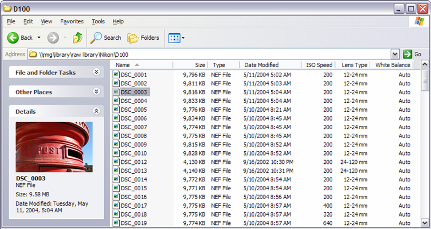
ဘာလဲလို႔ေမးစရာျဖစ္လာျပန္ပါမယ္။ Camera Raw File ေတြကို Window ကြန္ပ်ဴတာ တစ္လံုး ထဲကို ထည့္လိုက္ၿပီဆိုတာနဲ႕ ဒီတိုင္းဖြင့္ၾကည့္လို႔မရပါဘူး UnKnow File Type ျဖစ္ေနပါ လိမ့္မယ္။ Photoshop နဲ႕ဖြင့္ၾကည့္မယ္ဆိုရင္ေတာင္မွ CS2 နဲ႕ အထက္ Version ေတြမွ သာ ဖြင့္ၾကည့္ ျပင္ဆင္ ႏိုင္မွာျဖစ္ပါတယ္။ ေအာက္ပါပံုထဲမွာ ျမင္ရတဲ့အတိုင္း အျဖဴေရာင္ဖိုင္ေလးေတြနဲ႕သာ ျပေပးႏိုင္မွာပါ -
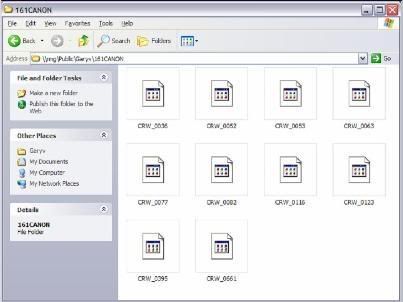
အဲ့ဒီျပႆနာကို ေျဖရွင္းေပးႏိုင္ဖို႔အတြက္ Microsoft RAW Image Thumbnailer and Viewer ကို ဒီေနရာမွာ Download လုပ္ၿပီး သင့္စက္မွာ Install လုပ္လိုက္ပါ။ ဒါဆိုရင္ raw file ေတြကို Preview ၾကည့္လို႔ ရႏိုင္မွာျဖစ္ပါတယ္။
Link http://files.filefront.com/RAWViewerSetupexe/;7521389;/fileinfo.html
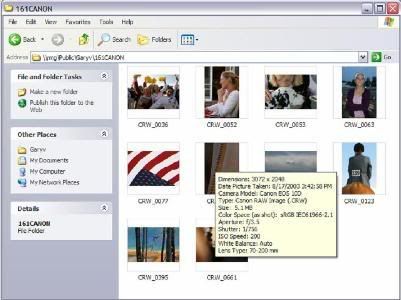
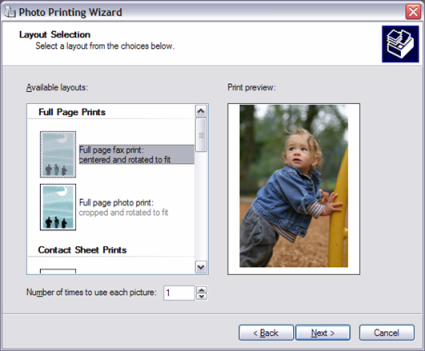
Thumbnailer နဲ႕ Preview ၾကည့္ရံုအျပင္ ေအာက္ပါအတိုင္း Print လည္း ထုတ္လို႔အဆင္ေျပ ႏိုင္မွာ ျဖစ္ပါတယ္။
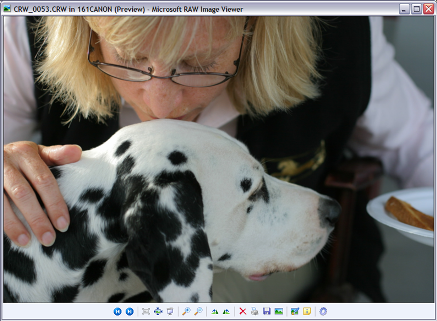
Preview ကို ေအာက္မွာ ၾကည့္ရွဳႏိုင္ပါတယ္။
၄င္း Software အတြက္ လမ္းညႊန္စာအုပ္ကိုေတာ့ ဒီမွာ Download လုပ္ႏိုင္ပါတယ္။
ဒီ Software ရဲ႕ Supports ျဖစ္တဲ့ Camera နဲ႕ File Type မ်ားကေတာ့ ေအာက္ပါအတိုင္း ျဖစ္ပါတယ္ -
The software supports the following image types:
- Canon EOS RAW images (.crw, .cr2, .tif)
- Nikon Electronic Format images (.nef)
- Bitmap images (.bmp)
- JPEG images (.jpg, .jpe, .jpeg)
- Windows Metafile images (.wmf)
- Tagged Image File Format images (.tif, .tiff)
- Graphics Interchange Format images (.gif)
- Portable Network Graphics images (.png)
Supported camera models include the following:
- Canon EOS 1D
- Canon EOS 1D Mark II
- Canon EOS 1D Mark IIn
- Canon EOS 1Ds
- Canon EOS 1Ds Mark II
- Canon EOS 5D
- Canon EOS D30
- Canon EOS D60
- Canon EOS 10D
- Canon EOS 20D
- Canon EOS Digital Rebel (300D)
- Canon EOS Digital Rebel XT
- Canon PowerShot G2
- Canon PowerShot G3
- Canon PowerShot G5
- Canon PowerShot G6
- Canon PowerShot Pro1
- Canon PowerShot s30
- Canon PowerShot s50
- Canon PowerShot s70
- Nikon D1
- Nikon D1x
- Nikon D2H
- Nikon D2Hs
- Nikon D2x
- Nikon D70
- Nikon D70s
- Nikon D50
- Nikon D100
- Nikon D200[1]
- Nikon Coolpix 8800
- Nikon Coolpix 5700
* Nikon D200 support includes display of thumbnails and previews; however, viewing in highest quality mode is not supported.
key word ; What is Raw ? Camera RAW Image File Thumbnails View in Window XP (or) RAW viewer downlaod......
Ref:ေအာင္ခ်မ္းလင္း
Labels: Computer-II, HTML, photoshop, နည္းပညာမ်ား-VI
search box ကို ဘေလာ႕ရဲ႕ Header မွာဘယ္လိုထဲ႕လဲ.......
Labels: Blogs, CSS, CSS-II, HTML, နည္းပညာမ်ား-VI
မိမိဘေလာ႕မွာ အလည္လာတဲ႕ မိတ္ေဆြ အတြက္ ေပ်ာ္ရႊင္မႈ အေနအတြက္ေသာ္၎ ဆႏၵေကာက္ခံ ရာအတြက္္ ၎ poll widget ေတြကို အသံုးၿပဳၾကပါတယ္။ က်ေတာ္တို႕အသံုးၿပဳေနတဲ႕ blogpsot မွာ အလြယ္တကူ ထည္႕သြင္းအသံုးၿပဳလို႕ရပါတယ္။ အသံုးၿပဳတဲ႕ poll widget ေတြကို ၿမန္မာဘေလာ႕ဂါ ေတြအတြက္ အဆင္ေၿပေစရန္ ဘယ္လို ၿပန္လည္ၿပင္ဆင္လို႕ ရတယ္ဆိုတာ ကို ရွာေတြ႕လို႕ ၿပန္လည္ ေ၀မွ် လိုက္ပါတယ္။
Add Border, background, Zawgyi-One font and Colors
/* Sidebar Content */
#Poll1{
background:#FFFF00 url(http://your image url);
border:3px solid #736AFF;
font-family: Zawgyi-One;
width:150px;
padding:0 10px;
}
Change Title Font
Poll ေခါင္းစဥ္ ကို ေဖာင္႕အရြယ္အစား ကာလာ စတာေတြၿပင္ဖို႕ၿဖစ္ပါတယ္။
/* Sidebar Content */
#Poll1{
background:#FFFF00;
border:3px solid #736AFF;
width:150px;
padding:0 10px;
}
#Poll1 h2{
text-align:center;
font-size:140%;
color:#F87431;
font-family:Zawgyi-One;
font-weight:bold;
}
Labels: Blogs, CSS, CSS-II, HTML, နည္းပညာမ်ား-VI
မိမိ ဘေလာ႕က Navbar ကို ေဖ်ာက္ထားမယ္၊ ကာဆာေလး တင္လိုက္မွ ၿပန္ေပၚလာေအာင္ လုပ္တဲ႕ နည္းပါ။ Firefox မွာပဲ အလုပ္လုပ္ တယ္လို႕ သိရပါတယ္။ CSS Code ထဲက လြတ္တဲ႕တေန ရာမွာ Body tag မတိုင္မီ တေနရာ မွာ ထဲ႕လိုက္ရံုပါပဲ။
#navbar-iframe
{
opacity:0.0;
filter:alpha(Opacity=0)
}
#navbar-iframe:hover
{
opacity:1.0;
filter:alpha(Opacity=100, FinishedOpacity=100)
}
Labels: Blogs, CSS, CSS-II, HTML, နည္းပညာမ်ား-VI
ဘယ္လိုလုပ္ရလဲဆိုတာကလဲ ရိုးရွင္းပါတယ္။ Settings -> Comments -> Comments Form Message ဆိုတဲ႕ေနရာမွာ ကိုၾကိဳက္တာကို အဂၤလိပ္လို ၀င္ေရးရံုပါပဲ။ ၿမန္မာလိုေရးဖို႕ ကေတာ႕ HTML tags ၃ခုေလာက္သာခြင္႕ၿပဳထားတဲ႕ အတြက္ မရပါဘူး။
ေနာက္တခုက policy မွာ ဘေလာ႕ပိုင္ရွင္က ကြန္မန္႕မ်ားကို စစ္ၿပီးမွ သာခြင္႕ၿပဳမည္ ဆိုရင္ေတာ႕ comment moderation ထက္ထည္႕ရပါမည္။ Settings -> Comments -> Enable comment moderation မွာ Yes ဆိုၿပီးထားပါ။ email နဲ႕ပါ မိမိကို အသိေပးေစခ်င္ရင္ အီးေမးလ္ ထည္႕ပါ။ save ပါ။
ေနာင္ ေရးသြားတဲ႕ ကြန္မန္႕မ်ားကို Posting > Moderate comments မွာ၀င္ၾကည္႕ၿပီး ခြင္႕ၿပဳမလား ဖ်က္မလား စိတ္ၾကိဳက္လုပ္နိုင္ပါတယ္။
Labels: Blogs, HTML, နည္းပညာမ်ား-VI
ေနာက္တခုက
Labels: Blogs, CSS, CSS-II, HTML, နည္းပညာမ်ား-VI
KKZ Myanmar Unicode Keyboard


MoneTineKeyboard

Like လုပ်ထားနိုင်ပါတယ်

Labels
ဧည့်သည်တော်များခင်ဗျာ
- အခုဖတ်မည့် Post သည် လိင်မှု ပိုင်းဆိုင် ရာများ ကိုရေးသားထားခြင်းဖြစ်ပါသည်......
- သို့သော်ကျွန်တော်တို့ ရေးသား တင်ပြထားရခြင်းသည် ကျန်းမာရေး အတွက် သိထားနားလည် ထားသင့်သည် ဟုယူဆသော်ကြောင့်ဖြစ်ပါသည်.......
- ကျွန်တော်တို့၏ ဆောင်ပုဒ်သည်"ဘယ်အရာမဆို အားလုံးကို လုံးဝမတတ်ရင်နေ သိထား နားလည် ထားနိုင်ရင် ပိုကောင်းတယ်.." ဟု ဖြစ်ပါသည်..

ဧည့်သည်တော်များခင်ဗျာ
- အခုဖတ်မည့် Post သည် လိင်မှု ပိုင်းဆိုင် ရာများ ကိုရေးသားထားခြင်းဖြစ်ပါသည်......
- သို့သော်ကျွန်တော်တို့ ရေးသား တင်ပြထားရခြင်းသည် ကျန်းမာရေး အတွက် သိထားနားလည် ထားသင့်သည် ဟုယူဆသော်ကြောင့်ဖြစ်ပါသည်.......
- ကျွန်တော်တို့၏ ဆောင်ပုဒ်သည်"ဘယ်အရာမဆို အားလုံးကို လုံးဝမတတ်ရင်နေ သိထား နားလည် ထားနိုင်ရင် ပိုကောင်းတယ်.." ဟု ဖြစ်ပါသည်..
ဧည့်သည်တော်များခင်ဗျာ
- အခုဖတ်မည့် Post သည် လိင်မှု ပိုင်းဆိုင် ရာများ ကိုရေးသားထားခြင်းဖြစ်ပါသည်......
- သို့သော်ကျွန်တော်တို့ ရေးသား တင်ပြထားရခြင်းသည် ကျန်းမာရေး အတွက် သိထားနားလည် ထားသင့်သည် ဟုယူဆသော်ကြောင့်ဖြစ်ပါသည်.......
- ကျွန်တော်တို့၏ ဆောင်ပုဒ်သည်"ဘယ်အရာမဆို အားလုံးကို လုံးဝမတတ်ရင်နေ သိထား နားလည် ထားနိုင်ရင် ပိုကောင်းတယ်.." ဟု ဖြစ်ပါသည်..
ဧည့်သည်တော်များခင်ဗျာ
- အခုဖတ်မည့် Post သည် လိင်မှု ပိုင်းဆိုင် ရာများ ကိုရေးသားထားခြင်းဖြစ်ပါသည်......
- သို့သော်ကျွန်တော်တို့ ရေးသား တင်ပြထားရခြင်းသည် ကျန်းမာရေး အတွက် သိထားနားလည် ထားသင့်သည် ဟုယူဆသော်ကြောင့်ဖြစ်ပါသည်.......
- ကျွန်တော်တို့၏ ဆောင်ပုဒ်သည်"ဘယ်အရာမဆို အားလုံးကို လုံးဝမတတ်ရင်နေ သိထား နားလည် ထားနိုင်ရင် ပိုကောင်းတယ်.." ဟု ဖြစ်ပါသည်..
ဧည့်သည်တော်များခင်ဗျာ
- အခုဖတ်မည့် Post သည် လိင်မှု ပိုင်းဆိုင် ရာများ ကိုရေးသားထားခြင်းဖြစ်ပါသည်......
- သို့သော်ကျွန်တော်တို့ ရေးသား တင်ပြထားရခြင်းသည် ကျန်းမာရေး အတွက် သိထားနားလည် ထားသင့်သည် ဟုယူဆသော်ကြောင့်ဖြစ်ပါသည်.......
- ကျွန်တော်တို့၏ ဆောင်ပုဒ်သည်"ဘယ်အရာမဆို အားလုံးကို လုံးဝမတတ်ရင်နေ သိထား နားလည် ထားနိုင်ရင် ပိုကောင်းတယ်.." ဟု ဖြစ်ပါသည်..
ဧည့်သည်တော်များခင်ဗျာ
- အခုဖတ်မည့် Post သည် လိင်မှု ပိုင်းဆိုင် ရာများ ကိုရေးသားထားခြင်းဖြစ်ပါသည်......
- သို့သော်ကျွန်တော်တို့ ရေးသား တင်ပြထားရခြင်းသည် ကျန်းမာရေး အတွက် သိထားနားလည် ထားသင့်သည် ဟုယူဆသော်ကြောင့်ဖြစ်ပါသည်.......
- ကျွန်တော်တို့၏ ဆောင်ပုဒ်သည်"ဘယ်အရာမဆို အားလုံးကို လုံးဝမတတ်ရင်နေ သိထား နားလည် ထားနိုင်ရင် ပိုကောင်းတယ်.." ဟု ဖြစ်ပါသည်..
ဧည့်သည်တော်များခင်ဗျာ
- အခုဖတ်မည့် Post သည် လိင်မှု ပိုင်းဆိုင် ရာများ ကိုရေးသားထားခြင်းဖြစ်ပါသည်......
- သို့သော်ကျွန်တော်တို့ ရေးသား တင်ပြထားရခြင်းသည် ကျန်းမာရေး အတွက် သိထားနားလည် ထားသင့်သည် ဟုယူဆသော်ကြောင့်ဖြစ်ပါသည်.......
- ကျွန်တော်တို့၏ ဆောင်ပုဒ်သည်"ဘယ်အရာမဆို အားလုံးကို လုံးဝမတတ်ရင်နေ သိထား နားလည် ထားနိုင်ရင် ပိုကောင်းတယ်.." ဟု ဖြစ်ပါသည်..
ဧည့်သည်တော်များခင်ဗျာ
- အခုဖတ်မည့် Post သည် လိင်မှု ပိုင်းဆိုင် ရာများ ကိုရေးသားထားခြင်းဖြစ်ပါသည်......
- သို့သော်ကျွန်တော်တို့ ရေးသား တင်ပြထားရခြင်းသည် ကျန်းမာရေး အတွက် သိထားနားလည် ထားသင့်သည် ဟုယူဆသော်ကြောင့်ဖြစ်ပါသည်.......
- ကျွန်တော်တို့၏ ဆောင်ပုဒ်သည်"ဘယ်အရာမဆို အားလုံးကို လုံးဝမတတ်ရင်နေ သိထား နားလည် ထားနိုင်ရင် ပိုကောင်းတယ်.." ဟု ဖြစ်ပါသည်..
ဧည့်သည်တော်များခင်ဗျာ
- အခုဖတ်မည့် Post သည် လိင်မှု ပိုင်းဆိုင် ရာများ ကိုရေးသားထားခြင်းဖြစ်ပါသည်......
- သို့သော်ကျွန်တော်တို့ ရေးသား တင်ပြထားရခြင်းသည် ကျန်းမာရေး အတွက် သိထားနားလည် ထားသင့်သည် ဟုယူဆသော်ကြောင့်ဖြစ်ပါသည်.......
- ကျွန်တော်တို့၏ ဆောင်ပုဒ်သည်"ဘယ်အရာမဆို အားလုံးကို လုံးဝမတတ်ရင်နေ သိထား နားလည် ထားနိုင်ရင် ပိုကောင်းတယ်.." ဟု ဖြစ်ပါသည်..
ဧည့်သည်တော်များခင်ဗျာ
- အခုဖတ်မည့် Post သည် လိင်မှု ပိုင်းဆိုင် ရာများ ကိုရေးသားထားခြင်းဖြစ်ပါသည်......
- သို့သော်ကျွန်တော်တို့ ရေးသား တင်ပြထားရခြင်းသည် ကျန်းမာရေး အတွက် သိထားနားလည် ထားသင့်သည် ဟုယူဆသော်ကြောင့်ဖြစ်ပါသည်.......
- ကျွန်တော်တို့၏ ဆောင်ပုဒ်သည်"ဘယ်အရာမဆို အားလုံးကို လုံးဝမတတ်ရင်နေ သိထား နားလည် ထားနိုင်ရင် ပိုကောင်းတယ်.." ဟု ဖြစ်ပါသည်..
ဧည့်သည်တော်များခင်ဗျာ
- အခုဖတ်မည့် Post သည် လိင်မှု ပိုင်းဆိုင် ရာများ ကိုရေးသားထားခြင်းဖြစ်ပါသည်......
- သို့သော်ကျွန်တော်တို့ ရေးသား တင်ပြထားရခြင်းသည် ကျန်းမာရေး အတွက် သိထားနားလည် ထားသင့်သည် ဟုယူဆသော်ကြောင့်ဖြစ်ပါသည်.......
- ကျွန်တော်တို့၏ ဆောင်ပုဒ်သည်"ဘယ်အရာမဆို အားလုံးကို လုံးဝမတတ်ရင်နေ သိထား နားလည် ထားနိုင်ရင် ပိုကောင်းတယ်.." ဟု ဖြစ်ပါသည်..
ဧည့်သည်တော်များခင်ဗျာ
- အခုဖတ်မည့် Post သည် လိင်မှု ပိုင်းဆိုင် ရာများ ကိုရေးသားထားခြင်းဖြစ်ပါသည်......
- သို့သော်ကျွန်တော်တို့ ရေးသား တင်ပြထားရခြင်းသည် ကျန်းမာရေး အတွက် သိထားနားလည် ထားသင့်သည် ဟုယူဆသော်ကြောင့်ဖြစ်ပါသည်.......
- ကျွန်တော်တို့၏ ဆောင်ပုဒ်သည်"ဘယ်အရာမဆို အားလုံးကို လုံးဝမတတ်ရင်နေ သိထား နားလည် ထားနိုင်ရင် ပိုကောင်းတယ်.." ဟု ဖြစ်ပါသည်..
ဧည့်သည်တော်များခင်ဗျာ
- အခုဖတ်မည့် Post သည် လိင်မှု ပိုင်းဆိုင် ရာများ ကိုရေးသားထားခြင်းဖြစ်ပါသည်......
- သို့သော်ကျွန်တော်တို့ ရေးသား တင်ပြထားရခြင်းသည် ကျန်းမာရေး အတွက် သိထားနားလည် ထားသင့်သည် ဟုယူဆသော်ကြောင့်ဖြစ်ပါသည်.......
- ကျွန်တော်တို့၏ ဆောင်ပုဒ်သည်"ဘယ်အရာမဆို အားလုံးကို လုံးဝမတတ်ရင်နေ သိထား နားလည် ထားနိုင်ရင် ပိုကောင်းတယ်.." ဟု ဖြစ်ပါသည်..
ဧည့်သည်တော်များခင်ဗျာ
- အခုဖတ်မည့် Post သည် လိင်မှု ပိုင်းဆိုင် ရာများ ကိုရေးသားထားခြင်းဖြစ်ပါသည်......
- သို့သော်ကျွန်တော်တို့ ရေးသား တင်ပြထားရခြင်းသည် ကျန်းမာရေး အတွက် သိထားနားလည် ထားသင့်သည် ဟုယူဆသော်ကြောင့်ဖြစ်ပါသည်.......
- ကျွန်တော်တို့၏ ဆောင်ပုဒ်သည်"ဘယ်အရာမဆို အားလုံးကို လုံးဝမတတ်ရင်နေ သိထား နားလည် ထားနိုင်ရင် ပိုကောင်းတယ်.." ဟု ဖြစ်ပါသည်..
ဧည့်သည်တော်များခင်ဗျာ
- အခုဖတ်မည့် Post သည် လိင်မှု ပိုင်းဆိုင် ရာများ ကိုရေးသားထားခြင်းဖြစ်ပါသည်......
- သို့သော်ကျွန်တော်တို့ ရေးသား တင်ပြထားရခြင်းသည် ကျန်းမာရေး အတွက် သိထားနားလည် ထားသင့်သည် ဟုယူဆသော်ကြောင့်ဖြစ်ပါသည်.......
- ကျွန်တော်တို့၏ ဆောင်ပုဒ်သည်"ဘယ်အရာမဆို အားလုံးကို လုံးဝမတတ်ရင်နေ သိထား နားလည် ထားနိုင်ရင် ပိုကောင်းတယ်.." ဟု ဖြစ်ပါသည်..
ဧည့်သည်တော်များခင်ဗျာ
- အခုဖတ်မည့် Post သည် လိင်မှု ပိုင်းဆိုင် ရာများ ကိုရေးသားထားခြင်းဖြစ်ပါသည်......
- သို့သော်ကျွန်တော်တို့ ရေးသား တင်ပြထားရခြင်းသည် ကျန်းမာရေး အတွက် သိထားနားလည် ထားသင့်သည် ဟုယူဆသော်ကြောင့်ဖြစ်ပါသည်.......
- ကျွန်တော်တို့၏ ဆောင်ပုဒ်သည်"ဘယ်အရာမဆို အားလုံးကို လုံးဝမတတ်ရင်နေ သိထား နားလည် ထားနိုင်ရင် ပိုကောင်းတယ်.." ဟု ဖြစ်ပါသည်..
ဧည့်သည်တော်များခင်ဗျာ
- အခုဖတ်မည့် Post သည် လိင်မှု ပိုင်းဆိုင် ရာများ ကိုရေးသားထားခြင်းဖြစ်ပါသည်......
- သို့သော်ကျွန်တော်တို့ ရေးသား တင်ပြထားရခြင်းသည် ကျန်းမာရေး အတွက် သိထားနားလည် ထားသင့်သည် ဟုယူဆသော်ကြောင့်ဖြစ်ပါသည်.......
- ကျွန်တော်တို့၏ ဆောင်ပုဒ်သည်"ဘယ်အရာမဆို အားလုံးကို လုံးဝမတတ်ရင်နေ သိထား နားလည် ထားနိုင်ရင် ပိုကောင်းတယ်.." ဟု ဖြစ်ပါသည်..
ဧည့်သည်တော်များခင်ဗျာ
- အခုဖတ်မည့် Post သည် လိင်မှု ပိုင်းဆိုင် ရာများ ကိုရေးသားထားခြင်းဖြစ်ပါသည်......
- သို့သော်ကျွန်တော်တို့ ရေးသား တင်ပြထားရခြင်းသည် ကျန်းမာရေး အတွက် သိထားနားလည် ထားသင့်သည် ဟုယူဆသော်ကြောင့်ဖြစ်ပါသည်.......
- ကျွန်တော်တို့၏ ဆောင်ပုဒ်သည်"ဘယ်အရာမဆို အားလုံးကို လုံးဝမတတ်ရင်နေ သိထား နားလည် ထားနိုင်ရင် ပိုကောင်းတယ်.." ဟု ဖြစ်ပါသည်..
ဧည့်သည်တော်များခင်ဗျာ
- အခုဖတ်မည့် Post သည် လိင်မှု ပိုင်းဆိုင် ရာများ ကိုရေးသားထားခြင်းဖြစ်ပါသည်......
- သို့သော်ကျွန်တော်တို့ ရေးသား တင်ပြထားရခြင်းသည် ကျန်းမာရေး အတွက် သိထားနားလည် ထားသင့်သည် ဟုယူဆသော်ကြောင့်ဖြစ်ပါသည်.......
- ကျွန်တော်တို့၏ ဆောင်ပုဒ်သည်"ဘယ်အရာမဆို အားလုံးကို လုံးဝမတတ်ရင်နေ သိထား နားလည် ထားနိုင်ရင် ပိုကောင်းတယ်.." ဟု ဖြစ်ပါသည်..
ဧည့်သည်တော်များခင်ဗျာ
- အခုဖတ်မည့် Post သည် လိင်မှု ပိုင်းဆိုင် ရာများ ကိုရေးသားထားခြင်းဖြစ်ပါသည်......
- သို့သော်ကျွန်တော်တို့ ရေးသား တင်ပြထားရခြင်းသည် ကျန်းမာရေး အတွက် သိထားနားလည် ထားသင့်သည် ဟုယူဆသော်ကြောင့်ဖြစ်ပါသည်.......
- ကျွန်တော်တို့၏ ဆောင်ပုဒ်သည်"ဘယ်အရာမဆို အားလုံးကို လုံးဝမတတ်ရင်နေ သိထား နားလည် ထားနိုင်ရင် ပိုကောင်းတယ်.." ဟု ဖြစ်ပါသည်..
ဧည့်သည်တော်များခင်ဗျာ
- အခုဖတ်မည့် Post သည် လိင်မှု ပိုင်းဆိုင် ရာများ ကိုရေးသားထားခြင်းဖြစ်ပါသည်......
- သို့သော်ကျွန်တော်တို့ ရေးသား တင်ပြထားရခြင်းသည် ကျန်းမာရေး အတွက် သိထားနားလည် ထားသင့်သည် ဟုယူဆသော်ကြောင့်ဖြစ်ပါသည်.......
- ကျွန်တော်တို့၏ ဆောင်ပုဒ်သည်"ဘယ်အရာမဆို အားလုံးကို လုံးဝမတတ်ရင်နေ သိထား နားလည် ထားနိုင်ရင် ပိုကောင်းတယ်.." ဟု ဖြစ်ပါသည်..
ဧည့်သည်တော်များခင်ဗျာ
- အခုဖတ်မည့် Post သည် လိင်မှု ပိုင်းဆိုင် ရာများ ကိုရေးသားထားခြင်းဖြစ်ပါသည်......
- သို့သော်ကျွန်တော်တို့ ရေးသား တင်ပြထားရခြင်းသည် ကျန်းမာရေး အတွက် သိထားနားလည် ထားသင့်သည် ဟုယူဆသော်ကြောင့်ဖြစ်ပါသည်.......
- ကျွန်တော်တို့၏ ဆောင်ပုဒ်သည်"ဘယ်အရာမဆို အားလုံးကို လုံးဝမတတ်ရင်နေ သိထား နားလည် ထားနိုင်ရင် ပိုကောင်းတယ်.." ဟု ဖြစ်ပါသည်..
ဧည့်သည်တော်များခင်ဗျာ
- အခုဖတ်မည့် Post သည် လိင်မှု ပိုင်းဆိုင် ရာများ ကိုရေးသားထားခြင်းဖြစ်ပါသည်......
- သို့သော်ကျွန်တော်တို့ ရေးသား တင်ပြထားရခြင်းသည် ကျန်းမာရေး အတွက် သိထားနားလည် ထားသင့်သည် ဟုယူဆသော်ကြောင့်ဖြစ်ပါသည်.......
- ကျွန်တော်တို့၏ ဆောင်ပုဒ်သည်"ဘယ်အရာမဆို အားလုံးကို လုံးဝမတတ်ရင်နေ သိထား နားလည် ထားနိုင်ရင် ပိုကောင်းတယ်.." ဟု ဖြစ်ပါသည်..
ဧည့်သည်တော်များခင်ဗျာ
- အခုဖတ်မည့် Post သည် လိင်မှု ပိုင်းဆိုင် ရာများ ကိုရေးသားထားခြင်းဖြစ်ပါသည်......
- သို့သော်ကျွန်တော်တို့ ရေးသား တင်ပြထားရခြင်းသည် ကျန်းမာရေး အတွက် သိထားနားလည် ထားသင့်သည် ဟုယူဆသော်ကြောင့်ဖြစ်ပါသည်.......
- ကျွန်တော်တို့၏ ဆောင်ပုဒ်သည်"ဘယ်အရာမဆို အားလုံးကို လုံးဝမတတ်ရင်နေ သိထား နားလည် ထားနိုင်ရင် ပိုကောင်းတယ်.." ဟု ဖြစ်ပါသည်..
ဧည့်သည်တော်များခင်ဗျာ
- အခုဖတ်မည့် Post သည် လိင်မှု ပိုင်းဆိုင် ရာများ ကိုရေးသားထားခြင်းဖြစ်ပါသည်......
- သို့သော်ကျွန်တော်တို့ ရေးသား တင်ပြထားရခြင်းသည် ကျန်းမာရေး အတွက် သိထားနားလည် ထားသင့်သည် ဟုယူဆသော်ကြောင့်ဖြစ်ပါသည်.......
- ကျွန်တော်တို့၏ ဆောင်ပုဒ်သည်"ဘယ်အရာမဆို အားလုံးကို လုံးဝမတတ်ရင်နေ သိထား နားလည် ထားနိုင်ရင် ပိုကောင်းတယ်.." ဟု ဖြစ်ပါသည်..
ဧည့်သည်တော်များခင်ဗျာ
- အခုဖတ်မည့် Post သည် လိင်မှု ပိုင်းဆိုင် ရာများ ကိုရေးသားထားခြင်းဖြစ်ပါသည်......
- သို့သော်ကျွန်တော်တို့ ရေးသား တင်ပြထားရခြင်းသည် ကျန်းမာရေး အတွက် သိထားနားလည် ထားသင့်သည် ဟုယူဆသော်ကြောင့်ဖြစ်ပါသည်.......
- ကျွန်တော်တို့၏ ဆောင်ပုဒ်သည်"ဘယ်အရာမဆို အားလုံးကို လုံးဝမတတ်ရင်နေ သိထား နားလည် ထားနိုင်ရင် ပိုကောင်းတယ်.." ဟု ဖြစ်ပါသည်..
ဧည့်သည်တော်များခင်ဗျာ
- အခုဖတ်မည့် Post သည် လိင်မှု ပိုင်းဆိုင် ရာများ ကိုရေးသားထားခြင်းဖြစ်ပါသည်......
- သို့သော်ကျွန်တော်တို့ ရေးသား တင်ပြထားရခြင်းသည် ကျန်းမာရေး အတွက် သိထားနားလည် ထားသင့်သည် ဟုယူဆသော်ကြောင့်ဖြစ်ပါသည်.......
- ကျွန်တော်တို့၏ ဆောင်ပုဒ်သည်"ဘယ်အရာမဆို အားလုံးကို လုံးဝမတတ်ရင်နေ သိထား နားလည် ထားနိုင်ရင် ပိုကောင်းတယ်.." ဟု ဖြစ်ပါသည်..
ဧည့်သည်တော်များခင်ဗျာ
- အခုဖတ်မည့် Post သည် လိင်မှု ပိုင်းဆိုင် ရာများ ကိုရေးသားထားခြင်းဖြစ်ပါသည်......
- သို့သော်ကျွန်တော်တို့ ရေးသား တင်ပြထားရခြင်းသည် ကျန်းမာရေး အတွက် သိထားနားလည် ထားသင့်သည် ဟုယူဆသော်ကြောင့်ဖြစ်ပါသည်.......
- ကျွန်တော်တို့၏ ဆောင်ပုဒ်သည်"ဘယ်အရာမဆို အားလုံးကို လုံးဝမတတ်ရင်နေ သိထား နားလည် ထားနိုင်ရင် ပိုကောင်းတယ်.." ဟု ဖြစ်ပါသည်..
ဧည့်သည်တော်များခင်ဗျာ
- အခုဖတ်မည့် Post သည် လိင်မှု ပိုင်းဆိုင် ရာများ ကိုရေးသားထားခြင်းဖြစ်ပါသည်......
- သို့သော်ကျွန်တော်တို့ ရေးသား တင်ပြထားရခြင်းသည် ကျန်းမာရေး အတွက် သိထားနားလည် ထားသင့်သည် ဟုယူဆသော်ကြောင့်ဖြစ်ပါသည်.......
- ကျွန်တော်တို့၏ ဆောင်ပုဒ်သည်"ဘယ်အရာမဆို အားလုံးကို လုံးဝမတတ်ရင်နေ သိထား နားလည် ထားနိုင်ရင် ပိုကောင်းတယ်.." ဟု ဖြစ်ပါသည်..
ဧည့်သည်တော်များခင်ဗျာ
- အခုဖတ်မည့် Post သည် လိင်မှု ပိုင်းဆိုင် ရာများ ကိုရေးသားထားခြင်းဖြစ်ပါသည်......
- သို့သော်ကျွန်တော်တို့ ရေးသား တင်ပြထားရခြင်းသည် ကျန်းမာရေး အတွက် သိထားနားလည် ထားသင့်သည် ဟုယူဆသော်ကြောင့်ဖြစ်ပါသည်.......
- ကျွန်တော်တို့၏ ဆောင်ပုဒ်သည်"ဘယ်အရာမဆို အားလုံးကို လုံးဝမတတ်ရင်နေ သိထား နားလည် ထားနိုင်ရင် ပိုကောင်းတယ်.." ဟု ဖြစ်ပါသည်..
ဧည့်သည်တော်များခင်ဗျာ
- အခုဖတ်မည့် Post သည် လိင်မှု ပိုင်းဆိုင် ရာများ ကိုရေးသားထားခြင်းဖြစ်ပါသည်......
- သို့သော်ကျွန်တော်တို့ ရေးသား တင်ပြထားရခြင်းသည် ကျန်းမာရေး အတွက် သိထားနားလည် ထားသင့်သည် ဟုယူဆသော်ကြောင့်ဖြစ်ပါသည်.......
- ကျွန်တော်တို့၏ ဆောင်ပုဒ်သည်"ဘယ်အရာမဆို အားလုံးကို လုံးဝမတတ်ရင်နေ သိထား နားလည် ထားနိုင်ရင် ပိုကောင်းတယ်.." ဟု ဖြစ်ပါသည်..
ဧည့်သည်တော်များခင်ဗျာ
- အခုဖတ်မည့် Post သည် လိင်မှု ပိုင်းဆိုင် ရာများ ကိုရေးသားထားခြင်းဖြစ်ပါသည်......
- သို့သော်ကျွန်တော်တို့ ရေးသား တင်ပြထားရခြင်းသည် ကျန်းမာရေး အတွက် သိထားနားလည် ထားသင့်သည် ဟုယူဆသော်ကြောင့်ဖြစ်ပါသည်.......
- ကျွန်တော်တို့၏ ဆောင်ပုဒ်သည်"ဘယ်အရာမဆို အားလုံးကို လုံးဝမတတ်ရင်နေ သိထား နားလည် ထားနိုင်ရင် ပိုကောင်းတယ်.." ဟု ဖြစ်ပါသည်..
ဧည့်သည်တော်များခင်ဗျာ
- အခုဖတ်မည့် Post သည် လိင်မှု ပိုင်းဆိုင် ရာများ ကိုရေးသားထားခြင်းဖြစ်ပါသည်......
- သို့သော်ကျွန်တော်တို့ ရေးသား တင်ပြထားရခြင်းသည် ကျန်းမာရေး အတွက် သိထားနားလည် ထားသင့်သည် ဟုယူဆသော်ကြောင့်ဖြစ်ပါသည်.......
- ကျွန်တော်တို့၏ ဆောင်ပုဒ်သည်"ဘယ်အရာမဆို အားလုံးကို လုံးဝမတတ်ရင်နေ သိထား နားလည် ထားနိုင်ရင် ပိုကောင်းတယ်.." ဟု ဖြစ်ပါသည်..
ဧည့်သည်တော်များခင်ဗျာ
- အခုဖတ်မည့် Post သည် လိင်မှု ပိုင်းဆိုင် ရာများ ကိုရေးသားထားခြင်းဖြစ်ပါသည်......
- သို့သော်ကျွန်တော်တို့ ရေးသား တင်ပြထားရခြင်းသည် ကျန်းမာရေး အတွက် သိထားနားလည် ထားသင့်သည် ဟုယူဆသော်ကြောင့်ဖြစ်ပါသည်.......
- ကျွန်တော်တို့၏ ဆောင်ပုဒ်သည်"ဘယ်အရာမဆို အားလုံးကို လုံးဝမတတ်ရင်နေ သိထား နားလည် ထားနိုင်ရင် ပိုကောင်းတယ်.." ဟု ဖြစ်ပါသည်..
ဧည့်သည်တော်များခင်ဗျာ
- အခုဖတ်မည့် Post သည် လိင်မှု ပိုင်းဆိုင် ရာများ ကိုရေးသားထားခြင်းဖြစ်ပါသည်......
- သို့သော်ကျွန်တော်တို့ ရေးသား တင်ပြထားရခြင်းသည် ကျန်းမာရေး အတွက် သိထားနားလည် ထားသင့်သည် ဟုယူဆသော်ကြောင့်ဖြစ်ပါသည်.......
- ကျွန်တော်တို့၏ ဆောင်ပုဒ်သည်"ဘယ်အရာမဆို အားလုံးကို လုံးဝမတတ်ရင်နေ သိထား နားလည် ထားနိုင်ရင် ပိုကောင်းတယ်.." ဟု ဖြစ်ပါသည်..
ဧည့်သည်တော်များခင်ဗျာ
- အခုဖတ်မည့် Post သည် လိင်မှု ပိုင်းဆိုင် ရာများ ကိုရေးသားထားခြင်းဖြစ်ပါသည်......
- သို့သော်ကျွန်တော်တို့ ရေးသား တင်ပြထားရခြင်းသည် ကျန်းမာရေး အတွက် သိထားနားလည် ထားသင့်သည် ဟုယူဆသော်ကြောင့်ဖြစ်ပါသည်.......
- ကျွန်တော်တို့၏ ဆောင်ပုဒ်သည်"ဘယ်အရာမဆို အားလုံးကို လုံးဝမတတ်ရင်နေ သိထား နားလည် ထားနိုင်ရင် ပိုကောင်းတယ်.." ဟု ဖြစ်ပါသည်..
ဧည့်သည်တော်များခင်ဗျာ
- အခုဖတ်မည့် Post သည် လိင်မှု ပိုင်းဆိုင် ရာများ ကိုရေးသားထားခြင်းဖြစ်ပါသည်......
- သို့သော်ကျွန်တော်တို့ ရေးသား တင်ပြထားရခြင်းသည် ကျန်းမာရေး အတွက် သိထားနားလည် ထားသင့်သည် ဟုယူဆသော်ကြောင့်ဖြစ်ပါသည်.......
- ကျွန်တော်တို့၏ ဆောင်ပုဒ်သည်"ဘယ်အရာမဆို အားလုံးကို လုံးဝမတတ်ရင်နေ သိထား နားလည် ထားနိုင်ရင် ပိုကောင်းတယ်.." ဟု ဖြစ်ပါသည်..
ဧည့်သည်တော်များခင်ဗျာ
- အခုဖတ်မည့် Post သည် လိင်မှု ပိုင်းဆိုင် ရာများ ကိုရေးသားထားခြင်းဖြစ်ပါသည်......
- သို့သော်ကျွန်တော်တို့ ရေးသား တင်ပြထားရခြင်းသည် ကျန်းမာရေး အတွက် သိထားနားလည် ထားသင့်သည် ဟုယူဆသော်ကြောင့်ဖြစ်ပါသည်.......
- ကျွန်တော်တို့၏ ဆောင်ပုဒ်သည်"ဘယ်အရာမဆို အားလုံးကို လုံးဝမတတ်ရင်နေ သိထား နားလည် ထားနိုင်ရင် ပိုကောင်းတယ်.." ဟု ဖြစ်ပါသည်..
ဧည့်သည်တော်များခင်ဗျာ
- အခုဖတ်မည့် Post သည် လိင်မှု ပိုင်းဆိုင် ရာများ ကိုရေးသားထားခြင်းဖြစ်ပါသည်......
- သို့သော်ကျွန်တော်တို့ ရေးသား တင်ပြထားရခြင်းသည် ကျန်းမာရေး အတွက် သိထားနားလည် ထားသင့်သည် ဟုယူဆသော်ကြောင့်ဖြစ်ပါသည်.......
- ကျွန်တော်တို့၏ ဆောင်ပုဒ်သည်"ဘယ်အရာမဆို အားလုံးကို လုံးဝမတတ်ရင်နေ သိထား နားလည် ထားနိုင်ရင် ပိုကောင်းတယ်.." ဟု ဖြစ်ပါသည်..
ဧည့်သည်တော်များခင်ဗျာ
- အခုဖတ်မည့် Post သည် လိင်မှု ပိုင်းဆိုင် ရာများ ကိုရေးသားထားခြင်းဖြစ်ပါသည်......
- သို့သော်ကျွန်တော်တို့ ရေးသား တင်ပြထားရခြင်းသည် ကျန်းမာရေး အတွက် သိထားနားလည် ထားသင့်သည် ဟုယူဆသော်ကြောင့်ဖြစ်ပါသည်.......
- ကျွန်တော်တို့၏ ဆောင်ပုဒ်သည်"ဘယ်အရာမဆို အားလုံးကို လုံးဝမတတ်ရင်နေ သိထား နားလည် ထားနိုင်ရင် ပိုကောင်းတယ်.." ဟု ဖြစ်ပါသည်..
ဧည့်သည်တော်များခင်ဗျာ
- အခုဖတ်မည့် Post သည် လိင်မှု ပိုင်းဆိုင် ရာများ ကိုရေးသားထားခြင်းဖြစ်ပါသည်......
- သို့သော်ကျွန်တော်တို့ ရေးသား တင်ပြထားရခြင်းသည် ကျန်းမာရေး အတွက် သိထားနားလည် ထားသင့်သည် ဟုယူဆသော်ကြောင့်ဖြစ်ပါသည်.......
- ကျွန်တော်တို့၏ ဆောင်ပုဒ်သည်"ဘယ်အရာမဆို အားလုံးကို လုံးဝမတတ်ရင်နေ သိထား နားလည် ထားနိုင်ရင် ပိုကောင်းတယ်.." ဟု ဖြစ်ပါသည်..
ဧည့်သည်တော်များခင်ဗျာ
- အခုဖတ်မည့် Post သည် လိင်မှု ပိုင်းဆိုင် ရာများ ကိုရေးသားထားခြင်းဖြစ်ပါသည်......
- သို့သော်ကျွန်တော်တို့ ရေးသား တင်ပြထားရခြင်းသည် ကျန်းမာရေး အတွက် သိထားနားလည် ထားသင့်သည် ဟုယူဆသော်ကြောင့်ဖြစ်ပါသည်.......
- ကျွန်တော်တို့၏ ဆောင်ပုဒ်သည်"ဘယ်အရာမဆို အားလုံးကို လုံးဝမတတ်ရင်နေ သိထား နားလည် ထားနိုင်ရင် ပိုကောင်းတယ်.." ဟု ဖြစ်ပါသည်..
ဧည့်သည်တော်များခင်ဗျာ
- အခုဖတ်မည့် Post သည် လိင်မှု ပိုင်းဆိုင် ရာများ ကိုရေးသားထားခြင်းဖြစ်ပါသည်......
- သို့သော်ကျွန်တော်တို့ ရေးသား တင်ပြထားရခြင်းသည် ကျန်းမာရေး အတွက် သိထားနားလည် ထားသင့်သည် ဟုယူဆသော်ကြောင့်ဖြစ်ပါသည်.......
- ကျွန်တော်တို့၏ ဆောင်ပုဒ်သည်"ဘယ်အရာမဆို အားလုံးကို လုံးဝမတတ်ရင်နေ သိထား နားလည် ထားနိုင်ရင် ပိုကောင်းတယ်.." ဟု ဖြစ်ပါသည်..
ဧည့်သည်တော်များခင်ဗျာ
- အခုဖတ်မည့် Post သည် လိင်မှု ပိုင်းဆိုင် ရာများ ကိုရေးသားထားခြင်းဖြစ်ပါသည်......
- သို့သော်ကျွန်တော်တို့ ရေးသား တင်ပြထားရခြင်းသည် ကျန်းမာရေး အတွက် သိထားနားလည် ထားသင့်သည် ဟုယူဆသော်ကြောင့်ဖြစ်ပါသည်.......
- ကျွန်တော်တို့၏ ဆောင်ပုဒ်သည်"ဘယ်အရာမဆို အားလုံးကို လုံးဝမတတ်ရင်နေ သိထား နားလည် ထားနိုင်ရင် ပိုကောင်းတယ်.." ဟု ဖြစ်ပါသည်..
ဧည့်သည်တော်များခင်ဗျာ
- အခုဖတ်မည့် Post သည် လိင်မှု ပိုင်းဆိုင် ရာများ ကိုရေးသားထားခြင်းဖြစ်ပါသည်......
- သို့သော်ကျွန်တော်တို့ ရေးသား တင်ပြထားရခြင်းသည် ကျန်းမာရေး အတွက် သိထားနားလည် ထားသင့်သည် ဟုယူဆသော်ကြောင့်ဖြစ်ပါသည်.......
- ကျွန်တော်တို့၏ ဆောင်ပုဒ်သည်"ဘယ်အရာမဆို အားလုံးကို လုံးဝမတတ်ရင်နေ သိထား နားလည် ထားနိုင်ရင် ပိုကောင်းတယ်.." ဟု ဖြစ်ပါသည်..
ဧည့်သည်တော်များခင်ဗျာ
- အခုဖတ်မည့် Post သည် လိင်မှု ပိုင်းဆိုင် ရာများ ကိုရေးသားထားခြင်းဖြစ်ပါသည်......
- သို့သော်ကျွန်တော်တို့ ရေးသား တင်ပြထားရခြင်းသည် ကျန်းမာရေး အတွက် သိထားနားလည် ထားသင့်သည် ဟုယူဆသော်ကြောင့်ဖြစ်ပါသည်.......
- ကျွန်တော်တို့၏ ဆောင်ပုဒ်သည်"ဘယ်အရာမဆို အားလုံးကို လုံးဝမတတ်ရင်နေ သိထား နားလည် ထားနိုင်ရင် ပိုကောင်းတယ်.." ဟု ဖြစ်ပါသည်..
ဧည့်သည်တော်များခင်ဗျာ
- အခုဖတ်မည့် Post သည် လိင်မှု ပိုင်းဆိုင် ရာများ ကိုရေးသားထားခြင်းဖြစ်ပါသည်......
- သို့သော်ကျွန်တော်တို့ ရေးသား တင်ပြထားရခြင်းသည် ကျန်းမာရေး အတွက် သိထားနားလည် ထားသင့်သည် ဟုယူဆသော်ကြောင့်ဖြစ်ပါသည်.......
- ကျွန်တော်တို့၏ ဆောင်ပုဒ်သည်"ဘယ်အရာမဆို အားလုံးကို လုံးဝမတတ်ရင်နေ သိထား နားလည် ထားနိုင်ရင် ပိုကောင်းတယ်.." ဟု ဖြစ်ပါသည်..
ဧည့်သည်တော်များခင်ဗျာ
- အခုဖတ်မည့် Post သည် လိင်မှု ပိုင်းဆိုင် ရာများ ကိုရေးသားထားခြင်းဖြစ်ပါသည်......
- သို့သော်ကျွန်တော်တို့ ရေးသား တင်ပြထားရခြင်းသည် ကျန်းမာရေး အတွက် သိထားနားလည် ထားသင့်သည် ဟုယူဆသော်ကြောင့်ဖြစ်ပါသည်.......
- ကျွန်တော်တို့၏ ဆောင်ပုဒ်သည်"ဘယ်အရာမဆို အားလုံးကို လုံးဝမတတ်ရင်နေ သိထား နားလည် ထားနိုင်ရင် ပိုကောင်းတယ်.." ဟု ဖြစ်ပါသည်..
ဧည့်သည်တော်များခင်ဗျာ
- အခုဖတ်မည့် Post သည် လိင်မှု ပိုင်းဆိုင် ရာများ ကိုရေးသားထားခြင်းဖြစ်ပါသည်......
- သို့သော်ကျွန်တော်တို့ ရေးသား တင်ပြထားရခြင်းသည် ကျန်းမာရေး အတွက် သိထားနားလည် ထားသင့်သည် ဟုယူဆသော်ကြောင့်ဖြစ်ပါသည်.......
- ကျွန်တော်တို့၏ ဆောင်ပုဒ်သည်"ဘယ်အရာမဆို အားလုံးကို လုံးဝမတတ်ရင်နေ သိထား နားလည် ထားနိုင်ရင် ပိုကောင်းတယ်.." ဟု ဖြစ်ပါသည်..
ဧည့်သည်တော်များခင်ဗျာ
- အခုဖတ်မည့် Post သည် လိင်မှု ပိုင်းဆိုင် ရာများ ကိုရေးသားထားခြင်းဖြစ်ပါသည်......
- သို့သော်ကျွန်တော်တို့ ရေးသား တင်ပြထားရခြင်းသည် ကျန်းမာရေး အတွက် သိထားနားလည် ထားသင့်သည် ဟုယူဆသော်ကြောင့်ဖြစ်ပါသည်.......
- ကျွန်တော်တို့၏ ဆောင်ပုဒ်သည်"ဘယ်အရာမဆို အားလုံးကို လုံးဝမတတ်ရင်နေ သိထား နားလည် ထားနိုင်ရင် ပိုကောင်းတယ်.." ဟု ဖြစ်ပါသည်..
ဧည့်သည်တော်များခင်ဗျာ
- အခုဖတ်မည့် Post သည် လိင်မှု ပိုင်းဆိုင် ရာများ ကိုရေးသားထားခြင်းဖြစ်ပါသည်......
- သို့သော်ကျွန်တော်တို့ ရေးသား တင်ပြထားရခြင်းသည် ကျန်းမာရေး အတွက် သိထားနားလည် ထားသင့်သည် ဟုယူဆသော်ကြောင့်ဖြစ်ပါသည်.......
- ကျွန်တော်တို့၏ ဆောင်ပုဒ်သည်"ဘယ်အရာမဆို အားလုံးကို လုံးဝမတတ်ရင်နေ သိထား နားလည် ထားနိုင်ရင် ပိုကောင်းတယ်.." ဟု ဖြစ်ပါသည်..
ဧည့်သည်တော်များခင်ဗျာ
- အခုဖတ်မည့် Post သည် လိင်မှု ပိုင်းဆိုင် ရာများ ကိုရေးသားထားခြင်းဖြစ်ပါသည်......
- သို့သော်ကျွန်တော်တို့ ရေးသား တင်ပြထားရခြင်းသည် ကျန်းမာရေး အတွက် သိထားနားလည် ထားသင့်သည် ဟုယူဆသော်ကြောင့်ဖြစ်ပါသည်.......
- ကျွန်တော်တို့၏ ဆောင်ပုဒ်သည်"ဘယ်အရာမဆို အားလုံးကို လုံးဝမတတ်ရင်နေ သိထား နားလည် ထားနိုင်ရင် ပိုကောင်းတယ်.." ဟု ဖြစ်ပါသည်..
ဧည့်သည်တော်များခင်ဗျာ
- အခုဖတ်မည့် Post သည် လိင်မှု ပိုင်းဆိုင် ရာများ ကိုရေးသားထားခြင်းဖြစ်ပါသည်......
- သို့သော်ကျွန်တော်တို့ ရေးသား တင်ပြထားရခြင်းသည် ကျန်းမာရေး အတွက် သိထားနားလည် ထားသင့်သည် ဟုယူဆသော်ကြောင့်ဖြစ်ပါသည်.......
- ကျွန်တော်တို့၏ ဆောင်ပုဒ်သည်"ဘယ်အရာမဆို အားလုံးကို လုံးဝမတတ်ရင်နေ သိထား နားလည် ထားနိုင်ရင် ပိုကောင်းတယ်.." ဟု ဖြစ်ပါသည်..
ဧည့်သည်တော်များခင်ဗျာ
- အခုဖတ်မည့် Post သည် လိင်မှု ပိုင်းဆိုင် ရာများ ကိုရေးသားထားခြင်းဖြစ်ပါသည်......
- သို့သော်ကျွန်တော်တို့ ရေးသား တင်ပြထားရခြင်းသည် ကျန်းမာရေး အတွက် သိထားနားလည် ထားသင့်သည် ဟုယူဆသော်ကြောင့်ဖြစ်ပါသည်.......
- ကျွန်တော်တို့၏ ဆောင်ပုဒ်သည်"ဘယ်အရာမဆို အားလုံးကို လုံးဝမတတ်ရင်နေ သိထား နားလည် ထားနိုင်ရင် ပိုကောင်းတယ်.." ဟု ဖြစ်ပါသည်..
ဧည့်သည်တော်များခင်ဗျာ
- အခုဖတ်မည့် Post သည် လိင်မှု ပိုင်းဆိုင် ရာများ ကိုရေးသားထားခြင်းဖြစ်ပါသည်......
- သို့သော်ကျွန်တော်တို့ ရေးသား တင်ပြထားရခြင်းသည် ကျန်းမာရေး အတွက် သိထားနားလည် ထားသင့်သည် ဟုယူဆသော်ကြောင့်ဖြစ်ပါသည်.......
- ကျွန်တော်တို့၏ ဆောင်ပုဒ်သည်"ဘယ်အရာမဆို အားလုံးကို လုံးဝမတတ်ရင်နေ သိထား နားလည် ထားနိုင်ရင် ပိုကောင်းတယ်.." ဟု ဖြစ်ပါသည်..
ဧည့်သည်တော်များခင်ဗျာ
- အခုဖတ်မည့် Post သည် လိင်မှု ပိုင်းဆိုင် ရာများ ကိုရေးသားထားခြင်းဖြစ်ပါသည်......
- သို့သော်ကျွန်တော်တို့ ရေးသား တင်ပြထားရခြင်းသည် ကျန်းမာရေး အတွက် သိထားနားလည် ထားသင့်သည် ဟုယူဆသော်ကြောင့်ဖြစ်ပါသည်.......
- ကျွန်တော်တို့၏ ဆောင်ပုဒ်သည်"ဘယ်အရာမဆို အားလုံးကို လုံးဝမတတ်ရင်နေ သိထား နားလည် ထားနိုင်ရင် ပိုကောင်းတယ်.." ဟု ဖြစ်ပါသည်..
ဧည့်သည်တော်များခင်ဗျာ
- အခုဖတ်မည့် Post သည် လိင်မှု ပိုင်းဆိုင် ရာများ ကိုရေးသားထားခြင်းဖြစ်ပါသည်......
- သို့သော်ကျွန်တော်တို့ ရေးသား တင်ပြထားရခြင်းသည် ကျန်းမာရေး အတွက် သိထားနားလည် ထားသင့်သည် ဟုယူဆသော်ကြောင့်ဖြစ်ပါသည်.......
- ကျွန်တော်တို့၏ ဆောင်ပုဒ်သည်"ဘယ်အရာမဆို အားလုံးကို လုံးဝမတတ်ရင်နေ သိထား နားလည် ထားနိုင်ရင် ပိုကောင်းတယ်.." ဟု ဖြစ်ပါသည်..
ဧည့်သည်တော်များခင်ဗျာ
- အခုဖတ်မည့် Post သည် လိင်မှု ပိုင်းဆိုင် ရာများ ကိုရေးသားထားခြင်းဖြစ်ပါသည်......
- သို့သော်ကျွန်တော်တို့ ရေးသား တင်ပြထားရခြင်းသည် ကျန်းမာရေး အတွက် သိထားနားလည် ထားသင့်သည် ဟုယူဆသော်ကြောင့်ဖြစ်ပါသည်.......
- ကျွန်တော်တို့၏ ဆောင်ပုဒ်သည်"ဘယ်အရာမဆို အားလုံးကို လုံးဝမတတ်ရင်နေ သိထား နားလည် ထားနိုင်ရင် ပိုကောင်းတယ်.." ဟု ဖြစ်ပါသည်..
ဧည့်သည်တော်များခင်ဗျာ
- အခုဖတ်မည့် Post သည် လိင်မှု ပိုင်းဆိုင် ရာများ ကိုရေးသားထားခြင်းဖြစ်ပါသည်......
- သို့သော်ကျွန်တော်တို့ ရေးသား တင်ပြထားရခြင်းသည် ကျန်းမာရေး အတွက် သိထားနားလည် ထားသင့်သည် ဟုယူဆသော်ကြောင့်ဖြစ်ပါသည်.......
- ကျွန်တော်တို့၏ ဆောင်ပုဒ်သည်"ဘယ်အရာမဆို အားလုံးကို လုံးဝမတတ်ရင်နေ သိထား နားလည် ထားနိုင်ရင် ပိုကောင်းတယ်.." ဟု ဖြစ်ပါသည်..
ဧည့်သည်တော်များခင်ဗျာ
- အခုဖတ်မည့် Post သည် လိင်မှု ပိုင်းဆိုင် ရာများ ကိုရေးသားထားခြင်းဖြစ်ပါသည်......
- သို့သော်ကျွန်တော်တို့ ရေးသား တင်ပြထားရခြင်းသည် ကျန်းမာရေး အတွက် သိထားနားလည် ထားသင့်သည် ဟုယူဆသော်ကြောင့်ဖြစ်ပါသည်.......
- ကျွန်တော်တို့၏ ဆောင်ပုဒ်သည်"ဘယ်အရာမဆို အားလုံးကို လုံးဝမတတ်ရင်နေ သိထား နားလည် ထားနိုင်ရင် ပိုကောင်းတယ်.." ဟု ဖြစ်ပါသည်..
ဧည့်သည်တော်များခင်ဗျာ
- အခုဖတ်မည့် Post သည် လိင်မှု ပိုင်းဆိုင် ရာများ ကိုရေးသားထားခြင်းဖြစ်ပါသည်......
- သို့သော်ကျွန်တော်တို့ ရေးသား တင်ပြထားရခြင်းသည် ကျန်းမာရေး အတွက် သိထားနားလည် ထားသင့်သည် ဟုယူဆသော်ကြောင့်ဖြစ်ပါသည်.......
- ကျွန်တော်တို့၏ ဆောင်ပုဒ်သည်"ဘယ်အရာမဆို အားလုံးကို လုံးဝမတတ်ရင်နေ သိထား နားလည် ထားနိုင်ရင် ပိုကောင်းတယ်.." ဟု ဖြစ်ပါသည်..
ဧည့်သည်တော်များခင်ဗျာ
- အခုဖတ်မည့် Post သည် လိင်မှု ပိုင်းဆိုင် ရာများ ကိုရေးသားထားခြင်းဖြစ်ပါသည်......
- သို့သော်ကျွန်တော်တို့ ရေးသား တင်ပြထားရခြင်းသည် ကျန်းမာရေး အတွက် သိထားနားလည် ထားသင့်သည် ဟုယူဆသော်ကြောင့်ဖြစ်ပါသည်.......
- ကျွန်တော်တို့၏ ဆောင်ပုဒ်သည်"ဘယ်အရာမဆို အားလုံးကို လုံးဝမတတ်ရင်နေ သိထား နားလည် ထားနိုင်ရင် ပိုကောင်းတယ်.." ဟု ဖြစ်ပါသည်..
ဧည့်သည်တော်များခင်ဗျာ
- အခုဖတ်မည့် Post သည် လိင်မှု ပိုင်းဆိုင် ရာများ ကိုရေးသားထားခြင်းဖြစ်ပါသည်......
- သို့သော်ကျွန်တော်တို့ ရေးသား တင်ပြထားရခြင်းသည် ကျန်းမာရေး အတွက် သိထားနားလည် ထားသင့်သည် ဟုယူဆသော်ကြောင့်ဖြစ်ပါသည်.......
- ကျွန်တော်တို့၏ ဆောင်ပုဒ်သည်"ဘယ်အရာမဆို အားလုံးကို လုံးဝမတတ်ရင်နေ သိထား နားလည် ထားနိုင်ရင် ပိုကောင်းတယ်.." ဟု ဖြစ်ပါသည်..
ဧည့်သည်တော်များခင်ဗျာ
- အခုဖတ်မည့် Post သည် လိင်မှု ပိုင်းဆိုင် ရာများ ကိုရေးသားထားခြင်းဖြစ်ပါသည်......
- သို့သော်ကျွန်တော်တို့ ရေးသား တင်ပြထားရခြင်းသည် ကျန်းမာရေး အတွက် သိထားနားလည် ထားသင့်သည် ဟုယူဆသော်ကြောင့်ဖြစ်ပါသည်.......
- ကျွန်တော်တို့၏ ဆောင်ပုဒ်သည်"ဘယ်အရာမဆို အားလုံးကို လုံးဝမတတ်ရင်နေ သိထား နားလည် ထားနိုင်ရင် ပိုကောင်းတယ်.." ဟု ဖြစ်ပါသည်..
ဧည့်သည်တော်များခင်ဗျာ
- အခုဖတ်မည့် Post သည် လိင်မှု ပိုင်းဆိုင် ရာများ ကိုရေးသားထားခြင်းဖြစ်ပါသည်......
- သို့သော်ကျွန်တော်တို့ ရေးသား တင်ပြထားရခြင်းသည် ကျန်းမာရေး အတွက် သိထားနားလည် ထားသင့်သည် ဟုယူဆသော်ကြောင့်ဖြစ်ပါသည်.......
- ကျွန်တော်တို့၏ ဆောင်ပုဒ်သည်"ဘယ်အရာမဆို အားလုံးကို လုံးဝမတတ်ရင်နေ သိထား နားလည် ထားနိုင်ရင် ပိုကောင်းတယ်.." ဟု ဖြစ်ပါသည်..
ဧည့်သည်တော်များခင်ဗျာ
- အခုဖတ်မည့် Post သည် လိင်မှု ပိုင်းဆိုင် ရာများ ကိုရေးသားထားခြင်းဖြစ်ပါသည်......
- သို့သော်ကျွန်တော်တို့ ရေးသား တင်ပြထားရခြင်းသည် ကျန်းမာရေး အတွက် သိထားနားလည် ထားသင့်သည် ဟုယူဆသော်ကြောင့်ဖြစ်ပါသည်.......
- ကျွန်တော်တို့၏ ဆောင်ပုဒ်သည်"ဘယ်အရာမဆို အားလုံးကို လုံးဝမတတ်ရင်နေ သိထား နားလည် ထားနိုင်ရင် ပိုကောင်းတယ်.." ဟု ဖြစ်ပါသည်..
ဧည့်သည်တော်များခင်ဗျာ
- အခုဖတ်မည့် Post သည် လိင်မှု ပိုင်းဆိုင် ရာများ ကိုရေးသားထားခြင်းဖြစ်ပါသည်......
- သို့သော်ကျွန်တော်တို့ ရေးသား တင်ပြထားရခြင်းသည် ကျန်းမာရေး အတွက် သိထားနားလည် ထားသင့်သည် ဟုယူဆသော်ကြောင့်ဖြစ်ပါသည်.......
- ကျွန်တော်တို့၏ ဆောင်ပုဒ်သည်"ဘယ်အရာမဆို အားလုံးကို လုံးဝမတတ်ရင်နေ သိထား နားလည် ထားနိုင်ရင် ပိုကောင်းတယ်.." ဟု ဖြစ်ပါသည်..
ဧည့်သည်တော်များခင်ဗျာ
- အခုဖတ်မည့် Post သည် လိင်မှု ပိုင်းဆိုင် ရာများ ကိုရေးသားထားခြင်းဖြစ်ပါသည်......
- သို့သော်ကျွန်တော်တို့ ရေးသား တင်ပြထားရခြင်းသည် ကျန်းမာရေး အတွက် သိထားနားလည် ထားသင့်သည် ဟုယူဆသော်ကြောင့်ဖြစ်ပါသည်.......
- ကျွန်တော်တို့၏ ဆောင်ပုဒ်သည်"ဘယ်အရာမဆို အားလုံးကို လုံးဝမတတ်ရင်နေ သိထား နားလည် ထားနိုင်ရင် ပိုကောင်းတယ်.." ဟု ဖြစ်ပါသည်..
ဧည့်သည်တော်များခင်ဗျာ
- အခုဖတ်မည့် Post သည် လိင်မှု ပိုင်းဆိုင် ရာများ ကိုရေးသားထားခြင်းဖြစ်ပါသည်......
- သို့သော်ကျွန်တော်တို့ ရေးသား တင်ပြထားရခြင်းသည် ကျန်းမာရေး အတွက် သိထားနားလည် ထားသင့်သည် ဟုယူဆသော်ကြောင့်ဖြစ်ပါသည်.......
- ကျွန်တော်တို့၏ ဆောင်ပုဒ်သည်"ဘယ်အရာမဆို အားလုံးကို လုံးဝမတတ်ရင်နေ သိထား နားလည် ထားနိုင်ရင် ပိုကောင်းတယ်.." ဟု ဖြစ်ပါသည်..

